
ASUS has turned DisplayWidget Center into a front end for a new local command-line tool that lets AI agents change compatible monitor settings on Windows. The practical change is broader than a voice-controlled on-screen display: the company has published ASUS Display Control CLI, a
For Windows users, that makes this less of a conventional DisplayWidget Center feature than a newly documented automation surface for ASUS displays. It can be useful for scripting, deployment, and agent workflows—but the details ASUS published also reveal limits that its announcement leaves largely unstated.
ASUS’s public documentation identifies the Windows executable as
The distinction matters because the AI agent has no special access to the monitor. It needs an agent that can load custom Markdown instructions and execute shell commands, plus the CLI installed locally and available through the Windows
That puts the feature in reach of terminal-capable coding agents and local automation environments, but excludes the common interpretation of “AI assistant” as a browser chatbot or a voice assistant running without local command execution. A user cannot simply ask any AI service to dim the monitor. The service—or a local component it controls—must be able to execute
ASUS also says the command-line tool requires an ASUS monitor with DDC/CI support enabled in its on-screen display menu. The monitor must be connected through a path that passes DDC/CI, such as a direct DisplayPort or HDMI connection. ASUS specifically warns that docks, adapters, KVM switches, and converters can block that control channel. For desk setups built around USB-C docks or hardware KVMs, that caveat may decide whether the headline feature works at all.
That makes requests like “set brightness to 50” potentially broader than they sound. On a desk with a pair of ASUS panels, the default behavior is to change both. The agent skill itself advises agents to list displays at the start of a session, use
Those are sound safeguards, but they are instructions for the AI agent, not enforcement built into the CLI. A well-configured agent should ask or infer which screen is meant; an agent that sends a bare command can update the entire attached ASUS fleet. That is manageable for brightness and blue-light filtering, but less welcome for input selection, OSD lock settings, gaming overlays, or display-mode changes in a multi-monitor workstation.
The command reference exposes more control than ASUS emphasizes in its release. In addition to image adjustments, it can change video input source, power-saving mode, audio volume, OSD language and timeout, monitor key locks, picture-in-picture settings, and Aura lighting on supported models. It can also start OLED pixel cleaning and alter OLED protection settings including outer dimming, global dimming, logo detection, taskbar detection, and boundary detection.
ASUS labels
The public CLI and skill documentation does not describe a calendar connector, usage-history database, profile scheduler, or a native monitor-profile feature. It documents a direct get/set model: discover monitors, query supported properties, and write numerical values or mode selections. Calendar-aware automation can certainly be assembled by an external AI agent that already has access to a calendar and task scheduler, but ASUS has not documented it as a function provided by DisplayWidget Center or the CLI itself.
The refresh-rate example deserves the same qualification. ASUS’s published property list includes
This is the dividing line between an attractive demonstration and a deployable workflow. The documented utility can reliably control the settings its target monitor exposes. The calendar, behavior learning, and wider system-control pieces depend on whichever agent is installed around it—and on the permissions that agent has been granted.
But ASUS’s own repository also states that the CLI provides local monitor control on individual workstations only. Intune can distribute and execute the local utility; it does not turn DisplayWidget Center into a cloud-managed display console with a central inventory, policy engine, compliance state, or real-time remote-control dashboard.
For IT teams, that means the effective management model remains scripts and endpoint execution. Scripts should first enumerate monitors and query capabilities, because property support varies by monitor model, firmware, active input, and connection path. ASUS explicitly recommends validating settings on every monitor model before broad deployment, logging command output, and using specific monitor IDs rather than the all-monitor default when targeting known hardware.
The vendor’s documentation also exposes useful inventory data—model, serial number, firmware, connected-monitor IDs, and total usage time—but it stops short of describing a supported reporting pipeline back into Intune or another asset-management platform. Organizations will need to build that collection and normalization work themselves.
Many of those functions existed in some form before this announcement. The new element is the common control plane: DisplayWidget Center’s consumer interface on one side, and a separately distributed CLI plus agent skill on the other.
ASUS’s support materials repeatedly say functionality varies by product model, firmware, display mode, and physical connection, yet the announcement does not supply a definitive model-by-model compatibility list for AI agent control. Its general DisplayWidget Center page says the application supports selected models, while its Windows support guide still lists Windows 10 64-bit and Windows 11 64-bit for the application. The newer product page frames DisplayWidget Center as a Windows 11-or-later download, while the CLI repository lists Windows 10/11 requirements. ASUS therefore appears to support more Windows versions through the CLI than through the refreshed DisplayWidget Center messaging, but customers should verify the utility on their monitor’s own support page before assuming feature parity.
The immediate payoff is real for users willing to work in a terminal or deploy scripts: ASUS has made monitor settings inspectable and controllable in a documented local interface rather than trapping them behind physical buttons and a vendor GUI. The immediate limitation is equally clear: the AI layer does not eliminate the need to understand monitor compatibility, DDC/CI, connection topology, and command scope—especially when the default command target is every compatible ASUS display attached to the PC.
dwc.exe utility that can enumerate ASUS monitors and read or set values such as brightness, color temperature, input source, GameVisual mode, OLED Anti-Flicker, pixel-cleaning options, and some GamePlus overlays.
ASUS announced the DisplayWidget Center update on August 6, describing “AI agent-ready” display control through natural-language requests. The company’s accompanying public GitHub repository confirms the mechanism: an AI agent reads an ASUS-supplied Markdown skill file, then runs commands locally through the CLI. In other words, the agent is not manipulating DisplayWidget Center’s graphical interface; it is translating a request into a local shell command such as setting brightness or selecting a monitor preset.For Windows users, that makes this less of a conventional DisplayWidget Center feature than a newly documented automation surface for ASUS displays. It can be useful for scripting, deployment, and agent workflows—but the details ASUS published also reveal limits that its announcement leaves largely unstated.
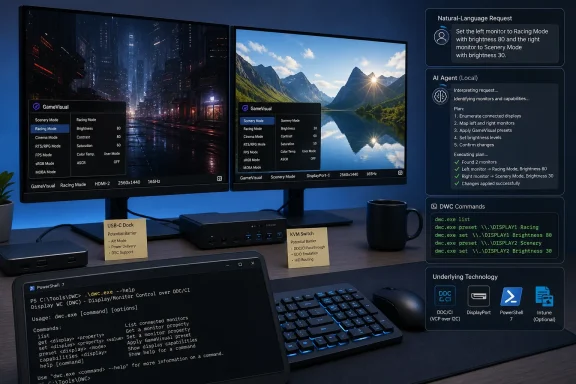 The AI agent is a wrapper around a local
 dwc.exe command
ASUS’s public documentation identifies the Windows executable as dwc.exe. It supports commands to list connected monitors, inspect their model, serial number, firmware, and capabilities, retrieve a setting, change a setting, or invoke reset and raw VCP operations. The documented CLI reference currently covers version 0.1.0, while the Markdown agent skill identifies itself as version 1.0.1.The distinction matters because the AI agent has no special access to the monitor. It needs an agent that can load custom Markdown instructions and execute shell commands, plus the CLI installed locally and available through the Windows
PATH. ASUS does not name particular supported agents in its release; it defines compatibility by those capabilities instead.That puts the feature in reach of terminal-capable coding agents and local automation environments, but excludes the common interpretation of “AI assistant” as a browser chatbot or a voice assistant running without local command execution. A user cannot simply ask any AI service to dim the monitor. The service—or a local component it controls—must be able to execute
dwc.exe on that PC.ASUS also says the command-line tool requires an ASUS monitor with DDC/CI support enabled in its on-screen display menu. The monitor must be connected through a path that passes DDC/CI, such as a direct DisplayPort or HDMI connection. ASUS specifically warns that docks, adapters, KVM switches, and converters can block that control channel. For desk setups built around USB-C docks or hardware KVMs, that caveat may decide whether the headline feature works at all.
“One command” defaults to every detected ASUS monitor
The most consequential implementation detail is the CLI’s default target. ASUS documents that commands apply to all detected monitors by default unless the caller specifies a monitor ID.That makes requests like “set brightness to 50” potentially broader than they sound. On a desk with a pair of ASUS panels, the default behavior is to change both. The agent skill itself advises agents to list displays at the start of a session, use
get before set, prefer a monitor ID where the user has named a specific screen, and report the result after execution.Those are sound safeguards, but they are instructions for the AI agent, not enforcement built into the CLI. A well-configured agent should ask or infer which screen is meant; an agent that sends a bare command can update the entire attached ASUS fleet. That is manageable for brightness and blue-light filtering, but less welcome for input selection, OSD lock settings, gaming overlays, or display-mode changes in a multi-monitor workstation.
The command reference exposes more control than ASUS emphasizes in its release. In addition to image adjustments, it can change video input source, power-saving mode, audio volume, OSD language and timeout, monitor key locks, picture-in-picture settings, and Aura lighting on supported models. It can also start OLED pixel cleaning and alter OLED protection settings including outer dimming, global dimming, logo detection, taskbar detection, and boundary detection.
ASUS labels
reset-all, reset-color, reset-mode, and low-level setvcp writes as higher-risk operations. Its skill tells the AI agent to seek confirmation before performing those actions. Administrators should treat that as a minimum bar: a local AI tool with shell access can change persistent monitor state, so its tool permissions should be narrower than its conversational interface suggests.
The calendar and refresh-rate examples are not documented CLI features
ASUS’s release describes an agent checking a user’s calendar and automatically switching between morning and evening profiles. It also says the agent can use past habits to recommend a higher refresh rate, FPS mode, OLED Anti-Flicker, and preferred brightness for competitive gaming.The public CLI and skill documentation does not describe a calendar connector, usage-history database, profile scheduler, or a native monitor-profile feature. It documents a direct get/set model: discover monitors, query supported properties, and write numerical values or mode selections. Calendar-aware automation can certainly be assembled by an external AI agent that already has access to a calendar and task scheduler, but ASUS has not documented it as a function provided by DisplayWidget Center or the CLI itself.
The refresh-rate example deserves the same qualification. ASUS’s published property list includes
FrameRateBoost, described as a dual-mode frame-rate boost switch, and it includes an FPS setting for the monitor’s GamePlus frame-rate counter. It does not document a command to select a specific Windows display refresh rate such as 240Hz, 360Hz, or 480Hz. An agent might be able to recommend a refresh-rate change, or separately alter Windows display settings if it has other tools, but that capability is not established by ASUS Display Control CLI’s own command reference.This is the dividing line between an attractive demonstration and a deployable workflow. The documented utility can reliably control the settings its target monitor exposes. The calendar, behavior learning, and wider system-control pieces depend on whichever agent is installed around it—and on the permissions that agent has been granted.
Intune can deploy the tool, but it does not make monitors centrally managed
ASUS positions the CLI as an enterprise option and explicitly cites Microsoft Intune, Microsoft Configuration Manager, PowerShell Remoting, and SSH as deployment mechanisms. That is useful for a standardized setup: IT can distribute the binary, run a script at startup, audit display information, or set a baseline brightness, input, or OSD configuration on a workstation with a directly connected compatible ASUS monitor.But ASUS’s own repository also states that the CLI provides local monitor control on individual workstations only. Intune can distribute and execute the local utility; it does not turn DisplayWidget Center into a cloud-managed display console with a central inventory, policy engine, compliance state, or real-time remote-control dashboard.
For IT teams, that means the effective management model remains scripts and endpoint execution. Scripts should first enumerate monitors and query capabilities, because property support varies by monitor model, firmware, active input, and connection path. ASUS explicitly recommends validating settings on every monitor model before broad deployment, logging command output, and using specific monitor IDs rather than the all-monitor default when targeting known hardware.
The vendor’s documentation also exposes useful inventory data—model, serial number, firmware, connected-monitor IDs, and total usage time—but it stops short of describing a supported reporting pipeline back into Intune or another asset-management platform. Organizations will need to build that collection and normalization work themselves.
DisplayWidget Center gains other controls, but compatibility remains opaque
Beyond the CLI, ASUS says DisplayWidget Center now includes AI Visual for selected ROG and TUF Gaming monitors, a text-and-voice AI Assistant, updated App Tweaker application profiles, OLED Care controls, GamePlus launching, keyboard and controller OSD control, ColorSync for matching displays, MacBook brightness-key control, ZenScreen auto-rotation, and support for ROG XREAL R1 Gaming AR Glasses and the ProArt CaliContrO MCA02 calibrator.Many of those functions existed in some form before this announcement. The new element is the common control plane: DisplayWidget Center’s consumer interface on one side, and a separately distributed CLI plus agent skill on the other.
ASUS’s support materials repeatedly say functionality varies by product model, firmware, display mode, and physical connection, yet the announcement does not supply a definitive model-by-model compatibility list for AI agent control. Its general DisplayWidget Center page says the application supports selected models, while its Windows support guide still lists Windows 10 64-bit and Windows 11 64-bit for the application. The newer product page frames DisplayWidget Center as a Windows 11-or-later download, while the CLI repository lists Windows 10/11 requirements. ASUS therefore appears to support more Windows versions through the CLI than through the refreshed DisplayWidget Center messaging, but customers should verify the utility on their monitor’s own support page before assuming feature parity.
The immediate payoff is real for users willing to work in a terminal or deploy scripts: ASUS has made monitor settings inspectable and controllable in a documented local interface rather than trapping them behind physical buttons and a vendor GUI. The immediate limitation is equally clear: the AI layer does not eliminate the need to understand monitor compatibility, DDC/CI, connection topology, and command scope—especially when the default command target is every compatible ASUS display attached to the PC.
References
- Primary source: ASUS Pressroom
Published: 2026-08-06T16:33:01+00:00
Loading…
press.asus.com - Related coverage: asus.com
Loading…
www.asus.com - Related coverage: asus.com
Loading…
www.asus.com - Related coverage: dlcdnets.asus.com
Loading…
dlcdnets.asus.com - Related coverage: press.asus.com
Loading…
press.asus.com - Related coverage: servers.asus.com
Loading…
servers.asus.com - Related coverage: rog.asus.com.cn
Loading…
rog.asus.com.cn - Related coverage: rog-forum.asus.com
Loading…
rog-forum.asus.com - Related coverage: dlcdnets.asus.com
Loading…
dlcdnets.asus.com - Related coverage: techcommunity.microsoft.com
Loading…
techcommunity.microsoft.com - Related coverage: asus-dispslay-control-service.software.informer.com
Loading…
asus-dispslay-control-service.software.informer.com - Related coverage: dlcdnet.asus.com
Loading…
dlcdnet.asus.com