
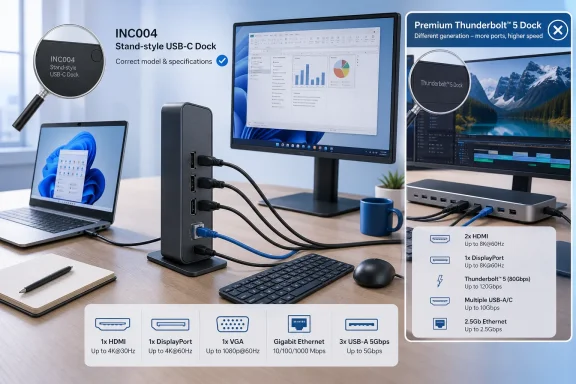
That is more than a stray technical typo. BGR positions the Belkin as a plug-and-play 11-port dock for remote workers and students, capable of 4K at 60Hz. Belkin’s own product page for the stand-style INC004 instead specifies HDMI 1.4, DisplayPort 1.2, VGA, Gigabit Ethernet, and a maximum of 5Gbps between the host and peripherals. Its single-display HDMI or DisplayPort mode tops out at 4K at 30Hz. On a Windows PC using Multi-Stream Transport, it can drive multiple displays, but the available resolution and refresh-rate combinations are substantially more limited than BGR’s description implies.
The apparent source of the problem is that BGR has combined traits from different Belkin dock generations. Belkin’s newer 11-in-1 Pro GaN Dock does have dual HDMI and faster USB connectivity, but it is a different product with a different port layout and does not double as the same laptop stand. The article’s price, image, and stand description point toward the older INC004; its performance claims do not.
For Windows users who buy docks to eliminate desk clutter, the difference between 4K30 and 4K60 is visible every working day. A 4K30 display is usable for static office work, but scrolling, cursor movement, video calls, and animation feel noticeably less fluid than at 60Hz. Likewise, 5Gbps is plenty for keyboards, mice, Ethernet, card readers, and ordinary external drives, but it is not the same proposition as 10Gbps when a fast SSD is attached.
BGR disclosed that it may receive commissions on purchases made through its links. Its methodology says it selected docks with at least a four-star Amazon rating from 200 or more customers, expert-review support, or both. That is a reasonable starting screen for a shopping list, but it is not a substitute for checking the exact model number, host-port requirements, monitor configuration, and included power supply. The Belkin mismatch shows why those details cannot be treated as interchangeable across a brand’s similarly named products.
 The list spans three very different classes of dock
The nine products in BGR’s roundup are not comparable in the way the headline suggests. They range from inexpensive USB-C adapters that rely on a laptop’s DisplayPort Alt Mode capabilities to Thunderbolt 4 and Thunderbolt 5 desktop docks with dedicated power supplies, faster PCIe tunneling, and far more bandwidth for storage and displays.
The list includes the Anker Nano 13-in-1 Laptop Docking Station, Sonnet Echo 13 Thunderbolt 5 SSD Dock, Belkin USB-C Docking Station, Baseus Docking Station, Hiearcool USB-C Docking Station, Anker Prime TB5 Docking Station, Plugable Thunderbolt 4 Dock, Ugreen Maxidok Thunderbolt 5 Docking Station, and CalDigit TS4 Thunderbolt 4 Dock.
Several are solid products on their own terms. The Sonnet Echo 13 is a high-end Thunderbolt 5 dock with integrated NVMe storage options and a 2.5Gb Ethernet port. The CalDigit TS4 remains one of the more capable Thunderbolt 4 docks for users who need an unusually broad mix of USB-A, USB-C, card-reader, audio, and network connectivity. Anker’s Nano design also has an unusually practical feature: a removable six-port travel hub that can be detached without dismantling the entire desk setup.
But a $57 USB-C dock, a $150 USB-C dock, a $380 Thunderbolt 4 dock, and an $830 Thunderbolt 5 SSD dock answer entirely different problems. Calling all of them stations that “just work” leaves out the deciding factor: whether the laptop can expose the display, charging, and data features that the dock expects.
Tom’s Hardware’s current docking-station testing makes the divide plain. Its current recommendations separate USB-C, Thunderbolt 4, and Thunderbolt 5 models because the host connection limits what the dock can actually deliver. A USB-C dock can be a smart buy when the job is one external display, wired Ethernet, input devices, and basic storage. It cannot gain Thunderbolt-class bandwidth merely because it uses the same USB-C-shaped connector.
The USB-C connector does not guarantee monitor support
The most important purchase check is not port count. It is the specification of the laptop’s USB-C port.
For the Anker Nano 13-in-1 dock to provide its advertised display capability, Anker says the host USB-C port must support DisplayPort Alt Mode for video output and USB Power Delivery for charging. The dock’s USB-C and USB-A data ports do not output video, despite the temptation to treat every USB-C connector as interchangeable. Anker also states that the unit is not compatible with Linux devices, an exclusion BGR does not mention while describing broad Windows and macOS operation.
On Windows, the number of extended displays is determined by the laptop’s GPU and its USB-C implementation as well as the dock. A dock may have two HDMI outputs and a DisplayPort connector, but the host computer might support only one or two independent external displays. The operating system can recognize all attached monitors while still forcing duplicate screens, limiting refresh rates, or disabling one output.
The constraints are even sharper for Mac owners, which makes general “Windows and macOS compatible” language incomplete. Anker’s own Nano dock guidance says macOS mirrors its external monitor outputs because of macOS limitations. Belkin similarly specifies that its 11-in-1 stand dock uses MST for extended Windows displays, while macOS uses SST and mirrors additional screens. Those outcomes are rooted in the host platform, not a defect in the dock, but they are the difference between a productive dual-monitor desk and an expensive mirror-mode adapter.
For Windows buyers, the practical check is simple: inspect the laptop maker’s specifications for DisplayPort Alt Mode, USB4, Thunderbolt 4, or Thunderbolt 5; then confirm the maximum number and resolution of external displays supported by that exact processor and GPU. Do this before comparing dock port counts.
Thunderbolt 5 offers headroom, not automatic compatibility
BGR’s premium selections correctly point to what Thunderbolt 5 can do: up to 80Gbps bidirectional bandwidth, with a 120Gbps Bandwidth Boost mode available for display-heavy use. That capacity is meaningful for 8K displays, multiple high-refresh 4K monitors, very fast external SSDs, 10Gb networking, and high-end content-creation workstations.
It is not a reason for most Windows laptop owners to spend $350 to $830 on a Thunderbolt 5 dock.
PCWorld’s testing and buying guidance reaches a more restrained conclusion: premium Thunderbolt 5 docks can be overkill for a Windows PC, particularly when the machine itself has Thunderbolt 4, basic USB4, or standard USB-C. Windows Central similarly identifies the CalDigit TS5 Plus as a top high-end Windows pick but calls out its cost and feature set as excessive for many users.
The Anker Prime TB5 Dock shows why the compatibility line needs to be explicit. Intel describes Thunderbolt 5 as broadly compatible with earlier Thunderbolt and USB generations. Yet Anker’s own support documentation says its Prime Thunderbolt 5 dock does not support Thunderbolt 3 laptops; it supports Thunderbolt 4, Thunderbolt 5, and USB4 hosts. That vendor-specific exception is what matters at checkout.
A user with a 2019 Thunderbolt 3 business laptop should therefore not buy the Anker Prime TB5 on the assumption that the connector shape and a general backward-compatibility promise will carry the day. The dock’s manufacturer says otherwise. BGR says the Anker Prime is for Thunderbolt 5 laptops, so it does not directly make a contradictory compatibility promise, but it fails to flag the Thunderbolt 3 exclusion in a roundup framed around hassle-free operation.
The Sonnet Echo 13 needs a similar reading. Sonnet’s current Windows compatibility documentation lists the Echo 13 Thunderbolt 5 SSD Dock for Windows 11 25H2 and later. BGR’s statement that it is compatible with “most Mac, Windows, and Chromebook computers” is too broad to function as deployment advice. A buyer should verify the host interface, operating-system release, display requirements, and whether the lack of native HDMI or DisplayPort means additional active adapters are needed.
Amazon ratings are weak evidence for workstation reliability
BGR leans heavily on marketplace ratings throughout the list: 4.4 stars for the Anker Nano, 4.3 stars for the Hiearcool, 4.2 stars for the Anker Prime TB5, and similar scores for the other models. Ratings can help reveal recurring hardware failures, cable problems, heat complaints, and missing accessories. They cannot establish that a dock will work with a specific Windows laptop, monitor chain, security policy, and power load.
A four-star review may come from someone using a single 1080p monitor and a wireless mouse. It says little about a sysadmin attaching two 4K60 panels, a 2.5GbE network, an external NVMe drive, a smart-card reader, and a 100W USB-C laptop charger. Under that load, the limits are bandwidth allocation, display protocols, firmware, power-delivery negotiation, and driver support.
Independent testing also shows that stable docks are not confined to the most expensive models. PCWorld calls the StarTech Thunderbolt 4/USB4 Quad Display Dock “absolutely stable” and describes Ugreen’s Revodok Pro 13-in-1 as completely stable, while noting drawbacks such as short cables, power-supply requirements, driver dependence, or thermal behavior on other models. Those are the details that turn a product recommendation into operational guidance.
The better buying order is: start with the laptop’s host-port specification, then the monitor inputs and required resolution, then laptop charging wattage, then Ethernet and storage needs. Only after those checks should a buyer choose the dock with the right ports.
BGR’s list is useful as a catalog of current candidates, especially for readers looking at the Sonnet Echo 13, Anker Prime TB5, Ugreen Maxidok, and CalDigit TS4. But its Belkin entry demonstrates that the headline promise is too generous. A docking station only “just works” when its exact model number, host interface, display mode, power budget, and operating-system support have been verified together.
