
For Windows users, that distinction matters. Microsoft is steadily repositioning Excel from a self-contained spreadsheet application into a front end for AI-assisted analysis across files, business systems, reports, and organizational brand assets. The potential is significant: a financial analyst could move from a Power BI report to a workbook analysis with less exporting and manual cleanup, while a business user could make a presentable, on-brand workbook without mastering every corner of Excel’s formatting controls.
The trade-off is equally clear. The usefulness of these features depends on Copilot licensing, tenant configuration, data permissions, connectors, cloud access, and—most importantly—the user’s willingness to validate AI output before acting on it. Microsoft’s own Copilot in Excel guidance explicitly warns that generated insights, formulas, and tables can be inaccurate and should be reviewed, edited, and verified. Microsoft Support makes that limitation unambiguous.
 Overview: An Excel Update Centered on Copilot Rather Than Calculation
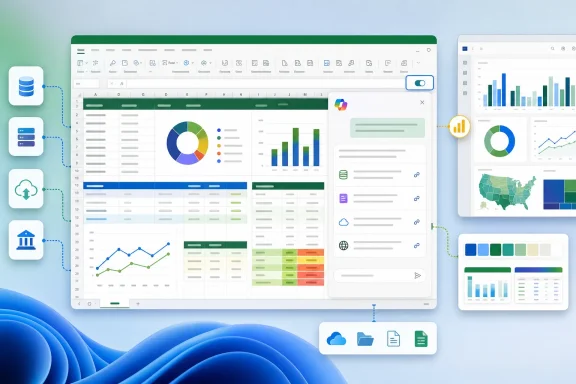
Excel updates typically invite enthusiasts to look for fresh worksheet functions, performance tuning, Power Query upgrades, PivotTable improvements, or Windows-specific polish. This month’s list takes a different path. According to the monthly feature roundup, Microsoft’s additions are overwhelmingly about expanding where Copilot can get information, how it explains its answers, and how it can change the presentation of a workbook.
That is not a minor shift in product direction. Excel has long been a tool defined by explicitness: users build formulas, point to cells, inspect calculations, and trace errors. AI systems, by contrast, respond to natural-language prompts and can conceal an enormous amount of decision-making behind a conversational answer. The best part of Microsoft’s new approach is that the company is beginning to build more verification mechanisms directly into that experience.
The major additions reported for the month include:
- Inline citations in Copilot in Excel, intended to make AI responses easier to validate.
- Synced Copilot connector support, bringing permitted organizational content into Excel-backed analysis.
- Power BI report grounding, allowing users to attach a report through the work content selector and analyze it with Copilot.
@brand-kit, a skill designed to apply approved company branding to workbook elements.@theme-design, a skill that applies a coordinated Excel design treatment to data, charts, and layouts.- A revised AutoSave requirement, allowing Copilot use without AutoSave being mandatory on Windows and Mac, while continuing to encourage users to enable it. Neowin
Individually, each feature may sound incremental. Together, they make Copilot in Excel feel less like a formula suggestion tool and more like a governed analysis layer sitting above Microsoft 365 data.
Inline Citations Are the Most Important Change
The headline feature is inline citations for Copilot in Excel. Microsoft has reportedly added a richer citation experience so users can see and validate the sources behind Copilot-generated responses. The Excel monthly roundup describes this as an enhancement to both source attribution and the general experience of reviewing AI answers.
That sounds like a usability upgrade, but it also addresses the central weakness of generative AI in a spreadsheet environment: confidence is not evidence. A fluent explanation of a trend, an apparently sensible formula, or a neatly summarized set of business metrics can all be wrong in ways that are difficult to spot at a glance.
Why citations matter in an analytical workbook
Excel is frequently used for work where an incorrect conclusion has consequences:
- Budget forecasts and cash-flow planning
- Sales performance reviews
- Headcount models
- Inventory decisions
- Customer churn analysis
- Project reporting
- Regulatory, operational, and audit support
In these scenarios, users should never have to treat an AI answer as a final conclusion solely because it is elegantly written. A citation provides a path back to the underlying file, report, or connected source. That does not prove that Copilot interpreted the source correctly, but it gives the user the material needed to test the interpretation.
Microsoft’s broader Copilot documentation explains that inline citations can be inspected directly, with users able to hover over a citation, view the referenced file in a side pane, and open the item in its associated application. Microsoft’s source-review guidance describes these interactions in Copilot Chat, and the same design principle is particularly valuable when brought into Excel.
A step toward auditable AI-assisted analysis
For WindowsForum readers, the practical value is not that citations make Copilot “trustworthy” by default. They do not. The value is that citations make Copilot’s output more auditable.
A useful workflow now looks like this:
- Ask Copilot to identify a trend, anomaly, or comparison.
- Read the answer as an analytical draft, not as a verdict.
- Open the inline sources.
- Confirm that the cited information actually supports the claim.
- Check the underlying cells, report filters, date ranges, and assumptions.
- Preserve the relevant logic in formulas, notes, or documentation if the workbook will be shared.
That process is slower than accepting an AI response uncritically, but it is far faster than rebuilding every investigation from scratch. This is where Copilot can genuinely improve productivity: not by removing professional judgment, but by accelerating the route to material that still requires it.
Citations do not solve every accuracy problem
There is an important caveat. A citation can show where Copilot looked without proving that it selected the correct data, applied the correct filter, understood the intended time period, or made a valid inference.
For example, a response about “quarterly revenue” could cite the right report but still include a prior quarter, use booked revenue instead of recognized revenue, or conflate a regional subtotal with a worldwide figure. The citation is a safeguard against opacity, not a substitute for spreadsheet literacy.
Microsoft itself advises users to review Copilot output because the service may generate inaccurate or inappropriate content, including formulas, insights, and illustrative tables. Microsoft Support’s Copilot in Excel FAQ is refreshingly direct on that point. Inline citations improve the ability to review; they do not eliminate the need.
Copilot Connectors Bring External Work Data Into the Excel Conversation
The next major change is support for synced Copilot connectors in Excel. As described in the July feature report, users can pull connected organizational content into Excel and ask Copilot to derive insights from it using natural-language prompts.
This is potentially transformative for knowledge workers whose data is scattered across systems. The reality in many organizations is that the figures live in Excel, but the explanations live elsewhere: customer tickets, product documentation, CRM records, wiki pages, project systems, SharePoint folders, and meeting notes.
From static spreadsheet to connected analysis workspace
Microsoft describes Copilot connectors as a way to bring content from external systems—including knowledge bases, ticketing platforms, wikis, file stores, and CRM tools—into Microsoft 365 experiences. Microsoft’s connector overview says users can find relevant material, summarize it, and receive answers based on connected systems.
The value in Excel is clear. Instead of manually searching a support system for customer complaints, copying the results into a worksheet, and then sorting or summarizing them, a user could ask Copilot to locate the relevant material and organize a usable analytical starting point.
Potential scenarios include:
- Summarizing recurring customer issues alongside a sales or renewal workbook.
- Pulling project status details into a portfolio spreadsheet.
- Comparing CRM opportunities against pipeline assumptions.
- Finding policy or operational documentation that explains unusual metrics.
- Creating a categorized table from content stored outside Excel.
Microsoft’s support material also notes that some connected experiences can cite external items, giving users a route back to the original information. The connector documentation specifically emphasizes source citations as part of the connected-content experience.
Permissions remain the key control
The reassuring part of the connector model is that Microsoft says users can only view connected content they are already allowed to access, while administrators determine which connectors are enabled for the organization. Microsoft Support also states that connector-backed experiences should respect permissions from the underlying source system.
That is the expected model, but IT administrators should still treat connector rollout as a governance project rather than a simple productivity toggle. A connector can make data easier to discover and combine, which is the point—but broader discoverability can expose poor permissions hygiene that was previously hidden by fragmented systems.
There are several questions organizations should answer before enabling connectors widely:
- Which systems contain confidential customer, employee, legal, or financial data?
- Are permissions in those systems current and regularly reviewed?
- Who approves a connector for company-wide use?
- Can users distinguish between synced content and real-time connector content?
- Are citation links retained when an Excel workbook is shared?
- What happens when a user’s access to a connected source changes?
- Are there retention, eDiscovery, or data-residency implications?
Microsoft advises users to follow organizational guidance and consult administrators when they are unsure whether a connector is appropriate for their data. Its connector guidance also notes that synced sources may not be immediately indexed, an operational detail that matters when someone expects the newest information to appear in an analysis.
Synced and federated connections are not interchangeable
The terminology is easy to blur, but it is worth separating synced connectors from federated connectors. Synced connectors index content into Microsoft 365 search and Copilot experiences, while federated connectors retrieve information from external services in real time without importing or storing it in the workbook.
Microsoft’s documentation for editing with Copilot in Excel says federated connectors use the user’s credentials, require explicit consent before data is sent to an external service, and only access information the user is allowed to view. Microsoft Support lists examples including Canva, Google services, HubSpot, Intercom, Linear, Notion, and financial-data providers.
For users, the difference may seem academic. For security teams and data owners, it is not. Whether data is indexed, synchronized, queried live, or routed across a third-party service has direct implications for governance and compliance.
Power BI Grounding Could Reduce Reporting Friction
Microsoft has also added a Power BI-oriented workflow: users can attach a Power BI report from the work content selector and ask Copilot in Excel to analyze it, subject to the same account permissions. The monthly roundup presents this as a way to ground Copilot responses in a report rather than relying on an unanchored prompt.
This is one of the more strategically coherent additions in the release. Power BI and Excel have always occupied adjacent but different roles in the Microsoft data stack. Power BI is generally where centrally governed reporting, semantic models, dashboards, and visual distribution reside. Excel is where users explore, model, annotate, reshape, and communicate information in a more flexible form.
Analysis should begin with the governed report
A Power BI-connected Copilot workflow can help bridge the distance between those roles. Rather than exporting a report, guessing which data is current, and manually rebuilding tables in Excel, a user can begin with a known report as the analytical context.
The potential benefits include:
- Less manual copying between reporting tools and worksheets.
- A better chance that analysts begin with approved business definitions.
- Faster generation of follow-up questions and comparisons.
- Easier use of natural language for people who know the business question but not every Excel feature.
- More context for Copilot when explaining numbers or surfacing patterns.
The key phrase is better chance, not certainty. A Power BI report can be carefully governed, but it still has filters, refresh schedules, security rules, data-model assumptions, and visual design choices that affect interpretation. Attaching the report gives Copilot a more meaningful starting point; it does not remove the user’s obligation to verify the analysis.
Permission inheritance is essential—but not the whole story
The reported implementation preserves the permissions associated with the user’s account. Neowin’s coverage says access is governed by the same permissions already applied to that user.
That is a sensible baseline. It should prevent a user from getting data through Copilot that they could not otherwise access in Power BI. Yet administrators should still consider downstream handling. Once insights are written into an Excel workbook, copied into a note, or shared through a different channel, the original report’s security boundaries may not travel with every derivative artifact.
This is not an argument against the feature. It is an argument for recognizing that data access and data distribution are related but separate governance problems.
@brand-kit and @theme-design Target a Familiar Excel Weakness
For many organizations, the least controversial additions may be the new formatting skills: @brand-kit and @theme-design. These are designed to help users turn functional but unattractive spreadsheets into workbooks that are more consistent, readable, and aligned with a company’s visual standards.
Microsoft’s own support documentation says the @brandkit skill can apply organizational color palettes, typography, header appearance, logos, and other brand guidelines to workbook content such as charts and tables. Microsoft’s brandkit documentation explains that it can reference a brand kit maintained by an organization’s brand manager.
Brand consistency without manual formatting archaeology
Anyone who has inherited a departmental workbook understands the appeal. Excel files often contain a patchwork of font choices, improvised chart colors, inconsistent headers, and formatting copied across years of revisions. A workbook can be analytically correct while still being difficult to scan or unsuitable for leadership reporting.
With @brand-kit, a user could ask Copilot to apply company-approved visual standards rather than hunting for old templates or reconstructing design conventions from a prior presentation. Microsoft says the skill is enabled by default and available in the Formatting category of Copilot’s skills management interface. Microsoft Support
The benefit is more than cosmetic. Consistent formatting can improve readability:
- Shared colors can distinguish inputs, outputs, assumptions, and warnings.
- Standard typography can make large workbooks easier to navigate.
- Consistent chart styling can reduce visual clutter.
- Approved logo and layout usage can reduce accidental off-brand reporting.
- Reusable conventions can make handoffs between teams less painful.
@theme-design aims for coherent presentation
The companion @theme-design skill focuses less on an organization’s formal brand rules and more on applying a coordinated visual theme within a workbook. Microsoft says it evaluates the workbook’s structure and content to make styling decisions for charts, tables, and cells, including borders, color hierarchy, and contrast. Microsoft’s skills overview states that the skill is automatically enabled and can be invoked directly with @theme-design.
That matters because Excel presentation is often a design problem disguised as a data problem. A chart can be technically valid but fail because the key series is not visually distinct, the colors lack contrast, the labels are unreadable, or the page layout obscures the main takeaway.
A well-applied theme can make a workbook easier to use. But users should inspect the results closely. Automated formatting can also overreach, especially in heavily structured financial models where colors and cell styles already have precise meanings.
The risks of AI-driven formatting
There is a practical risk in allowing an AI system to “improve” a workbook’s design: formatting in Excel is often semantic. A green fill might signal an editable input. A gray row might denote a subtotal. A red font might be a policy-driven exception rather than a generic warning.
The safest approach is to test @brand-kit and @theme-design on a copy of a workbook or on a limited sheet range before using them on operational models. Microsoft notes that users can manage skills, turning them on or off; even a disabled skill can still be directly invoked with an @mention. Microsoft’s Copilot skills guide That flexibility is welcome, but it also means organizations should teach users which skills are appropriate for which workbook classes.
AutoSave Is No Longer a Hard Copilot Gate—With Important Caveats
The final major change may be the one longtime Excel desktop users appreciate most: Copilot on Windows and Mac reportedly no longer requires AutoSave to be enabled. Microsoft will still encourage users to turn AutoSave on, but it will no longer be a mandatory step before using Copilot. The July Excel update report describes this as a relaxation of the previous implementation.
That sounds small, but the AutoSave requirement has been a source of friction for people who work with local files, controlled templates, sensitive models, or workflows where every edit should not immediately synchronize to cloud storage.
Why this change is significant for desktop Excel
AutoSave is deeply useful for cloud-hosted collaboration. Microsoft explains that it automatically saves changes to files stored in OneDrive, OneDrive for Business, or SharePoint Online, allowing co-authors to see updates quickly. Microsoft’s Excel co-authoring guidance emphasizes its role in real-time teamwork.
But Excel power users do not always want that behavior. They may be testing a scenario, examining confidential inputs, preparing a versioned deliverable, or changing a model where an accidental formula rewrite could affect collaborators instantly.
Microsoft’s newer Copilot tips page now says that Copilot in Excel works in workbooks with AutoSave either enabled or disabled, and specifically suggests disabling AutoSave when users want to experiment with Copilot-generated changes without automatically saving them. Microsoft Support That is a sensible evolution in product behavior.
Documentation will need to catch up
The transition is not yet reflected consistently across Microsoft’s support ecosystem. Several older or differently maintained pages still state that Copilot in Excel requires AutoSave, including the FAQ and guidance about formatting data for Copilot. Microsoft’s FAQ and its formatting guide retain the previous requirement.
That inconsistency should not surprise Microsoft 365 administrators, who are used to features rolling out faster than support pages are harmonized. Still, it is worth noting because users may encounter contradictory instructions in the product, online documentation, and workplace training materials.
The practical takeaway is straightforward: if Copilot is available in a workbook with AutoSave disabled, users can now work without being forced into automatic cloud synchronization. They should still understand how version history, co-authoring, backup practices, and file location affect their particular workflow.
What Windows Users Should Take Away From This Release
July’s Excel update is not about making spreadsheet veterans faster at XLOOKUP, dynamic arrays, Power Query, or VBA. It is about widening the aperture of Copilot in Excel. The tool can now be more connected to corporate knowledge, better grounded in reporting, more transparent about sources, and more capable of applying visual standards automatically.
The strongest addition is unquestionably inline citations. Excel users need to know not only what Copilot says, but what evidence it used. Citations make the feature more practical for serious work because they encourage a verification workflow rather than a blind-trust workflow.
The Power BI and connector integrations are also promising, particularly for companies already invested in Microsoft 365. They could reduce repetitive exporting, searching, and reshaping tasks that consume too much time in everyday reporting. But these are enterprise features first: their quality depends on permission hygiene, connector governance, data freshness, licensing, and clear user education.
Meanwhile, @brand-kit and @theme-design may quietly become the most visible changes. A workbook that is easier to read and consistently formatted is more likely to communicate its findings effectively. Yet users should protect the semantic meaning of established cell styles and review automated changes before sharing a workbook broadly.
The AutoSave change completes the picture. By allowing Copilot work without forcing automatic saving, Microsoft has removed a meaningful desktop productivity barrier. It acknowledges that AI experimentation and cloud synchronization do not always belong in the same moment.
Excel’s July feature set therefore delivers a more capable Copilot, but not a more autonomous one. The best results will come from users who treat it as a fast research, analysis, and formatting partner—one that can surface information and accelerate workbook work, but still needs to show its sources and earn every conclusion.
