

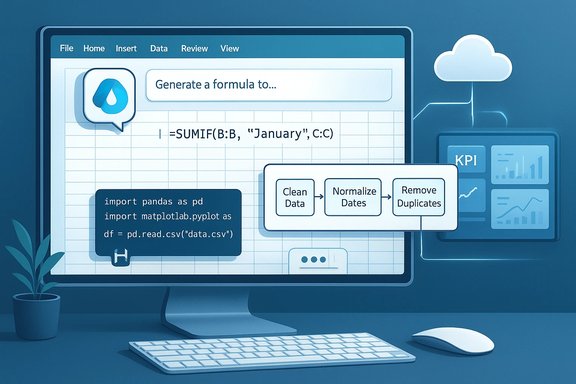
Microsoft’s Copilot is quietly reshaping what Excel can do for everyday users — turning hours of tedium into minutes of work by combining natural‑language commands, automated cleanup pipelines, and cloud‑hosted Python analysis into a single, conversational experience. What started as a sidebar chat assistant has evolved into a multi‑layered productivity engine: on‑grid formula generation and previews, guided Power Query transformations, Agent Mode for multi‑step workbook automation, and deep Python integration that runs in Microsoft’s cloud. This feature set doesn’t replace spreadsheet know‑how; it changes how that know‑how is obtained, taught, and scaled across teams and small businesses. t.com](])
Background
Copilot’s role in Excel is straightforward in goal and complex in execution: let users describe what they want in plain English and have the system produce auditable Excel artifacts — formulas, PivotTables, charts, Power Query steps, and even Python scripts — that can be inspected, modified, and versioned like any other workbook content. This capability depends on three pillars: conversational natural language processing, cloud orchestration for compute and connectivity, and tight l’s native features so outcomes are editable, not opaque. Two practical constraints shape how and where Copilot works today. First, many of the newer Copilot features require workbooks to be saved in the cloud (OneDrive or SharePoint) with AutoSave on so Copilot can access version history and perform live edits. Second, full access to features such as import from PDFs, Agent Mode, and higher‑compute Python execution is gated by Miccrosoft 365 Copilot, Microsoft 365 Premium, or specific Personal/Family plans in some early programs. Users should check entitlement before expecting universal availability.
What Copilot actually does in Excel
Natural‑language formula generation and on‑grid previews
One of the most instantly useful features for beginners is Copilot’s ability to translate plain English into working formulas and show a preview directly in the grid. Instead of hunting for the right nested function, you type what you want — for example, “calculate quarter‑over‑quarter growth for the Sales column” — and Copilot proposes a formula, explains each token in plain language, and previews results for validation before insertion. This preview‑and‑explain pattern reduces syntax friction and helps users learn by inspection.
Why it matters: this feature closes the gap for casual users who know the business question but lack formula fluency, and it reduces common errors such as range misalignment, incorrect absolute references, or off‑by‑one mistakes.
Guided data cleaning and Power Query assistance
Data cleaning — standardizing dates, normalizing currency symbols, splitting concatenated fields, and removing duplicates — is often the bulk of spreadsheet work. Copilot shortens this phase by sugn sequences, generating Power Query scripts you can preview and run, and creating helper columns or table conversions automatically. The assistant can flag anomalies and recommend follow‑up checks so you retain control while benefiting from automation.
Practical gains include:
- Faster onboarding of messy CSVs or exported reports into structured Excel Tables.
- Fewer manual find‑and‑replace mistakes and less rule‑drift across collaborators.
- A documented series of transformation steps (Power Query) that can be refreshed later.
Auto visualizations and dashboard assembly
From single charts to one‑page dashboards, Copilot can assemble visualizations from your prompts. Ask for “monthly sales trend, top 5 products, and a Kwill create sheets, place recommended visuals, label axes, and format summaries for presentation. The visuals are editable Excel artifacts, not static images, which preserves auditability and subsequent refinement.
Agent Mode: orchestrating multi‑step workbook tasks
Agent Mode elevates Copilot from helper to planner-and-executor. It accepts a high‑level objective (for example, “build a monthly close report with YoY comparisons and charts”), generates a step‑by‑step plan, asks clarifying questions if needed, and executes the plan by creating sheets, formulas, pivots, and visuals. Agent Mode is designed to be auditable: all edits become normal workbook objects and can be reviewed or reverted via version history. The feature is currently available in preview channels (Frontier/Insider/Beta) and has geographic and licensing constraints in its rollout.
Python in Excel: what Copilot unlocks
Integrating Python into Excel is the most consequential technical leap in recent years. Instead of exporting to a separate environment, analysts can use Python libraries (Pandas, Matplotlib, Seaborn, etc. directly from the spreadsheet grid; Copilot will generate the Python code when asked and insert it into cells or formulas that spill results back into the workbook. This becomes powerful for advanced statistical analysis, custom visualizations, cohort analysis, or any workflow where Excel formulas would be unwieldy. Key points about Python-in‑Excel with Copilot:
- Python runs in Microsoft’s cloud containers (no local Python install required), using a secure, curated distribution of libraries. Premium compute options are available for heavier workloads.
- Copilot generates and explains Python code from natural language prompts, helping non‑programmers perform advanced analyses.
- Availability vaeography; Microsoft documents supported languages and rollout windows.
This blend — conversational AI that can both create Python scripts and place their results into live spreadsheets — effectively democratizes a layer of data science that previously required switching tools and contexts.
Real‑world business scenarios
Copilot’s suite of capabilities maps to several practical business needs:
- Inventory optimization: Use Copilot to clean SKU data, identify seasonal demand via Python time‑series analysis, and create reorder visualizations automatically.
- Client and revenue segmentation: Ask Copilot to highlight top clients by revearts, and export a client list for targeted outreach.
- Report automation: Agent Mode can produce recurring month‑end reports — creating sheets, populating KPIs, and producing presentation‑ready dashboards that are still fully editable.
These scenarios show measurable time savings: manual data reshaping and charting that might take hours can be compressed into minutes with the right prompts and a cloud‑saved workbook.
Availability, licensing, and system notes (verified)
Several of the original primer’s claims are accurate but deserve verification and precision:
- Cloud‑saved workbooks: Many Copilot features require workbooks to be stored on OneDrive or SharePoint with AutoSave enabled. This is not a cosmetic expectation — it’s a technical prerequisite for live edits, versioning, and certain import/refresh actions.
- Licensing: Access depends on the Microsoft 365 plan and Copilot entitlements. Agent Mode and some Frontier features require a qualifying Copilot license or Microsoft 365 Premiuy be offered initially through preview programs. Microsoft’s support pages and product blogs confirm these constraints.
- Python compute: Python formulas run in Microsoft’s cloud. There are tiers (standard vs premium compute) and admin/tenant controls for enterprise customers. This matters for performance and governance.
Cross‑checking these claims against both Microsoft’s official documentation and independent coverage reveals consistent guidance: Copilot is powerful, but gated by cloud storage, licensing, and staged rollouts. Independent outlets have corroborated these limits while also documenting early access behaviors and UX changes.
Strengths: where Copilot shines
- Productivity lift: Copilot removes repetitive work (cleaning, formatting, chart assembly) and handles boilerplate analysis reliably, which raises baseline productivity for teams and individuals.
- Lower learning curve: Natural‑language formula generation and explainable previews act as a practical tutor — users learn correct formula patterns by example rather than r Democratized analytics: Python in Excel plus Copilot’s code generation opens machine‑learning and advanced analytics to users who previously avoided coding. The integration keeps results in a familiar interface.
- Auditable outputs: Because Copilot creates Excel artifacts (sheets, formulas, Power Query steps), results are transparent and reversible, addressing a major criticism of black‑box AI tools. Agent Mode’s step plan and version history make this explicit.
Risks, limitations, and governance
No technology is risk‑free, and Copilot introduces specific concerns organizations must manage.
- Data privacy and leakage risk: Copilot works best with cloud‑stored files, and some flows allow web search or cross‑file ingestion. Tenants must configure connectors, and admins should understand what data can be surfaced to the assistant. Microsoft documents controls, but governance planning is essential. Be conservative with sensitive data in exploratory chats.
- Hallucination and inference errors: Copilot can infer units or label meanings and sometimes makes incorrect assumptions — for example, guessing currency or date semantics from ambiguous headers. Always validate analytic outputs and review generated steps.
- Licensing and roll‑out fragmentation: Features are rolling out in stages acr, Insider, web, desktop) and regions; not every user will see the same capabilities at the same time. Planning should accommodate this fragmentation for teams standardizing on Copilot workflows.
- Dependency risks: Heavy reliance on Copilot for formula generation without human oversight can erode foundational skills. Treat Copilot as an accelerant and teacher, not as a final authority. The community practice of extracting the suggested formula, reviewing, then reimplementing manually is a good habit.
- Cost & compute limits: Large Python workloads may consume premium compute or exhaust quotas. Organizations should monitor usage, provision compute where needed, and educate users on efficient analysis patterns.
rted checklist (for beginners and managers)
- Confirm licensing and enablement
- Verify that your Microsoft 365 tenant or personal plan includes Copilot entitlements or Microsoft 365 Premium. Speak to your admin for enterprise accounts.
- Move critical workbooks to OneDrive/SharePoint
- Turn on AutoSave and convert key ranges to Excel Tables for more reliable Copilot interactions.
- Start with read‑only previews
- Use the preview and explanation features for formulas and Power Query steps on a copy of the workbook until you trust the results.
- Try simple prompts, then iterate
- Good prompt pattern: define role → state the task → provide context → set the output format (bullets, chart, table). This mirrors Microsoft’s recommended “goal + context + output format” approach.
- Teach colleagues governance basics
- Document permitive fields excluded from Copilot chats, and rules for auditing Copilot changes. Use tenant controls to restrict web search or third‑party connectors where necessary.
- Monitor Python compute usage
- For heavy analyses, check premium compute quotas and consider scheduling or batching large jobs to manage costs and performance.
Prompting tips that actually work
- Be explicit: “Create a monthly sales dashboard for 2025 with line chart for revenue, bar chart for top 5 SKUs, and a KPI for total margin. Use the sheet named SalesData.” This avoids misinterpretation.
- Ask Copilot to explain its steps: “Show me the Power Query steps you’ll apply” — then review before applying.
- Incremental approach: Ask Copilot to insert helper columns rather than editing core data in place.
- Save and version often: Use version history to compare Copilot edits to your baseline.
These techniques reduce friction and increase reproducibility of outputs for auditors and partners.
What to watch for next
- Wider Agent Mode rollout: Microsoft is expanding Agent Mode out of Frontier previews into broader availability but with region and licensing caveats; its desktop parity with web is a next step to watch.
- Expanded Python capabilities: More libraries, faster premium compute, and enhanced localization are likely — Microsoft’s Python‑in‑Excel roadmap emphasizes cloud compute and security.
- Cross‑document ingestion maturity: Copilot’s ability to extract tables from PDFs, Word, and PowerPoint is improving, but refresh semantics and enterprise access controls will be areas of refinement.
Caution: several media pieces and community write‑ups report speculative pricing or pay‑per‑message cost structures; those claims are not consistently reflected in Microsoft’s documentation. Treat any unverified pricing detail with skepticism and confirm with Microsoft or your reseller before budgeting.
Final assessment: how to use Copilot in Excel well — and safely
Copilot for Excel is a practical accelerant for anyone who spends time cleaning datasets, building charts, or assembling reports. Its combination of natural‑language commands, on‑grid previews, Power Query guidance, and embedded Python moves advanced analytics toward the mainstream. For beginners, that means a gentler learning curve; for seasoned analysts, it means faster prototyping and fewer context switches. However, the technology’s value depends on disciplined use: verifying assumptions, securing sensitive data, and applying governance around connectors and compute.
Practical rule of thumb:
- Use Copilot to speed routine tasks and generate candidate formulas or workflows.
- Validate every analytic output and review generated code or query steps before trusting them in production.
- Treat Agent Mode and Python workflows as tools that augment expertise — not replace it — and build a governance checklist before delegating critical report generation to automated agents.
Copilot changes the question from “Can I do this in Excel?” to “How fast and accurately can I get this done?” — and for many teams, that’s exactly the productivity shift they need.
Conclusion
Microsoft’s Copilot for Excel is no longer an experimental sidebar — it’s an expanding productivity platform that wraps conversational prompts, Power Query automation, auditable workbook edits, Agent Mode orchestration, and cloud Python execution into a single experience. The benefits are tangible: time saved, fewer errors, and access to deeper analysis without leaving Excel. The caveats are equally real: cloud and licensing dependencies, governance needs, and the responsibility to validate AI‑produced outputs. For Windows users and knowledge workers, the immediate path forward is pragmatic adoption: enable Copilot where it improves repeatable processes, train teams to validate and read the artifacts Copilot creates, and keep governance and cost monitoring front and center. The result is not a removal of spreadsheet expertise but a redefinition of where that expertise adds the most value — shifting effort from clerical plumbing to business interpretation and insight.