
How-To Geek’s latest hands-on test of Copilot in Excel lands on a more useful verdict than the usual AI productivity pitch: the feature is now capable of building real workbook structures, but it is still not ready to replace the person responsible for validating and polishing them.
The publication’s reporter returned to Copilot after cancelling it roughly 18 months earlier, testing whether the Excel assistant could move beyond formula suggestions and generic data insights. Across three practical tasks—a management dashboard, a complicated bonus formula, and employee-level printable reports—Copilot produced editable Excel artifacts rather than merely explaining how to create them. That distinction matters for Windows users who spend their days in spreadsheets: saving setup time is valuable only if the resulting workbook remains understandable, refreshable, and safe to hand to someone else.
Microsoft has also materially changed the product surrounding those tests. What was introduced as Agent Mode is now presented as Edit with Copilot in Excel, an experience that can make changes directly in a workbook using formulas, tables, charts, and PivotTables. Microsoft’s own documentation stresses that generated results still need review, but the product is increasingly aimed at building workbook components rather than acting as an answer box beside the grid.
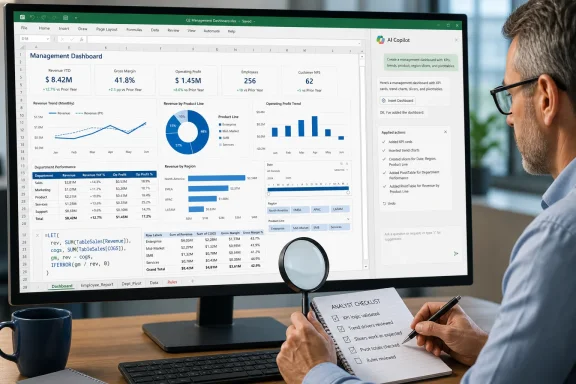
The first task in How-To Geek’s report is the clearest illustration of the shift. Given a 10-column sales table and a request for a management-ready dashboard, Copilot created KPI cards, charts, slicers, conditional formatting, and a supporting data structure.
The significant detail was not the colors or chart titles. Copilot reportedly created a hidden PivotData worksheet containing PivotTables tied to the source table, while the visible dashboard used live calculations rather than static, AI-written numbers. For an Excel professional, that is the difference between an attractive mock-up and a workbook that can survive the next data refresh.
Microsoft explicitly supports this kind of work in current Copilot in Excel documentation: users can request charts and PivotTables from natural-language prompts, and the edits are made through Excel’s native objects. A generated PivotTable can still be inspected, altered, refreshed, or deleted with familiar Excel controls. That is a more defensible model than an AI overlay that simply renders a visual answer without exposing its logic.
But the test also exposes the boundary. Copilot did not consistently size charts, failed to connect every slicer as requested, and placed frozen panes awkwardly enough to cut through a slicer. It also changed source-data formatting without being asked. Those are not trivial complaints. Spreadsheet authors often have firm conventions around input areas, output areas, formatting, and protection, especially when a workbook is used repeatedly by a team.
In other words, Copilot can now get the architecture roughly right. It cannot yet be trusted to make every user-interface decision that makes a dashboard fit for executive distribution.
Rather than defaulting to a sprawling nested
More important, Copilot did not stop at the first technically valid answer. When asked for a version compatible with older Excel releases, it reportedly broke the calculation into helper columns and generated results matching the
The qualification is just as important as the success. Formula correctness cannot be inferred from syntactic validity, attractive formatting, or a plausible result in a handful of rows. A bonus formula is business logic. Before it reaches payroll, a human needs to test threshold values, blank records, conflicting conditions, date edge cases, rounding behavior, and rows that deliberately violate assumptions.
Copilot is therefore most promising here as a formula drafting and refactoring tool, not as a business-rules authority. It can reduce the time required to translate written policies into formulas and help expose intermediate logic. It cannot certify that a vague policy was interpreted correctly.
That distinction also applies to security and governance. If a workbook handles compensation, forecasts, customer data, or regulated records, organizations should maintain the same review controls they would use for macros, Power Query transformations, or formulas written by a colleague. AI-generated does not mean exempt from peer review.
How-To Geek found that Copilot created separate sheets with linked calculations, sales-versus-target comparisons, performance ratings, and bonus breakdowns. It also handled tasks that are individually mundane but collectively time-consuming: hiding gridlines, applying a color scheme, configuring print output, and arranging the reports to fit onto one page.
This is likely the most practical use case for the current feature. Many Excel-heavy jobs involve a repeated cycle of creating a template, duplicating it, wiring the same formulas to new records, laying out charts, setting print areas, and cleaning up visual inconsistencies. An assistant that gets a workbook 70% to 85% of the way there can be genuinely valuable, even if the final 15% still belongs to the analyst.
The catch is that report generation magnifies errors. If one chart is poorly labeled in a single report, that is annoying. If the same flaw is reproduced across 200 employee reports, it becomes an operational problem. The reporter encountered overlapping chart labels, spacing issues, and currency-formatting adjustments—small problems in isolation, but precisely the sort that make bulk-created outputs feel unprofessional.
For that reason, organizations should treat Copilot-created reporting as template generation first and mass production second. Build one output, test it against known records, review print and accessibility behavior, then automate or replicate only after the workbook’s structure is approved.
The
The most consequential feature described in the report is the
That changes the workflow from repeatedly prompting, “Use our headers, our currency style, our table naming convention, and no merged cells,” to putting those requirements in the file itself. Microsoft recommends short, specific rules, ideally one idea per cell, and notes that formulas can even make rules responsive to workbook state.
For a finance model, a
It is not a substitute for a real template, data validation, sheet protection, documentation, or version control. Nor should administrators mistake it for a policy-enforcement mechanism: the rules guide Copilot; they do not necessarily prevent a user from changing the workbook manually. Microsoft also notes that support for rules is not fully consistent outside English and may evolve as Copilot’s models change.
Still, the feature addresses a longstanding weakness of generative AI in productivity software: every prompt begins with a partial loss of organizational context. Putting local conventions inside the workbook is a sensible attempt to reduce that loss.
That creates a traceability problem. If a reviewer encounters a complicated formula or an unexpected report design, the workbook may show what changed but not why the author asked for it. In controlled environments, teams should not rely on Copilot chat as documentation even when it is available. Record business rules in the workbook, change log, ticketing system, or project documentation, and preserve test cases separately.
Microsoft’s current guidance also notes that Copilot has access to the conversation history within an active chat session and warns users to approve only sources they are comfortable having pulled into the workbook. That deserves attention wherever a workbook contains sensitive business data or is likely to be shared broadly.
The practical outcome from How-To Geek’s three tests is not that Copilot in Excel has become indispensable. It is that the product has crossed into a more useful category: it can produce native, editable building blocks for dashboards, formulas, and recurring reports, then leave an Excel-literate person to review the logic and finish the design.
For Windows administrators and spreadsheet power users, the next meaningful test is not whether Copilot can generate another polished demo. It is whether it can consistently work inside established templates, respect workbook rules, preserve auditability, and handle repeatable reporting without introducing quiet errors at scale.
Microsoft has also materially changed the product surrounding those tests. What was introduced as Agent Mode is now presented as Edit with Copilot in Excel, an experience that can make changes directly in a workbook using formulas, tables, charts, and PivotTables. Microsoft’s own documentation stresses that generated results still need review, but the product is increasingly aimed at building workbook components rather than acting as an answer box beside the grid.
 The Dashboard Test Shows Where Copilot Has Improved
The first task in How-To Geek’s report is the clearest illustration of the shift. Given a 10-column sales table and a request for a management-ready dashboard, Copilot created KPI cards, charts, slicers, conditional formatting, and a supporting data structure.The significant detail was not the colors or chart titles. Copilot reportedly created a hidden PivotData worksheet containing PivotTables tied to the source table, while the visible dashboard used live calculations rather than static, AI-written numbers. For an Excel professional, that is the difference between an attractive mock-up and a workbook that can survive the next data refresh.
Microsoft explicitly supports this kind of work in current Copilot in Excel documentation: users can request charts and PivotTables from natural-language prompts, and the edits are made through Excel’s native objects. A generated PivotTable can still be inspected, altered, refreshed, or deleted with familiar Excel controls. That is a more defensible model than an AI overlay that simply renders a visual answer without exposing its logic.
But the test also exposes the boundary. Copilot did not consistently size charts, failed to connect every slicer as requested, and placed frozen panes awkwardly enough to cut through a slicer. It also changed source-data formatting without being asked. Those are not trivial complaints. Spreadsheet authors often have firm conventions around input areas, output areas, formatting, and protection, especially when a workbook is used repeatedly by a team.
In other words, Copilot can now get the architecture roughly right. It cannot yet be trusted to make every user-interface decision that makes a dashboard fit for executive distribution.
Formula Generation Is More Valuable When It Produces Auditable Logic
The strongest result came from the bonus-calculation test. The reporter supplied a deliberately broad set of rules covering customer ratings, tenure, departments, targets, bonus rates, and caps, then asked Copilot to build a formula.Rather than defaulting to a sprawling nested
IF, Copilot produced a formula using Excel’s LET function. That approach gives meaningful names to intermediate values and makes a long expression easier to audit: sales can be separated from target attainment, eligibility, rate, and maximum payout. For workbooks running on current Microsoft 365 builds, it is often a cleaner way to express multi-part logic.More important, Copilot did not stop at the first technically valid answer. When asked for a version compatible with older Excel releases, it reportedly broke the calculation into helper columns and generated results matching the
LET formula. That is exactly the kind of choice an experienced spreadsheet developer makes: optimize one version for compactness, then provide another for compatibility and transparency.The qualification is just as important as the success. Formula correctness cannot be inferred from syntactic validity, attractive formatting, or a plausible result in a handful of rows. A bonus formula is business logic. Before it reaches payroll, a human needs to test threshold values, blank records, conflicting conditions, date edge cases, rounding behavior, and rows that deliberately violate assumptions.
Copilot is therefore most promising here as a formula drafting and refactoring tool, not as a business-rules authority. It can reduce the time required to translate written policies into formulas and help expose intermediate logic. It cannot certify that a vague policy was interpreted correctly.
That distinction also applies to security and governance. If a workbook handles compensation, forecasts, customer data, or regulated records, organizations should maintain the same review controls they would use for macros, Power Query transformations, or formulas written by a colleague. AI-generated does not mean exempt from peer review.
The Report-Building Test Targets Repetitive Work, Not Excel Expertise
For the final test, Copilot took the employee-performance logic and used it to generate individual report sheets. Each report needed KPI cards, calculations, conditional formatting, charts, and print settings suitable for PDF export.How-To Geek found that Copilot created separate sheets with linked calculations, sales-versus-target comparisons, performance ratings, and bonus breakdowns. It also handled tasks that are individually mundane but collectively time-consuming: hiding gridlines, applying a color scheme, configuring print output, and arranging the reports to fit onto one page.
This is likely the most practical use case for the current feature. Many Excel-heavy jobs involve a repeated cycle of creating a template, duplicating it, wiring the same formulas to new records, laying out charts, setting print areas, and cleaning up visual inconsistencies. An assistant that gets a workbook 70% to 85% of the way there can be genuinely valuable, even if the final 15% still belongs to the analyst.
The catch is that report generation magnifies errors. If one chart is poorly labeled in a single report, that is annoying. If the same flaw is reproduced across 200 employee reports, it becomes an operational problem. The reporter encountered overlapping chart labels, spacing issues, and currency-formatting adjustments—small problems in isolation, but precisely the sort that make bulk-created outputs feel unprofessional.
For that reason, organizations should treat Copilot-created reporting as template generation first and mass production second. Build one output, test it against known records, review print and accessibility behavior, then automate or replicate only after the workbook’s structure is approved.
The .Rules Worksheet May Matter More Than the Flashier Demos
The most consequential feature described in the report is the .Rules worksheet. Microsoft recently documented this capability as a visible worksheet named .Rules, with workbook-specific instructions stored in column A. Copilot can use those instructions in later requests, and the rules travel with the workbook when it is shared.That changes the workflow from repeatedly prompting, “Use our headers, our currency style, our table naming convention, and no merged cells,” to putting those requirements in the file itself. Microsoft recommends short, specific rules, ideally one idea per cell, and notes that formulas can even make rules responsive to workbook state.
For a finance model, a
.Rules worksheet could specify structured references, a required reporting currency, chart colors, naming standards, and whether formulas should favor compatibility over newer functions. For an IT operations workbook, it might dictate date formatting, severity colors, table names, and the fields required in a capacity or incident report.It is not a substitute for a real template, data validation, sheet protection, documentation, or version control. Nor should administrators mistake it for a policy-enforcement mechanism: the rules guide Copilot; they do not necessarily prevent a user from changing the workbook manually. Microsoft also notes that support for rules is not fully consistent outside English and may evolve as Copilot’s models change.
Still, the feature addresses a longstanding weakness of generative AI in productivity software: every prompt begins with a partial loss of organizational context. Putting local conventions inside the workbook is a sensible attempt to reduce that loss.
Copilot’s Chat History Remains an Awkward Gap
One limitation in the How-To Geek testing is less visible but potentially more serious: the Copilot conversation did not always remain saved with the workbook. The formulas, PivotTables, charts, and sheets persisted, but the reasoning and requests that produced them could be absent.That creates a traceability problem. If a reviewer encounters a complicated formula or an unexpected report design, the workbook may show what changed but not why the author asked for it. In controlled environments, teams should not rely on Copilot chat as documentation even when it is available. Record business rules in the workbook, change log, ticketing system, or project documentation, and preserve test cases separately.
Microsoft’s current guidance also notes that Copilot has access to the conversation history within an active chat session and warns users to approve only sources they are comfortable having pulled into the workbook. That deserves attention wherever a workbook contains sensitive business data or is likely to be shared broadly.
The practical outcome from How-To Geek’s three tests is not that Copilot in Excel has become indispensable. It is that the product has crossed into a more useful category: it can produce native, editable building blocks for dashboards, formulas, and recurring reports, then leave an Excel-literate person to review the logic and finish the design.
For Windows administrators and spreadsheet power users, the next meaningful test is not whether Copilot can generate another polished demo. It is whether it can consistently work inside established templates, respect workbook rules, preserve auditability, and handle repeatable reporting without introducing quiet errors at scale.
References
- Primary source: howtogeek.com
Published: 2026-08-01T11:30:13+00:00
I hated Copilot in Excel, but these 3 tests made me change my mind
Three practical Excel tests showed me Copilot had become more capable than I realized. www.howtogeek.com
- Related coverage: support.microsoft.com
Create guidelines for a workbook with Copilot in Excel rules | Microsoft Support
Use rules with Copilot in Excel to create guidelines for a workbook.support.microsoft.com - Related coverage: support.microsoft.com
Visualize your data with Copilot in Excel | Microsoft Support
Use Copilot in Excel to create charts and PivotTables and to highlight, sort, and filter your data.support.microsoft.com - Related coverage: techcommunity.microsoft.com
- Related coverage: techradar.com
No escape from AI now - Microsoft is shoving Copilot into every Excel cell | TechRadar
Excel gets a new =COPILOT functionwww.techradar.com - Related coverage: pcgamer.com
Microsoft launches Copilot AI function in Excel, but warns not to use it in 'any task requiring accuracy or reproducibility' | PC Gamer
You can have Copilot generate your formulas in Excel now, but it doesn't sound ready for prime time.www.pcgamer.com - Related coverage: cincodias.elpais.com
