
com.samsung.android.lool, and MakeUseOf reports that Samsung leaves its battery mode set to Unrestricted while blocking conventional disable controls.Device Care is not merely a dashboard. Samsung documents it as the One UI suite for battery, storage and memory management, including automatic optimization and the Sleeping apps and Deep sleeping apps lists. Those controls can be useful, but they can also interfere with apps whose value is mostly background work: camera alerts, health integrations, location services, automation tools, and infrequently opened reminder apps.
Samsung’s own support guidance says deep-sleeping apps do not run in the background and work only when opened. Administrators managing Galaxy devices should therefore first audit Battery and device care > Battery > Background usage limits and move business-critical apps into Never sleeping apps, rather than remove Device Care wholesale.
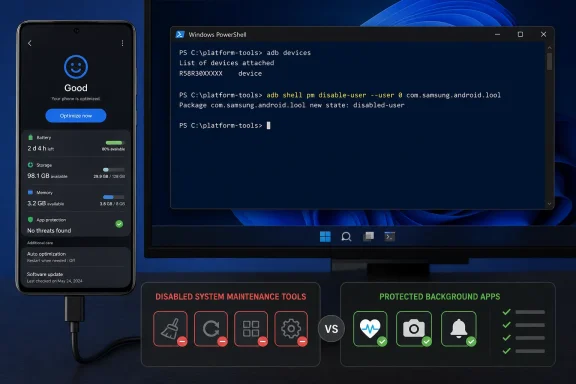 A Windows PC can disable the package per user
For enthusiasts who still want it gone, the route is Google’s SDK Platform Tools on Windows, USB debugging, and an ADB package-manager command:
adb shell pm disable-user --user 0 com.samsung.android.lool
Google’s ADB documentation confirms that pm disable-user can disable an installed package for a specified Android user. In this case, --user 0 targets the phone’s primary user profile; it does not root the phone or delete the system APK.
The practical warning is that this disables more than automatic housekeeping. Device Care’s front-end battery usage views, storage tools, diagnostics, and Samsung-specific app-sleep controls may no longer be available or behave normally. Galaxy models, carrier builds and One UI versions can also expose different menus and dependencies, so this is not an enterprise-safe baseline change without device testing.
The reversible option is usually the better one
A force-stop from Device Care’s App info page can stop it temporarily, but the service may return after a reboot. The ADB setting persists for that Android user until it is reversed:
adb shell pm enable com.samsung.android.lool
For most users, the useful lesson is not that Device Care must be removed. It is that Samsung’s automatic sleeping policy deserves scrutiny. Put notification- or sensor-dependent apps in Never sleeping apps first; reserve disabling the Device Care package for devices where its maintenance features are genuinely unwanted and the resulting loss of Samsung tooling is acceptable.
