
As reported by XDA, Fast Startup is enabled by default on many Windows installations capable of hibernation. Rather than performing a traditional S5 shutdown, Windows logs off users, preserves the kernel session and loaded drivers in hiberfil.sys, then restores that state during the next boot.
Microsoft’s own documentation describes Fast Startup as a hybrid shutdown mechanism introduced with Windows 8. A Restart is still a full boot, which is why it remains the right choice after driver changes, Windows updates, or troubleshooting.
 The SSD-write claim is directionally right, but overstated
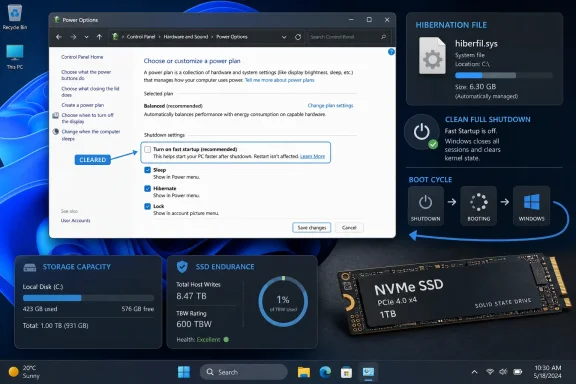
The hibernation file is stored on the OS drive, so Fast Startup necessarily involves disk I/O at shutdown and boot. For users with small SSDs, the more immediate impact is often capacity: hiberfil.sys may occupy several gigabytes, depending on installed memory and the configured hibernation-file type.
But the file’s allocated size is not a reliable measurement of exactly how much data is written on every shutdown. Nor does a daily hibernation write automatically translate to a material endurance problem for a modern NVMe SSD rated for hundreds of terabytes written.
A system producing a hypothetical 12.5GB hibernation write every day would add roughly 4.6TB of host writes per year before accounting for compression and controller behavior. That is not nothing, particularly for a nearly full low-end drive, but it is a modest share of the endurance budget of many retail NVMe models. Heavy local AI workloads, virtual machines, video editing, browser caches, game installs, and page-file activity are often much larger contributors.
The stronger case for changing the setting is practical: Fast Startup offers less benefit on current SSD-equipped PCs than it did on hard-drive systems, while a real shutdown can avoid awkward driver, firmware, dual-boot, and update edge cases.
Turn off Fast Startup without giving up Hibernate
For most desktop users—and for laptop users who still value Hibernate—the sensible option is to disable Fast Startup only:
- Open Control Panel and go to Power Options.
- Select Choose what the power buttons do.
- Click Change settings that are currently unavailable.
- Clear Turn on fast startup (recommended) and save the change.
This preserves Hibernate as an intentional power option while making Shut down behave as a full shutdown. It also keeps the hibernation file in place, so users should not expect reclaimed storage from this change alone.
Reclaim space only if Hibernate is expendable
Users who do not use Hibernate can disable it completely from an elevated Terminal or Command Prompt:
powercfg /h off
That disables Hibernate and Fast Startup and removes hiberfil.sys. Reversing the change is straightforward:
powercfg /h on
Laptop owners should think twice before taking that route. Hibernate can preserve an open session when battery power runs out, and disabling it removes that safety net.
For Windows enthusiasts and administrators, the takeaway is less about panic over NAND wear than choosing the shutdown behavior that fits the machine. On a modern SSD PC, disabling Fast Startup is a reasonable trade-off if a genuinely clean shutdown matters more than shaving seconds from the next boot.
