
REGEXEXTRACT, REGEXREPLACE, and REGEXTEST functions. For accounting users accustomed to nesting LEFT, MID, RIGHT, FIND, SEARCH, and SUBSTITUTE, the practical gain is not merely shorter formulas—it is a more repeatable way to extract identifiers, standardize descriptions, and flag malformed records before they reach a PivotTable, reconciliation, or close workbook.The Journal of Accountancy highlighted the opportunity in an August 1 walkthrough by Kelly L. Williams, CPA, showing how pattern matching can pull invoice references from descriptions, normalize vendor names, and validate journal-entry labels. Microsoft’s documentation confirms that the functions are available in Excel for Microsoft 365 on Windows and Mac, using the PCRE2 regular-expression engine familiar to developers and data professionals.
That last point matters for Windows shops. Regex is not a new Excel-specific mini-language with quirky wildcard rules; it is a broadly used pattern syntax now embedded directly in worksheet formulas. The learning curve remains real, but a handful of expressions can eliminate a considerable amount of brittle position-based cleanup.
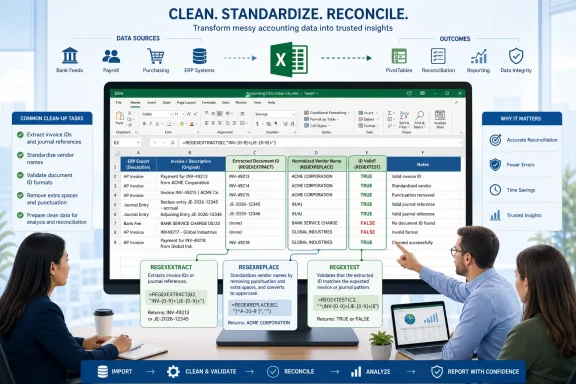 The Accounting Problem Is Usually Variable Text, Not Missing Functions
A conventional Excel formula works well when an input arrives in a predictable place. If every invoice is exactly eight characters and always begins at character 15, MID is perfectly serviceable. But accounting exports rarely remain that tidy for long.
A bank transaction might include ACH PAYMENT INV-49213 ACME SUPPLY, while another source emits PAID: INV-8501; TERMS NET 30. The relevant invoice number is identifiable by its pattern—INV- followed by digits—not by a stable starting position. Trying to accommodate the variants with FIND, MID, and error handling can create formulas that are hard to audit and easy to break when the ERP vendor changes an export template.
That is where pattern-based extraction earns its place. Instead of telling Excel where text lives, a regex tells Excel what the wanted text looks like. Williams’ invoice example uses:
=REGEXEXTRACT(A2:A4,"INV-[0-9]+")
The [0-9] portion means any digit, while + means one or more occurrences. The formula therefore finds INV- followed by however many digits appear, without requiring a fixed invoice length. With a range as the input, current Excel can spill the results into adjacent rows, making it particularly useful for a staging column beside imported data.
The same idea applies to general-ledger extracts where a single field combines an account code and description. A pattern such as ^[0-9]+ finds one or more digits at the beginning of each string. The caret is important: it anchors the match to the start, preventing Excel from extracting an unrelated number later in a description.
For a value such as 6100 Office Supplies, the result is 6100. For 100-2000 Intercompany, however, the expression would return only 100; that is not a formula defect, but a reminder that the pattern must reflect the organization’s chart-of-accounts rules. If hyphens are valid inside account codes, a pattern such as ^[0-9-]+ may be more appropriate. If leading zeroes matter, keep the output as text rather than immediately converting it to a number.
Three Functions Cover Extraction, Cleanup, and Control Checks
Microsoft introduced the three Excel regex functions to cover distinct worksheet tasks. Their separation is useful because it encourages users to keep extraction, transformation, and validation visible in separate columns rather than burying every operation inside one enormous formula.
REGEXEXTRACT returns matching text. Its full syntax is:
=REGEXEXTRACT(text, pattern, [return_mode], [case_sensitivity])
By default, Excel returns the first match. The optional return mode can return all matches as an array or return capture groups from the first match. That makes it possible to break apart a structured reference without relying on fixed delimiters.
REGEXREPLACE changes matching text:
=REGEXREPLACE(text, pattern, replacement, [occurrence], [case_sensitivity])
This is where imported accounting data often benefits most immediately. Multiple spaces, stray prefixes, inconsistent separators, and vendor descriptors can all undermine matching, duplicate detection, and spend analysis. The Journal of Accountancy example uses:
=REGEXREPLACE(A2:A4,"(?i)amazon.*","Amazon")
The inline (?i) modifier makes the pattern case-insensitive, while .* means “the remainder of the text.” Entries such as AMAZON MKTPLACE, amazon.com, and Amazon Marketplace can become a single reporting label, Amazon.
The formula is powerful, but it should not be mistaken for a vendor-master process. Finance teams should decide whether several raw descriptions genuinely belong to one reporting supplier before replacing them wholesale. AMAZON MKTPLACE, for example, may be suitable for a consolidated spend category, while a procurement or tax workflow may require the original merchant descriptor and legal-entity distinctions to remain available.
A safer design is usually to retain the imported description in one column, create a normalized value in another, and document the normalization rule. The workbook then preserves an audit trail and makes exceptions easier to review.
Finally, REGEXTEST produces a TRUE or FALSE result:
=REGEXTEST(text, pattern, [case_sensitivity])
This turns a text rule into a control check. A close-process workbook can use it to flag journal-entry IDs, cost-center formats, employee IDs, purchase-order references, or account combinations that do not meet the defined convention.
Validation Needs Start and End Anchors
The most important implementation detail in the Journal of Accountancy examples is also the one finance users should not overlook: REGEXTEST looks for a matching portion of the supplied text unless the expression says otherwise.
For a journal-entry convention of JE-2026-12345, a formula written as:
=REGEXTEST(A2,"JE-2026-[0-9]{5}")
will confirm that the sequence appears somewhere in the cell. It may therefore return TRUE for text containing extra leading or trailing characters, such as OLD-JE-2026-12345 or JE-2026-12345-DRAFT.
For a strict format validation, anchor both ends:
=REGEXTEST(A2,"^JE-2026-[0-9]{5}$")
Here, ^ requires the match to begin at the start of the cell and $ requires it to end there. {5} requires exactly five digits. Microsoft uses the same anchor approach in its own REGEXTEST examples for testing a complete phone-number format.
That distinction is more than regex trivia. A worksheet used to identify exceptions for a controller, auditor, or AP manager should test the entire intended value, not merely prove that a valid-looking fragment exists somewhere inside it.
The same discipline applies to cleanup. REGEXREPLACE(A2,"\s+"," ") replaces runs of whitespace with a single space, a useful remedy for bank and card exports whose inconsistent spacing defeats lookups. But a team should first decide whether tabs, line breaks, or nonbreaking spaces are part of the source-data problem, because imported characters may not always behave like ordinary typed spaces.
PCRE2 Makes Excel More Capable—and More Demanding
Microsoft says the three worksheet functions use the PCRE2 flavor of regex. That gives Excel users access to established concepts including character classes, quantifiers, capture groups, anchors, escapes, and case modifiers. It also means formulas can be much more expressive than Excel’s older wildcard behavior.
For Windows administrators and Excel power users, the key operational change is that a business user can now put what once required VBA, an Office add-in, Power Query workarounds, or external scripting directly into a workbook formula. Office Watch has also noted that regex functions work on Windows and Mac editions of Microsoft 365, which is useful for mixed-device finance teams.
But more expressive formulas deserve stronger controls. Regex can be compact enough to be opaque, especially when copied from an AI assistant, online forum, or developer-oriented reference. A syntactically valid expression can still be financially wrong: it may overmatch descriptions, merge distinct vendors, reject valid records, or silently return text where a downstream calculation expects a number.
A practical rollout should include a small, deliberately awkward test set:
- Include valid records, invalid records, blank cells, unusual punctuation, lowercase and uppercase variants, and known exceptions.
- Compare regex output with the original source column before replacing or deleting any data.
- Keep formulas in an Excel Table or documented staging sheet so new monthly imports inherit the same logic.
- Treat any AI-generated pattern as a draft until it has been tested against representative production data.
The Best First Use Is a Repeated Monthly Irritant
Regex is not a reason to rebuild every spreadsheet. Traditional text functions remain easier to read when the source format is genuinely fixed, and Power Query remains a strong option for larger refreshable transformation pipelines. The case for regex is strongest where a recurring export contains a recognizable pattern surrounded by inconsistent noise.
For accounting teams, that often means extracting invoice IDs from payment descriptions, standardizing a limited set of merchant-name variations, pulling account prefixes from combined fields, or enforcing a journal-reference convention before posting or reporting. Those are ordinary tasks, but they consume time precisely because their variations defeat one-off formulas and manual find-and-replace routines.
The next close cycle is the right test: pick one imported column that has repeatedly required cleanup, leave the source intact, and build a regex-based helper column beside it. If the rule survives real exceptions and makes the output easier to reconcile, Excel’s new functions have done their job—not by making accounting data glamorous, but by making it less manually fragile.
