
9NTXGKQ8P7N0 supports Windows’ Mobile devices features, including showing a linked Android phone in File Explorer and using a phone as a connected camera.Guiding Tech’s August 13 troubleshooting guide correctly identifies a direct WinGet installation and a Microsoft Store cache reset as useful first responses. But its five-step list blurs together three different failures: the host package not being installed, the Store being unable to fetch it, and a successfully installed host that still cannot activate mobile-device features. Those cases need different fixes—and one of the guide’s suggested Windows 11 troubleshooters has been retired on current builds.
Microsoft’s own support documentation makes the prerequisite chain clearer. Mobile-device management requires a Windows 11 PC, a supported Android phone, a nearby Wi-Fi connection, and the Link to Windows app on the phone. The File Explorer integration is stricter still: Microsoft lists Android 11 or later and Link to Windows version 1.24072.258.0 or newer. Installing Cross Device Experience Host alone cannot overcome a missing pairing, an unsupported phone version, or an outdated companion app.
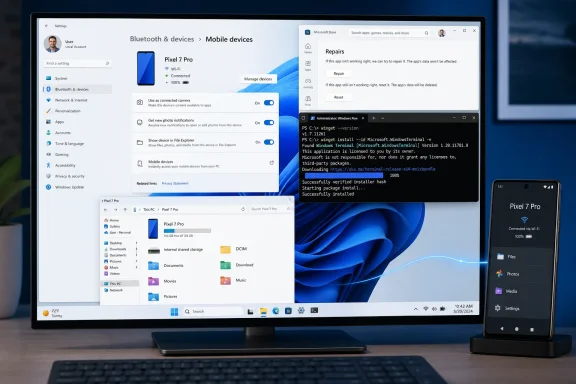 Identify whether the package is actually missing
Start by checking the package rather than relying on the Settings toggle under Bluetooth & devices > Mobile devices. The toggle can be present while the Store download is pending or has failed, and the host can already be installed even when File Explorer phone access is unavailable.
Open Terminal, Command Prompt, or PowerShell and run:
winget list --id 9NTXGKQ8P7N0
If WinGet returns Cross Device Experience Host, do not reinstall it yet. Move on to pairing, Windows updates, and the device-specific requirements. Microsoft distinguishes this Mobile devices framework from the separate Phone Link app; installing or repairing Phone Link is not a substitute for restoring the host package.
If the package is absent, use a command that explicitly targets the Microsoft Store catalog:
winget install --id 9NTXGKQ8P7N0 --exact --source msstore
The shorter command published by Guiding Tech, winget install 9NTXGKQ8P7N0, is valid in normal installations, and Microsoft Support staff have recommended it in community cases involving this exact package. Adding --exact --source msstore removes ambiguity and confirms that Windows Package Manager is looking in the Store rather than another configured repository.
A successful WinGet message proves the package installed. It does not prove that Windows has paired a phone, that the phone has granted its permissions, or that the File Explorer feature is available to that device.
WinGet errors point back to App Installer or Store policy
If Windows reports that winget is not recognized, the missing component is App Installer, which distributes the Windows Package Manager client. Microsoft’s current troubleshooting guidance says to install or update App Installer from Microsoft Store, then verify that typing winget displays its help and version information.
If WinGet starts but cannot locate the Store package, check its configured sources:
winget source list
A normal Windows setup includes an msstore source alongside the WinGet community repository. Microsoft documents winget source reset --force as a way to restore the default sources, but that should be a last local repair step—not a standard corporate help-desk command. A managed PC may have Store access deliberately constrained by Group Policy, Intune configuration, firewall rules, or a proxy. Resetting sources does not override those controls, and attempting to work around them may violate an organization’s software policy.
Microsoft’s enterprise Store-download guidance is more useful here than repeated reinstalls. Administrators should verify that the Store is not blocked by policy and that required Microsoft Store and Windows Update endpoints are reachable through the organization’s proxy or firewall. Microsoft notes that Store app installation and updating rely on those service connections; a device with a captive portal, SSL-inspecting proxy, or restricted egress can fail even though ordinary web browsing works.
For an unmanaged PC, confirm that Windows Update has completed and restart before retrying. Microsoft specifically warns that a restart may be required after Windows updates before Store apps will install. Then open Microsoft Store, go to Library, and select Get updates so both Store and App Installer can update before another WinGet attempt.
Resetting the Store cache is safe, but it is not a full repair
wsreset.exe remains an official Microsoft repair step for Store download and launch failures. It clears the Store cache, briefly opens a blank command window, and then launches Microsoft Store. It is low-risk and appropriate when the Store itself is stuck, fails to load, or produces a transient download error.
Run it from the Run dialog:
wsreset.exe
Guiding Tech recommends restarting afterward. That is sensible if Windows Update has recently changed Store-related components or if the package remains stuck in a queued state, though Microsoft’s documented cache-reset procedure does not require a reboot in every case.
What wsreset.exe will not fix is a blocked Store policy, a network path that prevents Microsoft Store downloads, a disabled Microsoft account requirement, or an Android device that has not completed its Link to Windows pairing. Treat it as a Store maintenance step, not a cure-all for connected-device failures.
The Windows Store Apps troubleshooter is obsolete on modern Windows 11
The weakest recommendation in the five-fix guide is the instruction to run Windows Store Apps from Settings > System > Troubleshoot > Other troubleshooters. Microsoft retired the legacy Windows Store Apps troubleshooter beginning with newer Windows 11 releases in 2024. Users on current Windows 11 installations may not find it at all.
Microsoft redirected some legacy troubleshooters to the Get Help app before removing them. If the legacy option is absent, use Get Help’s Store support path or follow Microsoft’s current Store repair sequence: sign in to the correct Microsoft account, install Windows updates, update Microsoft Store from its Library page, repair or reset affected Store apps, and reinstall the app from the Store where possible.
The retirement matters because a missing troubleshooter is not a clue that Cross Device Experience Host is broken. It is simply the expected result on up-to-date Windows 11. Instructions copied from older Windows versions can send users hunting for a control Microsoft has already removed.
Do not manually force connected-device services unless they were changed
Guiding Tech also suggests starting the Connected Devices Platform Service from services.msc. Windows’ connected-device stack does include the per-user Connected Devices Platform User Service, commonly displayed with a suffix such as CDPUserSvc_12345. Microsoft describes that service as supporting the ability to connect, manage, and control connected devices.
However, the service is normally configured to start automatically when Windows needs it. A stopped service can be relevant if an administrator, debloating script, privacy tool, or image-customization process disabled it. For ordinary installations, manually starting services before confirming the Store package, pairing state, and phone requirements creates noise rather than a diagnosis.
IT administrators investigating a managed-device pattern should compare the affected machine’s service configuration and device-management policies with a known-good Windows 11 system. Home users should avoid changing startup types or registry entries for connected-device services. Those changes can interfere with more than Mobile devices, including other Windows sharing and device scenarios.
Repair applies after installation; pairing is the final test
If winget list shows the host and installation succeeds, go to Settings > Apps > Installed apps > Cross Device Experience Host > Advanced options. Use Repair first. Reset is the escalation option because it clears the app’s local data and may require setting up the mobile-device connection again.
Then return to Settings > Bluetooth & devices > Mobile devices > Manage devices. Add or reauthorize the Android phone, confirm both devices are on Wi-Fi, and enable the specific feature needed. For File Explorer access, turn on Show mobile device in File Explorer for that phone. Windows supports displaying only one mobile device in File Explorer at a time, so enabling another linked phone can disable the previous one.
The practical dividing line is simple: if the host will not install, repair Microsoft Store, App Installer, network access, or organizational policy. If the host is installed but the phone still does not appear, stop reinstalling the package and verify the Android version, Link to Windows version, permissions, Wi-Fi connection, and the specific Mobile devices toggle.
