
As detailed in Appuals’ troubleshooting report and Intel’s own support guidance, the failure may be a damaged Store package, a stale tray process after an update, or an app-and-driver mismatch rather than a hardware fault.
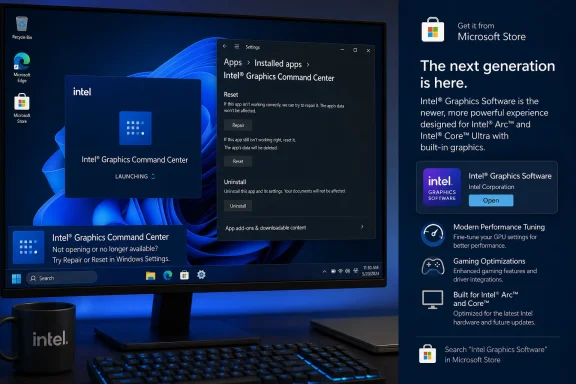 Start by identifying Intel’s current control app
Intel Graphics Command Center remains supported for systems with a 6th-generation Intel Core processor or newer, with an appropriate DCH graphics driver. But it is increasingly a legacy interface: Intel says it will receive critical fixes while newer feature and stability work moves to Intel Graphics Software.
Intel Graphics Software is installed alongside qualifying drivers on supported newer platforms, including 11th-generation-or-later Core systems and Intel Arc graphics. If that application is already installed, open it instead of repeatedly reinstalling Command Center. Older machines that do not meet Command Center’s requirements should use the Intel Graphics Control Panel supplied with their matching legacy driver.
Check Settings > System > About for the processor model, then confirm the actual Intel adapter under Device Manager > Display adapters. A missing Intel GPU entry points to a driver, BIOS, or hardware configuration issue—not an app-launch problem.
Repair the Store app before reinstalling drivers
Intel’s recommended order is refreshingly conservative: restart Windows, repair the app, reset it only if necessary, and reinstall it from the Microsoft Store before attempting a driver rebuild.
A restart matters because Command Center’s main app and its optional tray component can become unsynchronized after an update. Launch the program from the Start menu after rebooting rather than from an old context-menu entry, desktop shortcut, tray icon, or hotkey. Intel notes that the tray icon and hotkey are optional features, so neither is a reliable test of whether the core app is healthy.
If the app still flashes, hangs on a loading screen, or closes immediately:
- Open Settings > Apps > Installed apps in Windows 11, or Apps & features in Windows 10.
- Select Intel Graphics Command Center, then open Advanced options.
- Choose Repair and test the app again.
- Choose Reset only if Repair fails, since Reset removes the app’s local settings and data.
Microsoft uses the same repair-then-reset sequence for Windows applications. This is the lowest-risk route because it does not alter the installed display driver or its system-level settings.
Reinstall only from the Microsoft Store
If Repair and Reset do not work, uninstall Intel Graphics Command Center from Windows Settings, restart once, and reinstall it through the Microsoft Store. Intel’s documentation makes clear that Command Center is delivered as a Store app rather than being embedded in every graphics-driver installer.
That distinction is useful for managed PCs. A correct Intel driver can be installed while the Store package is absent, corrupted, or blocked by organizational policy. If Microsoft Store itself cannot install or update apps, resolve that Store issue first; on a work or school device, the administrator may have disabled Store access.
Avoid third-party download sites and repackaged installers. They do not solve a blocked Store policy and add an unnecessary software-integrity risk.
Escalate to the driver only after app repairs fail
A clean driver installation is appropriate when Command Center still will not launch after its package has been repaired or freshly reinstalled. Install pending Windows updates first, then prefer the graphics driver supplied by the laptop or desktop manufacturer. OEM packages may include display, power, and docking customizations that Intel’s generic package does not.
If the OEM does not offer a suitable current driver, use Intel’s Driver & Support Assistant or its official Download Center. Install normally, restart, and test the app. Use the installer’s clean installation option only if the standard update fails to restore operation; it can reset Intel graphics settings and temporarily leave Windows running on a basic display driver during the process.
For Intel Arc and newer Core graphics systems, a driver update may install Intel Graphics Software. In that case, the practical answer is not to force Command Center back into service—it is to use the actively developed Intel app the driver now provides.
The key consequence is simple: treat a dead Command Center window as an application-selection and app-package problem first. Only rebuild the graphics driver after Windows has confirmed that the correct Intel control app is installed and healthy.
