
That distinction matters. A Microsoft Store 0x801901F7 failure can originate remotely, but a local issue—such as a stale Store cache, incorrect clock, account-sign-in problem, VPN, proxy, or network filter—can produce the same practical outcome. The right response is therefore a measured escalation: begin with low-risk checks, repair only the Store components that need repair, and avoid destructive “fixes” aimed at the wrong subsystem.
The original report on this error correctly emphasizes that a server-side disruption may be part of the story, but its broader list of fixes needs prioritizing. Windows Report’s guide includes valid ideas such as resetting the Store cache and checking connectivity; however, deleting individual database files or installing generic repair tools should not be the first reaction to an HTTP-style service error.
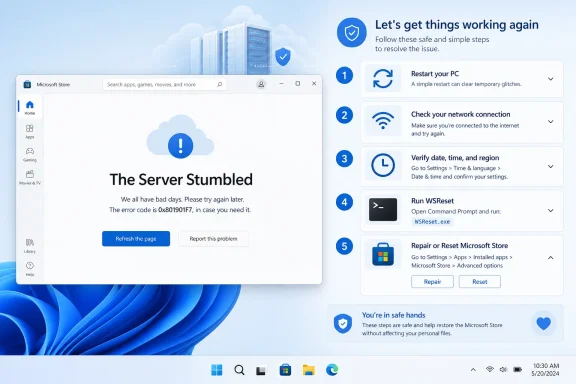 What Error 0x801901F7 Actually Means
The hexadecimal code ends in 1F7, which corresponds to decimal 503. In web terminology, a 503 response means the service is unavailable temporarily. Microsoft documents 503 as a condition where the server is unable to handle the request because of temporary overload or scheduled maintenance, and says it will likely be resolved after a delay. Microsoft Learn
That does not mean every affected PC should sit idle indefinitely. The Microsoft Store is a cloud-connected Windows app, and it depends on several moving parts:
- Microsoft Store back-end services
- A working Microsoft account session
- Correct date, time, region, and location settings
- A functioning local Store cache
- Windows Update components and current Windows servicing
- DNS, internet access, proxy settings, VPN routing, and firewall policy
- Organization-managed policies on work or school devices
A service outage can affect multiple people at once, while a local configuration fault generally affects one PC or one network. The best troubleshooting process separates those possibilities without making unnecessary changes.
Start With the Lowest-Risk Fixes
1. Close Microsoft Store, restart Windows, and try again
A full restart is not glamorous, but it is the proper opening move. It clears in-memory Store processes, restarts networking components, and completes pending Windows servicing operations that may have been waiting for a reboot.
- Save open work.
- Select Start > Power > Restart.
- Once Windows has restarted, open Microsoft Store from Start.
- Wait briefly before attempting to install or update anything.
Microsoft includes restarting as a standard recovery step for application and installation problems. Microsoft Support
If the error disappears after a restart, no further repair work is necessary. Do not continue down a troubleshooting checklist merely because an error happened once.
2. Retry later—but do not continuously hammer the Store
Because error 0x801901F7 is associated with a 503-style unavailable-service response, a brief wait can be a legitimate fix. Repeatedly refreshing the Store every few seconds is unlikely to help and can make it harder to tell whether the service has actually recovered.
Wait several minutes, then try one simple action:
- Open the Store home page.
- Search for a free app.
- Open Library.
- Select Get updates.
If the Store suddenly works without any local changes, the interruption was likely transient. That is an important outcome: it means invasive local repairs would have delivered no real benefit.
Check the Basics Microsoft Recommends
Confirm Windows is fully updated
Microsoft recommends checking for Windows updates when the Store will not open. Updates can include servicing fixes, Store dependencies, certificate updates, and changes to Windows components used by inbox apps. Microsoft Support
On Windows 11:
- Open Settings.
- Select Windows Update.
- Choose Check for updates.
- Install everything available, including any pending cumulative update.
- Restart when prompted.
On Windows 10:
- Open Settings.
- Go to Update & Security > Windows Update.
- Select Check for updates.
- Install updates and restart.
Microsoft’s Store troubleshooting guidance also advises updating the Store itself through Microsoft Store > Library > Get updates when the Store can still open far enough to reach its Library page. Microsoft Support
Check time, time zone, region, and location
An incorrect clock can disrupt secure web requests, account authentication, and content availability checks. Microsoft specifically lists time and location settings among the areas to review when Microsoft Store does not open. Microsoft Support
Use the following checklist:
- Open Settings > Time & language > Date & time.
- Turn on Set time automatically.
- Turn on Set time zone automatically, if appropriate for the device.
- Select Sync now if it is available.
- Open Language & region and confirm the country or region is correct.
A wrong region does not always create 0x801901F7, but it can complicate Store sign-in, catalog access, and app licensing. It is a low-risk configuration check worth completing before attempting repairs.
Reset the Microsoft Store Cache With WSReset
For a Store that remains stuck, blank, or unable to launch, the most useful first repair is wsreset.exe. This is Microsoft’s own documented cache-reset method for Microsoft Store launch problems. Microsoft Support
How to use WSReset
- Press Windows key + R.
- Type the following command:
wsreset.exe
- Select OK or press Enter.
- Wait for the blank Command Prompt window to close.
- Microsoft Store should open automatically.
Do not close the blank command window prematurely. Microsoft notes that it normally closes after roughly ten seconds and then launches Microsoft Store. Microsoft Support
What WSReset changes—and what it does not
WSReset clears the Store’s local cache. It is designed to address stale or corrupted cached data that can interfere with Store startup and content loading.
It does not:
- Delete installed apps or games
- Remove your Windows user account
- Uninstall Microsoft Store
- Repair a Microsoft server outage
- Bypass a company network policy
- Fix an invalid proxy configuration by itself
That makes it an excellent early step: it is targeted, built into Windows, and much safer than using registry cleaners or broad “PC repair” utilities.
Repair or Reset Microsoft Store From Settings
If wsreset.exe does not resolve error 0x801901F7, Windows provides a second layer of app recovery through Repair and Reset.
Use Repair first
On Windows 11:
- Open Settings > Apps > Installed apps.
- Find Microsoft Store.
- Select the three-dot menu next to it.
- Choose Advanced options.
- Select Repair.
On some Windows versions, the exact menu wording may differ slightly, but the sequence is generally Apps > Microsoft Store > Advanced options.
Microsoft’s app-recovery guidance recommends trying Repair before Reset. Microsoft Support
A repair attempts to correct the application without wiping its local data. Once it completes, reopen Microsoft Store and test it.
Escalate to Reset only if Repair fails
If the error persists:
- Return to Microsoft Store > Advanced options.
- Select Reset.
- Approve the confirmation prompt.
- Restart Windows.
- Open Microsoft Store and sign in again if required.
Reset is more disruptive than Repair because it clears the app’s local data. It is still a reasonable built-in option for a broken Store client, but it should come after WSReset and Repair—not before.
Microsoft explicitly includes repairing or resetting apps in its Microsoft Store troubleshooting guidance. Microsoft Support
Sign Out and Sign Back Into the Microsoft Account
Microsoft Store is more than a download client. It uses a Microsoft account for purchases, licenses, subscriptions, app ownership, game content, and family or organization restrictions. An expired or inconsistent sign-in token can make a Store service problem appear worse than it is.
If Store opens but reports 0x801901F7 during browsing, downloads, or Library activity:
- Select the account/profile icon in Microsoft Store.
- Choose Sign out.
- Close Microsoft Store.
- Reopen it.
- Sign in with the Microsoft account that owns the affected app or game.
- Open Library and try Get updates again.
Microsoft’s Store app troubleshooting sequence begins by telling users to sign in to their Microsoft account. Microsoft Support
Do not install outdated account troubleshooting tools
Older advice for this error may recommend downloading a standalone Microsoft Account Sign-in Assistant troubleshooter or manually changing service startup types. That is not a preferred modern fix for a consumer Store issue. Windows already contains account, Store, and system recovery mechanisms, and Microsoft’s current Store support documentation focuses on sign-in, updates, cache reset, repair, reset, and reinstallation rather than that legacy workflow. Microsoft Support
For a work-managed PC, account behavior may be controlled by an IT administrator. In that situation, use the work account approved by the organization and avoid changing account services or local policies without authorization.
Rule Out Network, VPN, and Proxy Problems
A 503-style error can reflect a genuine remote service condition, but the request still needs to reach Microsoft successfully. A local VPN, filtering tool, captive portal, proxy server, or restrictive network can interfere with that path.
Test the connection intelligently
Before changing anything, verify that the computer has a normal internet connection:
- Open several secure websites in a browser.
- Confirm Wi-Fi or Ethernet is connected.
- If using public Wi-Fi, complete any sign-in or captive-portal page.
- Restart the router only if other devices are also having connection problems.
- Test briefly on another trusted network, such as a phone hotspot, if available.
A different network is especially useful diagnostically. If Microsoft Store works on the hotspot but fails on the usual connection, the PC itself may be healthy and the issue is more likely related to local network routing, DNS filtering, proxy configuration, or a firewall rule.
Disable a personal VPN temporarily
If a personally managed VPN is active, disconnect it temporarily and test Microsoft Store again. Microsoft includes disabling a VPN as a networking troubleshooting step for certain Windows connectivity and update failures. Microsoft Support
This is a test, not a recommendation to abandon a VPN permanently. If the Store works only without the VPN, update the VPN client, switch to a different server location, or consult the VPN provider’s guidance for Microsoft service access.
Review proxy settings—but do not break a business network
A proxy sends web traffic through an intermediary server. Microsoft notes that organizations may require proxies and that Windows supports automatic detection, setup scripts, and manual proxy configurations. Microsoft Support
To inspect settings:
- Open Settings > Network & internet > Proxy.
- Review Automatically detect settings.
- Review any configured setup script.
- Review Manual proxy setup.
For a home computer with no intentional proxy, an unexpected manual proxy is worth investigating. For a work or school PC, do not simply turn it off. The proxy may be necessary for authenticated internet access, security inspection, or organization policy. Microsoft specifically advises contacting the IT department if the required proxy information is unknown. Microsoft Support
Why Deleting DataStore.edb Is the Wrong First Store Fix
Some older guides suggest deleting C:\Windows\SoftwareDistribution\DataStore\DataStore.edb. That recommendation is poorly targeted for a Microsoft Store 0x801901F7 error.
The SoftwareDistribution folder belongs to the Windows Update infrastructure, not the Microsoft Store cache. Microsoft’s Windows Update troubleshooting guidance discusses clearing the Windows Update cache or renaming Windows Update folders only in the context of Windows Update failures. Microsoft Support
There is an important difference between these two scenarios:
- Microsoft Store fails to open or browse: start with
wsreset.exe, Store Repair, and Store Reset. - Windows Update itself is failing: use the Windows Update troubleshooting path.
- Both Microsoft Store and Windows Update fail persistently: investigate broader Windows networking, servicing, and system-file health.
Deleting one database file manually is more brittle than using supported recovery steps. It can also distract from a genuine 503 condition that exists outside the PC.
Repair Windows Components Only When the Problem Is Persistent
When Microsoft Store and other Windows features behave abnormally—not just one temporary Store request—it is reasonable to check Windows system integrity. This is not the first response to a transient server error, but it is valuable when the Store repeatedly fails after cache and app repairs.
Open Command Prompt as administrator and run the following commands in order:
DISM.exe /Online /Cleanup-image /Restorehealth
After DISM completes successfully, run:
sfc /scannow
Microsoft recommends running DISM first and then System File Checker. DISM repairs the Windows component image, while SFC scans protected system files and replaces corrupted versions where possible. Microsoft Support
Important limits of DISM and SFC
These tools can help if damaged Windows components are preventing Store functions from working. They cannot fix:
- A Microsoft service outage
- An expired Store-side entitlement
- A blocked corporate proxy
- A disrupted VPN route
- A Store catalog issue affecting a specific app
- An account or billing restriction
Run them when the evidence points to local Windows corruption, not as a reflexive response to every cloud-service error.
Use Windows 11’s Repair Reinstall as a Late-Stage Option
For a Windows 11 computer with broader servicing problems, Microsoft offers a recovery option called Fix problems using Windows Update. It reinstalls the current version of Windows while preserving apps, files, and settings. Microsoft Support
The path is:
- Open Settings > System > Recovery.
- Find Fix problems using Windows Update.
- Select Reinstall now.
- Follow the prompts and keep the device connected to power and the internet.
This is a major repair step, not a normal Microsoft Store fix. It is appropriate only after confirming that the issue is persistent, local, and broader than a simple Store cache or sign-in problem. It may also be unavailable on work-managed devices or systems governed by update policies. Microsoft Support
What Not to Do
Error 0x801901F7 creates pressure to try every command found online. That approach can create new problems while doing nothing to resolve a temporary Store-side failure.
Avoid these common missteps:
- Do not install a third-party “Windows repair” utility solely for this error. A 503-style response is not evidence that the registry needs cleaning or that an automated repair suite can repair Microsoft’s servers.
- Do not disable a workplace proxy or security product without approval. Managed networking may be essential to the device’s access and compliance.
- Do not uninstall Microsoft Store casually. Re-registering or reinstalling built-in Windows apps is an advanced measure and is unnecessary for most cases.
- Do not delete random files from
C:\Windowsto fix a Store cache problem. - Do not confuse Windows Update storage with Microsoft Store cache. Use
wsreset.exefor the Store first. - Do not reset or reinstall all of Windows before exhausting supported Store recovery tools.
The strongest troubleshooting strategy is the least destructive one that can plausibly resolve the current symptom.
A Practical Order of Operations
For most home users, this is the sensible sequence for fixing Microsoft Store error 0x801901F7:
- Restart Windows and retry the Store after a short wait.
- Check time, time zone, region, and internet connectivity.
- Run
wsreset.exe. - Install Windows updates and any available Microsoft Store update.
- Sign out of Microsoft Store and sign back in.
- Repair Microsoft Store from Advanced options.
- Reset Microsoft Store if Repair fails.
- Test without a personal VPN and inspect proxy settings.
- Run DISM and SFC only if persistent symptoms indicate a broader Windows issue.
- Use Windows 11’s repair reinstall only as a late-stage recovery option.
This sequence aligns the fix with the likely cause. It treats 0x801901F7 first as a temporary Store service or connectivity problem, then as a Store-client problem, and only finally as a possible Windows component issue.
Microsoft Store error 0x801901F7 can look severe because it blocks access to a major Windows service, but it is usually best handled with restraint. Start with retrying, updating, cache reset, account validation, and the built-in Repair or Reset controls. Those steps address the most realistic local causes without risking files, applications, organization-managed settings, or a stable Windows installation.
