
As reported by Appuals, the problem commonly appears when a user is preparing a dual-boot setup or changing disk layouts and discovers that the familiar Control Panel option is absent. Microsoft’s documentation draws an important distinction: full BitLocker management in Control Panel is available on Windows 11 Pro, Enterprise, and Education, while eligible Windows 11 Home PCs may instead expose Device Encryption.
Before changing anything, save the BitLocker recovery key somewhere other than the encrypted PC and back up irreplaceable data. Decryption does not intentionally erase files, but it can take time and should not be interrupted by a forced shutdown or a flat laptop battery.
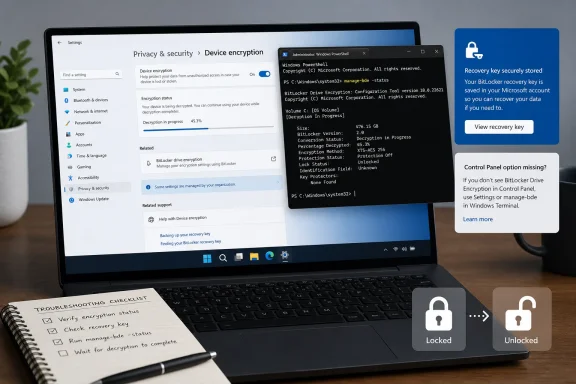 Start With the Interface Windows Actually Provides
On a Windows 11 Home device, open Settings > Privacy & security > Device encryption. If the Device Encryption switch is available, turning it off starts the decryption process.
On Pro, Enterprise, or Education, type Manage BitLocker into Start and open the Control Panel applet. Select Turn off BitLocker beside the relevant volume, then confirm. Microsoft says this removes encryption and associated protectors after decryption has completed.
That distinction matters because a Home PC can be encrypted even though the traditional BitLocker Control Panel page is unavailable. The lack of a Control Panel button is therefore not proof that the disk is unencrypted.
Command-Line Tools Bypass a Missing Button
Microsoft’s built-in management tools remain the most dependable fallback when Windows’ interface is missing or incomplete. Open Windows Terminal, Command Prompt, or PowerShell as administrator, confirm the target drive letter, and use one of these methods:
- Run
manage-bde -statusto check which volumes are encrypted and whether decryption is already underway. - Run
manage-bde -off C:to decrypt the Windows volume, substituting the correct letter for a data drive. - Run
Disable-BitLocker -MountPoint "C:"in an elevated PowerShell session to start decryption through the BitLocker PowerShell module. - Run
Get-BitLockerVolumein PowerShell to inspect protection and conversion status across volumes.
The command-line route is not a workaround that merely hides BitLocker. Microsoft documents manage-bde -off and Disable-BitLocker as supported methods that decrypt the volume and remove its protectors once the operation finishes.
A locked secondary drive must be unlocked first. That can require its password or the 48-digit recovery key; attempting to disable encryption without access to the volume will not bypass BitLocker’s security model.
Management Policy Can Be the Real Blocker
A work or school PC may have BitLocker enforced through Microsoft Intune, Active Directory Group Policy, or another endpoint-management platform. In that case, a local administrator might be able to view encryption status yet still be unable to disable it permanently.
Windows 11 Pro, Enterprise, and Education users can inspect local settings with gpedit.msc, under Computer Configuration > Administrative Templates > Windows Components > BitLocker Drive Encryption. But changing local policy is not a reliable fix on a managed machine: a domain or MDM policy can simply reapply at the next check-in.
For company-owned hardware, the safe path is to ask the IT administrator whether decryption is permitted and whether recovery keys are escrowed in the organization’s account. Do not remove encryption merely to troubleshoot a boot or update issue when suspending BitLocker protection would be sufficient.
Repair the Management Surface, Not the Encryption
If BitLocker controls have disappeared unexpectedly on a supported edition, check that the Shell Hardware Detection service is available. Microsoft identifies that service as necessary for managing BitLocker through Control Panel and File Explorer.
System corruption can also affect the interface. An elevated Command Prompt can run sfc /scannow, followed by DISM /Online /Cleanup-Image /RestoreHealth, then restart Windows. Those commands may restore missing management components, but they do not decrypt the disk themselves.
Third-party partition managers, including the EaseUS utility highlighted by Appuals, can present a graphical BitLocker control panel. For most users and administrators, however, Windows Settings, Manage BitLocker, manage-bde, and PowerShell are the lower-risk choices because they are built into Windows and documented by Microsoft.
The practical test is simple: if manage-bde -status shows encryption percentage falling after an authorized disable command, the missing button no longer matters. Keep the recovery key until decryption reaches 0% and Windows reports that protection is off.
