

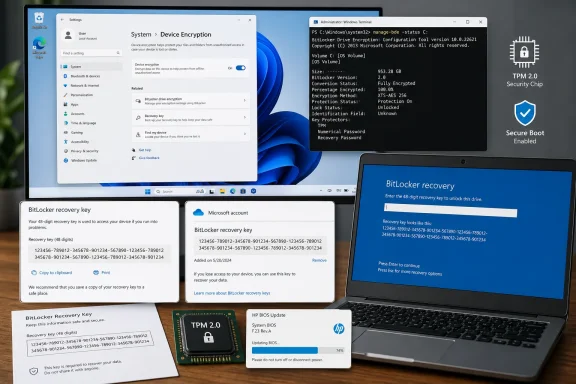
But the important detail is more precise than “Windows encrypted my drive without asking.” On a newly installed Windows 11 system, automatic encryption can begin during setup, yet the drive is initially in a suspended, clear-key state. It becomes protected only after the device creates its TPM-backed protector and successfully backs up a recovery key to the Microsoft account, Microsoft Entra ID, or Active Directory destination associated with the machine.
That distinction is the part home users and IT staff need to act on. A disk can show as encrypted while its normal pre-boot protection has not yet been armed; a local-account-only PC is Microsoft’s clearest example. The data is encrypted on disk, but Microsoft says it remains unprotected until an eligible account signs in and lets Windows escrow the recovery key and create the TPM protector.
Windows 11 24H2 widened the automatic-encryption net
TweakTown’s central finding matches Microsoft’s OEM guidance: starting with Windows 11 version 24H2, Automatic Device Encryption no longer depends on Modern Standby or the Hardware Security Test Interface, and it can proceed even when Windows detects untrusted DMA-capable interfaces. Those requirements had excluded a substantial category of conventional desktops and older laptops.
The remaining baseline is still meaningful. The device needs a TPM with appropriate PCR support, UEFI Secure Boot, Platform Secure Boot, and sufficient free system-partition space. This is why the change is especially visible on otherwise unremarkable Windows 11 Home PCs: a machine that met Windows 11’s installation requirements but failed the older encryption-eligibility tests may now pass them after a clean install or OEM deployment.
Microsoft describes the normal consumer sequence plainly. During the out-of-box experience, Windows initializes encryption on the OS drive and fixed internal data drives. When an administrator signs in with a Microsoft account, Windows uploads the recovery key to that account, creates the TPM protector, removes the clear key, and arms protection. For Microsoft Entra-joined and Active Directory-joined systems, that escrow destination is the organization instead.
The practical consequence is that a “Microsoft account recovery key” is not universal. If a family member set up the PC with their own account, the key may be in their account. If a work or school account enrolled the device, the key may sit with that organization. Microsoft’s recovery guidance specifically warns that a PC set up by another person can have its key stored under that person’s Microsoft account.
TweakTown correctly notes that local accounts do not activate the same automatic flow. But the reason matters: Windows does not simply skip encryption in every sense. Microsoft says a local-account-only device can remain encrypted but unprotected, with the clear key still present. That is a poor state to mistake for full BitLocker protection, particularly on a laptop that may be lost or stolen.
The Settings page is useful, but it is not the definitive test
The article recommends checking Settings > Privacy & security > Device encryption, then treating the absence of that page as proof that the hardware never qualified. That is too categorical.
Microsoft’s more reliable eligibility check is System Information (msinfo32.exe) run as administrator. In the System Summary, the Device Encryption Support line reports whether the device meets prerequisites and, if not, why it does not. That output is useful because it separates “this device cannot support automatic encryption” from configuration problems such as disabled Secure Boot or an unavailable TPM.
For protection status, an elevated Terminal remains the best direct check:
manage-bde -status C:
Look for more than the word “encrypted.” The output identifies conversion status, encryption method, and the protector state. A system volume that is fully converted but has protection suspended should not be treated as equivalent to a TPM-protected boot drive. Microsoft’s own documentation describes the initial automatic-encryption state as the functional equivalent of standard BitLocker suspension.
The same command also resolves another point that can be missed in Settings: automatic Device Encryption applies to the OS volume and fixed internal drives, not removable USB media. A second internal NTFS disk may therefore be encrypted; an external USB backup disk will not be pulled into Device Encryption merely because the PC’s C: drive is protected.
Windows labels can add to the confusion. Microsoft calls the simple consumer control Device Encryption, while BitLocker is the encryption technology underneath it. Windows 11 Pro, Enterprise, and Education also expose fuller BitLocker management controls. The underlying protection mechanism overlaps, but the management experience and available policy controls do not, which is why a Home user may see a much thinner settings surface than a Pro administrator.
Recovery-key escrow solves one problem and creates another
The recovery key is a 48-digit password used when BitLocker cannot verify that the boot environment is the one it expects. That is the safety net after a motherboard replacement, TPM reset, Secure Boot change, some bootloader changes, or a drive move into different hardware.
TweakTown’s advice to retrieve the key from another device is sound. Microsoft’s support documentation tells users to record the first eight digits of the recovery-key ID shown on the BitLocker recovery screen, then match that ID against the key stored in the associated Microsoft, work, or school account. Windows 11 24H2 also displays a hint identifying the account associated with the recovery key, a change aimed at reducing the familiar “I have three Microsoft accounts and none has the key” problem.
Yet cloud escrow is recovery access, not a complete backup plan. A recovery screen appears when the affected PC cannot complete a trusted boot, and that PC may be the user’s only route to the browser, password manager, authenticator, or email account needed to retrieve its key. A Microsoft account protected with an authenticator prompt on the locked PC can turn a straightforward BitLocker recovery into an account-recovery exercise.
The safer practice is to maintain at least one offline copy of the recovery key away from the computer: a printed copy stored with other important records, or a file on removable storage that is not routinely attached to the PC. It should not be stored only on the encrypted C: drive, an obvious but still common failure mode.
For managed endpoints, administrators should treat recovery-key location as an inventory issue rather than an end-user scavenger hunt. Confirm that recovery passwords are being escrowed to Microsoft Entra ID or on-premises Active Directory according to policy, verify which identity owns each device, and test the support workflow before a firmware rollout forces users to call the help desk from a recovery screen.
Firmware work still needs BitLocker preparation
Microsoft explicitly advises suspending BitLocker protection before firmware changes. That recommendation is not alarmism: BitLocker measures elements of the boot chain through the TPM, and planned changes to firmware or boot configuration can legitimately alter the values it expects.
Suspension does not decrypt the disk. It temporarily removes the requirement that the current boot measurements match the sealed TPM protector, allowing the update and subsequent restart to complete. Once protection resumes, BitLocker reseals its key material against the new trusted state.
For a one-restart maintenance window, the command TweakTown gives is appropriate:
manage-bde -protectors -disable C: -RebootCount 1
That should be performed immediately before a planned BIOS or UEFI update, not days in advance. On Windows 11 Pro and higher editions, the BitLocker Control Panel provides a Suspend protection option for the OS drive. In either case, administrators should confirm that protection resumed afterward with manage-bde -status C: rather than assuming the reboot count behaved as intended.
The recent update history also shows why recovery-key readiness cannot be reserved for people who replace motherboards or install Linux. Microsoft’s April 14, 2026 cumulative update, KB5083769 for Windows 11 24H2 and 25H2, documented two BitLocker-related issues around Secure Boot work. One issue involved a limited enterprise configuration: systems with a manually configured PCR7 validation policy, an incompatible PCR7 binding state, and a pending transition to the 2023-signed Windows Boot Manager could be asked for their recovery key once after the update.
Microsoft said those conditions were unlikely on unmanaged personal devices and later addressed the incompatibility in KB5089549. That is a much narrower finding than a general claim that the April update locked ordinary consumer PCs out en masse. Still, Microsoft also listed a separate fix in KB5083769 for devices entering BitLocker Recovery after Secure Boot updates. The correct lesson is not that every monthly patch is dangerous; it is that recovery prompts can arise from routine changes in the trusted boot chain, including Windows-serviced Secure Boot work.
The upgrade claim needs more caution
TweakTown says Windows 11 24H2 and 25H2 will not quietly enable encryption on a PC simply upgraded through Windows Update, limiting the new behavior to clean installs, reinstalls, and new devices completing setup. Microsoft’s published documentation strongly emphasizes the OOBE path, so that is the expected scenario for automatic setup encryption.
However, Microsoft also says Device Encryption can turn on automatically whenever a device that did not initially qualify later becomes eligible — it gives enabling Secure Boot as an example. Microsoft does not publish an equally absolute promise that an in-place feature update can never create the conditions for automatic encryption on an existing installation. The blanket assurance in the article therefore goes beyond the public documentation.
For Windows enthusiasts, the action is uncomplicated: check the device rather than infer its status from how it got Windows 11 24H2 or 25H2. Run msinfo32, check Device Encryption or BitLocker status, identify the recovery-key owner, and make an offline backup before the next BIOS update, hardware change, or boot configuration experiment. The drive may already be encrypted; the more urgent question is whether its recovery path belongs to you and works when the PC does not.