
Microsoft’s current support documentation recommends starting with the built-in Windows search troubleshooting tools rather than immediately repairing Office. In Windows 11, open Settings > Privacy & security > Troubleshoot > Searching Windows > Indexer troubleshooter. Windows 10 users can find the equivalent under Settings > Update & Security > Troubleshoot > Search and Indexing.
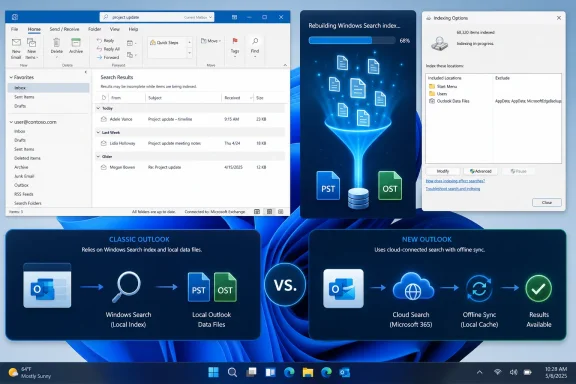 First, establish whether the index is still building
For classic Outlook, click in the Search box and open Search Tools > Indexing Status. If Outlook reports items remaining to be indexed, leave Outlook running and check again after several minutes. Microsoft notes that Outlook data in PST and OST files is indexed only while Outlook is open, so a large mailbox or a newly rebuilt index can take time to settle.
If the count does not fall, open Control Panel > Indexing Options. Microsoft Outlook should appear in Included Locations. If it does not, choose Modify, enable Microsoft Outlook, and save the change.
The older .msg file-type check remains relevant for classic Outlook installations: under Indexing Options > Advanced > File Types, select msg and confirm that Index Properties and File Contents is enabled. If the Outlook filter is missing, that points to a damaged Windows Search or Office installation rather than a simple search-scope problem.
Rebuilding the catalog is the practical reset
When search produces partial results, no results, or misses messages that should clearly match, rebuilding the catalog is the most direct repair:
- Close Outlook.
- Open Control Panel > Indexing Options > Advanced.
- Select Rebuild under Troubleshooting.
- Reopen Outlook and allow indexing to complete.
Microsoft cautions that rebuilding can take a long time, particularly with sizable PST files, OST caches, or locally stored archives. It is not an instant fix; it deletes the existing search catalog and starts over.
Also confirm that the Windows Search service is running. Press Win + R, enter services.msc, open Windows Search, and set Startup type to Automatic (Delayed Start) if necessary. A disabled service can grey out Outlook’s search controls entirely or return no matches.
Missing older mail may not be an indexing fault
For Exchange and Microsoft 365 accounts in classic Outlook, older mail may simply not be stored locally. Go to File > Account Settings > Account Settings, select the account, choose Change, and move Download email for the past farther back—or to All—before testing again.
New Outlook for Windows works differently. Microsoft says its search settings live under Settings > General > Search, where users can change the search scope and include Deleted Items. Its Offline settings also control how many days of email are kept on the device. New Outlook does not currently support searching several accounts in one combined search; each account must be searched separately.
Repair Office only after the search checks
A Quick Repair remains a sensible next step when indexing settings are correct but Outlook’s search components appear damaged. Open Control Panel > Programs and Features, select Microsoft 365 or Office, choose Change, then run Quick Repair. An Online Repair is the heavier follow-up if Quick Repair fails.
If search works in a newly created Outlook profile, Microsoft says the original profile is likely the problem. That is the point to migrate to a new profile—not the first step for every blank search result.
The key change from the old Outlook 2007-era playbook is to diagnose the Outlook edition and mailbox type first. Classic Outlook still depends heavily on Windows Search for local PST and OST data, while new Outlook’s search behavior is shaped by its cloud-connected scope and offline-sync settings.
