
The practical fix is to start with the least invasive Steam-side checks, then isolate the affected library, and only afterward move to security exceptions, file-system repair, or a Steam reinstall. That order avoids a common mistake: deleting an entire game or weakening system security before identifying the actual write barrier.
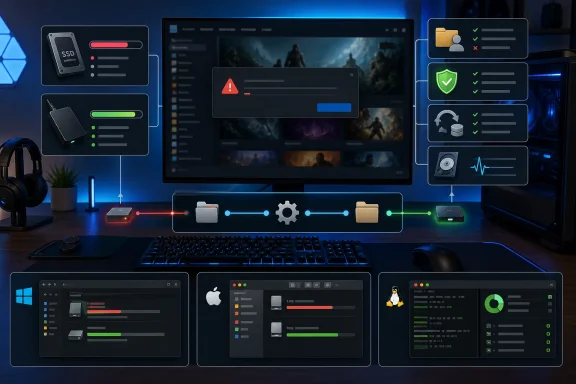 Overview: What the Steam Disk Write Error Actually Means
Steam needs continuous write access while it downloads, decompresses, stages, verifies, and applies game files. A title can already be visible in the Library and even have a mostly complete installation folder, yet still fail if Steam cannot replace one required file or write to its temporary download area.
This makes the error more of a symptom than a diagnosis. It can occur during a first-time installation, a routine game update, a shader or content download, or file verification after a failed patch.
The core causes generally fall into a few categories:
- Insufficient usable free space, especially while Steam is downloading and unpacking a large update.
- Broken temporary download data in Steam’s cache or the library’s
steamapps/downloadingdirectory. - Permission or ownership restrictions affecting the Steam folder or an alternate library.
- Security software interference, including Microsoft Defender Controlled Folder Access.
- A single damaged game installation rather than a broken Steam client.
- File-system or hardware trouble on the library drive.
- Sandbox or mount configuration issues on Linux, particularly with Flatpak installations and external drives.
The source report correctly emphasizes that the same message can arise from both a minor software conflict and an underlying drive problem. The key is to treat it as a storage-access investigation, not as an automatic instruction to reinstall everything. Skin.Club’s Steam disk write error guide makes the same distinction between permissions, cache corruption, security restrictions, free space, and disk health.
Start With Fast, Low-Risk Checks
Before changing Windows security rules, running disk repair tools, or deleting files, clear the most common temporary states.
Completely exit Steam and restart the PC
Choose Steam > Exit, then confirm Steam is not still running in the notification area or Task Manager. Steam’s background processes can retain file handles after a stalled update, particularly when another application, scanner, or game launcher has interacted with the same folder.
Restarting Windows, macOS, or Linux also clears pending processes and remounts storage volumes. It is not a cure for a failing SSD, but it is a quick way to eliminate an isolated lock or client-state problem.
Check the correct drive’s free space
Look at the drive that contains the affected Steam Library, not merely the system drive. A game update may need more temporary capacity than its final patch size suggests because Steam can hold downloaded archives, decompressed data, and replacement files during the same operation.
If the library drive is close to full, free meaningful space first. Emptying a few hundred megabytes may not be sufficient for a large game update. Avoid storing an actively updated game library on a nearly full external drive, especially if it is also used for backups, recordings, or media projects.
Identify whether the failure affects one game or all games
This distinction sharply narrows the diagnosis:
- If one game fails but other downloads work, start with file verification and its temporary download folder.
- If every game on one library drive fails, inspect that library’s permissions, free space, security restrictions, mount state, and file system.
- If all libraries fail, clear Steam’s cache and investigate the Steam client, account environment, or system-wide security software.
Steam’s own support guidance confirms that its file-verification tool is intended to check whether local game files are installed correctly and replace content as necessary. Steam Support’s verification instructions also note that the process can take several minutes.
Fix the Steam Disk Write Error on Windows
Windows remains the most common environment for the Steam disk write error, largely because Steam libraries can exist across several internal, external, NTFS, and removable volumes—each with its own permissions and protection settings.
Clear Steam’s download cache
A damaged or incomplete cache can make Steam repeatedly resume a failed job using bad temporary metadata. Clearing it does not remove installed games, although Steam will require another sign-in afterward.
- Open Steam.
- Select Steam > Settings.
- Open Downloads.
- Choose Clear Download Cache.
- Confirm, sign in again, and retry the game update.
Steam explicitly states that clearing the download cache can resolve games that will not download or start, while preserving installed games. Steam Support’s cache-reset guide confirms the sign-in requirement.
This is one of the best first fixes because it is low risk. It targets temporary Steam data rather than installed game files or the operating system.
Verify the affected game’s files
If the error is isolated to one title, use Steam’s built-in repair mechanism before manually deleting game data.
- Open Library.
- Right-click the game and choose Properties.
- Select Installed Files.
- Click Verify integrity of game files.
- Allow Steam to complete the scan and retrieve replacement content if needed.
Steam warns that one or more files may fail verification even when nothing is wrong, because local configuration files are not always meant to be replaced. Do not treat that message alone as proof of corruption. Steam’s support documentation also advises against verifying multiple titles simultaneously or running the process alongside other heavy disk activity.
Remove only the affected temporary download folder
When a game update repeatedly fails at the same point, Steam’s unfinished download data may be the immediate problem. Close Steam fully, then browse to the relevant library:
SteamLibrary\steamapps\downloading
Each temporary game directory generally corresponds to a Steam AppID. That ID is visible in the game’s Steam Store URL after /app/.
Move the suspected AppID folder somewhere safe first, or delete it only if it is clearly incomplete temporary download data. Restart Steam and retry the download. Steam should rebuild the required staging data.
Do not delete the entire steamapps folder. That would remove installation manifests and potentially force Steam to rediscover or redownload a much larger collection of games.
Check library-folder permissions, not the misleading Read-only box
The Read-only checkbox displayed in a Windows folder’s Properties dialog is not a reliable test of whether Steam can write to that folder. Focus instead on the Security tab and the effective permissions for the Windows account running Steam.
- Exit Steam.
- Right-click the Steam installation folder or affected library folder.
- Select Properties > Security.
- Highlight the current user account.
- Confirm that Modify, Read & execute, List folder contents, Read, and Write are allowed.
- Apply changes carefully to child folders and files if an inherited permission was broken.
The common default Steam path is:
C:\Program Files (x86)\Steam
But alternate libraries may live on D:, E:, an external USB drive, or a custom folder such as D:\Games\SteamLibrary. Check the location where the failing title actually resides.
Running Steam once with Run as administrator can help test whether this is an access-control issue. It should not necessarily become a permanent habit; routinely elevating a game client gives it broader system privileges than ordinary use requires.
Check Microsoft Defender Controlled Folder Access
Windows’ Controlled Folder Access is designed to prevent untrusted applications from changing files in protected locations. That is useful ransomware protection, but it can block a legitimate client when a library is located in a protected or user-managed directory.
Microsoft explains that Controlled Folder Access blocks unauthorized changes to protected folders and allows approved applications to be added through its settings. Microsoft’s Windows Security documentation also cautions that approved apps gain access to protected folders.
To investigate:
- Open Windows Security.
- Select Virus & threat protection.
- Choose Manage ransomware protection.
- Open Allow an app through Controlled folder access.
- Add the legitimate
Steam.exeexecutable from the installed Steam folder. - Restart Steam and retry the update.
The security trade-off matters. Adding Steam is more precise than disabling Controlled Folder Access altogether. Do not turn off ransomware protection permanently merely to complete a game update.
Review third-party antivirus exclusions carefully
Third-party antivirus tools can also intercept Steam’s download, decompression, or executable-update activity. If an antivirus history page shows Steam or a game file being quarantined or blocked, restore only the verified legitimate file and add a limited exclusion for the Steam program folder or specific library path.
Avoid broad exclusions such as an entire drive. Antivirus exclusions reduce inspection coverage, and Microsoft similarly warns that excluded items are no longer scanned in real time by Defender. Microsoft’s exclusion guidance makes clear that this can leave data more exposed.
Move the game to another Steam Library
A game that updates successfully after moving is valuable evidence: it points to the previous library folder or drive rather than the game itself.
Steam supports creating alternate library locations from Settings > Storage, then moving installed games between them. Steam’s official moving guide details the Storage tab workflow and the client’s built-in Move function.
- Open Steam > Settings > Storage.
- Add a second library folder on a known-good drive.
- Select the failing game.
- Choose Move.
- Retry the update after the transfer completes.
If the game works in its new location, check the original volume for low space, filesystem errors, permission anomalies, unstable external connections, or security restrictions. Steam itself advises against installing the client to an external hard drive because of possible performance issues, a caution worth keeping in mind for libraries that see frequent large updates. Steam’s installation-moving documentation
Use CHKDSK when the error points to the drive
Repeated write failures on the same Windows volume should be treated as a storage warning, particularly if File Explorer also reports errors, copy operations fail, or the drive disconnects.
Back up important files before attempting repair. Then open Command Prompt as Administrator and run:
chkdsk D: /f
Replace D: with the actual Steam library drive. The /f option repairs logical file-system errors. Microsoft documents that the drive may need to be locked, and Windows can schedule the check for the next restart when the volume is in use. Microsoft’s CHKDSK reference explains this behavior.
For a more exhaustive scan:
chkdsk D: /f /r
The /r parameter includes /f, locates bad sectors, and attempts to recover readable information. It can take a long time, especially on high-capacity drives. Microsoft notes that an SSD scan is generally faster than an HDD scan but that repeated full-surface checks are not something to run casually without reason. Microsoft’s current CHKDSK guidance is especially relevant here.
A disk repair can correct file-system metadata; it cannot make failing hardware trustworthy. If errors return, files disappear, SMART diagnostics flag warnings, or the drive vanishes under load, move games and personal data to a healthy disk promptly.
Steam Disk Write Error on macOS
On a Mac, the same problem is usually rooted in the Steam library’s folder access, the permissions assigned to the current account, or the integrity of the disk or external volume holding the library.
Check Full Disk Access only when it is relevant
Open Apple menu > System Settings > Privacy & Security > Full Disk Access. Add Steam if it is missing, then restart the client.
Apple describes Full Disk Access as permission for an app to access all files on the Mac, including certain protected data and administrative settings. Apple’s Privacy & Security documentation confirms that apps can be added to the list from this pane.
That scope is substantial. For a library stored in an ordinary user-accessible folder, fixing the library’s ownership or permissions may be the more narrowly tailored solution. Full Disk Access is most appropriate when macOS protection is demonstrably the barrier.
Inspect the Steam data folder and external libraries
The standard Steam support data location is:
~/Library/Application Support/Steam
In Finder, use Go > Go to Folder and enter the path. Select the Steam folder, choose Get Info, and inspect Sharing & Permissions. The account using Steam should have Read & Write access.
If the games are on an external disk, confirm that the disk is connected, mounted, writable, and not formatted or configured in a way that prevents macOS from writing. A drive that mounts as read-only will naturally produce a write failure regardless of Steam’s permissions.
Run Disk Utility First Aid
Open Disk Utility, choose View > Show All Devices, then run First Aid from the volume upward through its container and physical device. Apple recommends this sequence because file-system issues can exist at multiple levels of the storage hierarchy. Apple’s Disk Utility repair instructions describe the volume-container-device order.
If First Aid reports a disk is about to fail, back up the data and replace the drive. Apple is direct on this point: Disk Utility can repair some formatting and directory problems, but it cannot repair every physical storage failure. Apple’s support guidance is a useful reminder not to confuse a temporary Steam error with a harmless disk-health warning.
Steam Disk Write Error on Linux
Linux troubleshooting depends heavily on how Steam was installed and where the library is mounted. A native package installation and a Flatpak installation can behave very differently even on the same distribution.
Determine whether Steam is a Flatpak
Run:
flatpak list --app
If Steam appears, it is running in Flatpak’s sandboxed application model. That sandbox can be beneficial for isolation, but a custom game library outside the locations Steam is allowed to access may not be writable.
Flatpak’s documentation states that applications can be granted access to an absolute filesystem path through --filesystem, while a :ro suffix makes that access read-only. Flatpak’s command reference also explains that overrides can change the permissions requested by the application.
To allow a library path for the current user:
flatpak override --user --filesystem=/path/to/SteamLibrary com.valvesoftware.Steam
Use the exact path for the library—not a wider directory unless it is necessary. Then restart Steam.
This is the Linux equivalent of applying a targeted permission fix. Granting the whole host filesystem may appear to solve the error, but it defeats much of the sandbox’s value and expands the impact of any compromised application.
Confirm the library drive is mounted read-write
For libraries on another internal partition, an external SSD, or a network-attached disk, verify that the mount is not read-only:
mount | grep -i SteamLibrary
A read-only mount is often visible as ro rather than rw. Resolve the reason the system mounted it read-only before forcing permissions changes; Linux may do this to protect data after filesystem errors.
For a normally mounted local drive, make sure the current user owns the library path:
sudo chown -R "$USER":"$USER" /path/to/SteamLibrary
Use that command cautiously. It is appropriate for a personal, dedicated Steam library, but not for a shared directory or a path deliberately owned by another account.
Reinstall Steam Only After Isolating the Cause
A Steam reinstall can replace damaged client files, but it will not repair a bad disk, a blocked security policy, or a misconfigured Flatpak sandbox. It should be a late-stage step, not the first reaction to a disk write error.
On Windows, Steam’s documented recovery approach preserves installed games by retaining steamapps, userdata, and Steam.exe while removing the other client files. Steam then updates itself on the next launch. Steam’s official installation-moving instructions describe this method and recommend backing up steamapps first.
On macOS, Steam similarly advises preserving the SteamApps folder when reinstalling if the goal is to retain downloaded games and local save data. Steam Support’s Mac reinstall guide identifies Library/Application Support/Steam as the relevant location.
A backup remains essential. Cloud saves are not universal, and some games keep local progress outside the Steam library.
Preventing Repeat Steam Write Failures
The strongest preventative measure is not a special Steam setting. It is a healthy, writable library location with enough spare capacity and clear ownership.
Maintain the following baseline:
- Keep substantial free space on the library drive for downloads, unpacking, and patch replacement operations.
- Use a stable internal SSD or well-powered external drive for games that receive large, frequent updates.
- Avoid abruptly disconnecting an external game library during downloads or updates.
- Keep Steam, graphics drivers, and operating-system storage components updated.
- Use antivirus exclusions narrowly and only for verified Steam paths when security software is proven to be the cause.
- Check recurring failures on one drive with file-system tools and the drive manufacturer’s health diagnostics.
- On Linux Flatpak installations, grant only the specific custom library path Steam needs.
- Verify game files before deleting full game folders or reinstalling the Steam client.
The Steam disk write error is frustrating precisely because it compresses many possible failures into one vague alert. But its lack of detail does not require drastic action. Clearing the cache, verifying a single game, checking the exact library folder, and moving the title to another drive can often identify the problem quickly. When the error continues to return on the same device, treat that pattern as a storage-health signal—not just another stalled download—and protect the data before the next write fails.
