
Windows 11’s Voice Clarity setting can make a good microphone sound unnaturally distant or “underwater,” while the legacy Listen to this device control can create the apparent echo users often mistake for a bad mic. But the fixes are not interchangeable: an echo is a routing or acoustic-feedback problem, whereas muffling is usually processing, level, format, or application behavior. Treating both symptoms as one Windows bug can make diagnosis slower—and, in one case, send users into the BIOS for no good reason.
Guiding Tech’s August 4 troubleshooting guide correctly points users first toward microphone placement, testing the device on another machine, and checking Windows sound controls. Microsoft’s own Windows 11 support guidance similarly starts with selecting the intended input device and using the built-in microphone test under Settings > System > Sound. That local recording test is the dividing line users should begin with: if the saved sample is clear, the microphone and most of the Windows capture path are working, and the fault is likely in the calling app, its selected device, or the other participant’s playback.
The important caveat is that Windows audio now has more than one place where speech processing may occur. Microsoft documents its Audio Processing Objects, or APOs, as the system and driver components that apply effects such as acoustic echo cancellation, automatic gain control, and noise suppression to audio streams. Laptop makers can add their own processing through drivers and companion software, while Teams, Zoom, Discord, OBS, and browser-based WebRTC calls can apply another layer on top. A “muffled mic” may therefore be a stack of effects, not one toggle.
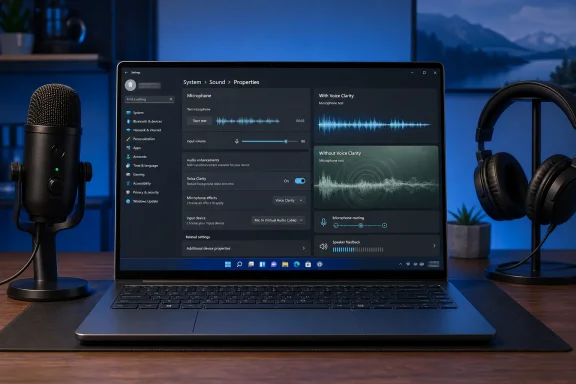
Open Settings > System > Sound, select the microphone under Input, and use Start test. Speak normally for ten to fifteen seconds, then stop the test and play the recorded sample. Microsoft specifically provides this workflow to confirm both the selected microphone and the captured result before users start reinstalling drivers or changing advanced controls.
A clear local recording with poor call quality points away from Windows-wide microphone failure. Check the app’s own input selector first; conferencing software will sometimes retain an old webcam microphone, Bluetooth hands-free endpoint, virtual mixer, or monitor device even after Windows’ default input changes. Also turn off the app’s own noise removal, echo cancellation, automatic gain control, or “voice isolation” temporarily and test again. This is particularly important for USB studio microphones and audio interfaces, where speech-oriented filters can damage music, instruments, room ambience, and naturally quiet speech.
If the local recording is already muffled, Windows’ microphone properties are the next stop. Under Settings > System > Sound > [microphone], inspect Audio enhancements. The exact menu varies by device driver, but it may offer Off, Device Default Effects, or Voice Clarity. Thurrott has independently documented Voice Clarity in this location on supported configurations, including a further Voice Focus option on some machines.
Microsoft describes Voice Focus as an AI-assisted microphone effect that suppresses background noise. That is useful on a laptop in a busy room; it is not designed to preserve an unprocessed recording signal. Turn Audio enhancements off for a controlled A/B test, make a new local recording, and retain the setting that actually sounds better. Do not assume “enhanced” means higher fidelity.
The guide’s suggestion that Voice Clarity can overprocess speech is plausible and consistent with how noise suppression works, but it should not be presented as a universal Windows 11 defect. Availability depends on the installed audio driver and hardware. Microsoft says Windows Studio Effects requires a supported NPU device and an OEM-provided Studio Effects driver; other audio enhancements can come from the PC maker’s audio stack instead.
If you hear your own voice locally, open the classic Sound panel by searching for “More sound settings,” select the Recording tab, choose the microphone, then open Properties > Listen. Clear Listen to this device if it is enabled. This setting deliberately sends microphone capture to a selected playback device. With speakers, that can become audible monitoring; with sufficient speaker volume and mic sensitivity, it can also contribute to an acoustic feedback loop.
However, clearing that box will not disable every form of self-monitoring. USB microphones, audio interfaces, gaming headsets, and monitor controllers often provide direct hardware sidetone. That is normally intentional and near-instant, so it does not produce the delayed repeat associated with software monitoring. Look for a physical dial, a headset app, or the manufacturer’s control panel before concluding that Windows is routing the microphone incorrectly.
If the other person hears their own voice come back, the most likely issue is their speech entering your microphone through speakers and being sent back over the call. Wear headphones, reduce speaker volume, move the microphone closer to your mouth and farther from the speakers, and avoid pointing the microphone at reflective bare walls. Microsoft’s driver documentation identifies acoustic echo cancellation as a specialized capture-path effect that needs both the microphone signal and a playback reference; it is not magic when the room is loud or the microphone is poorly positioned.
If everyone hears a rapidly growing squeal or howl, stop the test immediately and lower the speaker level. That is feedback, not a software echo. Microphone Boost may make it easier to trigger because it raises capture gain, but it is not inherently a fault. Reduce boost or input volume only enough to prevent the microphone from capturing speaker output; then improve placement or use headphones rather than leaving the mic too quiet to be useful.
For an IT admin or streamer, the practical check is simple: in the calling or recording app, verify the exact input device name. If it says Stereo Mix, “What U Hear,” a virtual cable, or an output-monitor source when it should say the physical microphone, change the app’s selection. Disabling Stereo Mix is reasonable if the device is unused, but it is not a universal echo cure and may remove a deliberate capture capability used for training, broadcasting, or system-audio recording.
The “Allow applications to take exclusive control of this device” checkbox also deserves a narrower explanation than it usually receives. Microsoft’s Core Audio documentation says exclusive mode lets one application seize a recording or playback endpoint rather than share it with other applications. It can produce conflicts, prevent simultaneous access, and allow an application to use a hardware-supported format directly. It does not give an application blanket authority to rewrite every microphone setting or explain an echo by itself.
Disable exclusive mode temporarily if a DAW, conferencing client, browser, or communications app is fighting other software for a device, especially where sample-rate changes or device-busy errors accompany the audio fault. For routine voice calls, though, it is a lower-priority test than verifying the selected input, disabling unwanted enhancements, and checking routing. Users who need low-latency recording may deliberately rely on exclusive access and should not permanently change it without confirming the result.
An OEM could expose firmware-level controls on a particular laptop, but no general Windows 11 setting called “NPU Audio Processing” appears in Microsoft’s user documentation, and firmware layouts differ by manufacturer and model. Disabling an entire NPU in BIOS may also affect more than microphone processing, including other supported Windows AI features. It is an unjustified first-line instruction for a muffled microphone.
On an NPU-capable system, test the supported Windows-level effect first. Disable Voice Clarity or Voice Focus in microphone properties where available, record a fresh sample, and then check the laptop maker’s audio app for noise reduction, beamforming, or AI microphone modes. If those changes do not alter the local recording, update or reinstall the audio driver from the PC or audio-interface manufacturer rather than relying on a generic driver swap.
The practical outcome is straightforward: use Windows’ microphone test to isolate the fault, disable processing only when it demonstrably harms the signal, and trace echoes through routing and speaker-to-mic acoustics before changing advanced controls. A clear test recording and a correctly selected microphone will solve more Windows 11 call problems than Stereo Mix toggles, exclusive-mode changes, or a blind trip into UEFI.
The important caveat is that Windows audio now has more than one place where speech processing may occur. Microsoft documents its Audio Processing Objects, or APOs, as the system and driver components that apply effects such as acoustic echo cancellation, automatic gain control, and noise suppression to audio streams. Laptop makers can add their own processing through drivers and companion software, while Teams, Zoom, Discord, OBS, and browser-based WebRTC calls can apply another layer on top. A “muffled mic” may therefore be a stack of effects, not one toggle.
Start With a Local Recording, Not a Call
Open Settings > System > Sound, select the microphone under Input, and use Start test. Speak normally for ten to fifteen seconds, then stop the test and play the recorded sample. Microsoft specifically provides this workflow to confirm both the selected microphone and the captured result before users start reinstalling drivers or changing advanced controls.A clear local recording with poor call quality points away from Windows-wide microphone failure. Check the app’s own input selector first; conferencing software will sometimes retain an old webcam microphone, Bluetooth hands-free endpoint, virtual mixer, or monitor device even after Windows’ default input changes. Also turn off the app’s own noise removal, echo cancellation, automatic gain control, or “voice isolation” temporarily and test again. This is particularly important for USB studio microphones and audio interfaces, where speech-oriented filters can damage music, instruments, room ambience, and naturally quiet speech.
If the local recording is already muffled, Windows’ microphone properties are the next stop. Under Settings > System > Sound > [microphone], inspect Audio enhancements. The exact menu varies by device driver, but it may offer Off, Device Default Effects, or Voice Clarity. Thurrott has independently documented Voice Clarity in this location on supported configurations, including a further Voice Focus option on some machines.
Microsoft describes Voice Focus as an AI-assisted microphone effect that suppresses background noise. That is useful on a laptop in a busy room; it is not designed to preserve an unprocessed recording signal. Turn Audio enhancements off for a controlled A/B test, make a new local recording, and retain the setting that actually sounds better. Do not assume “enhanced” means higher fidelity.
The guide’s suggestion that Voice Clarity can overprocess speech is plausible and consistent with how noise suppression works, but it should not be presented as a universal Windows 11 defect. Availability depends on the installed audio driver and hardware. Microsoft says Windows Studio Effects requires a supported NPU device and an OEM-provided Studio Effects driver; other audio enhancements can come from the PC maker’s audio stack instead.
Echo Has Three Different Meanings
“Echo” is one of the least precise terms in PC audio support. The remedy changes depending on who hears what.If you hear your own voice locally, open the classic Sound panel by searching for “More sound settings,” select the Recording tab, choose the microphone, then open Properties > Listen. Clear Listen to this device if it is enabled. This setting deliberately sends microphone capture to a selected playback device. With speakers, that can become audible monitoring; with sufficient speaker volume and mic sensitivity, it can also contribute to an acoustic feedback loop.
However, clearing that box will not disable every form of self-monitoring. USB microphones, audio interfaces, gaming headsets, and monitor controllers often provide direct hardware sidetone. That is normally intentional and near-instant, so it does not produce the delayed repeat associated with software monitoring. Look for a physical dial, a headset app, or the manufacturer’s control panel before concluding that Windows is routing the microphone incorrectly.
If the other person hears their own voice come back, the most likely issue is their speech entering your microphone through speakers and being sent back over the call. Wear headphones, reduce speaker volume, move the microphone closer to your mouth and farther from the speakers, and avoid pointing the microphone at reflective bare walls. Microsoft’s driver documentation identifies acoustic echo cancellation as a specialized capture-path effect that needs both the microphone signal and a playback reference; it is not magic when the room is loud or the microphone is poorly positioned.
If everyone hears a rapidly growing squeal or howl, stop the test immediately and lower the speaker level. That is feedback, not a software echo. Microphone Boost may make it easier to trigger because it raises capture gain, but it is not inherently a fault. Reduce boost or input volume only enough to prevent the microphone from capturing speaker output; then improve placement or use headphones rather than leaving the mic too quiet to be useful.
Stereo Mix and Exclusive Mode Are Secondary Checks
Guiding Tech advises disabling Stereo Mix to prevent echo. There is a kernel of truth in checking it, but enabling Stereo Mix alone does not normally feed speaker output into the selected microphone. Stereo Mix is usually a separate loopback capture endpoint exposed by an audio driver. It becomes a problem when an app is set to use Stereo Mix as its input, or when a mixer, broadcast tool, or virtual-audio driver intentionally routes it into the microphone path.For an IT admin or streamer, the practical check is simple: in the calling or recording app, verify the exact input device name. If it says Stereo Mix, “What U Hear,” a virtual cable, or an output-monitor source when it should say the physical microphone, change the app’s selection. Disabling Stereo Mix is reasonable if the device is unused, but it is not a universal echo cure and may remove a deliberate capture capability used for training, broadcasting, or system-audio recording.
The “Allow applications to take exclusive control of this device” checkbox also deserves a narrower explanation than it usually receives. Microsoft’s Core Audio documentation says exclusive mode lets one application seize a recording or playback endpoint rather than share it with other applications. It can produce conflicts, prevent simultaneous access, and allow an application to use a hardware-supported format directly. It does not give an application blanket authority to rewrite every microphone setting or explain an echo by itself.
Disable exclusive mode temporarily if a DAW, conferencing client, browser, or communications app is fighting other software for a device, especially where sample-rate changes or device-busy errors accompany the audio fault. For routine voice calls, though, it is a lower-priority test than verifying the selected input, disabling unwanted enhancements, and checking routing. Users who need low-latency recording may deliberately rely on exclusive access and should not permanently change it without confirming the result.
Do Not Hunt for a Generic “NPU Audio Processing” BIOS Switch
The most questionable recommendation in the supplied guide is its final “Copilot+ PCs Only” step: reboot into firmware and disable an option called “NPU” or “AI Audio Processing.” Microsoft’s published Studio Effects documentation directs users to Windows controls—Quick Settings and device settings—not to a universal UEFI switch. It also says Studio Effects work only where the hardware manufacturer has opted in and supplied the appropriate driver.An OEM could expose firmware-level controls on a particular laptop, but no general Windows 11 setting called “NPU Audio Processing” appears in Microsoft’s user documentation, and firmware layouts differ by manufacturer and model. Disabling an entire NPU in BIOS may also affect more than microphone processing, including other supported Windows AI features. It is an unjustified first-line instruction for a muffled microphone.
On an NPU-capable system, test the supported Windows-level effect first. Disable Voice Clarity or Voice Focus in microphone properties where available, record a fresh sample, and then check the laptop maker’s audio app for noise reduction, beamforming, or AI microphone modes. If those changes do not alter the local recording, update or reinstall the audio driver from the PC or audio-interface manufacturer rather than relying on a generic driver swap.
The practical outcome is straightforward: use Windows’ microphone test to isolate the fault, disable processing only when it demonstrably harms the signal, and trace echoes through routing and speaker-to-mic acoustics before changing advanced controls. A clear test recording and a correctly selected microphone will solve more Windows 11 call problems than Stereo Mix toggles, exclusive-mode changes, or a blind trip into UEFI.
References
- Primary source: Guiding Tech
Published: 2026-08-04T01:30:00+00:00
Mic Echo and Muffling in Windows 11? Here’s How to Fix It - Guiding Tech
Experiencing mic echoing Windows 11? Discover the most common causes of echo and muffled audio, plus the best fixes to restore clear sound.www.guidingtech.com
- Related coverage: learn.microsoft.com
Windows Studio Effects Overview - Windows apps | Microsoft Learn
Windows Studio Effects applies AI effects that utilize the device camera (currently supported) or microphone (coming soon), including Background Blur, Background Segmentation, Eye Contact and Auto Framing, leveraging NPU to optimize performance and using standardized control interaces.learn.microsoft.com - Related coverage: learn.microsoft.com
Application card - Windows Studio Effects | Microsoft Learn
Learn about Windows Studio Effects' AI features, capabilities, intended uses, and responsible AI considerations.learn.microsoft.com - Related coverage: support.microsoft.com
Fix microphone problems | Microsoft Support
If you are having trouble with your microphone features, the following information can help you troubleshoot and resolve issues.support.microsoft.com - Related coverage: support.microsoft.com
Fix distorted or crackling audio in Windows | Microsoft Support
Fix distorted or crackling audio in Windowssupport.microsoft.com - Related coverage: thurrott.com
Sound Recorder, Camera, and Windows Studio Effects - Thurrott.com
Windows 11 provides useful audio and video recording apps and a set of related features that can help the output from each look better.www.thurrott.com - Related coverage: thegeekpage.com
Fix Windows 11 Voice Clarity Muffling in USB Microphones [Fixed]
Your USB mic used to sound crisp. Now? Muffled. Underwater. Sometimes straight-up robotic.thegeekpage.com - Related coverage: windowsforum.com
Disable Windows 11 Audio Enhancements? A Practical Guide
Windows 11 will often alter the way your headphones, speakers, or microphone sound — sometimes for the better, sometimes not — and many users should at...windowsforum.com - Related coverage: community.zoom.com
- Related coverage: tecotechno.com
Voice Clarity Windows 11: 5 Cara Ampuh & Mudah Membuat Suara Meeting Jernih - Teco Techno
Voice Clarity Windows 11 membantu mengurangi noise dan membuat suara meeting lebih jernih. Simak 5 cara ampuh dan mudah menggunakan Voice Clarity Windows 11.tecotechno.com - Related coverage: pureinfotech.com
How to enable Voice Focus to reduce microphone background noise on Windows 11 - Pureinfotech
To enable Voice Focus on Windows 11, open Settings > System > Sound, open microphone properties and turn on Voice Focus.
pureinfotech.com