
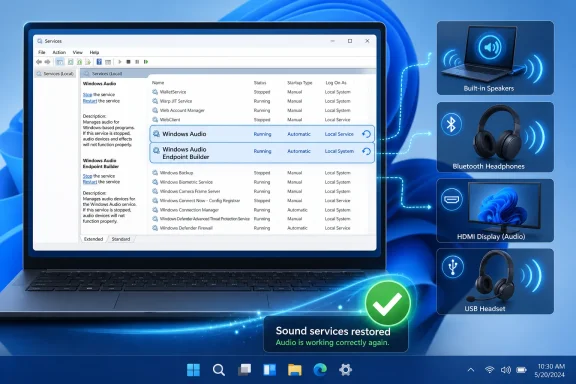
 Overview: What Restarting Windows Audio Actually Does
Windows audio is not handled by one monolithic process. It is a layered system involving applications, the Windows audio engine, endpoint discovery, audio drivers, and physical or wireless hardware. Microsoft’s Windows audio architecture documentation identifies Windows Audio as the service that sets up and controls audio streams, while Windows Audio Endpoint Builder discovers audio devices and creates the software endpoints Windows uses for speakers, headsets, microphones, HDMI displays, USB DACs, and Bluetooth devices. Microsoft Learn
That distinction matters. If a music app, browser tab, game, or meeting client loses sound while Windows system tones still work, the issue may be confined to an application session, a selected endpoint, a device handoff, or a service process that needs to reinitialize. Restarting the audio services forces Windows to rebuild parts of that chain.
This is a targeted repair, not a magic cure. It will not fix a disconnected headset, a failed speaker, a muted application channel, a bad third-party audio enhancement, or a corrupt driver installation. But it is low-risk when used correctly and takes far less time than a full Windows restart.
Microsoft’s own guidance lists the following services in its audio restart procedure:
- Windows Audio
- Windows Audio Endpoint Builder
- Remote Procedure Call (RPC)
The presence of RPC in that list underlines how interconnected Windows services are. The Service Control Manager maintains service configuration, startup behavior, access control, and dependency information, rather than treating each service as an isolated process. Microsoft Learn
The Best First Method: Restart Windows Audio from Services
For most Windows 11 users, the Services console is the clearest and safest place to restart audio services. It exposes the real display names, shows whether a service is running, and avoids the possibility of mistyping a command.
Restart Windows Audio
- Select Search on the Windows 11 taskbar.
- Type
services. - Open Services from the search results.
- Find Windows Audio in the alphabetical service list.
- Right-click Windows Audio.
- Select Restart.
- Approve the confirmation prompt if Windows displays one.
- Test audio in the app, device, or output path that had failed.
The same console can be launched directly with services.msc from Start search or the Run dialog. Microsoft documents the Services interface as the place to restart the audio-related services in its step-by-step Windows audio troubleshooting instructions. Microsoft Support
Why This Is the Preferred Route
The Services app has several practical advantages:
- It shows the friendly display name, avoiding confusion between names such as Windows Audio and
Audiosrv. - It makes the service’s current status visible.
- It provides a direct Restart action rather than requiring separate stop and start commands.
- It offers access to service properties, including startup behavior and dependency information.
- It is easier to use on a personal PC where command-line administration is unnecessary.
The Windows Service Control Manager is designed to securely control installed services and retain their startup and security configuration. That is why the graphical Services console and command-line tools ultimately interact with the same Windows management layer. Microsoft Learn
Restart Windows Audio Endpoint Builder Too
If restarting Windows Audio does not restore sound, the next service to refresh is Windows Audio Endpoint Builder.
- Keep the Services console open.
- Locate Windows Audio Endpoint Builder.
- Right-click it.
- Select Restart.
- Test the audio device again.
Endpoint Builder is especially relevant when Windows has trouble recognizing or correctly switching among audio destinations. A laptop may expose internal speakers, a 3.5 mm headset jack, Bluetooth earbuds, a USB microphone, a USB headset, a monitor connected over HDMI or DisplayPort, and a dock—all as distinct endpoint possibilities.
Microsoft describes the Audio Endpoint Builder as the component that discovers new devices and creates software audio endpoints. Its deeper endpoint documentation says the service enumerates, initializes, and activates endpoints available to the system. Microsoft Learn
When Endpoint Builder Is Most Likely to Help
Restarting Windows Audio Endpoint Builder is particularly sensible after problems such as:
- Audio disappearing immediately after connecting or disconnecting headphones.
- Bluetooth headphones showing as connected but producing no sound.
- A monitor’s HDMI audio device appearing but refusing to play.
- A USB headset or audio interface not becoming the expected playback output.
- Windows Sound settings showing the wrong active device after docking or undocking.
- An application holding onto an old output device after a hardware change.
Restarting the service does not erase paired Bluetooth devices or remove installed drivers. It simply gives Windows an opportunity to re-enumerate and rebuild its audio endpoint state.
Include RPC Only When Following Microsoft’s Full Service Restart Path
Microsoft’s published troubleshooting sequence includes Remote Procedure Call (RPC) alongside Windows Audio and Windows Audio Endpoint Builder. In the Services console, the process is the same: locate Remote Procedure Call (RPC), right-click it, and select Restart if that option is available. Microsoft Support
However, this is the point where users should be more deliberate. RPC is a foundational Windows service, used broadly across the operating system. A restart may affect active applications and connected management tools. Save work first, close any time-sensitive sessions, and do not treat RPC as the first or only audio repair action.
For a simple audio failure, begin with the two focused services:
- Windows Audio
- Windows Audio Endpoint Builder
Then use Microsoft’s broader troubleshooting flow if the issue remains.
A Quick Alternative: Restart Audio Services from Task Manager
Task Manager provides a convenient route if it is already open for diagnosing performance, startup apps, resource usage, or a frozen program.
- Press Ctrl + Shift + Esc to open Task Manager.
- Select the Services tab or section.
- Find
Audiosrv, the internal service name for Windows Audio. - Right-click it and select Restart.
- If necessary, find
AudioEndpointBuilder. - Right-click it and select Restart.
This approach is functionally similar to using Services, but the naming is more technical. The Services console lists the familiar display names, while Task Manager often makes it easier to spot the concise service identifiers.
The key identifiers are:
| Display name | Service name |
|---|---|
| Windows Audio | Audiosrv |
| Windows Audio Endpoint Builder | AudioEndpointBuilder |
The Windows Service Control Manager database stores each service by its installed service name and includes configuration data such as startup behavior and service dependencies. Microsoft Learn
PowerShell: The Cleanest Command-Line Option
For administrators, support technicians, or advanced users who prefer Windows Terminal, PowerShell offers the most concise command-line method.
Open Windows Terminal, PowerShell, or Terminal (Admin) with administrative rights, then run:
Restart-Service -Name Audiosrv
That restarts the Windows Audio service. If the issue persists, restart Endpoint Builder and Windows Audio together:
Restart-Service -Name AudioEndpointBuilder, Audiosrv -Force
PowerShell’s Restart-Service cmdlet sends a stop request followed by a start request through the Windows Service Controller. Microsoft notes that it can target services by service name or display name, and that permissions determine whether the current user can control the service. Microsoft Learn
Why -Force Deserves Care
The -Force switch is useful when PowerShell requires confirmation or when a service restart needs to proceed without an interactive prompt. But it should not be used casually in scripts applied to multiple systems, especially on work-managed PCs.
A sound issue is usually local and immediate. Confirm the target service name, run the command in an elevated session, and test playback before escalating to driver changes or system repairs.
A useful status check before or after a restart is:
Get-Service -Name Audiosrv, AudioEndpointBuilder
This confirms whether the services report a Running state. Microsoft’s PowerShell documentation identifies Get-Service as the standard route for finding service names and display names available on the current system. Microsoft Learn
Command Prompt Methods: net and sc.exe
Windows still supports classic command-line service control through net and sc.exe. These approaches are useful in remote support notes, scripts, recovery environments, or situations where PowerShell is unavailable or undesired.
Restart Windows Audio with net
Open an elevated Command Prompt or Windows Terminal and run:
net stop Audiosrv
net start Audiosrv
This stops and then starts Windows Audio.
If Endpoint Builder also needs to be restarted, stop Windows Audio first, then refresh the endpoint service before bringing Windows Audio back:
net stop Audiosrv
net stop AudioEndpointBuilder
net start AudioEndpointBuilder
net start Audiosrv
This order matters because service dependencies are enforced by Windows. A service dependency can require one service to be started before another can function, and the Service Control Manager uses dependency information to determine the correct startup order. Microsoft Learn
Restart Windows Audio with sc.exe
The Service Controller utility, sc.exe, exposes direct start and stop commands:
sc.exe stop Audiosrv
sc.exe start Audiosrv
To refresh Endpoint Builder as well:
sc.exe stop Audiosrv
sc.exe stop AudioEndpointBuilder
sc.exe start AudioEndpointBuilder
sc.exe start Audiosrv
Microsoft documents sc.exe as a command-line utility for controlling services through commands including start and stop. Microsoft Learn
For diagnostic purposes, check the status with:
sc.exe query Audiosrv
sc.exe query AudioEndpointBuilder
The sc.exe query command displays status information for a specified service and applies to Windows 11. Microsoft Learn
The Risk of Manual Stop/Start Sequences
Manual commands are powerful, but they are less forgiving than the Services interface. A user can stop a dependent service, forget to restart it, or close the terminal after a failed command. A Restart action in Services is often preferable because it reduces the number of moving parts.
This is also why blindly copying service-control commands from forums is a poor repair strategy. Do not alter audio service registry keys, permissions, startup types, or executable paths merely because a restart did not fix sound. Those changes are materially riskier than restarting a service and can create broader Windows stability issues.
Computer Management: Useful for Administrative Workflows
Computer Management provides another graphical route into the same service management tools. It is particularly useful for users already working with Event Viewer, Device Manager, Disk Management, or local administrative utilities.
- Search for Computer Management.
- Open the result.
- Expand Services and Applications.
- Select Services.
- Locate Windows Audio.
- Right-click it and select Restart.
- Repeat for Windows Audio Endpoint Builder if needed.
This method is not inherently more effective than opening services.msc. It simply places service management inside a larger administrative console. For routine Windows 11 audio troubleshooting, it is a matter of preference.
What Restarting the Service Will Not Fix
Restarting Windows Audio is a sensible first response to a service-level fault, but it does not replace basic audio checks. Microsoft’s broader audio guidance recommends moving through sound settings, device selection, mute controls, drivers, formats, and privacy settings as needed. Microsoft Support
Before assuming the service restart failed, check these common causes:
- Wrong output selected: Windows may be sending sound to a monitor, dock, headset, or virtual audio device instead of speakers.
- App-specific mute: Volume Mixer can leave one browser, game, or conferencing client muted while system sounds work.
- Bluetooth routing issue: A headset may be connected for microphone use but not selected for stereo playback.
- Physical controls: External speakers, monitors, headphones, and USB interfaces may have their own volume or mute controls.
- Driver trouble after an update: Device Manager and the PC manufacturer’s driver package may be necessary when a service restart does not help.
- Exclusive-mode or format conflict: A particular app may fail with a chosen sample rate or audio format even though another application works.
- Microphone permissions: Recording failures may stem from Windows privacy controls rather than the audio services.
A targeted restart is therefore best understood as one step in a diagnostic ladder: quick, reversible, and worth trying early.
Use Get Help for Automated Audio Diagnostics
Windows 11’s Get Help app is Microsoft’s current automated troubleshooting path for sound problems. Open Get Help, search for audio troubleshooter, grant diagnostic consent if prompted, and follow the on-screen steps.
Microsoft says the Get Help audio troubleshooter runs diagnostics and attempts to resolve common audio problems. It is distinct from manually restarting services: the troubleshooter can inspect configuration and guide additional repairs, whereas a service restart simply refreshes the relevant Windows processes. Microsoft Support
This distinction is important because older advice often points users to legacy Control Panel troubleshooters. Microsoft has been retiring and redirecting legacy MSDT troubleshooters toward the Get Help platform for newer Windows 11 experiences. Microsoft Support
Use Get Help when:
- Restarting Windows Audio and Endpoint Builder had no effect.
- The output device is missing or repeatedly switches.
- Playback works but recording does not.
- Audio stopped after a Windows or driver update.
- The problem involves a specific category, such as Bluetooth, HDMI, microphones, or distorted playback.
When a Full Windows 11 Restart Is the Better Move
If the audio service restarts cleanly but the problem persists, a complete Windows restart is the next straightforward step. Select Start > Power > Restart.
Microsoft’s standard Windows 11 restart guidance uses exactly that Start-menu path. Microsoft Support
A reboot is broader than restarting Audiosrv: it reloads drivers, processes, services, device state, and many app components. That makes it more disruptive, but also more likely to clear a problem involving a stuck Bluetooth stack, USB audio device, graphics-card HDMI audio path, or driver component outside the Windows Audio service itself.
Choose a restart, not sleep or hibernate, when the goal is to fully reload the operating environment. Save work first, especially if a meeting client, recording application, or media editor is open.
Do Not Disable the Audio Services
One of the clearest cautions is also the simplest: do not disable Windows Audio or Windows Audio Endpoint Builder as a troubleshooting technique.
Microsoft’s service guidance states that Windows Audio manages audio for Windows-based programs and that audio devices and effects do not function properly if it is stopped. The same documentation says disabling it can prevent dependent services from starting. Microsoft gives similar warnings for Windows Audio Endpoint Builder, which manages audio devices for the Windows Audio service. Microsoft Learn
There is a meaningful difference between:
- Restarting a service to refresh its state.
- Stopping a service briefly as part of a controlled start/stop sequence.
- Disabling a service so it cannot start normally.
The first is ordinary troubleshooting. The third can turn a temporary sound glitch into a persistent system configuration problem.
On a work or school device, service controls may also be restricted by policy. In that case, do not attempt to bypass administrative protections. Service control is governed by Windows security settings and permissions, so an IT administrator may need to perform the repair or investigate a managed audio configuration. Microsoft Learn
A Practical Windows 11 Audio Recovery Order
For the fastest and least disruptive repair process, use this order:
- Check the selected output device and make sure the affected application is not muted.
- Restart Windows Audio in
services.msc. - Restart Windows Audio Endpoint Builder.
- Follow Microsoft’s full service procedure, including RPC, if appropriate.
- Run the Get Help audio troubleshooter.
- Restart Windows 11.
- Investigate drivers, Bluetooth pairing, cables, audio formats, application settings, and hardware only if the issue continues.
This sequence avoids unnecessary driver reinstalls and prevents users from making risky changes to service startup settings. It also reflects the central strength of restarting the Windows Audio service: it is a fast, built-in way to refresh a critical layer of Windows 11 sound processing without disturbing the rest of the PC.
For transient audio failures, that is often exactly the right level of repair.
