
That order is more useful than it may look. A PC that still shows a moving volume meter has usually not lost Windows’ entire audio stack; it may simply be sending audio to an HDMI display, docking-station output, USB headset, virtual cable, or a disconnected Bluetooth endpoint. Microsoft’s guidance treats endpoint selection as the first suspect, which is the right operational distinction for users and help desks: “no sound” does not automatically mean “no audio device.”
The page applies to Windows 11 and Windows 10, although its most consequential instruction is aimed at the newer platform: use the Audio troubleshooter in the Get Help app, rather than expecting the old standalone troubleshooter experience.
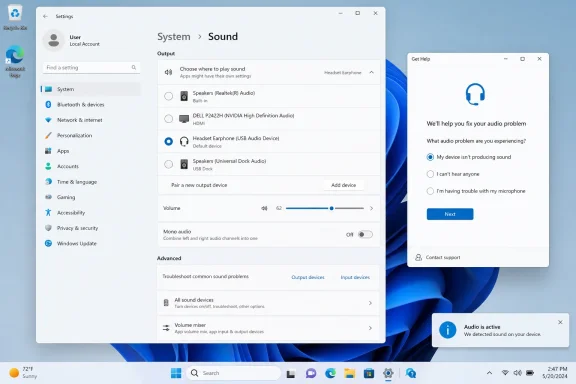 The first check is where Windows is sending sound
Microsoft Support tells users to open Settings > System > Sound and confirm the selected device under Output, then verify that the device itself is not muted and its volume slider is raised. This is a basic step, but the wording matters because Windows can retain several eligible playback endpoints at once.
An office laptop on a dock can expose audio through its internal speakers, the dock, a DisplayPort monitor, a USB headset, and a Bluetooth accessory. A home desktop can do the same through motherboard audio, a GPU’s HDMI or DisplayPort output, a USB DAC, and a monitor with integrated speakers. Windows may remember a prior choice after a device is unplugged, a display wakes from sleep, or a headset reconnects.
The practical test is straightforward: play an audio source that is known to be active, such as a Windows test tone or a browser video, and watch the output device’s level meter in Sound settings. If its meter moves but the physical speakers remain silent, Windows is producing audio for that endpoint. If the meter is moving on the wrong endpoint, the fix is selection rather than driver repair.
This also explains why the taskbar volume icon can be misleading. It reflects a general audio state and volume level; it does not prove that the active playback endpoint is the one physically connected to the user’s ears.
“Default” is still controlled in the legacy Playback panel
Microsoft’s second step moves from the modern Settings page into More sound settings > Playback, where the intended device can be set as the default. That legacy panel remains important because Windows keeps a separate default-device model underneath the simplified Output selector.
For a single-user PC, selecting the desired Output device in Settings will often be enough. But setting the device as default in the Playback tab can resolve cases in which an application continues to target an older endpoint, especially after new USB audio hardware, a monitor, remote-desktop software, or conferencing tools have been installed.
Administrators should be wary of treating this as a universal cure. A machine can have a correct default endpoint and still send an individual application to another device through Windows’ per-app volume and output routing. Microsoft’s newly focused article does not cover that scenario in the steps supplied, so a user whose system sounds work but whose browser, game, or meeting client remains silent should inspect that application’s audio device setting and the Volume mixer before touching drivers.
There is also a boundary in the support page’s scope. It covers speakers and wired headphones. Bluetooth audio failures, missing output devices, crackling playback, audio that fails only after an update, and microphones are separate problem categories in Microsoft’s wider Windows audio support index. That distinction can save time: a headset that is paired but silent is not necessarily the same incident as a wired device that appears normally in Playback but produces nothing.
Disabling enhancements is a diagnostic step, not a performance tweak
Microsoft’s third recommendation is to select the active output in Sound settings and set Audio enhancements to Off under Advanced settings. Audio enhancements are driver- or device-provided processing layers that can include equalization, loudness normalization, virtual surround, room correction, noise processing, and vendor-specific effects.
Those features can be useful when they work. They also sit between an application’s audio stream and the hardware, which makes them a credible failure point when the selected device is correct but playback remains silent or unstable. Microsoft Support explicitly says that enhancements can create audio issues and advises disabling them as a test.
The key word is test. Turning enhancements off can change the sound signature of a headset, disable spatialization features, or remove vendor tuning that a user prefers. If audio returns immediately after the switch, the evidence points to an enhancement or the driver component supplying it; it does not prove that the speakers themselves are defective.
For managed PCs, that result should lead to a more disciplined next step than leaving the setting disabled indefinitely. Record the endpoint name, driver version, hardware model, and whether the machine was docked or attached to a display. Then obtain the current audio package from the PC or motherboard manufacturer when the issue is tied to a particular model. Microsoft’s separate guidance for missing or undetected output devices likewise directs users to the PC or sound-card maker for the appropriate driver, rather than treating a generic driver update as a guaranteed solution.
Get Help has replaced the old expectation of a standalone troubleshooter
The notable procedural change in Microsoft’s new page is the direction to run the automated Audio troubleshooter through Get Help. Microsoft’s documentation for Windows troubleshooters says users can open Get Help, search for “audio troubleshooter,” consent to diagnostics if prompted, and follow the results. The app can provide findings and recommended remedies after its scan.
This is not simply a cosmetic relocation. Microsoft Learn says the legacy Microsoft Support Diagnostic Tool, or MSDT, which powered older inbox troubleshooters, is being retired. The Playing Audio troubleshooter is among the troubleshooters redirected to the Get Help platform. In practice, users who open the Audio entry from Settings > System > Troubleshoot may be sent into Get Help instead of receiving the older wizard interface.
Microsoft’s broader “Fix sound or audio problems in Windows” article still contains a Settings path that instructs readers to find Audio under Other troubleshooters and press Run. Read beside the company’s deprecation documentation, that is best understood as an entry point into the redirected experience on current Windows 11—not proof that two different repair engines are available.
The important limitation is that Microsoft describes Get Help as diagnostic and remedial assistance, not a replacement for technical investigation. A successful scan does not establish that an audio driver, USB dock, monitor, cable, or headset is healthy. It can correct configuration issues and report findings, but it cannot repair a failed analog jack or a malfunctioning USB audio controller.
Windows 10 remains in the instructions after its support deadline
Microsoft still lists Windows 10 alongside Windows 11 on the focused audio article. That is useful for organizations and households that continue to run Windows 10, but it should not be mistaken for renewed operating-system support. Microsoft Lifecycle states that Windows 10 Home and Pro reached end of support on October 14, 2025, with exceptions governed by specific Long-Term Servicing and Extended Security Update arrangements.
The support article’s continued availability means the troubleshooting steps remain relevant to installed Windows 10 machines; it does not mean those systems are receiving the normal stream of Windows fixes. For IT teams, an audio incident on an out-of-support Windows 10 endpoint may still be resolved by selecting the correct device or disabling an enhancement, but it should also trigger the broader question of whether that endpoint is within the organization’s support and security plan.
A cleaner escalation path for actual no-sound incidents
Microsoft’s sequence is a sensible first-line runbook precisely because it avoids destructive changes. Users should start with endpoint selection and default-device status, then isolate enhancement processing, then run Get Help. Restarting, removing drivers, and downloading manufacturer packages belong later, after the symptom has been classified.
The clearest dividing line is visibility. If the correct speakers or headphones appear in Windows and their level meter responds during playback, start with routing, defaults, enhancements, and app-specific settings. If the device has disappeared entirely from Sound settings or Device Manager, move into detection and driver troubleshooting instead. Microsoft maintains a separate support path for that missing-device condition.
For a system that shows normal volume but produces no sound, the fastest repair may be as unglamorous as selecting the monitor not connected to the desk, or reversing a default endpoint left behind by a USB headset. Microsoft’s refreshed guidance is valuable because it makes those checks the opening move—and because Windows 11’s increasingly Get Help-centered diagnostic flow is now part of the procedure administrators need to support.
