
Keep Ethernet or USB tethering available before making changes. If the wireless adapter is absent from Device Manager, use Action > Scan for hardware changes; if it does not return, download the exact Intel, Realtek, Qualcomm, or MediaTek package from the PC or motherboard manufacturer rather than relying on a generic driver site.
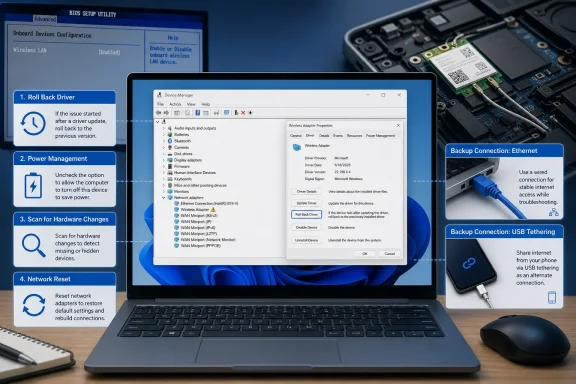 Start with the driver package Windows can actually use
Device Manager remains the quickest place to determine whether Windows sees the hardware. Expand Network adapters and look for the wireless device; an unknown device or warning icon can also indicate that the hardware is present but its driver is broken.
Microsoft’s guidance is to obtain a manual driver from the hardware manufacturer when Windows Update cannot supply a usable version. Match the package to the machine model, Windows version, and CPU architecture. On laptops, the OEM driver is often safer than a newer reference driver because it may include platform-specific power and radio controls.
If the failure began just after a driver update, open the adapter’s Properties > Driver tab and use Roll Back Driver when it is available. Optional Updates can offer alternative drivers to install, but they do not provide a rollback mechanism; rollback happens in Device Manager when Windows has retained the previous driver.
Sleep and restart failures point first to power management
When Wi‑Fi disappears after sleep, hibernation, or a restart, check the adapter’s Power Management tab in Device Manager. Clear “Allow the computer to turn off this device to save power,” reboot, then test a sleep-and-wake cycle.
Not every adapter exposes that checkbox. Its absence does not prove a hardware fault, but it means the driver or firmware controls the feature rather than Windows exposing it directly.
Windows Update can also replace a functioning OEM package with a different driver revision. Guiding Tech suggests using the legacy Device installation settings dialog, launched with sysdm.cpl, to decline automatic manufacturer apps and custom icons. Administrators should treat that setting cautiously: it is not a precise per-device driver block and can have wider consequences for new hardware detection.
A better first step is to record the driver provider, version, and date before and after Windows Update. If a specific update consistently triggers the failure, restore the known-good OEM driver and temporarily pause updates while checking the PC maker’s support page for a compatible replacement.
Repair Windows only after isolating the driver path
If the adapter remains visible but fails intermittently, an elevated Command Prompt can run:
sfc /scannow
DISM /Online /Cleanup-Image /RestoreHealth
A Network reset in Settings > Network & internet > Advanced network settings is a more disruptive next move: it removes and reinstalls network adapters and resets associated networking configuration. Save VPN settings, virtual-switch configuration, and any static IP details before using it.
A clean boot is useful when the issue follows third-party VPN clients, endpoint security products, network-tuning utilities, or OEM connection managers. Disable non-Microsoft services and startup items, test Wi‑Fi, then re-enable components in small groups until the conflict returns.
The seventh fix is where software troubleshooting ends
If the adapter never reappears—even after a cold shutdown, hardware scan, and clean driver installation—check BIOS/UEFI for an enabled wireless or WLAN setting. Install only BIOS, chipset, and wireless firmware updates supplied for the exact system model.
At that point, persistent disappearance across clean boots and operating-system reinstalls is strong evidence of a failing M.2 wireless card, a loose internal connection, or a motherboard-level fault. For managed fleets, capture the driver version and the Windows update history before swapping hardware; that distinction determines whether the next fix belongs in the deployment policy or on the repair bench.
