
That does not mean Windows Snipping Tool is obsolete. Microsoft has steadily expanded it into a broader utility with rectangular, freeform, window, full-screen, and video capture modes, plus markup, cropping, text extraction, shapes, and—on supported Copilot+ PCs—AI-assisted capture features. Microsoft’s own support documentation makes clear that the inbox app has evolved far beyond the old “take a snip, save a PNG” model.
But feature lists do not always settle workflow questions. Flameshot’s appeal is not that it promises to do everything. It is that it places the tools that frequent screenshotters use most—arrows, labels, blur, pixelation, highlighting, numbered steps, clipboard copying, and local saving—directly into the capture moment. For bug reports, tutorials, internal documentation, IT support tickets, and technical conversations, that small shift can remove several repetitive steps from the day.
 Overview: Why Screenshot Workflows Still Matter
Screenshots remain one of the most useful pieces of everyday digital communication. A concise capture can document an error dialog, demonstrate a setting, identify a visual regression, preserve a confirmation page, or show someone exactly where to click. The value is often not in the raw pixels, but in the context added around them.
A typical Windows screenshot workflow can still be unnecessarily fragmented:
- Press a shortcut to capture an area.
- Open the capture in Snipping Tool or another app.
- Add markup, if the available tools are sufficient.
- Save or copy the result.
- Paste it into a ticket, message, document, or email.
- Repeat the sequence for the next image.
For occasional use, that sequence is perfectly reasonable. For someone producing several annotated images per day, however, each extra transition creates friction. Opening another application, locating a blur tool, adding arrows, exporting a file, and then navigating back to the communication app may take only a minute. Across a week, it becomes a surprisingly persistent interruption.
Flameshot is designed around reducing those interruptions. Its project describes the utility as open-source screenshot software with built-in capture editing, configurable appearance, shortcuts, and image-saving behavior. The official Flameshot site presents the tool as a lightweight capture-and-annotation environment rather than a full-screen recording suite or a cloud-sharing platform.
That narrower focus is its greatest strength.
What Flameshot Does Differently
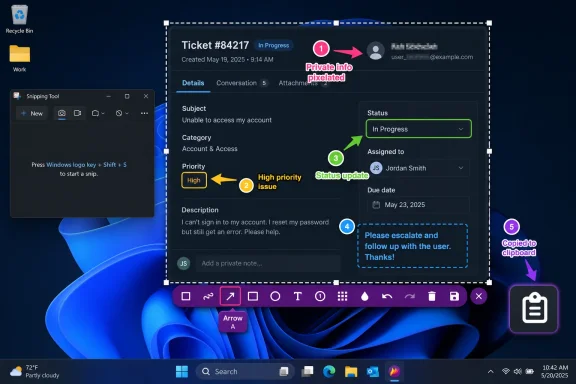
The defining Flameshot experience begins immediately after selecting part of the display. Instead of treating the capture as a completed object that must be reopened and edited elsewhere, the application presents an overlay around the selected region. The screenshot is still live in the context of the desktop, and annotation tools are immediately available.
The official feature list includes tools for:
- Arrows and lines
- Text labels
- Rectangles and circles
- Highlighting
- Freehand drawing
- Blur
- Pixelation
- Incrementing counter markers
- Solid-color boxes
- Clipboard copying and local saving
Flameshot’s feature overview documents these editing capabilities directly.
This changes the nature of a screenshot from an image file into a quick visual message. A support technician can obscure a user name, circle an unexpected option, add a numbered sequence, copy the result, and paste it into a reply without launching Paint, Photos, PowerPoint, or a dedicated image editor.
Annotation at the Point of Capture
The most practical advantage is in-context editing. The visual selection is already on the screen, so the user does not have to mentally switch from “capturing the problem” to “editing a file.”
That makes a real difference for several common Windows scenarios:
- Explaining where to find a setting in Windows 11
- Marking the relevant field in a business application
- Obscuring customer details in a support ticket
- Highlighting an exception in an Excel workbook
- Creating step-by-step images for a knowledge-base article
- Pointing out visual defects in a website or desktop app
- Sending a concise troubleshooting image in Teams, Slack, Discord, or email
The tool also offers keyboard shortcuts within capture mode. Its documentation lists direct keys for pencil, line, arrow, rectangle, circle, marker, text, pixelation, and color picking, alongside familiar commands such as Ctrl+C to copy and Ctrl+S to save. Flameshot’s keyboard reference shows why the app can become especially efficient once a user builds muscle memory.
For a Windows enthusiast or IT professional, that matters more than it may initially seem. A screenshot tool that rewards keyboard-driven use can become effectively invisible: press a key, draw, annotate, copy, paste, move on.
Windows Snipping Tool Is Better Than Its Reputation
Any comparison needs to acknowledge the improvements Microsoft has made. The modern Snipping Tool is no longer just a basic rectangle-selection utility. Microsoft says it supports multiple image-capture modes, editing and annotation, text actions, a color picker, shapes, emojis, screen recording, and Clipchamp handoff for video editing. Microsoft’s Snipping Tool guide also notes that Windows users can capture video clips of selected screen areas.
That breadth makes Snipping Tool a sensible default for many people. It is already included with Windows, integrates cleanly with the operating system, and requires no installation, update management, or extra configuration. For a person who captures an occasional receipt, reference number, dialog box, or website fragment, it is likely sufficient.
Microsoft has also positioned Snipping Tool as part of a wider Windows capture ecosystem. The ms-screenclip protocol can be used by packaged apps to request image and video capture through Snipping Tool, including rectangle, freeform, and window capture options. Microsoft’s developer documentation describes this integration path, underscoring that the app is not an abandoned legacy component.
Where the Default Tool Can Still Feel Slower
The issue is not whether Snipping Tool can annotate an image. It can. The issue is whether its interaction model is ideal for repeated, rapid, visual communication.
For many technical users, the answer is still no. The Windows tool tends to feel like a general-purpose application that happens to support screenshots. Flameshot feels like a capture overlay first and an application second. That distinction affects the number of clicks, the prominence of tools, and the degree to which a capture can remain a quick, disposable action.
Microsoft’s tool is also increasingly ambitious. Screen recording, optical character recognition, visual search-related functions, and Copilot+ capabilities may be genuinely valuable, but they are not necessarily the features a user wants when the job is simply “draw two arrows, hide a password, and paste this into a ticket.”
More features do not automatically create a faster workflow. Flameshot succeeds by keeping the common annotation path close to the surface.
The Open-Source Advantage—With Important Boundaries
Flameshot is distributed under the GPLv3+ license, and its source code, issue tracker, pull requests, documentation, release history, and security materials are publicly accessible through its GitHub project. The Flameshot repository identifies the project as public and documents its licensing, supported platforms, shortcuts, configuration, and command-line usage.
For users who care about software transparency, this is meaningful. Open-source software does not automatically guarantee quality, privacy, or security, but it gives the community the ability to inspect code, report problems, submit fixes, and independently verify how a tool is intended to behave.
Flameshot’s published privacy statement says the program does not transfer information to networked systems unless a user or operator specifically requests it. The project’s privacy policy in its repository is a stronger basis for privacy expectations than vague marketing language, though users should still understand the limits of any such claim: behavior can vary with the version installed, local configuration, optional integrations, and the destination chosen for exports or uploads.
No Account Required, No Subscription Gate
Another practical advantage is the absence of a mandatory account or subscription workflow. Flameshot’s core local screenshot and annotation features do not require signing in, which is particularly attractive in workplaces where screenshots may include operational or customer-related information.
The official project offers Windows installers and portable packages, while its Windows installation documentation also lists package-manager options such as WinGet, Scoop, and Chocolatey. Flameshot’s Windows installation guide explains that portable ZIP builds are available for users who do not want or cannot perform a conventional installation.
That flexibility is useful in several situations:
- A managed work PC where admin rights are unavailable
- A test machine where a portable utility is preferable
- A technician’s USB or support toolkit
- A personal system where users prefer package-manager updates
- A mixed Windows, Linux, and macOS environment
The Cloud-Upload Caveat
Flameshot is not exclusively offline in every possible workflow. Its project documentation lists Imgur upload as a feature, and the capture-mode shortcuts include an upload command. The official repository documents that functionality.
That can be convenient, but it deserves caution. Uploading an image to a third-party host is fundamentally different from saving it locally or copying it to the clipboard. Screenshots can contain names, account numbers, URLs, addresses, internal system details, API endpoints, serial numbers, and confidential business data.
For sensitive material, the safest default is simple:
- Save locally
- Copy directly to a trusted destination
- Use approved organizational storage
- Avoid public or consumer image-hosting workflows
- Verify that redaction is permanent before sharing
Blur and pixelation are helpful visual tools, but they should not be treated as a substitute for a sound data-handling policy.
Installing and Configuring Flameshot on Windows
Flameshot is available for Windows as an installer and as a portable download. The project also documents package-manager installation through the command:
winget install flameshot
That command is listed in Flameshot’s official Windows installation instructions. For most users, WinGet is the cleanest route because it provides a straightforward way to install and later update the application.
After installation, the key decision is how to invoke it.
Choosing a Shortcut
Flameshot documentation indicates that Print Screen typically works on Windows, while its repository also lists Win + Shift + X as a configurable Windows global shortcut. The project’s shortcut documentation provides the relevant defaults and behavior.
However, Windows itself can assign the Print Screen key to open Snipping Tool. Microsoft documents the “Use the Print screen key to open screen capture” setting in Windows keyboard accessibility settings. Microsoft’s keyboard settings guidance confirms that this behavior is configurable.
A sensible setup sequence is:
- Install Flameshot through WinGet, the installer, or the portable package.
- Launch it once and ensure it remains active in the notification area.
- Open its configuration panel and review save behavior, image format, shortcuts, and appearance.
- Decide whether
Print Screenshould be reserved for Flameshot. - If Windows continues launching Snipping Tool, disable the Windows Print Screen screen-capture assignment.
- Test capture, annotation, clipboard copying, and file saving before relying on it for work.
Flameshot’s Windows help documentation specifically discusses the potential collision with Windows screen snipping and describes disabling the operating system’s Print Screen shortcut setting when necessary. The project’s Windows-specific guide also includes alternative custom-shortcut and advanced override approaches.
Avoid Unnecessary Registry Tweaks
Flameshot’s documentation includes an advanced method for associating the Windows ms-screenclip protocol with the app. That may appeal to enthusiasts who want to replace Win + Shift + S behavior more deeply. But it involves registry changes, and the project itself warns users to proceed carefully. The Windows help page labels registry modification as an advanced path.
For the overwhelming majority of users, it is better to begin with a conventional shortcut. Do not edit the registry merely to save one key combination unless the benefit is clear, a restore path is understood, and the device is not governed by organizational policy.
Where Flameshot Excels
Flameshot is especially persuasive when the screenshot is only the first part of the job. The image must be transformed into a clear explanation, often under time pressure.
IT Support and Help Desk Work
A support professional may need to point to one checkbox, one unusual status indicator, and one command line parameter. A raw screenshot creates ambiguity. A screenshot with an arrow, a circled control, and an obscured account name becomes a usable instruction.
Flameshot’s built-in arrows, text, numbered counters, blur, and pixelation tools are suited to this kind of communication. Its official feature list shows that these are core functions, not add-ons hidden behind a separate editing mode.
Documentation and Technical Writing
Technical writers and Windows community contributors frequently produce image-heavy guides. The most time-consuming part is rarely pressing Print Screen; it is making an image understandable to someone who does not already know what it depicts.
Flameshot’s immediate overlay can shorten the gap between capture and publication-ready image. It also supports a command-line interface, including capture commands with delays, custom save paths, full-screen capture, and clipboard copying. The project README documents these command options, making the app potentially useful in scripted or repeatable workflows as well as manual documentation work.
Privacy-Conscious Everyday Captures
A user sending a screenshot of a settings panel or invoice often needs to remove a username, account number, email address, QR code, or location detail. The ability to blur or pixelate before the image reaches a chat app reduces the chance of accidentally sharing an unredacted original.
That said, users should be disciplined about checking the final image at full size. A partially covered field, a visible browser tab, or a second monitor in the capture area can leak more information than the obvious item being hidden.
The Limitations That Matter
Flameshot is not the universal answer to every Windows screen-capture requirement. The strongest recommendation for it is also a deliberately narrow one: it is excellent at fast screenshotting and annotation.
It Is Not a Complete Screen Recording Platform
Windows Snipping Tool now offers video capture, and Microsoft describes the feature as a built-in option for recording selected regions of the screen. Microsoft’s Snipping Tool documentation confirms that video capture is part of the modern app.
Users who regularly create instructional videos, product demonstrations, narrated walkthroughs, or long recordings will likely need a dedicated recorder and editor, such as OBS Studio, Clipchamp, or another specialized product. Flameshot should be viewed as a focused still-image workflow tool, not a substitute for that category.
Scrolling Capture Is a Major Gap for Some Users
The supplied comparison correctly points toward ShareX as a more feature-dense Windows alternative. ShareX supports region capture and provides a long list of annotation tools, including arrows, text, magnification, blur, pixelation, highlighting, cropping, and cutout functions. ShareX’s region-capture documentation reflects the breadth of its toolset.
ShareX is also the better fit for users who require specialized features such as scrolling screenshots, extensive upload destinations, OCR-related workflows, task automation, and elaborate capture rules. Its own project describes it as a free and open-source application for capturing or recording screen areas and uploading images, text, and files to many destinations. The ShareX GitHub project makes its broader scope clear.
The trade-off is complexity. ShareX can be immensely powerful, but its depth introduces choices, settings, destinations, tasks, and automation concepts that a user may never need. Flameshot is more attractive when the goal is to make the next screenshot quick and clear.
Linux and Wayland Users Should Check Compatibility
Flameshot began in the Linux ecosystem and remains cross-platform, but desktop environments and display protocols can introduce variables. The project currently notes experimental support considerations for GNOME Wayland and Plasma Wayland, as well as tray-icon requirements in certain GNOME setups. Flameshot’s documented considerations are worth reviewing before standardizing on it across a Linux fleet.
This is less of a concern for the central Windows use case, but it reinforces an important point: cross-platform does not mean every desktop environment behaves identically.
Flameshot vs. Snipping Tool vs. ShareX vs. Greenshot
The screenshot-tool market is healthiest when users choose based on workflow rather than assuming that one utility must win every category.
| Tool | Best for | Key advantage | Main compromise |
|---|---|---|---|
| Flameshot | Fast annotated screenshots | Immediate overlay and focused editing tools | Less suited to advanced automation and recording |
| Snipping Tool | Built-in Windows capture | No installation; image and video capture | Less purpose-built for frequent annotated captures |
| ShareX | Power users and automation | Deep capture, upload, OCR, and workflow options | Steeper learning curve |
| Greenshot | Simple open-source screenshots | Familiar lightweight Windows utility | More traditional interface and narrower modernization path |
Greenshot remains relevant because it is still positioned as a free, open-source Windows screenshot tool. Its official site continues to describe it in those terms. Users who have relied on it for years may find no urgent reason to leave.
But Flameshot occupies a useful middle ground. It is more visually immediate than older lightweight capture tools and less operationally dense than ShareX. That balance is exactly why it is likely to resonate with people who find Snipping Tool competent but inefficient.
A Small Utility That Can Improve Daily Windows Work
Replacing a default Windows utility is rarely about proving that Microsoft’s version is bad. In this case, the modern Snipping Tool is not bad at all. It is capable, integrated, and increasingly feature-rich.
Flameshot’s advantage is more specific: it treats annotation as part of taking the screenshot, not as a secondary editing task. That distinction makes it valuable for people who routinely communicate through images rather than merely collect them.
For Windows users who create guides, diagnose problems, document processes, report bugs, or send frequent visual explanations, Flameshot offers an unusually clean upgrade path. It is free, open source, available on Windows, configurable through familiar shortcuts and settings, and equipped with the practical markup tools that turn a screen capture into an answer.
The result is not a dramatic reinvention of screenshots. It is something more useful: a small, focused tool that removes a daily annoyance without adding a new layer of complexity.
