
The appeal is obvious. Samsung’s Galaxy S23 arrived in 2023 with Qualcomm’s Snapdragon 8 Gen 2 for Galaxy platform and 8GB of memory, hardware that remains capable of everyday productivity, communication, media, and testing workloads. Samsung’s original specifications make clear that an S23’s apparent slowdown is not automatically evidence of a worn-out processor. More often, the experience is being shaped by the software layers around the hardware.
For Windows users, the comparison is familiar. An older but still capable PC can feel dramatically better after trimming startup applications, clearing a nearly full SSD, and reducing visual overhead. Android is not Windows, and its process model is different, but the practical principle carries over: responsiveness is a system-level experience, not a single benchmark score.
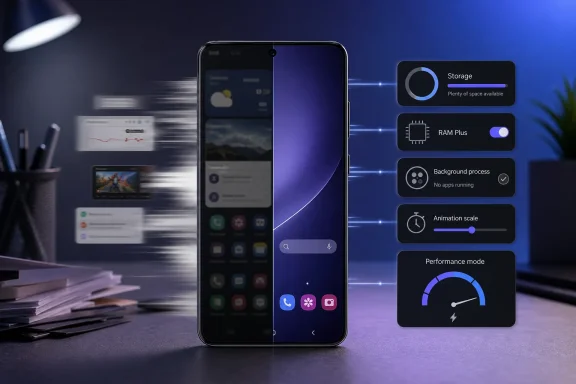 Overview: Why Older Android Phones Feel Slower
Perceived speed is not simply the time an app needs to complete a calculation. It is the time between a tap and visible feedback, the smoothness of opening an app drawer, the delay before a keyboard appears, and the reliability of returning to a recently used app without waiting for it to reload.
That makes “my phone feels slow” a more nuanced complaint than it seems. A device may still have a fast CPU, good display, and healthy battery, yet feel sluggish because its home-screen software is doing too much, its storage is too close to capacity, or its multitasking settings are working against a particular usage pattern.
The Galaxy S23 in the MakeUseOf test is a useful example precisely because it was a former flagship rather than an entry-level handset. It was sold with a high-end chip, 8GB of RAM, storage options of 128GB or 256GB, and an adaptive display capable of up to 120Hz. Samsung’s business spec sheet confirms those core specifications. When a phone in that class feels delayed, optimization is a sensible first response before considering replacement.
The most effective approach is not to turn every obscure Android setting into a performance project. It is to identify the sources of friction that affect the user every few minutes—the home screen, app launches, storage writes, task switching, and animations—then make reversible changes one at a time.
Start With the Interface: Replace the Default Launcher
The most striking tweak in the MakeUseOf test was also the most visible: replacing Samsung’s normal home-screen launcher with KISS Launcher. The choice was intentional. Rather than seeking extensive customization, animated widgets, news feeds, or a polished visual overhaul, the goal was a simpler interaction model centered on a search field and an app list. The report says the launcher swap alone made the older Galaxy feel renewed.
Why a launcher can change perceived performance
A launcher is not merely a set of icons. It is the Android application that appears after pressing Home and typically handles the home screen and app drawer. KISS Launcher’s documentation describes a launcher in those terms, while identifying KISS as a fast, small, open-source Android launcher available through Google Play and F-Droid.
On a feature-heavy default launcher, the home screen can include:
- Widget refreshes
- Wallpaper effects
- Feed panels and content recommendations
- Icon-label animations
- Folder transitions
- Search integrations
- Gesture handlers
- Background personalization services
None of those features is inherently bad. In fact, many buyers choose a Galaxy precisely because One UI offers a rich home-screen experience. The issue is that an aging phone can accumulate enough live content and visual complexity that returning home no longer feels instant.
KISS takes the opposite approach. Its project describes itself as a “lightning fast” launcher with an installed size under 250KB, and its source code is publicly available under the GPL-3.0 license. The KISS Launcher repository supports the project’s minimal-footprint positioning. The app’s real advantage is less about a magical performance boost and more about reducing the amount of interface work demanded at the point users interact with most.
Search-first design can be faster than icon hunting
The MakeUseOf setup eliminated Google Discover on the left-most home-screen panel and avoided conventional widgets. Instead, it leaned on KISS Launcher’s search-driven workflow to find applications, contacts, settings, and web destinations. The original account presents that simplicity as a core part of the speed improvement.
This is a meaningful usability change, not just an aesthetic one. A person who routinely opens a few dozen apps may be faster typing three letters than navigating multiple home-screen pages, expanding folders, or waiting for a busy panel to finish drawing. The reduction in visual clutter also makes the device seem more deliberate and more predictable.
There are, however, trade-offs. Replacing a Samsung launcher can mean giving up some One UI-specific integrations, widget layouts, icon customizations, or gesture behaviors. A minimalist launcher may also be a poor fit for users who rely on calendar, smart-home, weather, accessibility, or work-status widgets throughout the day.
The sensible takeaway is not that every Android user should abandon the stock launcher. It is that the launcher is a legitimate performance lever—and one that can be tested safely because switching back is straightforward. On Samsung devices, the Home app can generally be changed through the default-app settings, with menus varying slightly by One UI version. Google’s Android community guidance identifies the usual Samsung path as Settings > Apps > Choose default apps > Home app.
Storage Is Performance Headroom, Not Just File Capacity
The second adjustment was freeing storage. This advice sounds mundane because it is mundane, but it is also among the most credible ways to improve an older phone’s day-to-day behavior.
The MakeUseOf test uses a rough 10% free-space target, removing unused applications, emptying Gallery and Files trash folders, clearing caches, and moving large files to cloud storage. The report recovered more than 10% of total capacity through those steps.
The “10% rule” should be treated as a guideline
The exact 10% figure is best understood as a practical rule of thumb, not an Android-wide technical threshold. There is no universal moment at which every Android phone becomes slow at 9.9% free space. Performance depends on the storage controller, capacity tier, file-system behavior, workload, installed apps, and the phone’s own background maintenance.
Still, the underlying logic is sound. Modern smartphones use flash-based storage, and flash management is more complicated than simply overwriting a byte in place. Storage needs room for writing new data, consolidating valid data, and reclaiming blocks that are no longer in use. Research into newer zoned UFS designs highlights how garbage-collection overhead and fragmented workloads remain material concerns in mobile storage systems. A FAST ’26 USENIX paper reports that better coordination across firmware, drivers, file systems, and Android can sustain more than twice the write throughput under fragmentation in its commercial-smartphone evaluation.
That research does not prove that freeing exactly 10% of an S23’s storage will double its speed. It does, however, reinforce the basic point that available space and background storage management can affect responsiveness—especially during installs, updates, image processing, downloads, camera use, and application launches.
What to remove first
The best storage cleanup is not an indiscriminate purge. Start with items that have a high space-to-value ratio:
- Unused apps and games that can be reinstalled later.
- Downloaded video, podcasts, and offline maps that are no longer needed.
- Duplicate or failed media captures, especially long videos.
- App caches from social, browser, and streaming applications.
- Trash or recycle folders inside Gallery, Files, cloud-photo apps, and note-taking tools.
- Old installer packages and document downloads that have been forgotten.
Samsung’s Device Care documentation specifically points users toward Settings > Device care > Storage to review categories and remove items. Samsung’s support guide also notes that screen layouts and available settings can vary by model, carrier, and software version.
The important distinction is between clearing cache and clearing app data. Clearing cached files is generally a low-risk maintenance step, though it may require apps to rebuild local resources. Clearing data can reset logins, offline content, settings, and stored information, so it should not be done casually.
Avoid Android “cleaner” apps
A nearly full phone benefits from manual cleanup, but it does not need a third-party “RAM booster,” “task killer,” or aggressive cleaner app. These utilities often consume resources themselves, may generate intrusive notifications, and can interfere with Android’s normal background-management behavior.
Android already applies limits to background activity. Google explains that background apps consume constrained resources such as RAM and that modern Android versions impose limitations to reduce the risk of impaired user experience. Android’s background-execution documentation is aimed at developers, but its central message applies to users too: the operating system is designed to manage background work, not to have every process forcibly terminated at all times.
Remove Animation Delay Without Breaking the Experience
The third tweak is a classic enthusiast setting: reduce or disable animation scales in Developer options. The MakeUseOf test changed the Window animation scale, Transition animation scale, and Animator duration scale, cutting the time spent waiting for visual effects between screens. The original article argues that aging hardware can make those transitions feel like delays rather than polish.
What the animation settings really do
Android’s Developer options include controls for system behavior and debugging. Google’s official documentation confirms that the menu includes settings for Window animation scale, Transition animation scale, and Animator duration scale, as well as a separate Background process limit control. Android Developers’ guide describes these options as tools for profiling and debugging performance.
Lowering animation scales does not make the processor faster. It does not improve camera quality, increase storage speed, or add RAM. What it does is reduce the duration of the visual sequence between one action and the next.
That distinction matters. A phone with slow app initialization will still need time to initialize the app. But when app opening, multitasking, notification shades, and settings pages are no longer padded with lengthy animations, the device can feel noticeably more responsive.
A better setting than “off” for many people
Disabling all animations is the most aggressive option, and some users love it. Others find that a zero-animation interface feels abrupt or disorienting because there is less visual continuity between screens.
A balanced configuration is often:
- Window animation scale: 0.5x
- Transition animation scale: 0.5x
- Animator duration scale: 0.5x
This retains enough movement to show what the system is doing while cutting the wait roughly in half. It is also fully reversible.
On a Samsung Galaxy phone, Google’s developer documentation says the Developer options menu can be enabled by navigating to Settings > About phone > Software information > Build number, then tapping Build number seven times. Android Developers notes that menu placement and labels can differ by device and Android version.
The warning here is simple: Developer options are not a universal speed menu. They contain settings intended for testing and diagnostics, including USB debugging and visual rendering tools. Change only the settings that are understood, and avoid enabling debugging features unless there is a specific reason.
Background Process Limits: A Useful Test, Not a Permanent Default
The MakeUseOf test also capped the S23 at three background processes. That is a far more consequential adjustment than reducing animations, because it directly changes how Android retains applications in memory. The reported result was a more responsive foreground experience, accompanied by slower reloads when returning to apps. The article accurately presents this as a trade-off rather than a free upgrade.
Why fewer background apps can help
Every app that remains active in the background can retain memory, request periodic work, receive notifications, or prepare data for quick resumption. Android manages much of this automatically, and its behavior has become more sophisticated over time. Google notes that background apps consume limited resources and that Android has long imposed execution restrictions intended to protect the user experience. Android’s background-execution limits provide the technical rationale.
For a device under memory pressure, limiting background processes can make the foreground task feel cleaner. A browser tab, game, camera app, or testing workload may get more immediate access to available memory and system attention.
But the cost is real:
- Apps will reload more frequently.
- Unsaved activity in poorly designed apps may be more vulnerable.
- Music, fitness, messaging, VPN, and smart-home apps may behave less consistently.
- Battery life does not automatically improve.
- The experience may become worse for users who constantly switch between multiple apps.
Google’s own description of the setting is revealing: it is located in Developer options and allows the user to set the number of processes that can run in the background at once. Android Developers frames it as an app-behavior tool, not as a standard consumer optimization.
For that reason, a three-process limit is best used as an experiment. If a phone becomes snappier in a way that matters more than fast task resumption, keep it. If apps reload constantly or important services become unreliable, return the option to the standard limit. This is a setting where personal workflow should outweigh generic advice.
RAM Plus Is Not the Same as Physical Memory
The most counterintuitive adjustment in the MakeUseOf account was disabling RAM Plus, Samsung’s virtual-memory feature. Samsung explains that RAM Plus reserves a portion of internal storage for virtual memory, moving inactive apps there so more physical RAM remains available for the applications currently in use. Samsung’s Device Care documentation says the feature can provide up to 8GB of virtual memory on supported devices.
The terminology can be misleading. Virtual memory is useful, but it is not equivalent to installing more DRAM. Internal UFS storage is fast for phone storage, yet it remains fundamentally slower than physical RAM for active working data.
Why turning it off can sometimes feel better
On a phone with enough real memory for a user’s normal workload, virtual-memory expansion may preserve more applications in a semi-active state than necessary. Returning to one of those apps may require pulling its state back from storage, and that can introduce pauses or stutters.
That appears to be the experience reported in the Galaxy S23 test: less virtual-memory use led to a more responsive feel in active tasks. MakeUseOf’s report emphasizes the difference between keeping more applications technically open and delivering the quickest possible foreground response.
However, this is not a universal recommendation. RAM Plus may be more valuable for people who:
- Keep many large apps open at once.
- Switch repeatedly between browser, office, social, and media apps.
- Use a device with less physical RAM.
- Prefer fewer app reloads over the fastest possible single-app responsiveness.
Samsung itself presents RAM Plus as a feature that can preserve physical RAM for currently active apps by moving inactive ones into virtual memory. Samsung’s support page does not claim that it is always faster in every workload. The right conclusion is therefore pragmatic: test the setting on the actual device and judge it by the apps used every day.
Samsung’s Performance Profile: Speed Has a Battery Cost
The final tweak involved selecting a higher processing-speed mode rather than Samsung’s default optimized behavior. On Galaxy devices, names and availability can differ across models and One UI releases. Samsung’s current Device Care guidance describes a standard profile that balances processing speed, battery life, and cooling, alongside a Light mode that favors battery life over performance. Samsung’s Device Care support documentation confirms the balancing act even where the exact menu labels differ.
The MakeUseOf test switched from Optimized to High processing speed and accepted modestly higher battery use as the price of improved responsiveness. The source report makes that compromise explicit.
Performance modes are about policy, not a hidden overclock
A performance profile usually changes how readily the system favors speed over power conservation and thermal restraint. It does not transform a Galaxy S23 into newer hardware, and it cannot sustainably defeat thermal limits during demanding games, extended camera use, or long navigation sessions.
For a secondary testing phone—or a handset primarily used for quick app checks, messaging, browsing, and short tasks—the battery trade-off may be entirely reasonable. For someone who needs all-day endurance, a higher-performance setting could be counterproductive.
This is another setting that benefits from selective use. It may be sensible during travel, gaming, development testing, or a busy workday, while a balanced profile makes more sense when the phone must last until bedtime.
A Practical Order for Restoring Android Responsiveness
The biggest value in this set of Android performance tweaks is not any single switch. It is the order in which they can be tried, beginning with safe changes and escalating only when necessary.
The low-risk sequence
- Check storage first. Remove unused apps, large local media, and forgotten downloads; empty app trash folders.
- Restart the phone. Samsung notes that restarting can close background apps and clean up memory. Samsung’s Device Care guidance
- Reduce animation scales to 0.5x. This often produces an immediate improvement in perceived speed with little downside.
- Try a lighter launcher. Keep the stock launcher installed so returning is easy.
- Test RAM Plus on and off. Use the normal app routine for a day or two rather than judging only by opening settings menus.
- Experiment cautiously with background-process limits. Revert the setting if task switching, notifications, or important services suffer.
- Choose a performance profile that matches battery priorities. Faster is not automatically better if it shortens usable daily runtime.
This sequence respects the fact that the phone is a working tool. A speed tweak that causes missed notifications, broken navigation tracking, lost music playback, or frequent app reloads is not an improvement.
The Bigger Lesson: Friction Is Often More Important Than Age
The Galaxy S23 experiment is compelling because it challenges the automatic upgrade reflex. A three-year-old Android phone can retain strong hardware while delivering a worse experience simply because the software environment has grown more demanding than the owner’s actual needs.
The best improvements are the ones that remove recurring friction. A lighter launcher reduces the overhead of every return to Home. More free storage gives the device breathing room for routine work. Faster animation scales remove avoidable waiting. Adjusting virtual memory and background processing can shift resources toward the task currently in front of the user.
None of these tweaks adds physical RAM, a new processor, or a fresh battery. They do something more modest and, for many owners, more useful: they make the phone behave like a tool again rather than a device that needs to be managed.
That is why the MakeUseOf test resonates beyond the Galaxy S23. Its results are not a promise that every older Android device will become new, nor are they a substitute for replacing genuinely failing hardware. They are a reminder that a phone’s useful life is often extended by reducing software friction before spending money on an upgrade.
