

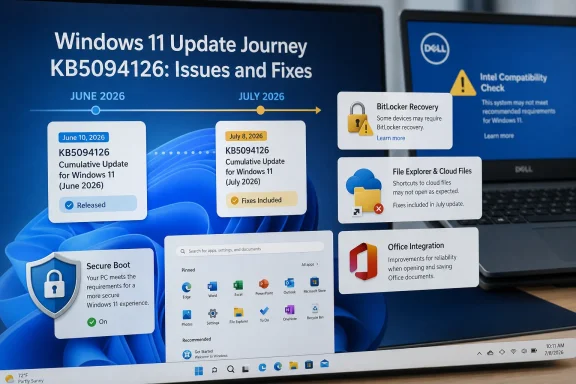
That difference matters. The Zero Net is right to put KB5094126 at the center of the 2026 Windows 11 reliability story, yet its “what to do now” framing is out of date in several material ways. The Recycle Bin bug was fixed in the June 23 preview update, KB5095093. Microsoft says the Office automation failure was fixed in the July 14 security update, KB5101650. And KB5101684 is not August Patch Tuesday at all: it is the optional July 28 preview update, released before the August 11, 2026 security release.
For users and administrators troubleshooting a current problem, the practical question is not simply whether KB5094126 once installed. It is whether the device has received later cumulative updates—and whether the symptom matches one of the issues that remained unresolved or was never formally acknowledged.
KB5094126 Was a Real Problem, but Its Confirmed Scope Was Narrower
Microsoft’s June 9 release notes confirm that KB5094126 introduced a compatibility problem for third-party applications that use OLE automation to start Office or open Office documents. Word, Excel, PowerPoint, and Access could fail to launch silently when called from applications such as CCH Engagement, Workpaper Manager, Dentrix, Softdent, and Zotero.
This was an operationally serious failure for accounting firms, legal and document-management shops, dental practices, and other organizations where a line-of-business application is the usual front door to Office. It was never a generic “Office will not open” bug. Opening the document from File Explorer or launching the Office app directly was Microsoft’s interim workaround, which illustrates the fault line: the integration path failed, not necessarily the Office installation itself.
Microsoft subsequently marked that issue resolved in updates released on or after July 14, including KB5101650. An endpoint still failing in August after installing the July cumulative update is therefore not automatically evidence that KB5094126 remains the cause. Administrators should verify the installed build and test the affected application’s current version before removing security updates from a production fleet.
Microsoft also confirmed that KB5094126 caused the permanent-delete confirmation dialog in Recycle Bin to show an internal $Rxxxxx.ext filename rather than the original name. The company fixed that defect through KB5095093 on June 23. The limitation was irritating and potentially confusing, but the original filename remained visible in Recycle Bin and restored files retained their original names. It was not evidence of data loss.
The Boot and BitLocker Reports Need More Care Than They Received
The alarming reports around KB5094126 were not invented. Windows Latest reported that organizations with large HP deployments saw systems land in BitLocker recovery, show black screens, or fail with error 0xc0430001; Neowin separately collected similar accounts, with HP hardware repeatedly appearing in user reports. OneDrive, Dropbox, and iCloud Drive entries in File Explorer also reportedly became unresponsive on some systems, with uninstalling KB5094126 restoring access in several cases.
The evidence supports a conclusion that some deployments experienced a genuine post-update compatibility failure, particularly around cloud-storage shell integration and certain OEM configurations. It does not support treating every blue screen, BitLocker prompt, or inaccessible OneDrive folder after June 9 as the same bug with one proven root cause.
Microsoft’s own KB5094126 documentation associates 0xc0430001 with a specific deployment scenario: updating Windows installation media without including the required boot.stl file. That file is used in Secure Boot validation. Microsoft warns that omitting it can stop devices from booting from the installation media; the documentation does not say that ordinary Windows Update clients broadly receive the same failure because their EFI System Partition is too small.
That is an important discrepancy. The HP-focused reporting may point to a real interaction among Secure Boot certificate work, OEM firmware, recovery files, and some device configurations. But the commonly repeated explanation—that KB5094126’s standard Windows Update installation simply runs out of space in a 100 MB EFI partition and breaks every affected PC’s Boot Manager—was not established in Microsoft’s release notes. It remains an inference from field reports, not a confirmed vendor diagnosis.
The Secure Boot context is real. Microsoft says certificates used by most Windows devices began expiring in June 2026 and that it has been rolling updated certificates out gradually to consumer and unmanaged business PCs. But Microsoft also explicitly says devices that have not yet received the new certificates should continue to boot and receive standard Windows updates. A BitLocker recovery request following a firmware, boot-policy, or Secure Boot state change should be investigated as such—not treated as a reason to routinely disable Secure Boot across a fleet.
Turning off Secure Boot can change measured boot state and trigger BitLocker recovery itself. For managed endpoints, that is an especially poor first-line workaround unless the organization has confirmed recovery-key availability, recorded the pre-change firmware configuration, and reproduced the issue on a controlled pilot device.
OneDrive and File Explorer Reports Had a More Specific Clue
The cloud-storage reports are better corroborated than the claimed universal boot failure. Windows Latest, Neowin, Microsoft Q&A threads, Dropbox’s own community forum, and administrator discussions all described a similar behavior after KB5094126: clicking a OneDrive or Dropbox item in File Explorer’s navigation pane or using a tray-icon shortcut did nothing, even though synchronization or direct access to the local folder could still work.
A potentially important common factor surfaced in community troubleshooting: systems with User Account Control set to “Never notify” appeared disproportionately affected. Some users reported that returning UAC to its default notification setting and rebooting restored access to OneDrive and Dropbox shell locations. That is not a Microsoft-published root cause or a guarantee of recovery, but it is a safer diagnostic step than immediately uninstalling a security update or changing Secure Boot settings.
Microsoft’s June 23 KB5095093 preview release later added a File Explorer fix for a OneDrive shortcut that stopped working when File Explorer ran elevated. That wording does not prove it fixed all of the KB5094126 OneDrive and Dropbox reports. Still, it shows that the issue area was narrower than “OneDrive broke after June Patch Tuesday,” and it reinforces the need to distinguish between File Explorer’s shell integration, the OneDrive client, UAC configuration, and the underlying cloud files themselves.
If a user can reach the synced folder at its local path or through OneDrive on the web, the incident is likely a navigation or shell-integration failure rather than a cloud-data outage. That distinction changes the response: preserve access, capture the configuration, update to a current cumulative release, and only then consider rollback testing.
July Brought a Different, Explicitly Managed Compatibility Block
The latest Windows 11 security update available before the August 11 Patch Tuesday release is KB5101650, released July 14 for Windows 11 24H2 and 25H2. Microsoft identified a separate incompatibility affecting a limited number of Dell systems with Intel processors and temporarily withheld KB5101650 from those devices.
This was not presented as a KB5094126 continuation. Microsoft said Dell reported that the affected Intel Innovation Platform Framework Processor Participant driver could lead to unexpected shutdowns, poor performance, increased heat, and faster battery drain. Microsoft’s release-health record says the issue originated with the June 9 security update and that July’s update was withheld from affected Dell devices while the companies worked on a fix.
The important operational consequence is straightforward: a Dell endpoint that has not received KB5101650 may be under a Microsoft compatibility hold, not failing Windows Update at random. Administrators should not force-install the package from the Update Catalog merely to make patch reporting look clean. Confirm the Dell model, BIOS revision, Intel IPF driver version, and the status of the safeguard hold first.
Microsoft later released KB5121767 as an out-of-band update for the Intel IPF issue. That means the July Dell hold was handled through targeting and remediation—not by telling every customer to remove July’s security update.
What to Check Before Blaming a Windows Update
Start with build numbers and update history. KB5094126 corresponds to Windows 11 builds 26100.8655 and 26200.8655. KB5095093 raised those branches to 26100.8737 and 26200.8737. KB5101650 moved them to 26100.8875 and 26200.8875. KB5101684, the optional July preview, is build 26100.8973 or 26200.8973.
A device on a later build already contains the earlier cumulative update’s security content plus subsequent fixes. Uninstalling KB5094126 may not even be meaningful in the way many how-to guides imply, because cumulative updates supersede earlier packages.
For a machine that is still broken, the response should fit the symptom:
- Confirm whether the failure began at the same time as the installed update using Update history and Reliability Monitor.
- For Office integration failures, install KB5101650 or a later cumulative update before testing an uninstall, because Microsoft says the July release resolves the OLE automation bug.
- For OneDrive or Dropbox entries that will not open in File Explorer, test direct access to the local synced folder and review non-default UAC settings before removing a security update.
- For BitLocker recovery loops or boot failures, secure the recovery key first, collect the exact error and firmware state, and check the OEM’s BIOS and driver advisories before changing Secure Boot.
- For Dell systems blocked from KB5101650, treat the block as intentional and track the Intel IPF remediation rather than bypassing Windows Update safeguards.
The June update was the roughest Windows 11 release of 2026 by volume and variety of reported failures. But the record now shows a more precise story: KB5094126 had two Microsoft-confirmed defects, both addressed in later updates; it also coincided with credible but incompletely explained field reports involving cloud-storage integration and a smaller set of boot and BitLocker failures. As of August 9, the pressing update-specific concern is the limited Dell and Intel IPF compatibility case around KB5101650—not an unpatched, universal KB5094126 disaster.