
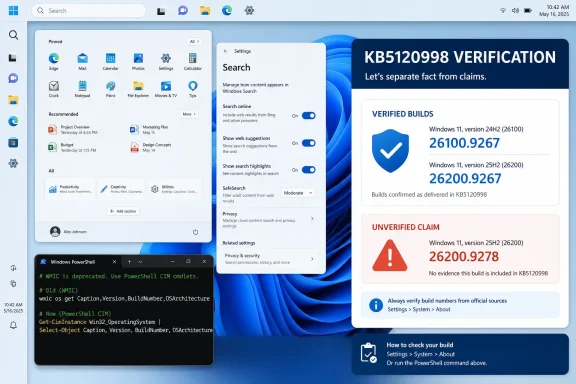
Microsoft released KB5120998 to the Windows Insider Release Preview channel on August 14 for Windows 11 24H2 and 25H2. The official builds are 26100.9267 for 24H2 and 26200.9267 for 25H2. Microsoft’s Windows Insider Blog and its detailed release notes identify those builds explicitly; Neowin, Thurrott, and Pureinfotech independently reported the same channel and build numbers.
That is a material difference from Windows Latest’s claim that an August 27 optional update identified as KB5120998 installs Build 26100.9278 or 26200.9278. No Microsoft release note located for KB5120998 identifies either .9278 build. The outlet’s own text also calls the offered package “2026-08 Preview Update (KB5120998) (26200.8973),” even though .8973 is associated with the preceding July 28 preview release, KB5101684, in Microsoft’s Windows 11 release-health history.
For readers who saw the report and expected the feature set to appear in Settings immediately, the safe conclusion is straightforward: KB5120998 remains a Release Preview-channel package in Microsoft’s public documentation, with a gradual feature rollout. It is not a verified, broadly available optional update at the build numbers claimed in the report.
 The Taskbar controls are coming, but only on the documented build
Microsoft’s KB5120998 release notes describe changes Windows 11 users have wanted since the operating system’s launch: the Taskbar can be placed at the bottom, top, left, or right of the display. The control is located under Settings > Personalization > Taskbar > Taskbar behaviors > Taskbar position.
The implementation has limits that matter on multi-monitor desktops and laptops. Microsoft says the Search box and the smaller-Taskbar experience are supported only when the Taskbar is positioned at the top or bottom. Tooltips, flyouts, animations, and most Taskbar settings should work across all four positions, including the option to avoid combining buttons.
The smaller Taskbar is also more substantial than the Windows Latest description suggests. Microsoft’s notes say the feature reduces both icon size and Taskbar height, rather than merely shrinking icons while leaving the bar at its existing height. It is exposed as Taskbar size under the same Taskbar behaviors settings page.
That distinction is important for notebook users trying to recover vertical screen space. A smaller Taskbar at the top or bottom may be useful on a 13- or 14-inch display; moving it left or right trades vertical space for horizontal space and disables the compact option. Organizations that standardize screen layouts should test those combinations before presenting this as a universal desktop-policy improvement.
Start menu and Search gain the controls Windows 11 lacked
KB5120998 also adds three Start menu sizes: Automatic, Small, and Large. Microsoft places the setting under Settings > Personalization > Start > Start menu size. The change gives users a supported alternative to changing display scaling simply to make Start occupy less of the screen.
Microsoft is also renaming Start’s “Recommended” area to “Recent” and adding individual controls to show or hide Pinned, Recent, and All sections. Users can separately hide their account name and profile picture from Start. The latter is a modest privacy and presentation improvement for screen sharing, shared PCs, training sessions, and streamed demonstrations.
The Search change has a similarly practical outcome. Microsoft says users can choose whether web and Microsoft Store suggestions appear alongside local results, using a new control in Settings > Privacy & security > Search. Turning off those suggestions should make Search behave more like a local launcher and file finder, rather than a combined local-and-online results page.
Windows Latest characterized this as disabling Bing and Microsoft Store results. That is close to the documented effect, but Microsoft’s wording is narrower: the setting governs web and Microsoft Store suggestions alongside local results. It should not be read as a statement that Windows components cease using Microsoft online services elsewhere, or that every search-related web surface in Windows is removed.
Microsoft is also changing how Search labels results, making the result source clearer before a user opens it. Results can be identified as apps, settings, files, web results, or Store suggestions. On managed machines where users routinely search for Control Panel items, administrative tools, scripts, and documents with similar names, that provenance label could reduce misclicks and help-desk confusion.
The operational change is WMIC’s removal
The most consequential KB5120998 item for enterprise and power users is not the movable Taskbar. Microsoft says Windows 11 24H2 and 25H2 no longer include the Windows Management Instrumentation Command-line utility, WMIC, beginning in August 2026. The command had already been absent by default on fresh installs, but Microsoft now says it is no longer available as a Feature on Demand.
Windows Management Instrumentation itself remains supported. That means applications using WMI APIs are not automatically broken, and PowerShell’s CIM cmdlets remain the expected replacement for command-line management and inventory tasks. The risk is narrower but real: old batch files, deployment packages, login scripts, software inventory routines, and vendor instructions that invoke commands such as wmic bios, wmic cpu, or wmic product can fail once the utility is absent.
Microsoft’s note does not list a compatibility shim or a reinstallation path for WMIC. IT teams should inventory scripts now rather than discover the removal during a device refresh or an in-place upgrade. In practice, the work is to replace WMIC calls with PowerShell commands such as Get-CimInstance, then test the output format because legacy scripts frequently parse WMIC’s text output.
This omission from the Windows Latest report changes the update’s risk profile. Taskbar placement and Start customization are user-facing improvements that can wait for general availability. WMIC removal can affect unattended automation, and it deserves a test-ring plan.
The catalog-download claim needs more evidence
Windows Latest says standalone Microsoft Update Catalog packages for KB5120998 can be as large as roughly 5 GB because they include AI models. The reporting provides download links, but the stated sizes and the claimed .9278 builds cannot be reconciled with Microsoft’s documented KB5120998 Release Preview builds.
Large .msu packages are not inherently suspicious. Modern Windows cumulative-update packages can include architecture-specific payloads and components that are not used on every device. But a large download is not a reason to bypass Windows Update, and it is not evidence that a package contains a specific feature set. Package applicability, servicing-stack prerequisites, edition, architecture, and the device’s current build determine whether an .msu will install.
For Release Preview testing, the supported path is to enroll an appropriate non-production device in the Release Preview channel and obtain the update through Windows Update. For normal production endpoints, administrators should wait for Microsoft to publish the corresponding optional or security update in Windows 11’s public release-health documentation, then deploy it through their existing Windows Update for Business, WSUS, Intune, or Configuration Manager process.
Pureinfotech’s reporting places KB5120998 on the path toward the September 2026 servicing cycle, while acknowledging that Microsoft had not yet published the stable-channel build number. That is consistent with the Release Preview model: features can appear there first, roll out gradually, and then arrive in a later public cumulative update. It is not confirmation that the August 27 builds reported by Windows Latest are generally available.
What to do before deploying it
For now, KB5120998 should be treated as a Release Preview validation target, not a routine public patch to chase manually.
- Test Taskbar placement, compact Taskbar behavior, Start menu policies, and Search-result controls on a representative 24H2 or 25H2 Release Preview device.
- Search management scripts, deployment repositories, and vendor documentation for
wmicbefore the broader servicing release reaches production machines. - Replace WMIC-based automation with supported PowerShell CIM commands and validate any scripts that depend on exact command output.
- Do not install a standalone package solely because a third-party article labels it an offline installer; first match the package’s KB number, architecture, and target build to Microsoft’s release documentation.
The user-facing changes in KB5120998 are among Windows 11’s more meaningful customization improvements. But the verified package is Build 26100.9267 or 26200.9267 in Release Preview, and the build-number discrepancy means the reported August 27 “public optional update” should be approached as unverified until Microsoft publishes a matching support article and update-history entry.