
That distinction is important because How2shout’s guide describes a Settings-based route alongside policy configuration, but Microsoft’s current Release Preview notes for 24H2 and 25H2 specifically name OMA-URI and Group Policy—not the consumer-facing toggle. Microsoft has separately tested an Account protection toggle in Insider builds, but whether it appears is controlled by the build, channel, and staged feature rollout. A missing toggle is not evidence that Windows Security is broken.
For administrators and enthusiasts, the practical answer is straightforward: verify that the policy exists first, enable it only on a test machine, and validate the applications and administrative workflows that need elevation. Administrator Protection changes more than the appearance of the UAC prompt.
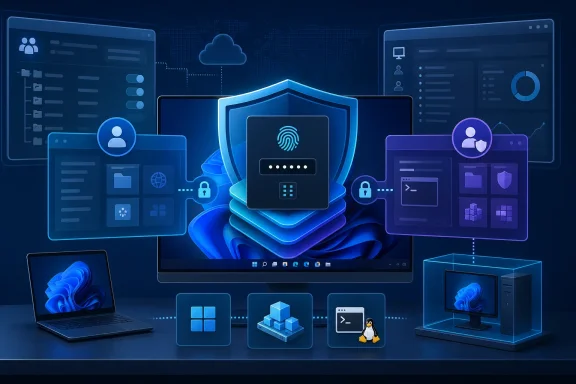 What Administrator Protection changes
Traditional User Account Control gives an administrator account both a filtered standard token and a linked elevated token. When an application requests elevation, Windows can activate that admin context after a consent or credential prompt. The two contexts still belong to the same user account, with the same profile and much of the same underlying user data.
Administrator Protection uses a different arrangement. The regular session stays deprivileged, while an approved elevation starts under a hidden, system-created, profile-separated administrator account. Windows creates an isolated administrator token for the elevated process and discards it after that process ends.
The user must explicitly approve each elevation, using Windows Hello where configured. In day-to-day use, that means installing software, changing protected settings, editing parts of the registry, and similar tasks can require a biometric check or PIN rather than a familiar click on Yes.
Microsoft describes the objective as reducing “free-floating” administrator rights: rights that malware can potentially inherit, impersonate, or abuse once it is running in a logged-in administrator’s session. The model resembles over-the-shoulder elevation—where a standard user supplies separate administrator credentials—but does not require an IT department to maintain and distribute a second local administrator password.
The Release Preview build is the current boundary
Microsoft released Windows 11 Insider Release Preview build 26100.9267 for 24H2 and build 26200.9267 for 25H2 on August 14, 2026, as KB5120998. The release notes say Administrator Protection is beginning a gradual rollout, which means two PCs on the same build can expose different feature sets.
That is why a policy can be visible in Local Security Policy while an Account protection toggle is absent, or why a PC that has installed the preview update may not yet behave like a fully enabled Administrator Protection device. Windows feature delivery is no longer limited to whether a cumulative update is installed; Microsoft can gate individual capabilities through controlled rollout.
The feature’s history also explains the confusion. Microsoft originally listed Administrator Protection in the October 2025 optional update, KB5067036, then amended that update’s documentation to say the feature would arrive later. Google Project Zero researcher James Forshaw reported that Microsoft disabled the capability on December 1, 2025 while addressing an application-compatibility problem.
The August 2026 Release Preview notes mark the clearest resumed rollout for 24H2 and 25H2, but Release Preview is still an Insider channel. It is close to broad servicing release, not proof that every machine running the general public versions of Windows 11 24H2 or 25H2 is eligible today.
Enable it with policy only after confirming support
On Windows 11 Pro, Enterprise, and Education editions with the required policy definitions, the local route is:
- Open
secpol.mscor Group Policy Editor and go to Computer Configuration > Windows Settings > Security Settings > Local Policies > Security Options. - Open User Account Control: Configure type of Admin Approval Mode.
- Select Admin Approval Mode with Administrator protection.
- Configure User Account Control: Behavior of the elevation prompt for administrators running with Administrator protection to choose the desired prompt behavior.
- Restart the PC.
The restart is mandatory. The policy changes the way Windows initializes the administrator approval model; it is not a live toggle that can safely change an active logon session.
For managed fleets, Microsoft documents two corresponding settings in Intune’s Settings Catalog under Local Policies Security Options. The relevant controls are User Account Control Type Of Admin Approval Mode and User Account Control Behavior Of the Elevation Prompt for Administrator Protection. The same settings can also be deployed through the LocalPoliciesSecurityOptions configuration service provider.
Do not treat an available policy dropdown as proof the feature has reached production readiness on that device. Microsoft’s policy documentation identifies the capability as preview, and the Release Preview release notes still characterize availability as gradual. A pilot group is the correct deployment target; a domain-wide change is not.
The Windows Security toggle is conditional
Where Microsoft has enabled the consumer interface, the path is Windows Security > Account protection > Administrator protection, followed by a restart. Microsoft has also described the navigation as Settings > Privacy & security > Windows Security > Account protection, which ultimately opens the relevant Windows Security area.
But the Settings route should be approached as a convenience layer, not a prerequisite or universal availability test. Microsoft’s June 2026 Experimental 26H1 release notes said the Account protection toggle was itself being rolled out gradually after the IT-admin deployment path resumed. Microsoft’s current 24H2 and 25H2 Release Preview notes, by contrast, call out Intune OMA-URI and Group Policy.
If an eligible Insider PC does not show the section, avoid registry hacks intended to force it into view. The policy and the code behind a staged feature do not always arrive as a single, universally enabled package. Forcing an unfinished configuration can leave a machine with altered elevation behavior but without the supported management or recovery experience Microsoft expects.
Before any test, configure Windows Hello. Administrator Protection is designed around interactive identity verification, and an environment that has not provisioned Hello will not reflect the intended elevation workflow.
Application compatibility is the deployment risk
The feature’s strongest security property—profile separation—is also the source of its most consequential compatibility difference. An elevated application no longer automatically sees the same profile state, single sign-on context, mapped-drive access, or per-user configuration as the unelevated application that launched it.
Microsoft’s Administrator Protection documentation flags several practical consequences:
- Elevated applications can require fresh authentication because SSO credentials from the regular user session are not automatically available in the separate elevated profile.
- Network resources and mapped drives may not be available to an elevated installer or management tool.
- Applications may write settings or Start menu shortcuts into the elevated profile rather than the normal user’s profile.
- Scheduled tasks, scripts, and tools configured to run with highest privileges should use SYSTEM or a dedicated service account instead of assuming an administrator’s interactive token is permanently available.
- Microsoft currently advises against enabling the feature on devices that require Hyper-V or Windows Subsystem for Linux.
That last point means Administrator Protection is not yet an obvious blanket recommendation for developer workstations, virtualization hosts, or IT administration machines. The feature is designed to make local elevation safer, but the first test should include the tools that actually define the device: package deployment, VPN clients, remote-support software, PowerShell automation, line-of-business installers, printer tools, mapped shares, Hyper-V, and WSL.
Microsoft has provided telemetry for that testing. The existing Microsoft-Windows-LUA ETW provider records Event ID 15031 when an elevation is approved and Event ID 15032 when it is denied, fails, or times out. Those events identify the requesting user, application path, result, managed administrator account, and authentication method. They offer administrators a way to distinguish a user cancelling an elevation from an application failing under the new profile model.
The security-boundary language is inconsistent
There is an unresolved documentation problem worth watching. Microsoft’s August 14 Release Preview notes say Administrator Protection “isn’t classified as a formal security boundary” and frame it as hardening against elevation-of-privilege attacks through profile separation. Yet Microsoft Learn’s Administrator Protection page says the feature introduces a new security boundary and that reported security bugs will be fixed.
Google Project Zero’s research helps explain why this language matters. Forshaw found nine ways to bypass the feature during pre-release testing, including paths that could silently grant administrator privileges. Google says Microsoft fixed those issues before the original KB5067036 release or through later security bulletins, and Project Zero’s February follow-up says all nine reported bypasses had been fixed.
Those fixes are good news, but they do not erase the practical lesson: Administrator Protection is a substantial architectural improvement over ordinary Admin Approval Mode, not a reason to stop patching, running endpoint protection, limiting local administrator membership, or applying application control.
For now, IT departments should treat it as a controlled pilot feature: deploy it through Intune or Group Policy to a small compatible group, use the LUA elevation events to identify breakage, and keep a rollback path ready. Home users who receive the Windows Security toggle can reasonably test it after configuring Windows Hello, but should not force-enable it on systems that depend on WSL, Hyper-V, or unusual elevation-dependent software.