
The feature matters because Thunderbolt, USB4, and CFexpress are not ordinary low-speed USB connections. They can expose PCI Express-class peripherals that use direct memory access (DMA), allowing hardware to read or write memory without the CPU mediating every transfer. That is excellent for external GPUs, storage and docking hardware; it is also why an unattended machine with an unprotected port has historically been a target for “drive-by” physical attacks.
Microsoft’s own Kernel DMA Protection documentation confirms the core scenario described by MakeUseOf: an attacker with brief physical access can attach a malicious PCIe-capable peripheral to seek data in memory or inject code while the Windows sign-in screen is showing. The lock screen restricts interactive use of Windows. It does not, by itself, scrub RAM or inherently police every hardware path to it.
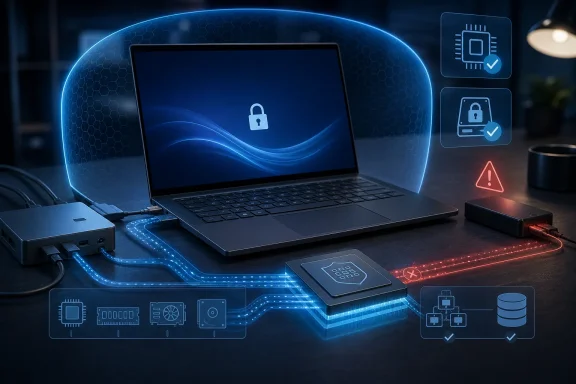 MSInfo32 gives a useful answer—but it is not the whole diagnosis
The fastest check is still the one MakeUseOf recommends:
- Press Win + R.
- Enter
msinfo32. - In System Summary, find Kernel DMA Protection.
An On value is the clean result. Microsoft says compatible Windows systems enable Kernel DMA Protection automatically; users and administrators do not need to find a separate Windows toggle to activate it. Windows Security also exposes the same protection under Device security > Core isolation details > Memory access protection on systems where the interface is available.
An Off value should not be treated as proof that someone disabled security. It is a report on the combined state of Windows, UEFI firmware, the platform’s IOMMU hardware and firmware configuration. The IOMMU—Intel’s VT-d and AMD’s comparable I/O virtualization technology—is the component Windows needs to isolate a DMA-capable device from memory it was not assigned.
That distinction changes the practical advice. Do not start changing registry values or Group Policy settings in the hope of converting an unsupported laptop into a Kernel DMA Protection machine. Microsoft’s current guidance is explicit: after enabling the required firmware virtualization features, if the status remains off, the system does not support Kernel DMA Protection.
What Windows actually blocks while the PC is locked
Kernel DMA Protection does not mean that Windows shuts down all Thunderbolt and USB4 hardware at the lock screen. It uses the IOMMU to apply different rules based on driver support.
Devices with drivers compatible with DMA remapping can start and operate, but Windows constrains their DMA to assigned memory regions. Devices whose drivers are incompatible with DMA remapping are, by default, blocked from starting or performing DMA when they are attached before an authorized user signs in or while the screen is locked. Once the user unlocks the PC, Windows can start the device normally; it can generally keep functioning until it is unplugged or the machine reboots.
This has a real usability consequence for IT departments and power users: a dock or unusual PCIe-over-Thunderbolt accessory that does not work until a user signs in may be encountering the protection, not necessarily a broken driver installation. Microsoft documents a policy called Enumeration policy for external devices incompatible with Kernel DMA Protection, which can change how such devices are treated.
The policy has three modes: block all such devices, allow them only after sign-in or unlock, or allow all. The default is the middle option. Relaxing it to “allow all” can fix pre-logon dock behavior, but it gives up part of the locked-screen protection the feature exists to provide. That is a security decision, not a routine troubleshooting tweak.
“Off” may be fixable in UEFI, but only on the right hardware
Microsoft’s prescribed path for a supported PC that reports Kernel DMA Protection as off is more narrow than generic advice to “enable virtualization.” In UEFI setup, look for the processor virtualization setting and the I/O virtualization setting—commonly Intel Virtualization Technology plus Intel VT-d, or AMD IOMMU-related controls. Windows needs the I/O side, not merely CPU virtualization used for virtual machines.
After enabling those options and rebooting, check msinfo32 again. Microsoft says a system that continues to report Kernel DMA Protection as off does not support the feature. Firmware menus differ enough between OEMs that there is no universal path, and business laptops can also hide or lock the setting under administrator controls.
There is another qualification missing from a simple “check the field” walkthrough: Microsoft lists support for Kernel DMA Protection on Windows Pro, Enterprise, Pro Education/SE and Education. Windows Home users should not assume that a recent Thunderbolt-equipped laptop has the feature simply because the hardware is new or because Device Encryption is available. Microsoft offers Device Encryption on a broader range of systems, including Windows Home, but storage encryption and Kernel DMA Protection address different parts of the physical-access problem.
Windows 11 also has a meaningful edge over Windows 10 for graphics hardware. Microsoft says support for DMA remapping of graphics devices arrived with Windows 11’s WDDM 3.0 driver model; Windows 10 does not support that capability. For anyone using an external GPU or a dock that incorporates high-performance graphics hardware, the Windows version is therefore more than a cosmetic consideration.
BitLocker protects the drive, not every moment the laptop is running
Full-disk encryption remains essential, but it should not be confused with a complete answer to a live-memory attack. BitLocker protects data at rest: it makes the SSD difficult to read when removed or accessed offline. A system that is awake and unlocked—or awake and merely screen-locked—has operating-system state in RAM, potentially including material an attacker would rather capture from memory than recover from an encrypted disk.
Microsoft’s BitLocker guidance still treats DMA ports as a distinct concern. For higher-risk travel or field scenarios, it recommends a TPM-plus-PIN protector, avoiding standby when the laptop leaves authorized control, and shutting down or hibernating the device. The reason is straightforward: shutdown and hibernation remove the ordinary live-RAM target rather than relying solely on a lock screen.
A pre-boot PIN is particularly relevant to the period after a machine powers on but before Windows has loaded its protections. Kernel DMA Protection begins after the operating system loads. Microsoft assigns protection during boot to system firmware and BIOS/UEFI configuration, which means the msinfo32 result should not be read as a blanket guarantee against every firmware-level or pre-boot attack.
Older DMA-capable interfaces are another boundary. Microsoft specifically excludes FireWire/IEEE 1394, PCMCIA, CardBus and ExpressCard from Kernel DMA Protection coverage. A computer with legacy expansion options needs its own hardware-specific review; a green result for Thunderbolt protection is not a universal authorization to ignore every physical port.
A short check for individual users and administrators
For a personal Windows laptop with Thunderbolt or USB4, the sensible sequence is:
- Check Kernel DMA Protection in
msinfo32and, where available, verify Memory access protection in Windows Security. - If it is off, review UEFI for CPU virtualization and I/O virtualization, then recheck after a reboot.
- If it remains off, do not assume a Windows policy, registry change or driver update will create platform support that the firmware does not expose.
- Keep BitLocker or Device Encryption enabled, and use shutdown or hibernation rather than leaving a sensitive machine sleeping in an uncontrolled location.
- Do not loosen a corporate DMA enumeration policy merely to make a dock work before sign-in without understanding the security tradeoff.
For managed fleets, the useful finding is not merely which machines show “On.” It is which models report “Off,” which devices lack the required firmware controls, and whether a policy exception is allowing incompatible DMA hardware before sign-in. Those answers belong in procurement and endpoint configuration baselines, because an end user cannot repair a missing IOMMU implementation with a Windows setting.
The immediate takeaway is modest but important: check the field, but do not mistake it for a magic button. An On result means Windows has the hardware-backed controls needed to limit Thunderbolt- and USB4-class DMA on a locked system. An Off result is a prompt to inspect UEFI and your device model—and, if support is absent, to change how that laptop is secured when it leaves your hands.