

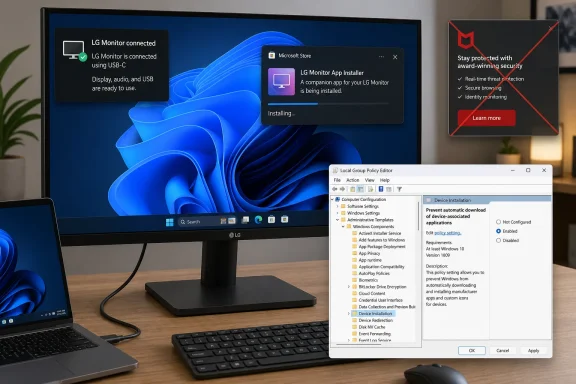
That makes XDA Developers’ warning timely but incomplete. The underlying Windows feature remains enabled for eligible hardware, and users can block it with a policy setting. But reports that an LG monitor itself installed McAfee need a sharper distinction: the monitor-triggered install was LG’s Store-delivered companion app; the controversial McAfee component was a promotion inside that app. LG said McAfee required a separate consent step, and Microsoft’s public response addressed the pop-up rather than ending silent delivery of LG’s installer.
Microsoft’s own developer documentation confirms the core behavior. A compatible external peripheral can cause Windows to retrieve device metadata, identify an associated Universal Windows Platform device app, download it through the Microsoft Store, and add it to the signed-in user’s app list — without an installation notification. Microsoft even cautions hardware vendors that users may find the experience confusing or frustrating.
What actually happens when Windows sees the monitor
The process is not a monitor executing an installer over HDMI, DisplayPort, or USB-C. Windows detects the display as hardware, checks Microsoft’s device-metadata service for a match, then uses the metadata to identify a Store package associated with that device. A required driver can be obtained through Windows Update as part of setup, but the driver and Store application are separate pieces.
Microsoft describes four stages: a peripheral connects; Windows downloads metadata; Windows obtains a driver if one is necessary; and Windows installs the associated device app. The companion app is placed in the current user’s app list. If the PC is offline or the user is not signed in to the Microsoft Store, Windows can defer the process until those conditions are met.
This is why describing every unexpected app as a “Windows Update driver” is misleading. A monitor can work perfectly well with Windows’ standard display support and a GPU driver while an optional vendor utility arrives through the device-app route. The utility may offer legitimate extras — firmware updates, color-profile controls, window layouts, input switching, or brightness controls — but it is not automatically required for displaying an image.
The LG episode became controversial because the automatically acquired package, LG Monitor App Installer, reportedly started with promotions, including a McAfee trial offer, rather than first explaining what monitor-specific benefit the user would receive. Privacy Guides and Gamers Nexus documented the behavior, while TechSpot, TechRepublic, and other outlets later reported Microsoft’s intervention.
The McAfee prompt is gone; the silent app path is not
Pavan Davuluri, Microsoft’s executive vice president for Windows and Devices, said Microsoft contacted LG and that LG agreed to disable the McAfee pop-up as an immediate measure. Subsequent reporting found McAfee references removed from the app’s public Store listing.
That is a real correction, not merely a promise. But it is deliberately narrow. Microsoft has not announced that Windows 11 will now ask for approval before installing every device-associated Store app, and LG has not announced that it will stop distributing Monitor App Installer through the metadata process for compatible displays.
For affected owners, that means a new or newly configured LG monitor should no longer produce the particular McAfee promotion that drove the backlash. It does not mean Windows has abandoned automatic companion-app acquisition, nor does it make every connected peripheral incapable of prompting an optional vendor app installation.
LG’s response also matters for accuracy. The company’s position, as reported by WindowsForum and other coverage of the dispute, was that McAfee itself was not silently installed and that its Monitor App Installer did not access, collect, or transmit customer personal data. Those are narrower claims than the user-consent problem. An app can be signed, Store-distributed, and non-malicious while still being an unwelcome installation if it appears without a device-specific prompt.
Microsoft documented the consent gap years ago
XDA correctly notes that the idea dates back to the Windows 8 era, when Microsoft made device-associated Store apps a standard part of peripheral setup. But the present documentation identifies the mechanism as automatic installation for UWP device apps, and it now carries a notable warning: device metadata is deprecated and will be removed in a future release of Windows. Microsoft directs hardware makers toward Driver Package Container Metadata as the replacement path.
That deprecation notice does not mean the behavior has disappeared from current Windows installations. It means administrators should not assume a switch designed around today’s metadata mechanism will answer every future device-provisioning question. Microsoft has not publicly said that the replacement will require an explicit user prompt for companion applications.
The existing feature also has conditions that get lost in social-media versions of the story. According to Microsoft, automatic installation requires the user to have opted into Recommended Settings during Windows setup, to be online, and to be signed in to the Microsoft Store. It is not a universal behavior on every offline, local-account, Store-disabled, or tightly managed Windows PC.
Still, those prerequisites are broad enough to cover many consumer Windows 11 systems. A choice made during initial setup is a poor substitute for a specific notification months later saying that connecting a display will install a named Store package with a stated function and permission set.
The Group Policy fix blocks optional device apps, not drivers
On Windows 11 Pro, Enterprise, and Education, the policy highlighted by XDA is the practical control for people who do not want Windows automatically fetching companion apps for newly attached hardware:
- Press Win + R, type
gpedit.msc, and press Enter. - Go to Computer Configuration > Administrative Templates > System > Device Installation.
- Open Prevent automatic download of applications associated with device metadata.
- Set the policy to Enabled, then apply the change.
Despite the counterintuitive wording, enabling this policy prevents Windows from automatically downloading applications associated with device metadata. It is a broad control: it can also stop legitimate automatic companion apps for printers, mice, webcams, headsets, motherboards, and other peripherals.
It should not be confused with disabling driver installation. Windows drivers and device-associated Store apps are distinct in Microsoft’s own process. The policy targets optional app acquisition, not the normal driver path that gets hardware working. For an IT department, that makes it a sensible baseline where users do not need vendor utilities delivered automatically; it is not a substitute for application control, endpoint protection, or an allow-listing strategy.
Windows Home does not include the supported Local Group Policy Editor interface used above. Home users should not download unofficial “Group Policy enabler” scripts just to expose it. If the concern is an already-installed LG package, the immediate response is simpler: open Settings > Apps > Installed apps, find LG Monitor App Installer, uninstall it, and review Startup apps for entries that launched alongside it.
The practical issue is transparency, not a new malware vector
The monitor did not bypass Windows security, and no public evidence establishes that the LG app was malware. Microsoft’s Store distribution, package signing, and declared capabilities are meaningful safeguards. They do not, however, tell a user whether the software is necessary, wanted, or commercially motivated.
The case exposed a design choice that deserves more scrutiny: Microsoft allows a manufacturer to use a trusted hardware-setup channel to place a Store app on a PC silently, then relies on that manufacturer to use the privilege responsibly. LG’s McAfee promotion crossed the line from hardware assistance into advertising, and Microsoft’s response removed the visible symptom without changing the consent model behind it.
For now, the policy setting is the cleanest answer for Windows Pro systems that value predictable software inventory over automatic vendor utilities. The McAfee pop-up may be gone, but the next time Windows detects a new peripheral, the decision to install its companion app can still happen before the owner ever sees its Store page.