
The article also contains errors that matter to Windows users deciding what to install. Microsoft has not forced every buyer into a subscription: Office 2024 remains available as a one-time purchase. And LibreOffice’s current official Windows requirements no longer list Windows 7, despite Pocket-lint presenting Windows 7 SP1 support as a present-tense advantage.
The practical conclusion is less dramatic than “the underdog wins.” LibreOffice is an excellent no-cost local productivity suite when the documents are simple, ownership of files matters, and Linux compatibility is useful. It should be deployed cautiously where DOCX, XLSX, PPTX, SharePoint, real-time coauthoring, or business-critical macros are part of the job.
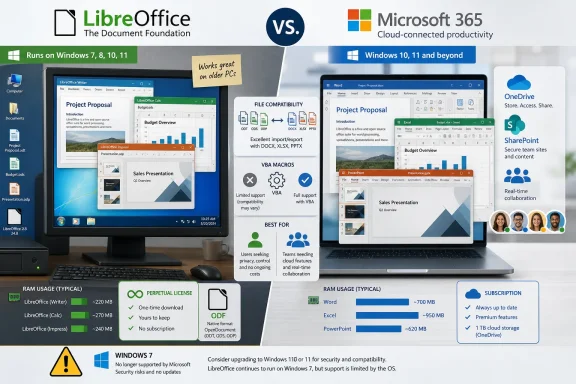 Office 2024 still gives buyers a perpetual-license option
Pocket-lint says users are now “forced” into a monthly subscription for Microsoft Office. Microsoft’s own product documentation says otherwise. Office Home 2024 and Office Home & Business 2024 are perpetual, one-time-purchase editions with desktop versions of the core applications; Office LTSC 2024 serves the comparable on-premises commercial and government market.
Those versions do have limitations compared with a Microsoft 365 subscription. They do not receive the rolling feature upgrades, cloud services, or subscription-only Copilot features Microsoft bundles into Microsoft 365. A perpetual license also generally covers one PC or Mac, and moving to the next major Office release requires buying it separately.
That is still a meaningful option for people who need Word, Excel, and PowerPoint locally, have no use for OneDrive storage or Copilot, and want a fixed acquisition cost. LibreOffice’s price remains unbeatable at zero, but the fair comparison is between LibreOffice, perpetual Office 2024, and Microsoft 365 subscriptions—not between LibreOffice and a supposedly mandatory annual payment.
Pocket-lint also uses “Microsoft 365 Copilot” as if it were the name of the whole Office suite. The branding is more confusing than the product lineup: Microsoft did rename its Office/Microsoft 365 hub app to the Microsoft 365 Copilot app, but Word, Excel, PowerPoint, Office 2024, and Microsoft 365 subscriptions remain distinct products and licensing choices. Calling all of them “Microsoft 365 Copilot” risks making readers think they are buying, installing, or avoiding the same thing.
LibreOffice is light on RAM, but current releases do not solve Windows 7 support
LibreOffice deserves credit for modest hardware demands. The Document Foundation lists 256MB of RAM as the minimum for its current Windows release, with 512MB recommended, while Office 2024 requires 4GB of RAM. On a low-memory PC, that difference can be substantial. LibreOffice also needs less storage and avoids the background cloud integration that comes with a Microsoft 365 installation.
But Pocket-lint’s operating-system claim is out of date. The Document Foundation’s current system-requirements page lists Windows Server 2012 through 2022, Windows 10, and Windows 11. It does not list Windows 7 SP1. Older LibreOffice branches did support Windows 7, which appears to be the source of the confusion, but that does not make Windows 7 a supported platform for the current suite.
That correction changes the recommendation for a legacy Windows machine. LibreOffice may keep a low-spec Windows 10 computer productive long after Office 2024 feels excessive, but it is not a responsible answer to an unsupported Windows 7 deployment. Windows 7 itself stopped receiving free security updates in January 2020. Installing an older office suite to preserve that operating system leaves the larger security problem untouched.
For a genuinely old PC, the better plan is to move it to a supported operating system where possible, then evaluate LibreOffice for its low resource use. If the hardware cannot run a supported Windows release, a maintained Linux distribution plus LibreOffice is often the more defensible route than keeping Windows 7 online.
Opening a DOCX file is not the same as preserving an Office workflow
LibreOffice can open and save the Microsoft Office formats most people encounter: DOC, DOCX, XLS, XLSX, PPT, and PPTX. That is valuable. A household that exchanges ordinary letters, budgets, slide decks, and school assignments can often use Writer, Calc, and Impress without spending money on Microsoft’s software.
The word “guaranteed,” however, does not belong in a compatibility claim. LibreOffice’s own documentation warns that complex Microsoft Office files can handle layout features and formatting differently after conversion, sometimes requiring manual reformatting. Its documentation is especially clear about macros: VBA code may be preserved, examined, or partly adapted, but it is not a promise that an Excel workbook will run unchanged.
That distinction matters most in business files, where the content may technically open while the process behind it fails. An XLSM workbook can contain formulas, external data connections, Power Query steps, ActiveX controls, add-ins, named ranges, pivot-table behavior, protected sheets, and VBA code. A PowerPoint deck can rely on fonts, animation timing, video handling, SmartArt, or an organization’s template. A Word document can use tracked changes, content controls, section formatting, mail merge fields, and styles that shift when opened elsewhere.
A small pilot catches most of the risk before an organization turns a cost-saving experiment into a help-desk problem:
- Open representative DOCX, XLSX, XLSM, and PPTX files in LibreOffice, then save copies and reopen them in Microsoft Office to compare layout and behavior.
- Test the organization’s largest spreadsheets, especially workbooks with macros, external connections, pivot tables, and protected sheets.
- Send revised files to the people who normally receive them, because compatibility is a two-way problem rather than a successful local open operation.
- Keep Microsoft Office available for designated users whose work depends on validated templates, VBA, or Microsoft 365 collaboration services.
For individuals, this process may take half an hour. For an IT department, it is the difference between a targeted LibreOffice deployment and an unsupported office-suite migration.
LibreOffice Math and Draw are useful, but they are not exclusive capabilities
Pocket-lint calls LibreOffice Math a feature with no Microsoft equivalent. Microsoft’s documentation contradicts that claim. Word, Excel, PowerPoint, Outlook, and OneNote include equation tools, with support for creating, editing, and formatting mathematical expressions; desktop Word also supports linear UnicodeMath and LaTeX-style equation input. Word’s web editor has historically had more limited equation editing than the desktop application, which may explain why users can perceive a gap.
LibreOffice Math remains a legitimate strength for users who like its dedicated formula-editor model and need to place equations into Writer, Calc, or Impress. It is not, however, a reason to tell students or teachers that Microsoft Office cannot produce mathematical notation.
The same restraint applies to Draw. LibreOffice Draw is unusually capable for a no-cost office-suite component: it handles vector objects, pages, diagrams, and basic PDF editing. For simple form filling, annotation, object placement, and diagram work, it can remove the need for a separate utility.
But Draw is not a substitute for a full graphics workflow, and its PDF-editing capability should be evaluated against the documents an organization actually receives. Signed PDFs, heavily designed forms, and files with complicated font or annotation behavior deserve testing. “It opens” is not a safe standard for documents that must retain legal, financial, or regulatory meaning.
The real dividing line is local documents versus connected work
The best argument for LibreOffice is the one Pocket-lint states most plainly: it is free software maintained by The Document Foundation, it does not require a Microsoft account to start writing, and it uses the OpenDocument Format as its native file format. That makes it attractive for personal use, schools, public-interest organizations, privacy-conscious users, and mixed Windows/Linux environments.
Open source also makes LibreOffice inspectable and auditable in ways proprietary software is not. But source availability does not ensure security, as Pocket-lint claims. Security still depends on active maintenance, prompt patching, safe document-handling practices, and whether a user is running a supported operating system. An unpatched LibreOffice installation on an obsolete Windows PC is not made safe by its license.
Microsoft 365’s advantage is not that Word knows how to type a letter better than Writer. Its advantage is the surrounding service: OneDrive and SharePoint storage, Teams integration, managed identities, access controls, cloud collaboration, compliance tooling, and a much higher likelihood that a partner’s complex Office document will behave as its author intended. Those features also introduce account dependencies, licensing costs, and administrative overhead that many users do not need.
LibreOffice wins when the work is primarily local and the organization controls its document expectations. Microsoft 365 or Office 2024 remains the safer choice when the work must interoperate precisely with Microsoft-heavy customers, line-of-business spreadsheets, and established enterprise processes.
