
A successful Logitech G920 PC setup has three distinct stages:
- The wheel completes its physical startup calibration.
- Windows recognizes its steering, pedal, and button inputs.
- The racing game detects the wheel and applies a working control profile.
Treating those stages separately is the fastest way to avoid the familiar problem where the G920 spins during startup, briefly appears in a menu, and then vanishes—or where the wheel works in Windows but not in a game.
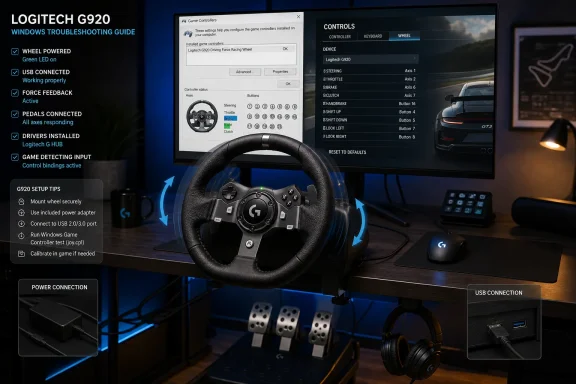 Overview: What the Logitech G920 Needs to Work on PC
The Logitech G920 is not a simple USB gamepad. It is a force-feedback racing wheel with an external power supply, a separate pedal unit, motorized steering hardware, and game-specific control support. USB alone is enough for Windows to see a device, but it is not enough for the wheel to deliver normal force feedback or complete its startup sequence reliably.
For a proper installation, connect all of the following:
- The G920 wheel base
- The pedal unit
- The Logitech power adapter
- A direct USB connection to the Windows PC
- A compatible racing game with wheel support
- Logitech configuration software, where required for settings or troubleshooting
The first rule is straightforward: connect the pedals and power to the wheel base before connecting the USB cable to the computer. When power, pedals, and USB are in place, the wheel should rotate fully in one direction, rotate fully in the other direction, and settle at center.
That movement is the G920’s automatic calibration process. It confirms that the wheel has power and that its motorized steering assembly can establish its center point. If it does not move at all, the most likely issue is the power adapter or its connection to the wheel base—not Windows, G HUB, or the game.
Secure the Wheel Before Connecting Software
The practical side of the setup matters more than it may initially appear. A wheel that slides across the desk, twists under force feedback, or rests at an awkward height can make even a correctly configured G920 feel inaccurate.
Mounting the G920 Safely
Place the G920 on a sturdy desk, table, cockpit, or racing stand. The wheel includes integrated clamps designed for desk mounting, but the surface must be rigid enough to resist the wheel’s force feedback motors.
To secure it:
- Position the wheel base where the rim is comfortable to reach without overextending your arms.
- Unlock or adjust the clamp mechanism using the clamp knobs beneath the wheel.
- Slide the wheel base onto the desk edge.
- Tighten the clamps evenly until the wheel is stable.
- Remove or reposition clamp extenders if the desktop is unusually thick.
- Check that the base does not rock when turning the wheel firmly.
Avoid overtightening the clamps on fragile glass, hollow furniture, or thin particleboard. The objective is firm contact, not maximum force. A dedicated stand or cockpit remains the better long-term option for aggressive driving games, especially when force feedback is set high.
Connect Pedals, Power, and USB in the Right Order
The pedal connector belongs in the matching port on the underside of the wheel base. It resembles a legacy-style multi-pin connector, so align it carefully and avoid forcing it into place. Connect the pedal cable before powering on the unit.
Next, connect the external power adapter to the wheel. Ensure the adapter is firmly seated both at the wall outlet and at the wheel base. A loose power connection can allow Windows to detect buttons or steering movement while preventing normal motor operation.
Finally, connect the G920’s USB cable directly to the PC. A rear motherboard USB port is usually the most dependable choice on a desktop system. On a laptop, use a built-in port where possible.
Avoid USB hubs, display USB ports, unpowered adapters, and front-panel ports during initial troubleshooting. They may work eventually, but they introduce another point of failure when trying to establish whether Windows can detect the racing wheel correctly.
Understanding the Startup Calibration Sequence
The G920’s startup spin is more than a visual effect. The wheel is finding the physical steering limits and returning to its calibrated center position.
A normal sequence looks like this:
- The wheel rotates fully left.
- The wheel rotates fully right.
- The wheel returns approximately to center.
- Windows registers the device.
- Logitech software and supported games can begin communicating with it.
If the wheel spins but never returns to center, disconnect the USB cable, confirm the power supply is secure, wait a few seconds, and reconnect it. If the wheel does not spin at all, test the wall outlet and power adapter before reinstalling drivers.
What a Successful Calibration Does—and Does Not—Prove
A completed calibration is a strong sign that the wheel has electrical power and that its internal motor system is alive. It does not, however, guarantee that:
- Windows has installed the ideal driver package.
- Logitech G HUB has detected the device.
- Pedal axes are mapped correctly.
- The selected game supports the G920.
- Force feedback is enabled in the game.
- Button assignments are correct.
That distinction is important. A working calibration sequence narrows the problem, but it does not complete the setup.
Let Windows Detect the Logitech G920 First
Before launching a racing game, give Windows time to enumerate the wheel. Modern Windows systems normally install recommended device drivers through Windows Update, but optional driver updates may still require manual approval.
On Windows 11, open:
Start > Settings > Windows Update > Advanced options > Optional updates
If Windows lists a relevant driver update, install it and restart the PC. The wheel may begin working without an optional update, but installing a compatible update can resolve device enumeration or stability issues.
Windows 10 Considerations
Windows 10 reached end of support on October 14, 2025 for mainstream Home and Pro installations. A G920 can still function on a Windows 10 PC, but running an unsupported operating system is not ideal for a gaming machine that connects regularly to online services, stores, and multiplayer titles.
If Windows 10 remains necessary, check for available updates through:
Start > Settings > Update & Security > Windows Update
Then review View optional updates if that option appears. For the most reliable long-term support, current Windows 11 builds are the safer baseline for a Logitech G920 gaming setup.
Confirm Windows Receives Inputs
The fastest built-in test is the classic Game Controllers panel.
- Press Windows key + R.
- Type
joy.cpl. - Press Enter.
- Select the Logitech racing wheel from the list.
- Choose Properties.
- Open the Test tab.
Turn the steering wheel, press each pedal, pull the paddle shifters, and press the face buttons. The indicators should respond in real time.
This is a critical checkpoint because it separates a Windows-level problem from a game-level problem. If inputs do not appear here, there is little value in changing settings in Forza, Assetto Corsa, iRacing, EA SPORTS WRC, F1, or another racing title. The PC needs to see the hardware before the game can use it properly.
Use Windows Calibration Only When Necessary
Some G920 configurations display a Settings tab with a Calibrate option. If available, the Windows calibration wizard can help correct an obvious off-center steering axis or unusual pedal behavior.
Do not repeatedly recalibrate a wheel that already centers correctly. In most cases, the G920’s internal startup calibration and the game’s steering settings are the primary controls that matter. Windows calibration is best treated as a repair step rather than a routine tuning tool.
Logitech G HUB and the Legacy LGS Complication
The software story around the Logitech G920 is less tidy than it should be. Logitech G HUB is the company’s modern configuration application and should be the first place to look for a fresh Windows installation, device configuration, profiles, and firmware-related options.
However, Logitech’s older G920 documentation also continues to reference Logitech Gaming Software (LGS) 8.70 or later for full functionality, button configuration, and game-specific profiles. That creates understandable confusion for owners following older tutorials.
The sensible approach is not to install every Logitech utility at once.
Start With G HUB for a Current PC Setup
Install Logitech G HUB from Logitech’s official software distribution channel. Once installed, launch it with the G920 powered on and connected directly to the PC.
If G HUB detects the wheel, open the device tile and review its available options. Depending on the software version and device state, these can include:
- Sensitivity or steering response controls
- Button and paddle assignments
- Game-specific profiles
- Firmware or device settings
- Force-feedback-related behavior where exposed
- Profile switching tied to installed games
A Logitech account is not generally required to make the wheel work. Signing in may enable profile synchronization or community-oriented features, but basic detection and configuration should not depend on an account.
Do Not Run G HUB and LGS as Parallel Wheel Managers
The central risk is software conflict. Installing both utilities may be useful only in a carefully controlled troubleshooting scenario, but they should not be allowed to compete for the same wheel configuration at the same time.
If G HUB detects the G920 and the wheel works in joy.cpl, keep the installation simple. There is no benefit in adding LGS merely because an old video guide says it is required.
If G HUB cannot detect the G920 despite successful Windows input testing, LGS can be considered as a legacy fallback because Logitech’s older G920 support material still documents it. But use one primary configuration tool at a time, and remove or disable the other before concluding that the wheel itself is faulty.
This is one of the biggest weaknesses in the broader G920 setup experience: current software guidance and older product documentation do not always point in one clean direction. The hardware remains capable, but the support path is less streamlined than many newer sim-racing ecosystems.
Configure the Wheel Before Entering a Race
Once Windows and Logitech software can see the G920, open the configuration page and establish sensible baseline settings. Do not assume that maximum sensitivity or maximum force feedback will improve driving.
Steering Sensitivity and Rotation
The right steering setup depends on the game and the vehicle. A road car, rally car, Formula-style car, truck, and drift build may all feel better with different steering behavior.
Start with a neutral configuration:
- Keep the wheel’s steering response near the default.
- Let the game manage vehicle-specific steering lock when supported.
- Avoid extreme sensitivity adjustments during initial testing.
- Confirm the virtual wheel reaches full lock at a reasonable point.
- Save changes to a dedicated game profile rather than changing a global profile unnecessarily.
If the car turns too sharply with small inputs, reduce in-game steering sensitivity or adjust the game’s steering linearity. If steering feels slow or requires excessive rotation, check the game’s steering range, steering lock, and rotation settings before changing Windows settings.
Pedal Behavior
The G920 pedals are usually detected as analog axes. In a healthy configuration:
- The accelerator should increase smoothly as the pedal is pressed.
- The brake should respond progressively.
- The clutch should respond progressively if the game supports it.
- None of the axes should remain permanently active at rest.
Some games invert pedal axes by default. If pressing the accelerator makes the game behave as if the throttle is being released, look for Invert Accelerator, Invert Brake, or similarly named settings in the game’s controls menu.
The G920 brake pedal is intentionally firmer than the accelerator. That can feel unusual to new users, but it is designed to make braking modulation more deliberate. Do not mistake normal brake resistance for a detection fault.
Bind the Logitech G920 Inside Each Racing Game
Windows detection does not automatically create a usable control profile in every game. A game may identify the wheel by name, load a preset, partially bind it, or require every function to be assigned manually.
The game’s control menu is where the final setup happens.
Recommended Binding Order
Work through controls systematically:
- Select the Logitech G920 preset if the game provides one.
- Bind steering.
- Bind throttle, brake, and clutch.
- Bind paddle shifters.
- Bind handbrake, gear controls, and menu navigation.
- Test the wheel while still in the controls screen.
- Adjust force feedback.
- Save the profile under a recognizable name.
If a game lists both controller and wheel profiles, make sure the wheel profile is the active one. Some titles default back to a standard controller scheme after an update, after a device reconnect, or when multiple input devices are attached.
Force Feedback Is Game-Specific
Force feedback should be adjusted in the game first. G HUB may expose general device-level behavior, but the racing simulation determines the actual driving effects: road texture, tire slip, kerbs, collisions, steering weight, and self-aligning torque.
Begin conservatively. Excessive force feedback can cause clipping, where different forces all feel like the same heavy resistance. It can also make the G920 noisier and less informative during fast driving.
A strong starting principle is:
- Use moderate overall force.
- Keep road and kerb effects lower than steering forces.
- Reduce effects that cause constant rattling.
- Increase detail gradually rather than setting everything to 100 percent.
The best setting is not the heaviest setting. It is the setting that makes traction loss, weight transfer, braking, and surface changes easier to understand.
Why the G920 Appears and Then Disappears
A G920 that briefly appears in a controls menu and then disappears is often dealing with a sequence problem, a USB problem, or a software conflict.
Start with the basics before uninstalling drivers.
Check the Physical Chain
Verify all four connections:
- Pedal unit to wheel base
- Power adapter to wheel base
- Power adapter to wall outlet
- USB cable to PC
Then reconnect the wheel to a different direct USB port. Do not test through a hub at this stage. Restarting the PC with the wheel unplugged, then connecting it after Windows has fully loaded, can also trigger a clean device enumeration cycle.
Test in joy.cpl
If the device does not respond in the Windows Game Controllers panel, the problem exists below the game level. Reinstalling a game or changing Steam settings will not solve it.
If the device responds perfectly in joy.cpl but not in one game, focus on that game’s input preset, control bindings, device order, and force-feedback options. The wheel is functioning; the game configuration is the issue.
Watch for Controller Conflicts
Racing games can become confused when multiple controllers are connected. Disconnect unnecessary gamepads, flight sticks, arcade devices, and secondary steering devices while configuring the G920.
Also be cautious with controller remapping tools and broad input-translation layers. They can make a wheel present itself as the wrong type of device, duplicate an axis, or interfere with a game’s native wheel support.
Steam itself is not the primary configuration layer for a Logitech G920. Configure the wheel in Windows, Logitech software, and the game’s own controls menu. Use Steam controller-related settings only when a specific game requires a documented workaround, not as a default G920 installation step.
Repairing Logitech G HUB When Detection Fails
If G HUB will not open, loops on its loading screen, stops detecting the wheel, or crashes during startup, begin with the least destructive repair option: run the current installer again and select Reinstall if it identifies an existing damaged installation.
This preserves the simplest recovery route and often repairs missing or corrupted application components without a full manual cleanup.
Manual G HUB Reinstallation
If the automatic reinstall fails, perform a clean reinstall carefully.
- Exit Logitech G HUB.
- Open Task Manager.
- End
LGHUB.exe,lghub_agent.exe, andlghub_updater.exeif they are running. - Uninstall Logitech G HUB through Settings > Apps > Installed apps.
- Restart the PC.
- Remove leftover G HUB data folders if they remain.
- Restart again.
- Install the current G HUB release.
- Connect and power on the G920 after Windows is fully available.
Relevant leftover locations can include:
C:\Users\[YourUsername]\AppData\Roaming\LGHUBC:\Users\[YourUsername]\AppData\Local\LGHUBC:\ProgramData\LGHUBC:\Program Files\LGHUB
Back up G HUB settings before deleting data folders if existing profiles matter. The settings.db file in the local G HUB data folder can contain user configuration information.
A clean reinstall is powerful, but it also removes custom assignments and profiles if they are not backed up. Use it when G HUB itself is clearly malfunctioning, not as the first response to a single game failing to recognize the wheel.
When Device Manager Is the Right Repair Tool
Device Manager is useful when Windows has retained a stale, damaged, duplicate, or incorrectly enumerated device entry. It should not be the first tool used for normal setup, but it can help when the G920 is listed incorrectly or refuses to return after a software failure.
To refresh the device entry:
- Disconnect the G920 from USB.
- Open Device Manager.
- Select View > Show hidden devices.
- Look through relevant categories such as human interface devices, sound/game/video controllers, or USB-related entries.
- Identify the Logitech wheel or clearly related stale device entry.
- Choose Uninstall device.
- Restart the PC.
- Reconnect the G920 directly to a USB port.
- Allow Windows to rediscover it.
Only choose Delete the driver software for this device when the driver package itself is believed to be corrupted and a clean rediscovery is necessary. That action may require administrator privileges and can create extra work if Windows does not immediately retrieve the replacement driver.
Strengths and Limits of the G920 on Windows
The G920 remains appealing because it is a complete, accessible entry point into PC sim racing. It includes a wheel, pedals, paddle shifters, desk clamps, force feedback, and broad game compatibility in one package.
Where It Still Excels
- Straightforward physical installation once the power requirement is understood
- Good Windows-level diagnostic tools through
joy.cpl - Strong compatibility with supported racing games
- Useful force feedback for learning car control
- Integrated pedals and paddle shifters
- A practical upgrade path through compatible shifters, stands, cockpits, and accessories
The Windows Game Controllers panel is especially valuable. It gives users an independent test before they enter the complexity of game-specific menus, profile systems, and force-feedback sliders.
The Risks and Friction Points
The biggest downside is not the wheel hardware. It is the fragmented software narrative around G HUB and Logitech Gaming Software. New owners may encounter current guidance centered on G HUB alongside older official material that still points to LGS.
Other recurring issues include:
- USB hubs that cause unstable detection
- Power adapters that are not seated fully
- Pedal cables that are loose or connected after USB initialization
- Racing games that require manual bindings
- Multiple controllers causing input conflicts
- Force feedback settings that are too high
- Old profiles that survive game updates but no longer map correctly
The solution is not to install more software blindly. It is to validate one layer at a time: power and calibration, Windows input detection, Logitech configuration, then in-game bindings.
A Reliable G920 Setup Checklist
Before launching a race, confirm the following:
- The wheel is secured to a stable desk, stand, or cockpit.
- Pedals are connected firmly to the wheel base.
- The external power adapter is connected and powered.
- The wheel performs its left-right-center startup calibration.
- The USB cable is connected directly to the PC.
- Windows detects steering, pedal, and button input in
joy.cpl. - G HUB recognizes the wheel, if used as the primary Logitech utility.
- Only one Logitech wheel-management application is actively controlling the device.
- The racing game has a G920 preset selected or a manually saved wheel profile.
- Force feedback has been set conservatively and tested on track.
A Logitech G920 that calibrates properly, passes the Windows input test, and has its controls bound inside the game is fundamentally ready to race. From that point onward, the remaining work is refinement: steering range, pedal curves, force-feedback strength, button layout, and the small adjustments that make a racing wheel feel less like a peripheral and more like part of the car.
