
DVDPlayback framework from the macOS 27 SDK, preventing developers from building new software against it, while the framework itself is scheduled for removal in a future macOS release. That distinction means DVD support is clearly on the way out, yet it does not conclusively prove that the built-in DVD Player app will be absent from every Golden Gate installation when macOS 27 ships this fall.For Mac owners with shelves of films, home movies, archived projects, training discs, and old software media, the practical takeaway is reassuring. A USB optical drive and a capable third-party player can keep DVDs usable long after Apple’s own legacy playback stack is gone. VLC Media Player is the strongest free fallback for most users, while IINA offers a more Mac-native interface for those who prefer it.
The larger story, however, is not really about DVDs. It is about Apple accelerating its transition away from aging Intel-era code, older frameworks, and physical-media assumptions that no longer fit an Apple Silicon-only Mac lineup. Golden Gate’s DVD change is small in scope, but it is a useful warning: users who depend on niche legacy workflows should not assume that old system components will remain indefinitely just because the hardware still connects and works.
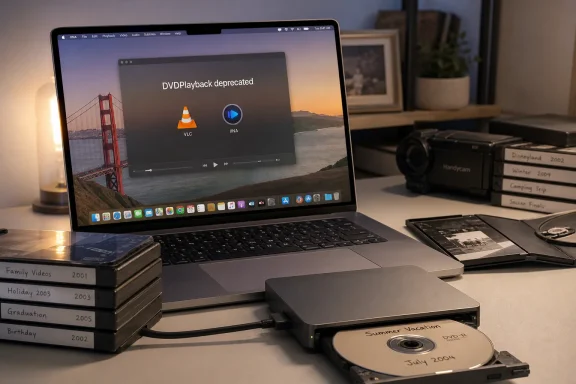 The Important Correction: DVD Support Is Being Deprecated, Not Necessarily Gone Today
The headline that macOS Golden Gate “removes DVD support” captures Apple’s direction, but it overstates the confirmed technical situation.
Apple’s current macOS 27 developer documentation says that the DVDPlayback framework has been removed from the macOS 27 Golden Gate SDK. In plain English, developers using the newest Xcode tools can no longer build new apps that call this old Apple framework. Apple also says the framework itself will be removed in a future macOS release.
Those are two separate milestones:
- SDK removal means developers cannot target the framework in newly compiled macOS 27 applications.
- Runtime removal means the framework is physically removed from the operating system and old apps can no longer use it.
- DVD Player app removal would be a further product decision: Apple could retain its own app for one release, replace it, or discontinue it alongside the framework.
That nuance matters because the available information does not establish that every piece of Apple DVD functionality has been removed from the Golden Gate beta, nor does it establish that the final public release will ship without the built-in DVD Player app. The app may survive the macOS 27 cycle while Apple completes the underlying framework’s retirement, although its long-term future looks doubtful.
For ordinary users, though, the strategic message is clear enough. Native Apple DVD playback is no longer a supported platform direction. Anyone who still relies on it should plan a replacement now rather than wait for a future macOS update to turn a working setup into a troubleshooting project.
Why Apple Is Finally Letting DVD Playback Go
DVD playback on a Mac once represented a normal, everyday capability. Apple shipped optical drives in notebooks and desktops for years, and the company’s hardware and software ecosystem was designed around CDs and DVDs as mainstream distribution formats.
That era has steadily disappeared.
The hardware transition happened long ago
Apple’s final Mac notebook with a built-in optical drive was the 13-inch non-Retina MacBook Pro sold through mid-2012. The company then encouraged users who still needed discs to use external drives, including its USB SuperDrive.
Even that bridge has disappeared. Apple discontinued the USB SuperDrive, leaving Mac users to choose among third-party USB-A and USB-C optical drives. Modern MacBooks, Mac minis, Mac Studios, and iMacs can still use many external drives, but optical media is now an accessory workflow rather than a core part of the platform.
The result is predictable: maintaining an old DVD decoding stack for a small and shrinking group of users offers little commercial appeal. It also means ongoing compatibility, security, quality assurance, and engineering work for a technology that is no longer present in the company’s current hardware.
DVDPlayback is a legacy API from a different Mac era
The DVDPlayback framework dates to a period when Apple offered a tightly integrated DVD experience. It provided APIs that allowed software to work with DVD navigation, playback behavior, menus, and related disc functions.
But APIs do not age gracefully simply because they remain installed. A framework can become increasingly expensive to preserve as macOS changes around it:
- New hardware architectures introduce compatibility work.
- Modern security protections can expose old assumptions.
- Graphics and media subsystems evolve.
- Application sandboxing becomes stricter.
- Developers stop testing against niche legacy components.
- The framework’s behavior may not meet modern quality expectations.
Apple’s decision is therefore less a surprise than a formal acknowledgement of reality. DVD support has been living at the edge of the Mac experience for years. Golden Gate merely brings that status into sharper focus.
A familiar pattern for Windows users
Windows enthusiasts have seen similar transitions repeatedly. Legacy components often remain available for years because of enterprise deployments, specialist applications, old peripherals, and customer expectations. But once a platform owner decides that a subsystem is no longer strategically important, it usually shifts from supported to compatible if you are lucky.
Windows has long supported a broad range of old software and hardware, but that does not mean every component is permanent. The same caution applies to macOS Golden Gate. An external DVD drive may continue functioning perfectly, while Apple’s preferred software path for playing DVD-Video disappears.
That is why separating hardware support from application support is essential. A disc drive is not the same thing as a DVD movie player.
What Still Works: External Optical Drives on Apple Silicon Macs
The good news is that the loss of a framework does not make discs unreadable. A DVD drive is still a storage device, and macOS can still recognize an external optical drive for data access, audio CDs, DVD media, backups, installers, and other compatible use cases.
If a Mac has the right adapter or cable and the drive receives adequate power, an external optical drive can remain useful for years.
Choosing a compatible drive
There are two broad categories:
- USB-A optical drives, which may require a USB-C adapter or hub on newer Macs.
- Native USB-C optical drives, which connect directly to modern MacBook, Mac mini, Mac Studio, and iMac ports.
A USB-C model is often the simplest option for Apple Silicon systems, but the connector alone does not determine reliability. Some slim portable drives draw more power than a single USB port can reliably provide, especially when connected through inexpensive hubs or adapters.
For the best results:
- Connect the drive directly to the Mac when possible.
- Use a quality USB-C cable rated for data, not merely charging.
- Avoid underpowered hubs.
- Use a powered hub if the drive disconnects, spins down, or fails to mount discs.
- Test with a known-good disc before assuming a macOS problem.
- Check the drive’s region setting if commercial DVD playback fails.
DVDs, data discs, and Blu-ray are not interchangeable
Users should also keep their expectations realistic. A DVD drive can read DVDs and CDs, but not every optical drive supports Blu-ray. A standard external DVD drive will not magically play a Blu-ray disc, and even a Blu-ray-capable drive does not guarantee straightforward playback because Blu-ray licensing and protection systems are more complicated.
The Golden Gate change is specifically significant for DVD-Video playback, not for every use of optical media. A DVD containing photos, documents, music files, installers, or a home video folder may remain accessible through Finder and compatible apps even after Apple retires its dedicated DVD playback technology.
That distinction is especially useful for archivists. The best response to a declining legacy feature is not panic; it is to identify exactly which function matters:
- Reading old data discs
- Watching commercial DVD films
- Playing burned home-video discs
- Extracting family archives
- Installing old software
- Creating disc images
- Accessing audio CDs
Each workflow has different software requirements and different risks.
VLC Is the Best Free Replacement for Most Mac DVD Users
For most people, the free solution is VLC Media Player. It is a cross-platform, open-source media player with a long history on Windows, Linux, and macOS. Crucially, it does not depend on Apple’s DVDPlayback framework for its core playback capability.
That makes VLC particularly relevant as Apple removes legacy macOS media components.
Why VLC is a sensible fallback
VLC has several advantages over relying on an aging system app:
- It is free and open source.
- It offers builds for Apple Silicon, Intel Macs, and Universal compatibility.
- It plays a broad range of local audio and video formats.
- It can open optical discs, disc folders, and disc images.
- It is familiar to Windows users migrating between platforms.
- It does not require a subscription or a paid “pro” tier for normal playback.
- It has extensive settings for subtitles, audio tracks, aspect ratios, deinterlacing, and video output.
For a Mac owner who only needs to play a DVD now and then, VLC is often less complicated than the original Apple solution. It can be installed, pointed at the external drive, and used like any other media player.
Basic VLC DVD playback steps on macOS
Once an external optical drive is connected and a disc is inserted, the usual workflow is straightforward:
- Install the current Apple Silicon, Intel, or Universal VLC build appropriate for the Mac.
- Open VLC Media Player.
- Select File > Open Disc.
- Choose DVD as the disc type.
- Confirm that VLC has selected the correct optical drive.
- Choose Open.
- Use VLC’s menu and playback controls to navigate titles, chapters, audio tracks, and subtitles.
For many unprotected discs, home-authored DVDs, and standard DVD-Video media, that is all that is required.
VLC’s interface may feel more utilitarian than Apple’s own DVD Player, particularly for users accustomed to polished macOS controls. Yet its real strength is resilience. It was built to handle many formats and many operating systems, not just one vendor’s preferred media stack.
DVD menus and bonus features may vary
It is worth avoiding a guarantee that every DVD will behave identically in every third-party player. DVD menus, alternate camera angles, obscure authoring methods, region controls, and copy-protection schemes can all affect playback.
A commercial film with elaborate animated menus may work differently from a home-authored disc. Some discs may open directly to the main feature, while others may offer menu navigation. This is not always a defect in the player; the DVD format itself includes a sprawling collection of authoring practices accumulated over decades.
The sensible approach is to test the actual discs that matter. If a family archive, professional training library, or media collection is important, verify a representative sample before upgrading to macOS Golden Gate.
IINA Is a Worthwhile Mac-Focused Alternative
IINA is another free, open-source option that deserves attention. It is built around the powerful mpv media engine but presents a user interface designed to feel more at home on modern macOS.
Where VLC emphasizes maximum compatibility and cross-platform reach, IINA emphasizes a polished Mac experience.
Where IINA shines
IINA is particularly attractive for users who want:
- A more contemporary macOS-style interface
- Native-looking dark mode behavior
- Picture-in-Picture support
- Touch Bar support on compatible older hardware
- Modern trackpad gestures
- Customizable controls
- Good support for local video files and subtitles
It supports modern Apple Silicon Macs and remains a credible choice for users who dislike VLC’s dense options and classic interface conventions.
However, for physical DVD troubleshooting, VLC remains the safer first recommendation because it has a longer and more established reputation as a general-purpose optical-disc player. IINA is excellent software, but users should validate commercial DVD compatibility with their particular drive and discs before treating it as a one-to-one replacement for Apple DVD Player.
The right choice depends on the collection
A simple decision guide looks like this:
- Choose VLC if broad compatibility and proven DVD handling matter most.
- Choose IINA if a Mac-native design matters most and your discs test successfully.
- Keep both installed if you have a large or unusual collection.
- Use a dedicated commercial disc player only if your requirements justify it.
There is no penalty in keeping more than one media player available. In fact, that is a sensible archival practice when dealing with aging formats.
The Copy-Protection and Region-Code Complication
The phrase “DVD support” can hide a complicated legal and technical reality. Not all DVDs are the same, and not all playback failures are caused by macOS Golden Gate.
Commercial DVDs commonly use Content Scramble System (CSS) encryption, and drives may also enforce region coding. These controls were designed for the film distribution model of the DVD era, not for a world in which users expect a disc to work anywhere they travel.
Region codes can still block legitimate playback
A DVD drive normally has a region setting. A disc purchased in one region may not play in a drive configured for another region. macOS can display prompts allowing a limited number of region changes, after which the setting may become fixed.
This limitation is typically controlled by the drive firmware, not just the player application. Therefore, switching from Apple DVD Player to VLC does not automatically solve every region-related problem.
If a disc fails to play, check:
- Whether the disc is scratched, dirty, or damaged
- Whether the drive can read other DVDs
- Whether the disc’s region matches the drive’s configured region
- Whether the disc is commercial or home-authored
- Whether the player can open the drive manually
- Whether the drive has enough power through the hub or adapter
Free software does not mean unlimited compatibility
VLC and related technologies can handle many scenarios, but users should not assume that a free player can override every disc protection system or firmware restriction. Legal rules around bypassing copy protection also vary by jurisdiction.
The responsible goal is simple: use legitimate playback software with discs you own or have permission to access, and avoid treating a media player as a guarantee that every protection scheme can or should be bypassed.
For old home movies, educational discs, archival footage, and unencrypted media, the path is usually much simpler. Those are precisely the categories most worth preserving before hardware and software support narrow further.
Golden Gate’s DVD Change Fits a Much Bigger Apple Silicon Cleanup
DVDPlayback is not disappearing in isolation. macOS Golden Gate is part of a broader cleanup of the Mac platform as Apple finishes distancing itself from Intel hardware and Intel-era software assumptions.
Intel Macs are already outside the macOS 27 support list
macOS 27 Golden Gate is designed for Apple Silicon Macs. The supported hardware list starts with Apple Silicon MacBook Air and MacBook Pro models from 2020 onward, then extends through Apple Silicon iMac, Mac mini, Mac Studio, and Mac Pro systems.
That means the final generation of Intel Macs has already crossed an important line. Even before Golden Gate, Apple had signaled that macOS Tahoe 26 would be the last major macOS version for Intel hardware.
Golden Gate is therefore the first major macOS release in which Apple can make platform decisions without needing to preserve compatibility for Intel Macs as supported first-class hardware.
Rosetta’s future is another warning sign
The same trend is visible in Apple’s treatment of Rosetta, the translation technology that lets many Intel-based applications run on Apple Silicon.
macOS 27 continues to support Rosetta in a transitional capacity, but Apple has stated that broad Intel application compatibility will end with macOS 28. The planned exception is limited legacy-game support rather than a general promise that ordinary Intel apps will continue working indefinitely.
This does not directly affect VLC’s current Apple Silicon build, which is native. It does, however, reinforce the central lesson: choose current, native, actively maintained applications whenever possible.
For anyone installing a DVD player to prepare for Golden Gate, this is a critical point. Download the Apple Silicon or Universal version of the app. Avoid relying on an outdated Intel-only media player simply because it happens to work today.
Legacy workflows need an inventory, not an assumption
DVD playback may seem like a tiny concern, but it can point to larger dependencies:
- Old video capture hardware
- Audio interfaces with abandoned drivers
- Disc-authoring tools
- Legacy printer utilities
- Scanner button software
- Vintage games
- Plug-ins built only for Intel
- Older QuickTime-era formats
- Niche media conversion utilities
Golden Gate is an appropriate time to audit these dependencies. The goal is not to avoid upgrading forever. It is to identify what must be preserved, find native replacements where possible, and archive content before access becomes harder.
A Practical Preservation Plan for DVD Collections
If DVDs contain anything important, watching them is only one part of the story. Optical discs degrade, drives disappear from the market, and future software support is never guaranteed.
A small amount of preparation can prevent a frustrating rescue project years from now.
Prioritize irreplaceable media first
Start with content that cannot easily be replaced:
- Family videos
- Wedding recordings
- School events
- Independent films
- Out-of-print documentaries
- Corporate training materials
- Recorded presentations
- Personal archives
- Old project discs
Commercial movies may remain available through modern storefronts or used-disc retailers. Personal recordings often do not have that safety net.
Make verified copies where appropriate
For data DVDs and unprotected archival media, create copies to modern storage. A disc image or a copied folder structure can preserve the original file organization, while a standard video conversion can make the content easy to view on modern devices.
A practical preservation approach includes:
- Copy the original data to a reliable local drive.
- Keep a second copy on a separate external drive.
- Maintain an additional backup in a trusted off-site or cloud location.
- Verify that copied files open correctly.
- Label files with meaningful dates, names, and descriptions.
- Preserve original discs even after making backups.
The familiar 3-2-1 backup principle remains useful: keep at least three copies of important data, on two types of storage, with one copy stored separately from the others.
Do not rely on a single player
If a disc is important enough to preserve, test it in more than one application and, ideally, more than one drive. Optical drives vary in their tolerance for worn or marginal discs. What fails in one drive may read successfully in another.
This is a lesson Windows users have learned from old CD-ROMs, game discs, and backup media. Media longevity is not only about the disc; it is also about the drive mechanism, the software, the cable, and the operating system.
Why This Is a Manageable Change, Not a Crisis
Apple’s move away from DVDPlayback will inconvenience a narrow but real group of Mac users. It is still a manageable change because the underlying physical-media workflow remains viable: connect a compatible external drive, use supported third-party software, and keep important discs backed up.
The greatest risk is not the loss of a single Apple application. It is waiting until a future macOS release removes the underlying framework completely, then discovering that the only copy of an important disc is unreadable or that the preferred playback software is no longer compatible.
VLC offers a straightforward free bridge. Its Apple Silicon support, wide format compatibility, and independence from Apple’s deprecated DVD framework make it the most practical choice for most users. IINA is a compelling alternative for people who value a more modern macOS interface, though it remains wise to test it against real-world discs before committing to it as the primary player.
The Bottom Line
macOS Golden Gate signals the beginning of the end for Apple’s native DVD playback technology, but it does not mean external DVD drives suddenly become useless. The key technical change is that the old DVDPlayback framework is no longer part of the macOS 27 SDK, and Apple intends to remove the framework from macOS in a later release.
That makes this a transition period, not an immediate media apocalypse. The built-in DVD Player app may still appear in Golden Gate’s final release, but Mac owners should no longer treat it as a dependable long-term feature.
For the best path forward, use an external optical drive, install a current native Apple Silicon build of VLC Media Player, test every important disc, and preserve irreplaceable material on modern storage. Apple may be closing the book on native DVD playback, but the discs themselves do not have to become inaccessible.
