
That promise is compelling, but it comes with an important qualification. These are not universal, identical updates for every Microsoft 365 customer. Availability depends on licensing, app build, platform, tenant configuration, and—in the case of several new agentic Outlook capabilities—membership in Microsoft’s Frontier preview program. Microsoft’s documentation makes clear that access to the Copilot Dynamic Action Button requires an eligible personal, family, premium, or Microsoft 365 Copilot license, while some branding features require Microsoft 365 Copilot Premium. Microsoft Support
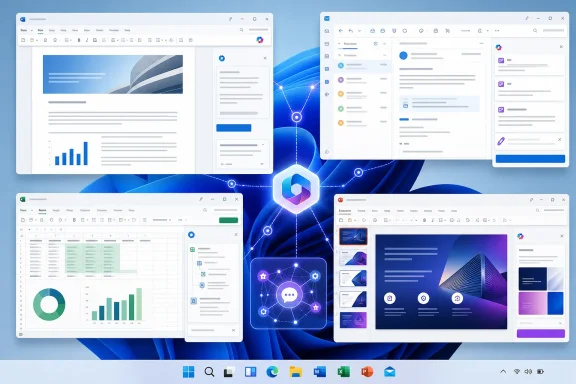 Overview: Copilot Becomes More App-Aware
The most significant development is not simply that Microsoft 365 Copilot can use newer foundation models. It is that Microsoft is increasingly making model choice, task context, and application behavior work together.
Microsoft confirmed that the GPT-5.6 model family became available in Microsoft 365 Copilot across Word, Excel, PowerPoint, Copilot Chat, and Cowork in July. Microsoft Community Hub Meanwhile, Microsoft’s current PowerPoint guidance says users can select between AI models from Anthropic and OpenAI when working on presentations directly in the app. Microsoft Support
This matters because productivity work is not one uniform workload. Drafting a sensitive customer email, interpreting a workbook full of financial assumptions, and converting a dense slide into a visual narrative all demand different strengths. In theory, a multi-model Copilot architecture can route work toward the model or workflow most appropriate to the job rather than expecting one general-purpose model to excel at everything.
The report’s reference to Claude 5 and MAI-powered image creation should be treated as a useful signpost for Microsoft’s wider strategy: more specialized assistance inside the apps where work already happens. However, organizations should validate the exact model options exposed in their own tenant before writing training materials or internal policies around a particular model name. Copilot capabilities can differ by preview channel, subscription, geography, and rollout stage.
GPT-5.6 in Microsoft 365 Copilot: More Than a New Label
GPT-5.6 is positioned as a reasoning upgrade for Microsoft 365 work. Microsoft says the model is designed to help Copilot handle more complex asks such as comparing options, structuring plans, troubleshooting, and dealing with ambiguous prompts. Microsoft Community Hub
For the typical Microsoft 365 user, that should translate into a better experience when an initial prompt is incomplete. Instead of merely returning a generic paragraph, Copilot can more plausibly organize the request, identify the missing pieces, and produce a first draft that resembles a usable work product.
Why stronger reasoning matters in Office apps
AI productivity tools often look impressive in demos because the prompt is highly structured. Real work is messier. An employee may ask for:
- A concise email explaining a delayed project milestone without assigning blame.
- A workbook plan that separates editable assumptions from calculated outputs.
- A presentation that changes its tone for executives while preserving the key recommendation.
- A review of a long document that identifies gaps, duplicate points, and unclear ownership.
These are not simple text-completion tasks. They involve constraints, trade-offs, context, and judgment. A more capable reasoning model can improve the starting point, especially when users specify their audience, business goal, source material, desired tone, and required format.
The danger is that improved fluency can create misplaced confidence. A polished email may contain an inaccurate status detail. A plausible spreadsheet formula may be applied to the wrong range. A concise executive summary may omit an exception that materially changes the recommendation. Better prose is not the same as validated work.
The sensible approach is to view GPT-5.6-powered Copilot output as an accelerated draft or analysis aid. It is not a replacement for ownership, subject-matter review, or the controls that already exist around financial reporting, legal communications, and customer commitments.
The Copilot Dynamic Action Button Makes AI Less Intrusive
One of the most practical changes is also among the least glamorous: the Copilot Dynamic Action Button. Microsoft has consolidated the Copilot entry point in Word, Excel, and PowerPoint into a button anchored in the corner of the document canvas. Selecting it opens the relevant app agent in a right-side chat pane. Microsoft Support
This small interface change reflects a larger design shift. Copilot is being positioned as something that is available when needed but does not have to dominate the Ribbon or permanently consume workspace.
Dock it, move it, or keep the canvas clear
Users can:
- Open Copilot from the corner of a document, workbook, or presentation.
- Dock the button by right-clicking it or dragging it to the side of the canvas.
- Move it to the Ribbon if they prefer the older, command-oriented Office layout.
- Use keyboard navigation such as Alt + C on Windows, with F6 available as a general navigation route. Microsoft Support
The design addresses a genuine usability problem. Some users want persistent AI access, while others find a floating button distracting—particularly on smaller laptop displays or when working with dense tables and slide layouts. Letting the user decide where Copilot lives is a modest but welcome form of control.
On Windows and macOS, the choice to move the button to the Ribbon is remembered per app across sessions. Microsoft lists Windows Build 16.0.20129.15140 or later and macOS Build 16.109.525.2 or later for that Ribbon-placement option. Microsoft Support
A limitation that matters
This UI change does not apply to Outlook. Microsoft explicitly notes that Outlook retains its existing Copilot entry points. Microsoft Support
That distinction may sound trivial, but it matters for help desks and internal training. A user who learns “Copilot is always in the lower-right corner” in Excel may understandably be confused when Outlook behaves differently. Organizations rolling out Microsoft 365 Copilot should document the experience app by app rather than teaching Copilot as though it were one perfectly consistent interface.
Outlook’s “Allow Actions” Mode Turns AI Into a Mailbox Operator
The Outlook update is potentially the most transformative—and the most sensitive—part of the release. Microsoft 365 Copilot in Outlook can now take direct actions such as generating email drafts, moving messages, archiving emails named in chat, flagging messages for follow-up, and creating rules to organize future mail. Microsoft Support
Microsoft calls the active mode “Allow actions.” When available, opening Copilot Chat in Outlook enables it by default, though users can return to a chat-only experience using the mode selector above the prompt field. Microsoft Support
Useful inbox automation—when the instruction is precise
For a busy mailbox, the benefits are easy to see. Consider directions such as:
- “Move all newsletters from this sender to the Reading folder.”
- “Flag the messages from the customer that need a response this week.”
- “Archive the three messages I just identified.”
- “Create a rule that routes vendor invoices into Accounts Payable.”
- “Draft a response confirming receipt, but do not send it.”
These are real, repetitive tasks that consume attention without necessarily requiring deep thinking. Allowing Copilot to act rather than merely explain how to act could reduce inbox friction meaningfully.
The feature is especially valuable because email triage is usually fragmented: search results, manual selection, folder management, rules, and reply drafting all happen in separate interactions. Agentic Copilot brings those actions closer to a single instruction.
The preview caveat is not optional
Microsoft labels the new Outlook experience a Frontier preview, available only to Frontier participants. It began rollout on April 27, 2026, and is not currently available to users in the European Union. Supported clients include Outlook on the web, classic Outlook for Windows, the newer Outlook for Windows, iOS, and Android. Microsoft Support
Microsoft also cautions that bulk automation across large sets of emails may not be comprehensive, and some pattern-detection tasks across many messages may not yet be available. Microsoft Support
That is the right warning. A mailbox agent should not be trusted with vague commands such as “clean up my inbox” unless the user is comfortable reviewing the consequences. Auto-created rules can hide important messages. Aggressive archiving can make investigation harder. A slightly misunderstood instruction can reorder work priorities without the user noticing.
Best practice: begin with actions that are reversible and narrowly scoped. Use a single sender, a named folder, a limited date range, or a small, visible set of messages. Review the result before allowing an automation pattern to become routine.
PowerPoint Gains Presentation Skills and Brand-Aware Creation
PowerPoint has become one of the strongest demonstrations of what app-specific Copilot can look like. Microsoft says Copilot in PowerPoint can add and revise slides, reorganize sections, improve presentation flow, generate or enhance visuals, summarize a deck, and answer questions about it. Microsoft Support
The new experience goes further with skills: compact, ready-to-use commands designed for repeatable presentation tasks.
“Review,” “Visualize,” and “Prepare for Questions”
Microsoft currently describes three major PowerPoint skills:
- Review this presentation provides slide-by-slide suggestions focused on structure, clarity, and storytelling.
- Visualize this slide converts text-heavy content into a more polished visual.
- Prepare for Questions identifies potential weak points and helps anticipate audience questions. Microsoft Support
The best part of this design is that it reduces prompt engineering. Rather than writing an elaborate prompt every time, a user can select a recognizable task and then assess the result. That makes Copilot more approachable for employees who do not want to learn a specialized prompting vocabulary.
It also creates a more standardized workflow. Teams can encourage a basic pre-meeting process: review the deck, check key slides for visual overload, prepare for likely questions, and then conduct the usual human review. The AI does not replace the presenter’s expertise, but it can accelerate the mechanical parts of getting a deck into presentable condition.
Brand Kit aims to solve the “almost on-brand” problem
The Brand Kit feature is particularly important for organizations that routinely lose time correcting presentations after they have been generated. Microsoft describes a Brand Kit as a managed collection of approved brand elements and guidelines, including logos, color palettes, typography, templates, icons, image rules, data-visualization styles, and written voice guidance. Microsoft Support
After selecting a Brand Kit in the PowerPoint Copilot pane, users can ask Copilot to create content using the selected approved templates, colors, fonts, and assets. Microsoft Support
This is more meaningful than applying a theme after the fact. Microsoft says PowerPoint uses the template as its primary source of presentation structure and then applies Brand Kit guidance for assets, imagery, and brand voice. Microsoft Support
Still, “on-brand” should not be confused with “approved.” A generated slide can use the correct colors and typography while making an unsupported claim, selecting an inappropriate image, or framing a sensitive product issue poorly. Brand governance requires content review as well as visual consistency.
Excel: Planning Before Editing Is the Quietly Essential Upgrade
Excel is where Copilot’s evolution toward controlled action is most promising. Microsoft’s current Copilot in Excel experience offers three modes: Edit, Plan, and Chat. Edit mode can make direct workbook changes, Plan mode outlines an approach before changes begin, and Chat mode keeps the response in the conversation without modifying the workbook. Microsoft Support
That separation is excellent product design because spreadsheets are unusually vulnerable to unintended changes. A generative AI tool that edits a workbook needs a way to show its intended path before touching data, formulas, structure, or formatting.
Plan mode creates a review point
Microsoft says Plan mode creates a structured approach that users can review and confirm before work starts, while Edit mode supports multi-step tasks such as reshaping data, merging sheets, and building reports with multiple components. Microsoft Support
For a financial analyst, operations manager, or project lead, this changes the ideal interaction from:
“Make this workbook better.”
to something closer to:
“Create a plan to turn this workbook into a monthly variance dashboard. Preserve the original data sheet, list every proposed structural change, identify any missing data, and wait for approval before editing.”
That extra planning layer supports auditability and reduces the risk of a fast AI action creating a slow manual cleanup.
Hyperlinks, navigation, and workbook context
The reported automatic hyperlinking in Copilot Chat for Excel is another practical improvement. In a large workbook, users waste time locating the range, formula, pivot table, or data point behind a natural-language answer. Clickable references can shorten that gap between “Copilot said it” and “show me where.”
The more important principle is traceability. An AI-generated conclusion becomes more useful when users can quickly inspect the source cells, formulas, and workbook logic behind it. Hyperlinks reduce navigation friction, but they do not prove that the reasoning was correct. The user still needs to verify whether the linked range is the relevant range and whether the formula logic matches the business question.
Skills bring repeatable processes to Excel
Microsoft describes Excel skills as reusable instructions that extend the model for repeatable tasks. Users can choose built-in skills or custom skills, invoke them from the Copilot pane, and use @ mentions to call specific skills in a request. Microsoft Support
Microsoft-managed examples include @brandkit and @theme-design, which help apply brand guidelines and design practices to workbook formatting. Microsoft Support
Custom skills could be particularly valuable for organizations that have recurring spreadsheet patterns:
- Monthly sales reporting.
- Budget-versus-actual analysis.
- Portfolio tracking.
- Inventory reconciliation.
- Forecasting templates.
- Executive dashboard preparation.
The benefit is consistency. Instead of every employee describing the same workflow differently, a business can encode the desired task sequence once and reuse it.
The risk is that a poorly designed skill can institutionalize a bad process. If a custom skill is based on outdated calculations, questionable assumptions, or an overly broad permission model, it can repeat the mistake at scale. Treat skills like lightweight automation: version them, document them, test them with non-production files, and assign clear ownership.
What Windows and Microsoft 365 Teams Should Do Next
The best way to benefit from these Microsoft Copilot updates is not to enable every feature and hope employees discover the value. A measured rollout produces better outcomes.
A practical deployment checklist
- Check licensing and update channels. Confirm which users have eligible Copilot access and whether the organization is enrolled in Frontier previews where required. The available experience may differ materially by tenant and platform. Microsoft Support
- Teach mode selection, not only prompting. In Excel, train users to use Plan mode for material changes and Chat mode when they only need analysis. In Outlook, distinguish chat-only behavior from action-capable behavior.
- Start with reversible workflows. Draft emails rather than sending them. Create proposed Excel plans before editing. Move a small test set of messages before rolling out mailbox rules.
- Build approved examples. Provide example prompts for recurring tasks, such as creating a branded PowerPoint deck, producing a monthly workbook summary, or triaging a project mailbox.
- Use Brand Kit as governance infrastructure. Do not treat branding as decoration. Populate it with approved assets, templates, voice guidance, and usage rules before expecting reliable on-brand output.
- Keep human approval where stakes are high. Financial analysis, compliance reports, external communications, and customer-facing presentations still require accountable human review.
The Bottom Line
Microsoft Copilot’s 2026 updates make the product feel more operationally mature. GPT-5.6 provides a stronger reasoning foundation in Microsoft 365 Copilot, while model choice in PowerPoint, action-capable Outlook workflows, Excel’s Plan mode, reusable skills, and Brand Kit integration move Copilot beyond generic AI chat. Microsoft Community Hub
The most valuable changes are not necessarily the headline model names. They are the controls around how AI enters work: planning before workbook edits, user-selectable placement of the Copilot interface, bounded mailbox actions, repeatable skills, and brand-aware presentation creation. Those features make AI assistance more likely to fit real Windows and Microsoft 365 workflows instead of interrupting them.
Used carefully, this update can reduce the busywork around email triage, spreadsheet construction, and slide production. Used carelessly, it can automate confusion faster than a user can notice. The winning approach is straightforward: give Copilot well-defined tasks, preserve review points, and treat every generated action as work that still deserves human accountability.
Update: GPT-5.6 reportedly becomes Microsoft 365 Copilot’s preferred model (August 5, 2026)
Cloud Wars reports that OpenAI has made GPT-5.6 the preferred model for Microsoft 365 Copilot, expanding its role beyond a newly available model option. The report also lists Teams alongside Word, Excel, PowerPoint, and Copilot Chat, suggesting the rollout’s practical scope may be broader than initially described.
If confirmed across tenants, the change could mean users encounter GPT-5.6 by default more often for everyday Copilot tasks rather than selecting it only where model choice is exposed. Cloud Wars says Microsoft is positioning the model around stronger output quality and performance efficiency, with expected benefits including deeper Excel analysis, faster PowerPoint creation, and improved Copilot Chat reasoning.
