
Microsoft Teams is beginning a redesign of its in-meeting controls and screen-sharing panel, but the current Microsoft 365 Message Center schedule puts broad worldwide availability in September 2026, not by the end of August as some early reports have stated. The change is already entering Targeted Release for meeting controls, while the redesigned sharing experience is scheduled to begin its own Targeted Release rollout during August.
The distinction is important for IT teams preparing user communications. Microsoft’s revised notice, MC1317197, says redesigned meeting controls began rolling out in late July and are expected to finish Targeted Release by mid-August. Worldwide General Availability is now slated to begin in early September and finish in late September. GCC, GCC High, and Department of Defense tenants are on later schedules extending from October through December.
Windows Report’s account of the update accurately identifies the core interface changes—centered controls, a separated Leave button, and a second confirmation before a screen share starts—but its claim that most users are already receiving the redesign and that availability will broaden by late August does not match Microsoft’s latest published rollout plan. Neowin’s earlier coverage also reflected the original August General Availability target, before Microsoft shifted the dates in a July 14 update.
For ordinary Teams users, this is a familiar Microsoft 365 rollout story: an interface change is rolling out without being broadly available. For admins, it is a change-management issue now, not a feature that can be deferred until everyone sees it next month.
Microsoft is replacing the familiar, crowded Teams meeting bar with a center-aligned set of frequently used controls. Microphone, camera, and Share are grouped together, while Leave moves to the far right of the meeting window. Less-used functions are being consolidated into a reorganized More menu.
The stated objective is to reduce mistaken clicks around Share, Leave, and Raise Hand. Microsoft’s notice explicitly identifies these as actions that became too easy to confuse as Teams accumulated more meeting features.
This is a modest visual redesign, but it affects the part of Teams users operate under time pressure. A presenter scrambling to share a window, a meeting organizer responding to a raised hand, and an employee ending a call all depend on controls being predictable. Separating Leave may reduce accidental exits, but it also means position-based instructions—“click the red button next to Share”—will immediately become obsolete.
Microsoft is also allowing users to pin, unpin, and rearrange meeting controls through drag and drop. Existing meeting-app pinning policies will continue to apply, according to the company. New policies will support up to two apps pinned in the main control area, with additional apps available through More.
That limit deserves attention. The redesign gives individual users more discretion over the main toolbar, but it does not turn the area into an unlimited app launcher. Organizations that have deployed meeting apps and trained users to expect several of them in the primary control strip should review those assumptions before the new interface reaches General Availability.
Microsoft describes this as a two-step confirmation intended to reduce accidental sharing. The company says the panel can include live screen and window previews, a tabbed layout, and the confirmation action. That makes the design less like a shortcut and more like a checkpoint: users can confirm that the selected content is the intended content before it becomes visible to participants.
For organizations concerned about accidental disclosure, the feature is useful but should not be mistaken for a data-loss-prevention control. The confirmation step can prevent an employee from sharing the wrong monitor or the wrong app by mistake. It does not inspect the selected screen for confidential material, prevent a presenter from deliberately sharing sensitive content, or override existing meeting policies governing who may present.
Teams administrators still need the normal policy controls for that. Microsoft’s Teams documentation separates screen-sharing permissions from the user interface: meeting policies can determine whether users may share their entire desktop or individual windows, and organizer settings can limit who is allowed to present. The new panel changes how an authorized user starts sharing; it does not change who is authorized in the first place.
The difference matters in regulated environments. A clearer confirmation screen can reduce operator error, but it cannot serve as the organization’s privacy or compliance boundary.
The rollout now breaks down as follows:
No supported client build number is specified in the Message Center notice. That omission means admins cannot use a version threshold alone to decide whether a particular Windows or Mac device should show the design. Availability will vary through the staged service rollout, even among devices running current Teams clients.
During rollout, individual users may be able to opt in early and may temporarily revert to the previous meeting experience through Teams settings. But the opt-out is user-controlled, not administrator-controlled, and Microsoft says it will be removed in a future release after separate advance notice.
In practice, this creates an awkward interim period for help desks. Some employees may see the redesigned toolbar, some may be using the old one, and some may move between both interfaces voluntarily. A support analyst cannot standardize a tenant on the legacy layout while documentation catches up, nor can an admin centrally force reluctant users back to the previous experience.
Microsoft has also acknowledged a limitation that will matter to users who work across several machines: pinned-control preferences do not synchronize across devices at launch. The settings persist between meetings on the same client, but a user moving from a managed Windows desktop to a MacBook, shared workstation, or replacement laptop may need to recreate the layout.
That undercuts part of the practical promise of customization. A user can tailor Teams for a presenter-heavy job on one device, but the adjustment is local rather than a portable account preference. Microsoft says cross-device synchronization is planned for a future release, without giving a date.
Microsoft recommends that organizations update internal training material and communicate the new layout to users, help desks, and support teams. The company’s own notice also warns that the new arrangement may feel unfamiliar initially—a useful acknowledgment, given how much meeting behavior depends on muscle memory.
The practical message for Windows administrators is straightforward: do not promise an August-wide deployment, do not assume that mobile or Teams Rooms will match the desktop experience, and do not treat the new confirmation panel as a compliance safeguard. Prepare for a mixed-interface period through September, with Windows desktop users among the first to encounter the new controls and government-cloud tenants waiting substantially longer.
Windows Report’s account of the update accurately identifies the core interface changes—centered controls, a separated Leave button, and a second confirmation before a screen share starts—but its claim that most users are already receiving the redesign and that availability will broaden by late August does not match Microsoft’s latest published rollout plan. Neowin’s earlier coverage also reflected the original August General Availability target, before Microsoft shifted the dates in a July 14 update.
For ordinary Teams users, this is a familiar Microsoft 365 rollout story: an interface change is rolling out without being broadly available. For admins, it is a change-management issue now, not a feature that can be deferred until everyone sees it next month.
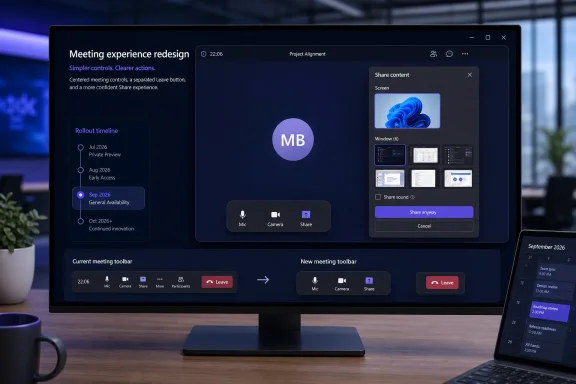 The toolbar moves high-risk actions apart
Microsoft is replacing the familiar, crowded Teams meeting bar with a center-aligned set of frequently used controls. Microphone, camera, and Share are grouped together, while Leave moves to the far right of the meeting window. Less-used functions are being consolidated into a reorganized More menu.The stated objective is to reduce mistaken clicks around Share, Leave, and Raise Hand. Microsoft’s notice explicitly identifies these as actions that became too easy to confuse as Teams accumulated more meeting features.
This is a modest visual redesign, but it affects the part of Teams users operate under time pressure. A presenter scrambling to share a window, a meeting organizer responding to a raised hand, and an employee ending a call all depend on controls being predictable. Separating Leave may reduce accidental exits, but it also means position-based instructions—“click the red button next to Share”—will immediately become obsolete.
Microsoft is also allowing users to pin, unpin, and rearrange meeting controls through drag and drop. Existing meeting-app pinning policies will continue to apply, according to the company. New policies will support up to two apps pinned in the main control area, with additional apps available through More.
That limit deserves attention. The redesign gives individual users more discretion over the main toolbar, but it does not turn the area into an unlimited app launcher. Organizations that have deployed meeting apps and trained users to expect several of them in the primary control strip should review those assumptions before the new interface reaches General Availability.
Sharing gains a deliberate final step
The more consequential change is the redesigned Share panel. Under the new flow, pressing Share opens a panel where users choose a display or application window, review a live preview, and then select Share again to begin presenting.Microsoft describes this as a two-step confirmation intended to reduce accidental sharing. The company says the panel can include live screen and window previews, a tabbed layout, and the confirmation action. That makes the design less like a shortcut and more like a checkpoint: users can confirm that the selected content is the intended content before it becomes visible to participants.
For organizations concerned about accidental disclosure, the feature is useful but should not be mistaken for a data-loss-prevention control. The confirmation step can prevent an employee from sharing the wrong monitor or the wrong app by mistake. It does not inspect the selected screen for confidential material, prevent a presenter from deliberately sharing sensitive content, or override existing meeting policies governing who may present.
Teams administrators still need the normal policy controls for that. Microsoft’s Teams documentation separates screen-sharing permissions from the user interface: meeting policies can determine whether users may share their entire desktop or individual windows, and organizer settings can limit who is allowed to present. The new panel changes how an authorized user starts sharing; it does not change who is authorized in the first place.
The difference matters in regulated environments. A clearer confirmation screen can reduce operator error, but it cannot serve as the organization’s privacy or compliance boundary.
Microsoft’s updated schedule is later—and more segmented
MC1317197 covers Teams for Windows desktop, Teams for Mac desktop, and Teams for the web. It does not cover Teams consumer, iOS, Android, Teams Rooms, or Linux. That scope is narrower than a generic statement that “Teams users” are getting a new interface.The rollout now breaks down as follows:
- Targeted Release meeting controls started in late July 2026 and are expected to complete by mid-August 2026.
- Targeted Release sharing controls are due to begin during August 2026, but Microsoft has not published a completion date for that phase in the notice.
- Worldwide General Availability is due to begin in early September 2026 and complete by late September 2026.
- GCC and GCC High availability is scheduled from early October to late November 2026.
- Department of Defense availability is scheduled from early November to late December 2026.
No supported client build number is specified in the Message Center notice. That omission means admins cannot use a version threshold alone to decide whether a particular Windows or Mac device should show the design. Availability will vary through the staged service rollout, even among devices running current Teams clients.
Admins cannot turn the redesign off for the tenant
Microsoft says the new experience will be enabled by default and cannot be disabled at the tenant level. That is the operational detail most likely to affect large deployments.During rollout, individual users may be able to opt in early and may temporarily revert to the previous meeting experience through Teams settings. But the opt-out is user-controlled, not administrator-controlled, and Microsoft says it will be removed in a future release after separate advance notice.
In practice, this creates an awkward interim period for help desks. Some employees may see the redesigned toolbar, some may be using the old one, and some may move between both interfaces voluntarily. A support analyst cannot standardize a tenant on the legacy layout while documentation catches up, nor can an admin centrally force reluctant users back to the previous experience.
Microsoft has also acknowledged a limitation that will matter to users who work across several machines: pinned-control preferences do not synchronize across devices at launch. The settings persist between meetings on the same client, but a user moving from a managed Windows desktop to a MacBook, shared workstation, or replacement laptop may need to recreate the layout.
That undercuts part of the practical promise of customization. A user can tailor Teams for a presenter-heavy job on one device, but the adjustment is local rather than a portable account preference. Microsoft says cross-device synchronization is planned for a future release, without giving a date.
Training material needs an update before September
The visible changes are simple enough that most users will adapt quickly, but organizations with formal meeting guides should not wait for broad availability. Screenshots of the current toolbar, instructions for raising a hand, and guidance pointing users toward the Share button will age out during the rollout.Microsoft recommends that organizations update internal training material and communicate the new layout to users, help desks, and support teams. The company’s own notice also warns that the new arrangement may feel unfamiliar initially—a useful acknowledgment, given how much meeting behavior depends on muscle memory.
The practical message for Windows administrators is straightforward: do not promise an August-wide deployment, do not assume that mobile or Teams Rooms will match the desktop experience, and do not treat the new confirmation panel as a compliance safeguard. Prepare for a mixed-interface period through September, with Windows desktop users among the first to encounter the new controls and government-cloud tenants waiting substantially longer.
References
- Primary source: Windows Report
Published: 2026-08-03T11:16:47+00:00
Loading…
windowsreport.com - Related coverage: learn.microsoft.com
Loading…
learn.microsoft.com - Related coverage: learn.microsoft.com
Loading…
learn.microsoft.com - Related coverage: support.microsoft.com
What's new in Microsoft Teams | Microsoft Support
Get the latest info on new features for Microsoft Teams with these regularly updated release notes.support.microsoft.com - Related coverage: neowin.net
Loading…
www.neowin.net - Related coverage: support.microsoft.com
Loading…
support.microsoft.com - Related coverage: techcommunity.microsoft.com
Loading…
techcommunity.microsoft.com - Related coverage: techcommunity.microsoft.com
Loading…
techcommunity.microsoft.com - Related coverage: microsoft.com
Loading…
www.microsoft.com - Related coverage: windowscentral.com
Microsoft Teams removal shows why we shouldn't get too excited about preview features | Windows Central
Microsoft has paused development on new minimized views that would have made multitasking easier.www.windowscentral.com - Related coverage: windowscentral.com
Microsoft omits controversial workplace check-in feature from June Teams roundup | Windows Central
Microsoft highlighted several new Teams features released in June, but its recap omitted the workplace check-in via Wi-Fi feature that sparked privacy concerns.www.windowscentral.com - Related coverage: techradar.com
Microsoft makes major AI U-turn following user revolt — will let Teams users turn off Copilot, Facilitator and Recap | TechRadar
Microsoft Teams AI backlash leads to major changeswww.techradar.com - Related coverage: techradar.com
Loading…
www.techradar.com - Related coverage: windowsforum.com
Loading…
windowsforum.com - Related coverage: tech.yahoo.com
Loading…
tech.yahoo.com - Related coverage: moenkemoeller.it
Loading…
www.moenkemoeller.it - Related coverage: supersimple365.com
Loading…
supersimple365.com - Related coverage: supersimple365.com
What’s new in Microsoft 365 and Copilot? April 2026 - Super Simple 365
Welcome to our fourth roundup of 2026. We review what was announced, released, and delayed across Microsoft 365 and Copilot in April. Check out the March blog for lots of content still rolling out this month. If you are an Update Insiders member, take a sneak peek at the latest blog, which is... supersimple365.com