
Mistfall Hunter’s PC graphics menu has the right broad controls for a playable PvPvE setup—DLSS or FSR, frame generation, ray tracing, shadow quality, view distance, effects, post-processing, motion blur, and global illumination—but settings changes will not reliably cure the launch-week hitching players are reporting. The practical starting point is to reduce the rendering features that drag down consistent frame times, then test the same expedition route before changing anything else.
That conclusion matters because the game arrived on July 30, 2026, after Bellring Games had already acknowledged serious stability and stutter problems in its June open beta. The studio’s June 17 update said it fixed a first-entry stutter in certain areas and some crashes; its launch messaging promised “full-scenario performance optimizations.” Yet, as of August 3, Bellring has not published a post-launch PC performance patch note that identifies a fix for the repeated combat, camera-turn, hub, map, or inventory hitches now being reported by players.
The guide published by Nerd’s Chalk correctly treats ray tracing, global illumination, shadows, and upscaling as the first settings to examine. Its more specific claims—that Low view distance leaves long-range players unaffected, that 144 FPS is the best ceiling for 240 Hz displays, or that a particular VRAM tier maps cleanly to a texture preset—should be regarded as starting hypotheses, not settled facts. Bellring has not supplied a settings guide, benchmark suite, or a VRAM matrix for the retail build.
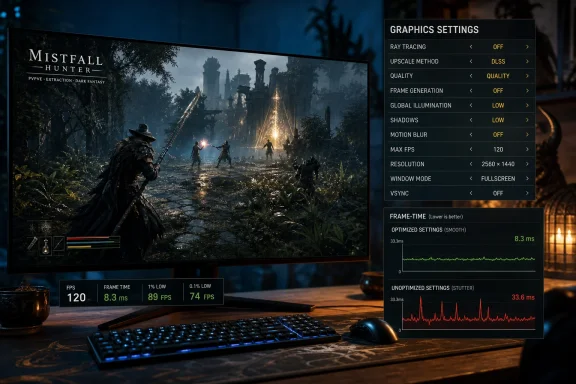
For a first pass, use native resolution, disable V-Sync in game, select the upscaler appropriate to the GPU, set ray tracing off, disable motion blur, and use a fixed frame-rate limit rather than Unlimited. Then lower shadow quality and global illumination before sacrificing textures or animation quality.
NVIDIA has independently confirmed that Mistfall Hunter supports DLSS Super Resolution and frame-generation technology on GeForce RTX hardware. In a recent developer interview with GamingBolt, Bellring also confirmed the broader settings suite, including ray tracing, shadows, view distance, texture quality, effects, post-processing, motion blur, and global illumination, alongside TSR, TAAU, DLSS 4.5, and FSR 3 support.
For an RTX system, DLSS Quality is the appropriate first test at 1080p or 1440p when the GPU is the constraint. Move to Balanced only if Quality cannot hold the target cap in a repeatable combat scene. For Radeon hardware—and for GeForce cards where DLSS is unavailable or behaves poorly—FSR Quality is the comparable first option. TSR is worth trying if both vendor upscalers cause image instability, ghosting, or unusual hitching on a given system.
Do not confuse a larger FPS number with a smoother experience. Frame generation can raise the displayed rate and improve apparent motion, but it does not repair a long frame-time spike caused by asset streaming, shader work, CPU contention, or a server-side stall. In a game where parry timing and opponent movement are central to PvP, base-frame consistency comes before generated frames.
Frame generation should therefore be off while diagnosing stutter. Once a system can sustain a stable native or upscaled base rate, it becomes reasonable to test DLSS Frame Generation or Multi Frame Generation. If mouse response feels less direct, turn it back off; that is a trade-off inherent to generated frames, not evidence that the GPU is malfunctioning.
Nerd’s Chalk recommends Low view distance outright and says player visibility remains intact. There is no official documentation supporting that guarantee. The safer approach is Medium first, then Low only after visiting the sightline-heavy areas where spotting an enemy through foliage, fog, particles, or geometry matters. A setting can keep character models technically present while still reduce the quality of terrain, shadows, foliage, or effects that make a target readable at a glance.
The same caution applies to Character Animation Quality. The submitted guide recommends its “Balance” setting to preserve readable enemy movement. That is plausible advice for a melee-focused extraction game, but Bellring has not published an explanation of what the setting changes—whether animation update rate, LOD thresholds, interpolation, or something else. Keep it above the lowest setting until testing shows a clear benefit, especially for players who rely on visual tells to parry or evade.
Texture quality should be driven by observed VRAM behavior, not a rigid chart. The suggested 8 GB High, 6 GB Medium, and below-6 GB Low layout is a reasonable conservative rule, particularly because Steam lists a GTX 1060 or Radeon RX 580 as the minimum graphics tier and an RTX 2070 or RX 5700 XT as recommended. But the official store listing does not specify resolution, texture preset, target FPS, or the VRAM capacities assumed for either tier. If texture streaming hitches begin after raising textures, reduce them one level regardless of the nominal VRAM figure.
A 240 Hz display does not require 240 FPS to feel good, and a 144 Hz display does not become smooth merely because the cap is set to 144. The useful cap is the highest one that remains stable during a full expedition, combat effects, traversal into a new area, and a return to the hub. If a system runs between 160 and 240 FPS but repeatedly dips to 80, a locked 120 or 144 can feel more controlled than Unlimited. If it cannot reliably sustain 120, cap lower rather than leaving the GPU pegged at 99 percent and hoping the average FPS counter tells the whole story.
There is a wrinkle in the reporting: Bellring told GamingBolt that PC has “no frame rate cap,” apparently meaning an uncapped option is available. The Nerd’s Chalk guide reports menu choices including 30, 60, 120, 144, and Unlimited. Those statements are not necessarily contradictory—an Unlimited selection is an uncapped mode—but Bellring has not published the exact retail cap options. Treat the in-game menu on the installed build as the record, rather than assuming every monitor-refresh recommendation in a guide maps to a supported value.
Borderless Window is also not an automatic cure for stutter. It is a convenient default for Windows users who alt-tab frequently, but Fullscreen may behave better on a particular system. Test display mode once, after locking in the rest of the settings. Repeatedly swapping display modes, upscalers, V-Sync, frame generation, and half the quality menu at the same time makes the result meaningless.
Those reports are anecdotal, but they are consistent with the beta history. Bellring’s June 17 update specifically named stuttering upon first entering certain areas, and its June 22 test conclusion admitted the build had stability issues. That supports the possibility that some first-run or area-transition stutters are related to asset or shader preparation. It does not establish that every post-launch hitch is shader compilation, nor does it mean a player should accept persistent drops as normal.
The important consequence is that reducing ray tracing or changing DLSS cannot fix work occurring outside the GPU’s normal render load. If the game stutters at Low settings on a high-end CPU and GPU, if other players see the character jerk in real time, or if the problem coincides with rubber-banding, separate local performance from network behavior before spending hours on graphics presets. Bellring’s launch FAQ lists regional servers in China, the United States, Germany, Singapore, and Brazil; distance from those regions can affect online responsiveness independently of local FPS.
Install the game on an SSD, as Steam explicitly recommends. Update the GPU driver, close capture utilities and overlays temporarily, and let the game complete any visible startup shader preparation before judging its first match. Then test one variable at a time: ray tracing off, global illumination lower, a fixed cap, a different upscaler, and finally display mode. Record whether the hitch occurs in the same location or action each time.
For now, the best setup is deliberately conservative: Quality upscaling, ray tracing off, low global illumination and shadows, a sustainable frame cap, motion blur off, and frame generation disabled until the base frame rate is steady. If that still produces hard hitches after repeated runs through the same content, the evidence points away from a simple graphics-setting mistake and toward a problem Bellring will need to address in a documented PC update.
The guide published by Nerd’s Chalk correctly treats ray tracing, global illumination, shadows, and upscaling as the first settings to examine. Its more specific claims—that Low view distance leaves long-range players unaffected, that 144 FPS is the best ceiling for 240 Hz displays, or that a particular VRAM tier maps cleanly to a texture preset—should be regarded as starting hypotheses, not settled facts. Bellring has not supplied a settings guide, benchmark suite, or a VRAM matrix for the retail build.
 Start With a Stable Baseline, Not an “FPS” Preset
For a first pass, use native resolution, disable V-Sync in game, select the upscaler appropriate to the GPU, set ray tracing off, disable motion blur, and use a fixed frame-rate limit rather than Unlimited. Then lower shadow quality and global illumination before sacrificing textures or animation quality.NVIDIA has independently confirmed that Mistfall Hunter supports DLSS Super Resolution and frame-generation technology on GeForce RTX hardware. In a recent developer interview with GamingBolt, Bellring also confirmed the broader settings suite, including ray tracing, shadows, view distance, texture quality, effects, post-processing, motion blur, and global illumination, alongside TSR, TAAU, DLSS 4.5, and FSR 3 support.
For an RTX system, DLSS Quality is the appropriate first test at 1080p or 1440p when the GPU is the constraint. Move to Balanced only if Quality cannot hold the target cap in a repeatable combat scene. For Radeon hardware—and for GeForce cards where DLSS is unavailable or behaves poorly—FSR Quality is the comparable first option. TSR is worth trying if both vendor upscalers cause image instability, ghosting, or unusual hitching on a given system.
Do not confuse a larger FPS number with a smoother experience. Frame generation can raise the displayed rate and improve apparent motion, but it does not repair a long frame-time spike caused by asset streaming, shader work, CPU contention, or a server-side stall. In a game where parry timing and opponent movement are central to PvP, base-frame consistency comes before generated frames.
Frame generation should therefore be off while diagnosing stutter. Once a system can sustain a stable native or upscaled base rate, it becomes reasonable to test DLSS Frame Generation or Multi Frame Generation. If mouse response feels less direct, turn it back off; that is a trade-off inherent to generated frames, not evidence that the GPU is malfunctioning.
Ray Tracing and Global Illumination Are the Sensible First Cuts
The most defensible performance preset currently looks like this:| Setting | Initial setting | Why it belongs there |
|---|---|---|
| V-Sync | Off | Avoids adding a second frame-pacing mechanism while diagnosing input feel and hitches. |
| Frame-rate limit | A fixed cap the PC can actually sustain | Gives the GPU and CPU headroom instead of chasing momentary peaks. |
| DLSS, FSR, or TSR | Quality | Preserves more clarity than aggressive modes while reducing render cost. |
| Frame generation | Off during testing | Separates actual stutter from smoother-looking generated output. |
| Ray tracing | Off | Removes a major GPU burden and simplifies testing. |
| Global illumination | Low | Reduces lighting work before reducing clarity-critical textures. |
| Shadows | Low or Medium | Usually produces a meaningful GPU gain with a smaller visibility penalty than lower resolution. |
| View distance | Medium first | Test this rather than assuming Low has no competitive cost in every area. |
| Texture quality | Match available VRAM | Avoids forcing texture streaming beyond what the card can retain comfortably. |
| Effects quality | Medium or Low | Helps during dense ability effects and crowded fights. |
| Motion blur | Off | Improves visual clarity and removes a cosmetic effect that offers no competitive advantage. |
The same caution applies to Character Animation Quality. The submitted guide recommends its “Balance” setting to preserve readable enemy movement. That is plausible advice for a melee-focused extraction game, but Bellring has not published an explanation of what the setting changes—whether animation update rate, LOD thresholds, interpolation, or something else. Keep it above the lowest setting until testing shows a clear benefit, especially for players who rely on visual tells to parry or evade.
Texture quality should be driven by observed VRAM behavior, not a rigid chart. The suggested 8 GB High, 6 GB Medium, and below-6 GB Low layout is a reasonable conservative rule, particularly because Steam lists a GTX 1060 or Radeon RX 580 as the minimum graphics tier and an RTX 2070 or RX 5700 XT as recommended. But the official store listing does not specify resolution, texture preset, target FPS, or the VRAM capacities assumed for either tier. If texture streaming hitches begin after raising textures, reduce them one level regardless of the nominal VRAM figure.
A Fixed Cap Is a Diagnostic Tool, Not a Universal 144 FPS Rule
Nerd’s Chalk advises matching the monitor refresh rate, while recommending 144 FPS as the first cap on 240 Hz-or-faster displays. The first half is useful only if the machine can actually maintain that rate in the game’s worst scene. The second is a sensible troubleshooting ceiling for many systems, but it is not a universal optimum.A 240 Hz display does not require 240 FPS to feel good, and a 144 Hz display does not become smooth merely because the cap is set to 144. The useful cap is the highest one that remains stable during a full expedition, combat effects, traversal into a new area, and a return to the hub. If a system runs between 160 and 240 FPS but repeatedly dips to 80, a locked 120 or 144 can feel more controlled than Unlimited. If it cannot reliably sustain 120, cap lower rather than leaving the GPU pegged at 99 percent and hoping the average FPS counter tells the whole story.
There is a wrinkle in the reporting: Bellring told GamingBolt that PC has “no frame rate cap,” apparently meaning an uncapped option is available. The Nerd’s Chalk guide reports menu choices including 30, 60, 120, 144, and Unlimited. Those statements are not necessarily contradictory—an Unlimited selection is an uncapped mode—but Bellring has not published the exact retail cap options. Treat the in-game menu on the installed build as the record, rather than assuming every monitor-refresh recommendation in a guide maps to a supported value.
Borderless Window is also not an automatic cure for stutter. It is a convenient default for Windows users who alt-tab frequently, but Fullscreen may behave better on a particular system. Test display mode once, after locking in the rest of the settings. Repeatedly swapping display modes, upscalers, V-Sync, frame generation, and half the quality menu at the same time makes the result meaningless.
Why Settings Will Not Resolve Every Launch-Week Hitch
The recurring evidence points to more than one kind of “stutter.” Reddit threads from the July 30 launch window describe severe hitches during camera turns, combat, and loading into new locations on systems well above the official recommended specification. Some players say the issue eases after one or more expeditions, while others report that a frame cap, lower settings, and a modern GPU driver did little or nothing.Those reports are anecdotal, but they are consistent with the beta history. Bellring’s June 17 update specifically named stuttering upon first entering certain areas, and its June 22 test conclusion admitted the build had stability issues. That supports the possibility that some first-run or area-transition stutters are related to asset or shader preparation. It does not establish that every post-launch hitch is shader compilation, nor does it mean a player should accept persistent drops as normal.
The important consequence is that reducing ray tracing or changing DLSS cannot fix work occurring outside the GPU’s normal render load. If the game stutters at Low settings on a high-end CPU and GPU, if other players see the character jerk in real time, or if the problem coincides with rubber-banding, separate local performance from network behavior before spending hours on graphics presets. Bellring’s launch FAQ lists regional servers in China, the United States, Germany, Singapore, and Brazil; distance from those regions can affect online responsiveness independently of local FPS.
Install the game on an SSD, as Steam explicitly recommends. Update the GPU driver, close capture utilities and overlays temporarily, and let the game complete any visible startup shader preparation before judging its first match. Then test one variable at a time: ray tracing off, global illumination lower, a fixed cap, a different upscaler, and finally display mode. Record whether the hitch occurs in the same location or action each time.
Bellring Still Owes Players the Missing Part: Patch-Level Detail
The current settings advice can make Mistfall Hunter easier to run and easier to read in a fight. It cannot substantiate a claim that the launch build’s wider stutter problem has been fixed. Neither Bellring’s Steam announcements nor its launch FAQ currently provides a dated retail patch note covering crashes, Camp performance, inventory or map slowdowns, or combat micro-stutters.For now, the best setup is deliberately conservative: Quality upscaling, ray tracing off, low global illumination and shadows, a sustainable frame cap, motion blur off, and frame generation disabled until the base frame rate is steady. If that still produces hard hitches after repeated runs through the same content, the evidence points away from a simple graphics-setting mistake and toward a problem Bellring will need to address in a documented PC update.
References
- Primary source: Nerd's Chalk
Published: 2026-08-03T07:58:16+00:00
Loading…
nerdschalk.com - Related coverage: pcgamingwiki.com
Loading…
www.pcgamingwiki.com - Related coverage: lagofast.com
Loading…
www.lagofast.com - Related coverage: mistfallhunterbuilds.com
Loading…
mistfallhunterbuilds.com - Related coverage: dayoneguides.com
Loading…
dayoneguides.com - Related coverage: gadgets360.com
Loading…
www.gadgets360.com - Related coverage: vgtimes.com
Loading…
vgtimes.com - Related coverage: mistfallhunters.com
Loading…
mistfallhunters.com - Related coverage: pcgamer.com
Loading…
www.pcgamer.com - Related coverage: gamesradar.com
Loading…
www.gamesradar.com - Related coverage: store.steampowered.com
Loading…
store.steampowered.com - Related coverage: gamingbolt.com
Loading…
gamingbolt.com - Related coverage: xboxplay.games
Loading…
xboxplay.games - Related coverage: mistfallhunters.com
Loading…
mistfallhunters.com - Related coverage: gematsu.com
Loading…
www.gematsu.com - Related coverage: gameblast.com.br
Loading…
www.gameblast.com.br - Related coverage: ofzenandcomputing.com
Loading…
www.ofzenandcomputing.com - Related coverage: systemcheats.net
Loading…
www.systemcheats.net - Related coverage: gamingnexus.com
Loading…
www.gamingnexus.com