

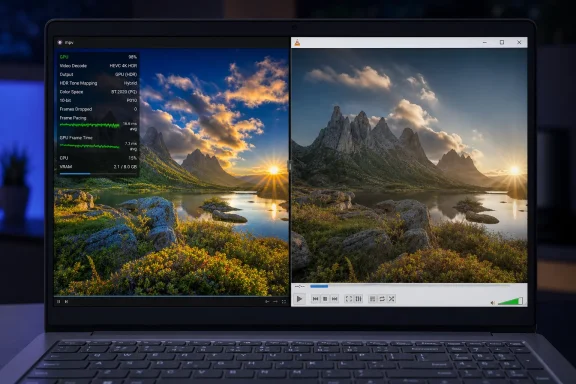
The important correction is hidden beneath the headline. mpv’s official manual identifies gpu-next as its recommended and default video output driver, with a renderer based on libplacebo. It supports tone mapping, gamut mapping, HDR target metadata, advanced scaling, custom shaders, and modern GPU APIs. VLC also supports hardware decoding and HDR tone mapping, according to VideoLAN’s own feature material. The difference is not that VLC lacks these technologies; it is that mpv exposes far more of the rendering decisions in a form power users can inspect and change.
mpv’s GPU renderer is separate from hardware decoding
The How-To Geek report correctly identifies mpv’s GPU rendering as a practical reason it may look better with difficult HDR material. But the article blurs rendering with hardware decoding, and those are separate stages. A player can render video through the GPU while still asking the CPU to decode the HEVC, VP9, or AV1 stream.
That distinction is particularly relevant to the reported 4K stuttering. mpv’s manual lists software decoding as the default for its hwdec option. Users who download a stock Windows build and simply double-click a file should not assume the player has automatically enabled Intel Quick Sync, NVIDIA NVDEC, or Direct3D 11 video acceleration. A third-party build, a copied configuration file, or a user-set hwdec=auto entry may change that behavior, but the default documented behavior is conservative.
For a Windows laptop struggling with high-bitrate HEVC or AV1, enabling hardware decoding is often the first meaningful test—not switching players on its own. In mpv, that can be done with:
hwdec=auto
placed in mpv.conf, then confirmed through mpv’s on-screen statistics or log output. On Windows 8 and later, mpv documents Direct3D 11 Video Acceleration support through d3d11va; NVIDIA systems can use NVDEC where the build and driver support it. The actual result depends on the codec profile, bit depth, GPU generation, driver version, display connection, and whether the hardware decoder supports the file at all.
This is where the source report leaves out the evidence needed to call mpv “faster.” It does not name the laptop processor or GPU, whether Windows HDR was enabled, the bitrate and codec profile of the test file, the output resolution, the display refresh rate, or the dropped-frame count in either player. Without those details, there is no reproducible performance comparison—only a credible anecdote that a particular mpv setup handled a particular troublesome file better.
That limitation does not dismiss the result. It explains why other VLC users may see no benefit, while others could see an immediate improvement after moving to mpv and enabling the appropriate decoder.
Washed-out HDR is usually a color-management problem, not a VLC verdict
The “washed out” description is more revealing than the stuttering. HDR video sent to an SDR screen needs tone mapping: the player must compress a much wider brightness range into the lower range the display can show while retaining useful contrast and color. If the handoff between the media player, Windows compositor, GPU driver, and display is wrong—or merely uses an algorithm the viewer dislikes—the picture can appear gray, flat, clipped, or unnaturally dim.
mpv’s gpu-next renderer is designed around making those controls available. Its manual documents adjustable tone-mapping algorithms, target display peak brightness, HDR metadata handling, per-frame peak detection, and gamut-mapping modes. The project explicitly warns that automatic target color-space detection is not guaranteed to choose the best setting on every system. That is an unusually candid qualification: mpv can give a user a superior picture, but it also gives that user enough rope to create a worse one.
VideoLAN’s documentation makes clear that VLC is not blind to HDR. VLC 3.0 introduced hardware decoding defaults for modern playback workloads and included HDR tone-mapping work, including Direct3D 11 improvements for displaying HDR on SDR screens. Therefore, the conclusion supported by the record is narrower than How-To Geek’s framing: mpv may provide a better route to fixing a particular Windows HDR conversion problem because it offers more control over the output pipeline. It does not follow that every washed-out VLC image proves a core VLC failure.
The practical consequence for Windows users is that a player change should not be the only troubleshooting step. Before abandoning VLC, check whether Windows’ HDR setting matches the actual display capability, update the graphics driver, verify the video renderer VLC is using, and test the same file locally rather than from a slow drive or network share. If mpv renders it correctly under the same conditions, the comparison has still located the problem in the playback path—but not necessarily in the decoder itself.
“Both use FFmpeg” does not mean identical compatibility
How-To Geek says mpv’s format support is “effectively identical” to VLC’s because both use FFmpeg. That is too broad. FFmpeg is central to modern media playback, but it is not a universal compatibility guarantee.
mpv uses FFmpeg’s codec and format libraries extensively, and its Windows build ecosystem commonly packages FFmpeg alongside mpv. VLC also incorporates FFmpeg components while maintaining a much broader collection of its own input, streaming, disc, output, playlist, service-discovery, and transcoding modules. The exact support a user gets depends on how each Windows binary was built and what libraries it includes.
That difference becomes visible outside the ordinary MKV, MP4, WebM, and AVI files most people mean when they say “it plays everything.” VLC has a mature graphical interface for opening network streams, converting files, capturing devices, and managing subtitles and audio tracks without leaving the application. mpv can handle network protocols and has powerful scripting support, but its plain player interface is deliberately sparse. A capability available to mpv as a command-line option or external script is not equivalent to a capability a help-desk user can discover in VLC’s menus.
Optical media is another clear boundary. VideoLAN says VLC supports Audio CD, DVD, and Blu-ray playback with menu navigation. mpv’s own manual says it can open DVD and Blu-ray sources, and its Windows registration helper can add AutoPlay handlers for both formats. But mpv explicitly states that DVD menus are unsupported; it selects a title, normally the longest one, rather than serving as a full disc-navigation application. “mpv opens discs” and “mpv replaces VLC for disc use” are therefore different claims.
Commercial Blu-ray playback adds another complication neither player alone can erase: encrypted discs may require additional components and lawful access to decryption keys. The How-To Geek recommendation to retain VLC for physical media is directionally sound, although VLC itself should not be treated as a guaranteed turnkey answer for every retail Blu-ray.
Windows installation is more fragmented than the article suggests
The article’s Windows setup advice also needs updating. It tells readers using shinchiro’s prebuilt builds to run mpv-install.bat to create right-click entries and associations. That may apply to certain packaging arrangements, but mpv’s current official manual documents a built-in Windows --register option, also available through an mpv-register helper. It registers media-file and protocol associations as well as AutoPlay handlers in place.
The “in place” warning matters. A portable mpv directory can be moved freely until its executable path is written to the Registry. Once registered, moving or renaming the folder can leave broken “Open with mpv” entries until the registration is run again. That is a predictable support burden on shared PCs and managed endpoints.
mpv’s own installation page also makes an uncomfortable but important point: most Windows binaries listed there are unofficial third-party builds, while first-party continuous-integration builds are primarily intended for testing and may omit features. Users should decide whether they want a portable third-party package, a package-manager install through Scoop or Chocolatey, or a first-party test build. Those choices affect update behavior, included libraries, file associations, and the likelihood that a configuration guide matches the downloaded archive.
For IT administrators, this makes VLC’s conventional installer and familiar GUI a materially easier standard deployment. mpv is better suited to users who can manage a portable application, maintain a configuration file, and test changes when GPU drivers or Windows display behavior changes.
The sensible replacement is selective, not universal
mpv 0.41.0 is a compelling player for local media files, especially for people who care about high-quality scaling, subtitle rendering, shader support, HDR-to-SDR tone mapping, and lean keyboard-driven playback. Its gpu-next renderer has a real technical case behind it, and the How-To Geek experience is consistent with the kinds of cases where that renderer can shine.
But there is no independent benchmark in the report demonstrating a general VLC performance deficit, and “legacy overhead” is an explanation rather than a measured finding. VLC remains a capable hardware-accelerated player with a broader out-of-the-box interface for discs, conversions, streams, and users who should not have to edit configuration text to get basic behavior.
The strongest recommendation is the least dramatic one: make mpv the default for demanding local HDR and 4K files after enabling and verifying the correct hardware decoder, while keeping VLC installed for graphical tasks, optical media, transcoding, and troubleshooting. That turns the claimed rivalry into something more valuable—a two-player toolkit where each application is used for the work it actually does best.