
The practical point is narrower than the name suggests: this is a theme, not a return of Classic Outlook inside the new app. Microsoft is changing the visual language—icons, typography, layout, styling, and some interactions—while leaving the new Outlook client, its feature set, and its underlying configuration in place.
For users who find the newer interface disorienting after a migration, that may reduce the initial friction. For IT departments trying to decide whether their staff can leave Classic Outlook behind, it does not answer the functional and administrative questions that have made migration difficult.
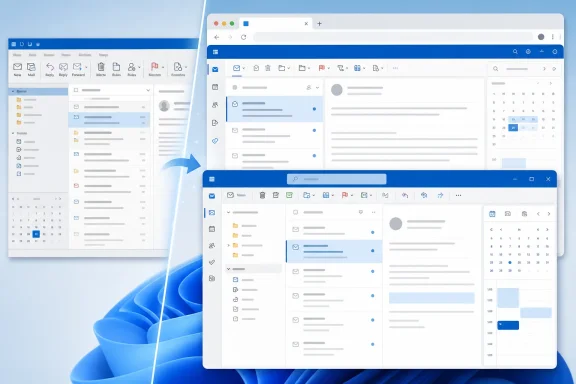 A visual migration aid, not an Outlook rollback
Microsoft’s use of “Classic Outlook” is likely to invite a misunderstanding: enabling the theme will not install the traditional Outlook desktop application, restore its menus, or change the app’s architecture. The new Outlook remains the web-based Windows client Microsoft has been developing as the successor experience for many users.
According to Windows Report’s account of MC1458476, the theme affects presentation and selected interaction details, rather than mailbox data, migration status, policies, or existing user configurations. A user who has been moved to new Outlook therefore remains on new Outlook whether the theme is enabled or not.
That distinction is important for support desks. A ticket claiming that Outlook “changed back” after the theme arrives should be treated as an interface question, not as evidence that the device has reverted clients or that Exchange settings have changed. Likewise, a familiar-looking screen should not be used as proof that a workflow built for Classic Outlook is now available in the newer app.
Microsoft has already made it easier for some users to keep both clients available. Its documentation for new Outlook onboarding says organizations can use a registry setting to automatically open new Outlook when users launch Classic Outlook, while still allowing users to switch back. Microsoft also documents an admin-controlled migration policy that presents users with notices before automatically switching them to new Outlook.
The incoming theme fits that policy direction. It smooths the appearance of an already-approved migration instead of altering the migration itself.
Automatic enablement is the operational detail to watch
The theme is expected to be off by default for most people, but Windows Report says Microsoft may enable it automatically for certain users recently migrated from Classic Outlook. That is the part administrators should treat as a change-management issue rather than a cosmetic preference.
An automatically applied theme can alter what users see without changing the application, mailbox, or policy state beneath it. In a large organization, that means two users on the same new Outlook deployment could see materially different visual treatments during the staged rollout. Help-desk documentation, internal screenshots, and training material can become confusing if they assume one uniform layout.
Microsoft’s Message Center archive confirms the advisory exists and identifies it as “Microsoft Outlook: Classic Outlook theme experience for Outlook on the web and Outlook for Windows.” But Message Center posts are tenant-facing notices, and availability can vary by rollout ring and service environment. Administrators should verify the notice in their own Microsoft 365 admin center rather than assuming every tenant will receive the change on the same day.
The reported timetable is also a rollout window, not a promised client update date for every user. Targeted Release is due to start in August 2026 and complete by late September, followed by a broader rollout beginning in late September and expected to conclude in late October. Users who do not see the theme immediately are not necessarily missing an update; they may simply be outside the current deployment cohort.
What the theme does not solve
The theme addresses recognition. It does not establish parity between the two Outlook clients.
Classic Outlook and new Outlook are separate applications with different configuration surfaces, deployment behaviors, and compatibility histories. Microsoft’s own onboarding guidance reflects that reality: it describes ways to pin new Outlook, make it the default handler for supported mail-related file types and protocols, start users directly in the new app, or use a registry setting to switch them automatically. Those are client-management choices, not theme settings.
That leaves a straightforward test for organizations evaluating the new client: validate the work users actually perform, then treat the Classic theme as an optional usability feature. A familiar icon set and denser-looking layout can make adoption less jarring, but they cannot certify line-of-business integrations, archive handling, add-in behavior, offline work patterns, or user procedures that were built around the established desktop app.
The same caution applies to individual users. If the objection to new Outlook is mainly visual—the placement of commands, colors, typography, or the overall feel—the theme may help. If the objection is a missing workflow or a difference in how Outlook handles a task, selecting a theme is unlikely to change the result.
Microsoft’s decision to ship this option is nevertheless an acknowledgment that interface familiarity has become part of the migration problem. The company has spent several years steering Windows users toward new Outlook while retaining Classic Outlook in many business environments. A UI that visibly resembles the older client lowers the emotional cost of that transition without requiring Microsoft to preserve the older application’s design wholesale.
Outlook on the web is included for a reason
Microsoft is rolling the theme out to both new Outlook for Windows and Outlook on the web. That is more than a convenience feature for browser users: it underscores that the company wants a consistent Outlook presentation across the web experience and its newer Windows client.
For administrators, that may make training simpler over time. A user who moves between a browser session and the new Windows app should encounter closer visual conventions if both use the Classic theme. But it also means a desktop-focused change can show up in browser-based support scenarios, shared devices, and webmail documentation.
Classic Outlook desktop users are not expected to be affected. They already use the legacy client’s interface and Office theme controls, so there is no comparable transition for Microsoft to soften. The theme is directed at the users Microsoft is trying to acclimate to the newer client.
The boundary matters because “Classic” now describes two different things in the same conversation: Classic Outlook, the older desktop application, and the Classic Outlook theme, a selectable presentation inside new Outlook and Outlook on the web. Organizations should use those terms precisely in deployment notices. Calling the theme “Classic Outlook” without qualification will create avoidable confusion over whether a client migration occurred.
Prepare support material before the general rollout
There is no indication in the published advisory summary that administrators need to change a tenant setting or deploy a package to receive the theme. The sensible preparation is procedural.
- Support teams should capture screenshots of both the standard new Outlook appearance and the Classic Outlook theme once the feature reaches their tenant.
- Internal documentation should state clearly that the theme does not move mailboxes, alter Outlook versions, or undo a migration.
- Organizations using Microsoft’s admin-controlled migration policy should include the theme in user communications so a visual change is not mistaken for a second migration event.
- Teams should continue testing business-critical workflows against new Outlook itself, rather than using interface familiarity as a migration-readiness signal.
Microsoft has chosen a relatively low-risk way to make new Outlook feel less alien to Classic Outlook users. The company is not backing away from the newer client; it is borrowing enough of the older client’s visual identity to make the move easier to tolerate. When the rollout reaches general availability in late September and October 2026, the most visible change may be a familiar Outlook face—but the application underneath will still be new Outlook.