
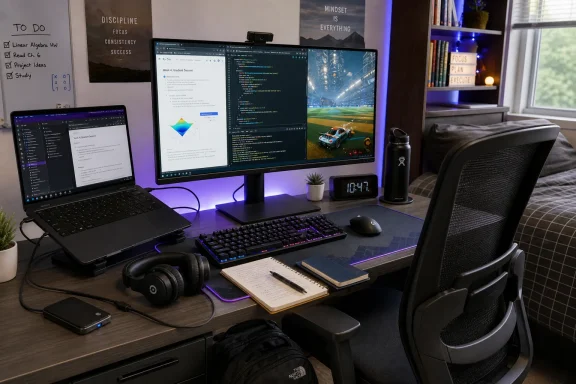
The underlying message is sound. Students do not necessarily need separate “school” and “gaming” devices. They need a dependable Windows PC environment that is comfortable to use for long periods, works with school platforms, supports communication and collaboration, and offers a little enjoyment when the work is done. The important qualifier is that the right gear depends on the work, the available space, and the student’s habits—not simply on RGB lighting, refresh-rate numbers, or the word “gaming” on a retail listing.
 Overview: The Back-to-School PC Gaming Pitch
The PC Gamer selection spans an unusually wide budget range, beginning with basics such as a SteelSeries QcK Large mouse pad at $17.98 and a SanDisk 64GB USB 3.0 flash drive at $18.91. At the more ambitious end are an Acer Nitro 27-inch 1440p, 180Hz IPS monitor at $159.99, a KTC 34-inch 3440×1440, 180Hz ultrawide monitor at $269.99, and gaming laptops reaching $1,899.99. Those figures were listed in the publisher’s July 28 roundup and, as with any retailer-linked deal, should be treated as a snapshot rather than a permanent price. PC Gamer’s list also includes keyboards, wired and wireless headsets, external SSD storage, and a gaming chair.
That range matters because students’ actual needs vary dramatically. A student taking notes on a lightweight laptop may benefit most from a mouse, storage drive, and headset. A computer-science student who spends hours comparing documentation, terminals, video calls, and browser windows may gain more from an external display. Someone moving frequently between residence halls, libraries, classes, and home may reasonably prioritize an all-in-one gaming laptop—while accepting that it will cost more, run warmer, and be less convenient to carry than a conventional ultrabook.
The strongest part of the back-to-school gaming gear argument is therefore not “buy every category.” It is buy the category that solves a daily friction point.
- Cursor control is unreliable or uncomfortable: consider a mouse.
- Laptop typing feels cramped or fatiguing: consider a keyboard.
- Shared spaces are noisy: consider a headset.
- Essays, spreadsheets, coding, or design work feel constrained: consider a monitor.
- Files are scattered, slow to transfer, or consuming local capacity: consider external storage.
- The existing laptop cannot do the coursework or the games a student actually wants to play: only then consider a new PC.
The Most Practical Upgrades Start With Input Devices
Logitech G305: A Sensible Budget Wireless Mouse
The Logitech G305 LIGHTSPEED is the headline low-cost recommendation in the roundup, listed at $29.99, down from $49.99. PC Gamer’s deal listing places it squarely in the “affordable useful upgrade” category, and that is where it makes the most sense.
For Windows users, its value is less about esports branding and more about practical wireless reliability. Logitech specifies a HERO optical sensor, a sensitivity range from 200 to 12,000 DPI, onboard memory for one profile, and a claimed 250-hour battery life from a single AA battery. It also lists Windows compatibility extending back to Windows 7, alongside macOS and ChromeOS support. Logitech’s G305 product page confirms the specifications.
That battery approach is both a strength and a limitation. A replaceable AA means the mouse can be restored to service quickly without waiting for a recharge—useful during exam periods or travel. On the other hand, it is one more consumable to pack, and the listed 99g weight includes the battery, so it will not feel as light as modern premium rechargeable gaming mice.
For student work, the G305’s strongest appeal is simplicity:
- A compact USB receiver avoids the occasional Bluetooth pairing inconvenience.
- The familiar shape suits ordinary browsing, document editing, and research as well as gaming.
- Six programmable buttons provide enough scope for useful shortcuts without introducing a complicated button array.
- Onboard profile storage means basic settings can follow the mouse from one compatible computer to another.
A $30 mouse cannot transform a failing laptop into a better workstation. Yet it can make a laptop feel substantially less compromised at a desk. That is exactly the kind of upgrade that deserves a place in a student PC gaming setup.
Razer Naga V2 HyperSpeed: Powerful, But Not Universally Sensible
The Razer Naga V2 HyperSpeed sits at a different point on the spectrum. PC Gamer listed it at $59.99, a 40% reduction from $99.99, and highlighted its abundance of extra controls. The original roundup frames that button count in humorous “educational” terms, but there is a legitimate productivity case for it.
Razer describes the Naga V2 HyperSpeed as a right-handed ergonomic wireless MMO mouse with 19 programmable buttons, 2.4GHz HyperSpeed Wireless and Bluetooth connectivity, and its dual-mode HyperScroll wheel. Razer’s product page confirms those headline features. For someone who plays MMOs, strategy games, simulation games, or complex RPGs, its twelve-button thumb grid can be genuinely useful.
The educational crossover is more selective. A student can map buttons to push-to-talk, screenshot capture, browser navigation, app shortcuts, media controls, or actions in creative software. In video-editing, illustration, CAD, or audio workflows, carefully chosen shortcuts can reduce repetitive keyboard reaching. The operative word is carefully: a complicated mouse only improves workflow if the user is willing to learn and maintain its mappings.
There are real caveats:
- The Naga’s right-handed sculpted design is not suited to left-handed users.
- Its MMO-oriented shape and side grid can feel bulky for people with small hands.
- Too many custom bindings can become confusing, especially when moving between school and personal PCs.
- Its $60 sale price is attractive only if its extra controls will actually be used.
For a student who wants a durable general-purpose wireless mouse, the G305 is the clearer value. For a student who already understands why twelve thumb buttons are useful, the Naga is the more specialized bargain.
Keyboards and Headsets: Comfort, Noise Control, and Shared Spaces
PC Gamer’s list includes a $29.99 Redragon wired mechanical gaming keyboard and an Asus ROG Strix Scope II X full-size wired mechanical keyboard at $94.99. The deal roundup also includes a $29.99 wired Razer BlackShark V2 X headset and a $71.99 wireless Razer BlackShark V3 X HyperSpeed headset.
A mechanical keyboard can be an excellent desktop companion for a student who writes extensively, codes, or uses keyboard shortcuts heavily. But “mechanical” is not synonymous with “better for school.” Switch type, key layout, desk space, and noise matter as much as the keyboard’s gaming credentials.
The Mechanical Keyboard Trade-Off
Mechanical keyboards offer tactile feedback and often stronger build quality than low-cost membrane alternatives. Full-size models also include a number pad, which is useful for students handling accounting, spreadsheets, statistics, engineering software, or repeated numerical entry.
However, a loud keyboard in a dorm, shared bedroom, library, or late-night study group can be a social problem rather than a productivity upgrade. A student shopping for a mechanical keyboard should establish four things before checking out:
- Switch behavior: Linear, tactile, and clicky switches feel and sound different. Clicky models may be satisfying but are rarely ideal in shared spaces.
- Layout: A full-size keyboard maximizes keys; a compact layout saves desk room and makes transport easier.
- Connection: Wired models eliminate charging concerns but add cable clutter. Wireless models improve portability but increase cost.
- Software dependence: RGB controls and remapping tools are useful only if they work reliably on the intended Windows system and do not become background-software clutter.
A gaming keyboard can support better study habits when it is comfortable enough to encourage keyboard shortcuts, not when it merely looks like a tournament accessory.
A Headset Is Often a Better Academic Purchase Than It Sounds
The case for a gaming headset is stronger than it first appears. Students routinely need audio for recorded lectures, remote office hours, group meetings, language learning, tutorials, and calls with family. A headset microphone can be an immediate improvement over a laptop’s built-in mic, while closed-back earcups can reduce the distraction of roommates, fans, hallway noise, and public areas.
The danger is isolation. A headset that makes games immersive can also encourage excessively long late-night sessions or prevent a student from hearing important household and residence-hall cues. A good practical setup uses audio gear intentionally:
- Keep volume at a comfortable level rather than trying to overpower every ambient sound.
- Use the headset for calls and focused sessions, not necessarily for every hour at the PC.
- Prefer a model with a clear microphone if remote classes and team projects are likely.
- Do not assume active noise cancellation is necessary for every environment.
The best headset for a student is not necessarily the one with the most aggressive gaming aesthetic. It is the one that makes speech clear, wears comfortably for an hour or two, and works consistently across Windows applications.
Monitors: The Upgrade With the Biggest Productivity Upside
A monitor is arguably the most transformative desktop addition in the collection. The $159.99 Acer Nitro 27-inch 1440p 180Hz IPS display is particularly interesting because it combines a resolution that benefits schoolwork with a refresh rate that benefits fast-paced games. PC Gamer’s offer positions it below $160, though prospective buyers should verify the live listing, exact panel variant, ports, stand adjustment, and warranty before purchasing.
For a Windows laptop owner, a 27-inch 2560×1440 monitor can make a meaningful difference to writing, research, coding, photo work, and spreadsheets. It allows a document and sources to coexist at readable sizes, rather than forcing constant app switching. Windows reinforces that advantage with Snap, which can arrange application windows along display edges or into predefined layouts, while Snap Assist helps fill the remaining space. Microsoft’s Snap documentation explains that users can trigger layouts by hovering over the maximize button or pressing Windows + Z.
The 180Hz figure is meaningful in games, but it should not become the sole buying criterion. The student should first check whether their laptop or desktop can output the resolution and refresh rate through its actual HDMI, DisplayPort, or USB-C connection. A high-refresh monitor connected through an unsuitable cable, dock, or older port may run at a lower refresh rate than advertised.
Ultrawide Is Tempting, But Requires More Planning
The $269.99 KTC 34-inch ultrawide curved monitor listed by PC Gamer offers a 3440×1440 resolution and 180Hz refresh rate. The roundup’s listing makes it look like a compelling step-up for multitasking and immersive games.
For research-heavy work, ultrawide space can be excellent: a paper, reference manager, browser, messaging app, and notes can remain visible without feeling crushed. It can also make creative timelines, large spreadsheets, and software development environments more manageable.
But an ultrawide display is not a simple “more is better” purchase. It demands a sufficiently deep desk, may need an adjustable arm to achieve a comfortable viewing position, and increases the graphics workload in games. A laptop with integrated graphics may handle coursework beautifully at 3440×1440 while struggling badly in newer games at the same resolution.
Windows handles multiple displays well when properly configured. Microsoft notes that users can adjust display arrangement, scaling, and resolution after connecting external monitors, and can choose between duplicate, extend, and second-screen-only modes using Windows + P. Windows can also restore external-monitor window locations after a laptop is reconnected if the relevant settings are enabled. Microsoft’s multiple-monitor guidance details these options.
In other words, a monitor is not just a gaming purchase. For many students, it is the clearest route to a more usable Windows study setup.
Storage, Chairs, and the Unsexy Parts of a Better Setup
Not every useful upgrade flashes, clicks, or increases frames per second. PC Gamer’s selection includes a 1TB WD_BLACK P40 external SSD at $193 and a Corsair TC100 Relaxed gaming chair at $219.99. The deal list puts both in the middle-to-premium end of the list, and both require a cooler assessment than a mouse or budget headset.
External SSD: Useful, But Not a Substitute for Backups
A fast external SSD can be excellent for moving large game libraries, video projects, raw media, virtual machines, and archives between locations. It can also provide breathing room for laptops with limited internal storage. A 1TB external drive is particularly relevant to students in media, design, computing, engineering, or any course with sizable project files.
Still, portable storage is not the same as a backup strategy. A single external SSD can be lost, damaged, or left behind. Important coursework should exist in at least two locations, such as local storage plus a trusted cloud service, or a local drive plus a separate backup. The student should also ensure that sensitive files are encrypted and that the drive’s cable is not a fragile afterthought.
For students whose files are mostly essays, PDFs, slides, and web-based coursework, $193 is likely better directed toward a monitor, docking solution, or a more affordable storage option. For those handling massive files, the price can be easier to justify.
Gaming Chairs Need Ergonomic Skepticism
A gaming chair may improve comfort, but the word gaming does not guarantee ergonomics. The Corsair TC100 Relaxed may appeal because it looks like a broad, padded answer to uncomfortable dorm furniture, yet seating should be judged on fit rather than branding.
Before purchasing, students should check:
- Seat height range relative to desk height.
- Lumbar support and whether it fits their body rather than simply existing on a specification sheet.
- Armrest adjustment and whether arms can sit close enough to the desk.
- Seat depth, especially for shorter users.
- Local assembly requirements, delivery logistics, and return conditions.
A chair that supports a neutral posture and allows feet to rest comfortably can matter more over a semester than marginal gains in peripheral specifications. Regular breaks, sensible desk height, and a monitor placed at an appropriate height remain just as important.
Gaming Laptops: The All-in-One Answer With a Premium Cost
At the top end, PC Gamer highlights a Gigabyte A16 gaming laptop with an NVIDIA GeForce RTX 5060, Intel Core i7-13620H, 16GB DDR5 memory, 1TB of storage, and a 16-inch display for $1,104.09. It also lists an Asus ROG Zephyrus G14 with an RTX 5060, Ryzen 9 270, 16GB DDR5, 1TB SSD, and a 14-inch OLED screen for $1,899.99. The PC Gamer roundup identifies both configurations as premium back-to-school options; exact prices and component combinations must be checked at the retailer because laptop SKUs change rapidly.
A gaming laptop can be an exceptionally practical purchase for the student who needs one machine for demanding coursework, creative applications, and serious PC games. Modern Windows gaming laptops often bring fast displays, discrete graphics, substantial storage, and plenty of memory into a portable form factor. That is valuable for tasks involving 3D modeling, video production, game development, engineering visualization, local AI experimentation, and computational work—provided the specific software benefits from the hardware.
The risks are equally clear:
- Battery life away from an outlet may be much weaker than on a thin productivity-focused laptop.
- Fan noise and heat can be distracting in a lecture hall or quiet study environment.
- Weight and charger bulk matter when the computer must be carried every day.
- Repairability and upgrade paths differ sharply between models.
- A high-end GPU is expensive overkill for ordinary browser-based coursework and office applications.
The Zephyrus G14 illustrates the premium side of the category. A 14-inch chassis and OLED display make it potentially attractive to students who value portability and image quality, but the $1,899.99 listed price means it must be assessed as a complete computing investment, not as a spontaneous gaming purchase.
The Gigabyte A16’s far lower listed price demonstrates the opposite value proposition: more performance per dollar, likely with greater size and portability compromises. The right comparison is not “which machine has the better gaming label?” It is which machine is comfortable to carry, has the ports and battery behavior required for class, runs the necessary Windows software, and meets the desired gaming performance without exhausting the budget.
The “Gaming Is Good for Your Brain” Claim Needs Context
PC Gamer’s roundup jokes that gaming can be good for the brain and points to research in support of the idea. That broad statement should be handled with care. A 2026 systematic review and meta-analysis examining 133 studies found evidence that the relationship between video game play and cognitive ability is complicated and had produced inconsistent findings across the literature. The review’s PubMed record is a useful reminder that there is no universal academic-performance bonus attached to owning gaming hardware.
Some games can exercise attention, visual processing, problem-solving, collaboration, spatial reasoning, or strategic planning. Games can also provide recreation, social connection, and a valuable mental break. Those are real potential benefits, and they help explain why PC gaming can be a healthy leisure activity within a balanced schedule.
But the risks deserve equal weight. A systematic review of experimental evidence concluded that long video-game sessions—especially in the evening—are associated with sleep problems and potentially reduced next-day cognitive functioning. The PubMed review does not argue that games are inherently harmful; it argues against ignoring timing and duration. A separate systematic review and meta-analysis of U.S. adolescents found that sleep quality had a statistically significant, though negligible, association with academic performance, while also noting major methodological inconsistencies across studies. That analysis reinforces the basic reality that wellbeing and academic results do not reduce neatly to one variable.
The practical conclusion is straightforward: gaming is not a substitute for sleep, planning, study time, or social participation. Better hardware can make both work and games more pleasant, but it cannot create balance on its own.
A Smarter Back-to-School Buying Order
The most effective way to use the PC Gamer list is to prioritize purchases by daily impact rather than excitement.
- Fix the primary bottleneck first. A poor mouse, unreliable audio, lack of storage, or cramped screen will affect every study session.
- Buy for the space available. Dorms and shared bedrooms reward compact, quiet, easily movable equipment.
- Verify connectivity. Check USB-C capabilities, HDMI and DisplayPort versions, power-delivery support, cables, and docking needs before ordering a monitor or external drive.
- Treat listed deals as temporary. Prices and stock can change quickly, particularly for retailer-linked promotions.
- Spend on comfort before spectacle. A usable keyboard, a reliable mouse, clear headset audio, and appropriate display positioning usually matter more than decorative lighting.
- Set boundaries around evening gaming. The hardware should support a sustainable routine, not make an unsustainable one easier.
The real appeal of this back-to-school PC gaming gear list is not the fantasy that every gaming purchase is educational. It is the more reasonable recognition that a well-chosen Windows setup can support serious work and enjoyable play in the same limited student space. A $30 mouse, a thoughtfully selected headset, or a properly connected external monitor may deliver more lasting value than the flashiest possible upgrade—and leave room in the budget for the education the hardware is supposed to serve.
