
Microsoft published PowerToys v0.101.2362.0 on August 25, while Neowin first highlighted the scale of the update. The official GitHub release and an independent release listing from Tweakers confirm that this is the final 0.101 build rather than another preview in the unusually busy 0.101 testing cycle. That distinction matters for administrators and cautious users: the features discussed here have moved out of the Preview track and into the default stable channel.
The headline utility is deliberately narrow. Window Hopper is not a replacement for Windows’ task switcher, FancyZones, virtual desktops, or the existing Command Palette Window Walker extension. It addresses a mundane but frequent problem: moving among several windows belonging to the current application without cycling through every open app on the desktop.
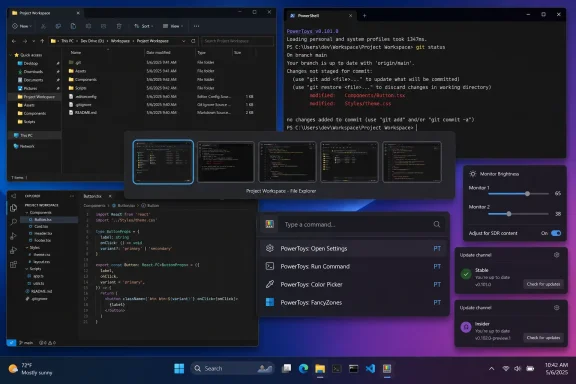 Window Hopper keeps Alt+Tab inside one application
Once enabled, Window Hopper uses a configurable Alt+backtick shortcut to cycle through windows from the active application. A user working across three File Explorer windows, several terminals, browser windows, or separate editor instances can stay within that one application’s set instead of stepping through Teams, Outlook, browsers, utilities, and everything else in the normal Alt+Tab list.
The distinction is practical rather than revolutionary. Windows already has ways to select individual windows—Alt+Tab, Task View, taskbar groups, and app-specific commands—but none uses a universal keyboard shortcut expressly limited to the active application. For keyboard-heavy work, reducing the candidate list to the windows that matter can make repeated switching more predictable.
There is also a limitation worth stating plainly: Window Hopper does not solve organization. It will not group projects, restore a workspace, move windows between monitors, or identify the right terminal by its working directory. It is a fast cycling control. Users with only one window per app will see almost no benefit, while people who routinely split File Explorer, Visual Studio Code, Windows Terminal, or browser work into separate windows are its clear audience.
The feature had already appeared in PowerToys 0.101 preview builds in August. The stable release confirms Microsoft has carried it through the preview process, but early adopters should still check their hotkey configuration—especially on international keyboard layouts, where the physical key associated with a backtick may differ from a U.S. keyboard.
Stable and Insider channels make the preview boundary clearer
PowerToys 0.101 adds a channel selector at Settings > General > Update channel. Stable is the default; Insider offers PowerToys Preview builds for people who want features and fixes before their eventual stable release. Microsoft has also redesigned the updater interface to display its state through checking, downloading, installation, and error handling rather than leaving users with a vague progress indication.
That is a meaningful operational change because PowerToys has increasingly become a broad suite of desktop utilities rather than a handful of isolated tweaks. The 0.101 series had multiple preview releases during August, covering fixes for Command Palette, Shortcut Guide, File Explorer integrations, Mouse Highlighter, and settings behavior. A visible opt-in channel makes it easier for IT teams and individual users to separate “test the next feature” machines from devices that should receive stable builds only.
Microsoft says preview updates can remain controlled through organizational policy on managed devices. The release notes do not describe a new centralized deployment console, new Intune policy set, or a changed support commitment for PowerToys in enterprises. Administrators should treat the channel control as an update preference within the application, not as evidence that PowerToys has become a managed Windows inbox component.
PowerToys remains available as per-user or machine-wide installation packages, as well as through the Microsoft Store and WinGet. Microsoft’s installation documentation continues to list Windows 10 version 2004, build 19041, or later, and Windows 11, on x64 or Arm64 hardware, as the baseline supported platforms.
Command Palette gets a smaller interface and larger maintenance work
Command Palette receives the largest concentration of work in version 0.101. Its new compact mode, disabled by default, opens as a smaller search field and grows only when results need room. Down Arrow or Tab expands it manually, while details pages and confirmation dialogs can expand to their normal size automatically.
Compact mode is a convenience feature, but the more consequential changes are under it. Microsoft lists improved search ranking, cached Window Walker results, progressive icon loading, dock cleanup, reduced retained resources, and changes intended to prevent dock panels from becoming empty or misconfigured after display changes. The notes also mention fixes to retained extension objects and refresh behavior—maintenance work that is easy to skip in a feature summary but important for anyone who leaves the launcher and its dock features running for long sessions.
The release adds disk activity metrics to Command Palette’s Performance Monitor and clearer network bands. Its dock can now auto-hide, reclaiming edge space until the pointer reaches it, and the dock clock can open Notification Center; an optional bell can expose that same entry point. Extensions also gain richer toast notifications with configurable placement, icons, and action buttons.
A pair of new system commands—Update and restart and Update and shut down—appears when Windows Update is waiting for a reboot. This removes one small but persistent bit of friction: users who are already invoking Command Palette for shutdown or restart commands will not need to detour into Start or Settings to complete a pending Windows update.
The catch is scope. These are Command Palette changes, not changes to the built-in Windows Start menu, Task Manager, or Settings app. Users who have not enabled Command Palette will not suddenly see its compact search interface or update commands elsewhere in Windows.
PowerDisplay and accessibility work have the broadest day-to-day payoff
PowerDisplay adds linked brightness controls, allowing selected monitors to move together from one slider while other displays remain independent. For multi-monitor desk setups, that is likely more useful than the release’s marquee shortcut: displays with comparable brightness behavior can be dimmed or raised as a group without changing every monitor individually.
Microsoft also expands PowerDisplay with a command-line interface for inspecting displays, changing controls, and applying saved profiles. That opens a path for scripts, scheduled tasks, and repeatable desk-state configurations, though the release does not promise that every display exposes brightness, contrast, volume, or power controls through its hardware interface. Monitor support remains the deciding factor.
The update specifically addresses hybrid-GPU laptops by improving detection of built-in panels driven by a discrete GPU. It also adds compatibility work for unreliable external monitors, including reuse of prior successful readings and more restrained retries. Those fixes are the kind that matter most when users have already concluded that monitor-control software is temperamental: the feature’s value depends on it continuing to work after docking, sleep, reconnects, and application exit.
Quick Accent and Mouse Jump have moved to WinUI 3. For Quick Accent, Microsoft cites improved theming, accessibility, and DPI-aware placement, plus an optional press-and-hold letter activation mode. Mouse Jump gains a modernized interface and keyboard controls for selecting a monitor, aimed at better behavior across mixed-DPI multi-monitor arrangements.
Local AI is available, but it is not a universal PowerToys feature
Advanced Paste gains on-device Phi Silica transformations on supported Windows devices. Microsoft says users can choose a provider, prompts, coaching behavior, and shortcuts per paste action, so local and online AI services can coexist in the same clipboard workflow.
The phrase “on-device” deserves restraint. It means the transformation can run locally where Phi Silica is available; it does not mean every Windows 10 or Windows 11 PC suddenly has a built-in local model through PowerToys. Microsoft’s own Advanced Paste documentation still describes AI capabilities as provider-based, with cloud services requiring their own credentials and local alternatives depending on the configured model environment. The release notes do not provide a comprehensive hardware eligibility list for Phi Silica in PowerToys 0.101.
For privacy-sensitive use, the local option is potentially important because it can avoid sending clipboard text to a third-party cloud endpoint. It also does not remove the need to review output before pasting it into code, tickets, documentation, or customer communications. PowerToys’ release adds a setting to hide the AI section entirely for users who do not want it in the Advanced Paste interface.
Version 0.101 also includes less visible but consequential reliability fixes: PowerToys Run no longer accumulates worker threads during rapid search typing, a behavior Microsoft says could eventually lead to out-of-memory failures; Always On Top, Grab and Move, and FancyZones have shutdown and sign-out fixes; and Mouse Without Borders receives updated connection encryption parameters and session-key derivation once every paired PC is updated.
PowerToys 0.101 is a stable release worth installing for users who rely on its existing tools, but the sensible rollout is selective: enable Window Hopper only if same-app window switching fits the workflow, leave the Insider channel off on production machines, and test PowerDisplay and local AI features on the hardware that will actually use them.