

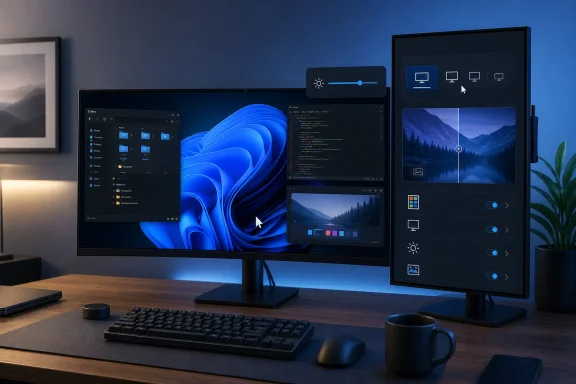
The August 7 BGR guide usefully surfaces Microsoft PowerToys, DisplayFusion, Monarch, Dual Monitor Tools, Actual Multiple Monitors, Monitorian, Little Big Mouse, Wallpaper Engine, and Twinkle Tray. But it also makes one material error about PowerToys’ Mouse Without Borders: it does not turn a spare laptop or tablet into a second display. Microsoft documents it as an input-and-clipboard sharing tool for up to four computers, allowing one keyboard and mouse to cross between PCs on the same network. It can transfer files through the clipboard, with a 100 MB limit, but it does not carry the host PC’s video output to another device.
For Windows users deciding what to install, the better conclusion from BGR’s list is much narrower: PowerToys is the broad starting point, Monarch is a focused answer for display profiles and temporary disconnection, Little Big Mouse is for physically mismatched displays, and one—not three—DDC/CI brightness tool is enough.
PowerToys Has Become the First App to Try
Microsoft PowerToys now covers more multi-monitor ground than the BGR article’s brief PowerToys section suggests. Beyond Mouse Jump, Screen Ruler, Workspaces, and Power Display, it includes FancyZones, which creates per-monitor window zones; Workspaces, which launches a defined collection of apps and moves them into saved positions; and the Windows shortcut integration that makes window movement between monitors far less tedious.
PowerToys Workspaces is more useful for repeatable work sessions than for casual desktop tidying. It captures a group of open applications, their positions, dimensions, and optional command-line arguments, then launches or rearranges them from a desktop shortcut. A developer who begins each day with Windows Terminal on the left display, Visual Studio Code centered, an Edge documentation window on the right, and Teams on a portrait monitor has a legitimate use for it.
There is a limitation BGR did not mention: Workspaces does not command applications to launch at a target coordinate. It launches an app and then instructs Windows to move and resize its window, which can produce visible window movement. Microsoft also acknowledges that elevated applications cannot currently be repositioned reliably through Workspaces. Sysadmins using elevated Windows Terminal, Registry Editor, or management consoles should test a workspace before treating it as an automated desktop-recovery solution.
FancyZones addresses a different problem. It supplies persistent custom snap targets rather than relaunching a saved set of applications. Windows already moves the active window to an adjacent display with Win+Shift+Left Arrow or Win+Shift+Right Arrow; FancyZones earns its place when default half-screen and quadrant snapping no longer match the workflow. A 49-inch ultrawide plus a side monitor, for example, benefits more from custom zones than from another taskbar replacement.
Power Display is the newest reason to start with PowerToys, but it also needs the most care. It uses DDC/CI—the monitor control channel carried over HDMI, DisplayPort, or USB-C—to expose brightness, contrast, volume, input-source, rotation, color-temperature, and power controls in a flyout. Windows Central and TechRadar have both highlighted the utility’s practical value for external monitors whose brightness Windows ordinarily cannot manage from the taskbar.
Microsoft’s own documentation adds the warning missing from the usual praise: a malformed DDC/CI capability string from some monitors can trigger a Windows kernel crash while Power Display reads the display’s features. Microsoft says the module disables itself after detecting such a crash and excludes the offending monitor on the next launch. Power Display also warns that input switching can leave a screen black and that software power-state controls may put some monitors to sleep without waking them again.
That does not make Power Display unsafe by default. It means the sensible deployment is to enable basic brightness control first, avoid broad compatibility probing unless a monitor is missing, and test input or power control when physical access to the display remains easy. The same caution applies to every brightness app on BGR’s list because the underlying DDC/CI channel—not the tray icon—is where compatibility varies.
Three Brightness Apps Are One Category, Not Three Recommendations
BGR lists PowerToys Power Display, Monitorian, and Twinkle Tray separately. They are separate programs, but they overlap heavily in the task most readers will care about: adjusting the hardware brightness of external monitors without pressing the monitor’s physical controls.
Monitorian is the lean choice. Its GitHub project describes it as a Windows tool for adjusting brightness across multiple monitors, with DDC/CI support where a display exposes it. It is appropriate for users who want a lightweight per-monitor slider and do not need input switching, power-state controls, or theme-linked profiles.
Twinkle Tray is the more automation-oriented choice. Its project documentation lists time-of-day and idle-based brightness changes, profile-oriented behavior, and hotkeys that can target a particular display or all displays. That makes it a better fit for users who want the office monitors dimmed after sunset or who regularly switch between bright work lighting and a low-light evening setup.
Power Display is the more ambitious option because it folds brightness into a larger Microsoft-maintained suite and can also control contrast, inputs, volume, color temperature, and monitor power state when the display reports those capabilities. It can also apply monitor profiles when PowerToys Light Switch changes the Windows theme. But it is currently the option with the clearest published warning about DDC/CI discovery failures and unstable monitor behavior.
The real choice is therefore straightforward:
- Use Power Display when you already rely on PowerToys and want profiles, input switching, and potentially broader monitor controls.
- Use Monitorian when the requirement is simply fast, free brightness adjustment with minimal extra software.
- Use Twinkle Tray when scheduled changes and per-display hotkeys matter more than keeping the stack small.
Installing all three invites competing startup entries, overlapping tray controls, and uncertainty about which application last wrote a monitor setting. None can make an unsupported monitor respond to DDC/CI, and none should be assumed to work identically across a dock, KVM, GPU driver, or display model.
DisplayFusion and Actual Multiple Monitors Are Paid for Reasons Windows Still Does Not Cover
DisplayFusion and Actual Multiple Monitors remain relevant, but BGR’s list understates how much their appeal depends on features Windows does not fully duplicate—and how much their best functionality sits behind a license.
Windows 11 can extend a desktop, retain window locations after a laptop is re-docked, rearrange displays, and move the focused window between monitors with a keyboard shortcut. It can also show a taskbar on every display. For a large share of users, that baseline is enough, particularly if PowerToys adds FancyZones.
DisplayFusion’s paid editions add a deeper replacement taskbar on every monitor, with system-tray icons, clocks, pinned items, customizable positions, custom buttons, and monitor-specific taskbar behavior. Binary Fortress also places its monitor-fading, window-mirroring, cursor-locking, scripted functions, and monitor-profile capabilities behind the Pro tier. Its free edition is useful, but BGR is right to note that the headline multi-monitor controls are not generally free.
Actual Multiple Monitors takes a similar commercial approach. Actual Tools lists its license at $34.95 and sells the software around a full taskbar, Start menu, notification area, task switcher, and desktop controls on secondary displays. Its desktop-mirroring capability can show a whole monitor, a selected area, or one window elsewhere, which is more specialized than PowerToys and can be useful for a monitoring display or a presentation setup.
The overlap means users should not buy both without a precise requirement. DisplayFusion is the stronger candidate for deep taskbar substitution, scripting, and automation. Actual Multiple Monitors has a distinct case for users who need its mirroring and desktop-profile behavior. For ordinary two-screen office work, both may be solving a problem Windows 11 and PowerToys have already reduced substantially.
Monarch and Little Big Mouse Solve Problems the Big Suites Can Miss
Monarch is the most focused entry in BGR’s roundup. Rather than turning a panel off in the electrical sense, it uses Windows DisplayConfig topology APIs to detach and reattach display outputs in software. The monitor normally enters standby once Windows stops sending a signal, while the desktop no longer reserves space for it.
That distinction matters for anyone who alternates between a desk setup and a focused single-display session. A detached monitor can cause Windows to rearrange open applications, change wallpaper behavior, and alter the visible desktop geometry. Monarch’s appeal is that it saves display configurations, offers a tray workflow, and includes a rollback mechanism so a bad display change does not leave the user staring at an unusable configuration.
It is a particularly compelling answer for users with a secondary OLED, a simulator panel, or a television that should not stay active during normal work. It should not be treated as a universal replacement for monitor power controls: if the requirement is only to reduce brightness, use one DDC/CI application instead. If the requirement is to remove a display from the Windows desktop and restore a known layout later, Monarch is the right category of tool.
Little Big Mouse has an equally narrow but legitimate job. Windows lets users drag display rectangles into an approximate arrangement, but mixed physical sizes, resolutions, pixel densities, and orientations can make cursor crossings feel wrong even when the rectangles appear aligned. Little Big Mouse uses monitor size and DPI information to calculate more natural crossing points, offers border resistance, and can wrap the pointer from one edge of the desktop to another.
Dual Monitor Tools overlaps with some of that cursor-control work, including pointer locking, sticky monitor boundaries, hotkeys for moving windows, and application launching. Its SourceForge project was updated on July 7, 2026, and remains a viable free alternative for a user who specifically wants cursor barriers and Swap Screen behavior. But users should choose either Dual Monitor Tools or Little Big Mouse based on the actual defect: accidental cursor escape calls for the former; awkward crossover between unequal physical panels calls for the latter.
Wallpaper Engine Needs a Security Caveat the List Omits
Wallpaper Engine is the outlier in BGR’s nine-app selection. It is a $4.99 cosmetic purchase, not a desktop-management utility, and it is effective at synchronizing animated backgrounds across multiple displays. That alone can justify it for users who want their monitors to look like one coordinated setup.
It also carries a security consideration absent from BGR’s description. In June 2026, Kaspersky reported an active malware campaign abusing Steam Workshop content distributed through Wallpaper Engine. The company said attackers used application wallpapers—a format that can execute Windows programs—to deliver malware, steal Steam account information, and hijack active sessions. Tom’s Hardware and PC Gamer independently reported on the campaign.
This is not an indictment of Wallpaper Engine itself or a reason to remove it from every PC. It is a reminder that a live-wallpaper application capable of running executable content should be treated like any other user-generated software distribution channel. Stick to reputable creators, avoid obscure application-based wallpapers, keep Steam security enabled, and do not assume a visually harmless desktop download is merely an image file.
The strongest dual-monitor setup is usually four programs or fewer: PowerToys for layouts and general utility, one brightness controller, Monarch if display profiles matter, and either Little Big Mouse or Dual Monitor Tools for a specific cursor problem. Everything else on BGR’s list is optional—and installing overlapping utilities will not make a two-monitor desktop more manageable.