
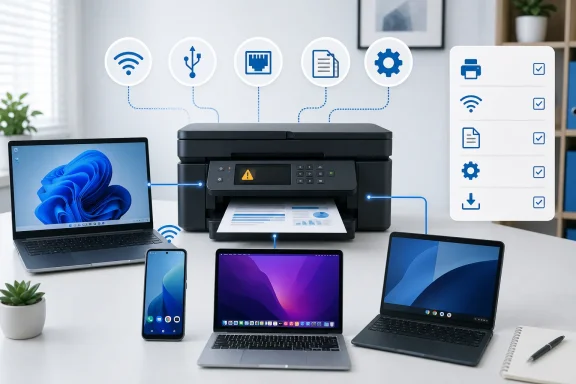
 Overview: Identify Where Printing Stops
“Printer won’t print” is not a single error. It is a symptom that can describe very different failures:
- The printer has not actually finished joining Wi-Fi.
- Windows, macOS, Android, or ChromeOS is targeting an old, virtual, offline, or incorrect printer.
- A failed document is blocking the queue.
- A shared printer’s host PC is asleep, disconnected, or no longer sharing the device.
- The installed driver, printer queue, or spooler service has become corrupted.
- A work or school administrator has restricted printer discovery or deployment.
The important distinction is between a device problem and a submission problem. If the printer cannot make its own copy or print a built-in network status page, start at the printer’s display, paper path, ink or toner, and network setup. If it copies successfully but ignores documents sent from a computer, the fault is more likely to be with the network path, queue, app, or driver.
This order matters because it prevents a common waste of time: reinstalling drivers for a printer that is simply connected to a guest Wi-Fi network, paused in Windows, or receiving jobs sent to Microsoft Print to PDF instead of the physical printer.
Start With the Hardware and Connection
Before changing Windows settings or downloading a vendor utility, perform a clean power cycle. Microsoft’s current guidance is to turn the printer off, unplug it, wait 30 seconds, reconnect power, and turn it back on. Microsoft explicitly recommends this sequence because a printer can retain a stalled network or USB state even when its control panel appears normal.
Use the right check for the connection type
For a USB printer, disconnect the cable from any hub, dock, display, or extension adapter and connect it directly to the computer. Then try another physical USB port. A direct connection eliminates several potential points of failure at once.
For an Ethernet printer, inspect the cable at both ends and check whether the printer’s Ethernet port has activity lights. A printer connected to a switch or router may still be unavailable if the cable has loosened, the port has failed, or the network has placed the printer on an isolated segment.
For a Wi-Fi printer, the desktop PC, laptop, phone, tablet, or Chromebook must be on the same usable network as the printer. This can be less obvious than it sounds in homes with mesh systems, separate 2.4 GHz and 5 GHz names, wireless extenders, guest networks, or multiple routers. Microsoft specifically warns that separate SSIDs and access points can leave a PC and printer on different networks even when both show a Wi-Fi connection. Microsoft’s guidance recommends verifying the printer’s wireless status and, where available, using its built-in connectivity test.
Rule out a physical printer error
Look at the printer, not just the computer. Check for:
- Paper jams, even small fragments near the rear access panel.
- Open covers or improperly seated toner and ink cartridges.
- Low ink, toner, paper, or maintenance consumables.
- Error codes, blinking status lights, or prompts on the LCD.
- A sleep or energy-saving mode that requires pressing a physical button to wake.
A “printer offline” message on a PC does not necessarily mean the printer is defective. It means the operating system cannot currently communicate with the configured printer endpoint. That can stem from a cable, an IP address change, Wi-Fi isolation, an old queue, or a paused print service.
Clear Stuck Jobs Before Rebuilding Anything
A single malformed or interrupted job can hold every document behind it. This is especially common after a laptop sleeps, a printer loses Wi-Fi mid-print, a large PDF is sent over a weak connection, or an application crashes while generating the job.
Windows 11: inspect the print queue
In Windows 11, open:
Start > Settings > Bluetooth & devices > Printers & scanners
Select the printer and choose Open print queue. If jobs are stuck, cancel the individual document or use the ellipsis menu to choose Cancel all. Microsoft identifies jobs stuck in the queue, printer status errors, and spooler problems as distinct common Windows printing failures. Its current troubleshooting hub links directly to each path.
If the queue window shows the printer as paused or offline, correct that before reinstalling the device. In classic Windows queue windows, the Printer menu may contain Pause Printing and Use Printer Offline options. Both should be unchecked for normal printing.
Then restart the printer and restart Windows—not shut down and immediately power back up, but use Start > Power > Restart. A restart clears more active software state than many fast-startup shutdown configurations.
When the Windows Print Spooler is the problem
The Print Spooler is the Windows service that receives, stores, and schedules print jobs. If it crashes or retains corrupted files, the queue may refuse to clear, repeatedly report errors, or remain stuck at “Deleting.”
Microsoft’s spooler repair process involves stopping the Print Spooler service, clearing queued spool files from the printer spool folder, and starting the service again. The official support page documents those steps. This is a useful escalation step, but it is not a harmless first move: it discards queued jobs. Save or reprint important documents after clearing the spooler.
macOS: resume, remove, or replace the queue
On a Mac, open Printers & Scanners in System Settings and inspect the printer’s queue through Print Center. Apple advises resuming a paused printer, deleting a job that is blocking the queue, or resuming an individually paused job. Apple’s Mac printing guidance also notes that a missing job in one queue may mean the document was sent to a different printer.
This is a valuable diagnostic clue. If a document does not appear in the expected queue at all, the problem may be an application destination setting rather than a printer connectivity failure.
Confirm That the App Is Sending Paper Output to the Right Place
A functional printer cannot help if an application is sending the document elsewhere. The print dialog should always be treated as part of the troubleshooting process.
Open File > Print or use the application’s normal print command. Then verify:
- The selected device is the intended physical printer.
- The printer’s status reads Ready rather than Offline, Error, or Paused.
- The paper size matches what is in the tray.
- Orientation, page range, scaling, and duplex settings are reasonable.
- Print to file, Save as PDF, or a virtual PDF printer is not selected accidentally.
Virtual destinations are helpful tools, but they commonly cause confusion. A job sent to Microsoft Print to PDF, Save as PDF, OneNote, or another document workflow will not produce paper until the user deliberately selects the hardware printer.
Test from a second application
Try a simple print from another app. On Windows, Notepad or Paint is an excellent control test because it removes complex document formatting, browser extensions, and add-ins from the equation. On macOS, TextEdit provides a similarly useful baseline.
If a test page prints from a simple application but not from Word, a browser, Adobe Acrobat, or a line-of-business application, the printer is probably not the central problem. Apple similarly recommends trying another app, because a failure limited to one application should be addressed in that app’s own documentation or settings. Apple’s troubleshooting guide makes this distinction explicit.
Browser printing deserves separate attention
Browsers add their own preview engines, page scaling, extensions, and PDF handling. In Microsoft Edge, reopen the print dialog if the preview fails, restart Edge, or use the system print dialog. On Windows, Ctrl+Shift+P can open the system dialog from Edge; on macOS, Option+Command+P provides the equivalent route.
The system dialog is useful because it bypasses some browser-specific print preview behavior and exposes the printer’s native settings. It also makes it easier to spot when a browser has retained a different destination than the rest of the system.
Repair Printer Setup in Windows 11
Windows 11 has a practical repair ladder: run built-in diagnostics, set the intended default printer, remove and re-add the printer, then address drivers only if necessary.
Run the current Microsoft printer troubleshooter
Microsoft now directs Windows 11 users to the automated printer troubleshooter in the Get Help app. It performs diagnostics and attempts repairs for common printer failures. Microsoft’s current instructions recommend running it before deeper manual work.
This is a strength of the current Windows support path: it can detect straightforward configuration and connection issues without requiring users to understand ports, queues, or driver packages. Its limitation is equally important: an automated tool cannot repair a paper jam, an incorrect Wi-Fi password entered on the printer, or an enterprise policy blocking the device.
Set the intended printer as default
Go to:
Settings > Bluetooth & devices > Printers & scanners
If Windows keeps choosing the wrong printer, turn off Let Windows manage my default printer, select the correct device, and choose Set as default. Microsoft notes that Windows can change the default to the most recently used printer in a location when automatic management is enabled. Microsoft’s default-printer documentation explains why a familiar printer can seem to “disappear” from the default role after working elsewhere.
Automatic management is convenient for people who frequently move between office printers. It is less useful for a home or single-printer setup where consistency matters more than location awareness.
Remove and add the printer again
If the queue is persistently offline, duplicated, or tied to an obsolete port, remove it and create a fresh queue:
- Open Settings > Bluetooth & devices > Printers & scanners.
- Select the affected printer.
- Choose Remove and confirm.
- Return to Printers & scanners.
- Select Add device and wait for Windows to discover the printer.
- If discovery fails, use Add manually and choose the appropriate connection method.
Microsoft’s guidance confirms that Windows can add local USB, Bluetooth, network, and shared printers through this process, and provides a manual route when automatic discovery does not find the device. Microsoft’s printer connection guide also recommends printing a test page once installation completes.
Treat driver downloads cautiously
Drivers remain important, particularly for older printers, specialty paper handling, finishing hardware, scanning functions, and brand-specific features. However, downloading a random “driver updater” is a poor response to a printing error.
Use Windows Update first where possible, then obtain a driver only from the printer manufacturer’s official support site for the exact model. Microsoft states that current printer drivers can improve compatibility, performance, and feature support. Its driver guidance also flags an important exception: some Windows on ARM PCs, including some Copilot+ PCs, may fail when using a manufacturer installer. In those cases, Microsoft advises using Add device in Settings unless the printer maker provides model-specific ARM instructions.
That is a significant practical risk. A driver package that works on a conventional x64 Windows PC may not be the right installation path for an ARM-based laptop, even when the printer itself is fully supported.
Mac, iPhone, and iPad: Use AirPrint and Queue Repair First
Apple’s printing model often reduces driver complexity, but it makes network discovery especially important. AirPrint printers must be visible on the local network, and an iPhone or iPad cannot use Bluetooth alone as a substitute for an AirPrint network connection.
Re-add the printer on macOS
On a Mac, open:
Apple menu > System Settings > Printers & Scanners
Remove the affected printer, then choose Add Printer, Scanner, or Fax. For an AirPrint-compatible model, choose AirPrint from the Use menu where available. Apple’s support documentation describes adding the printer again as a way to create a clean queue and recommends checking for current printer software or firmware from the manufacturer where necessary. Apple’s Mac printing troubleshooting instructions also suggest adding a network printer by IP address if it does not appear through ordinary discovery.
Use Reset Printing System only as a last resort
macOS includes Reset Printing System, which removes all printers, completed-job information, and printer presets. Apple explicitly presents it as a step for situations where other solutions have failed. Apple’s reset instructions confirm that every printer must be added again afterward.
That makes the feature powerful but disruptive. It can resolve damaged queue configuration, but it can also erase carefully configured paper presets, accounting settings, and multiple office printer connections. Record important printer settings before using it.
iPhone and iPad printing
For iPhone and iPad, make sure both devices are on the same Wi-Fi network. Open the document or image, select Share or the app’s menu, choose Print, tap No Printer Selected, and select an AirPrint-enabled printer.
Apple states that AirPrint works over Wi-Fi or a wired network, but an AirPrint printer connected through the USB port of an AirPort base station or connected by Bluetooth cannot be used for AirPrint printing. Apple’s AirPrint guidance also makes clear that app support matters: not every iOS or iPadOS app exposes a print option.
Android and Chromebook Printing
Android and ChromeOS use modern network printing services rather than the retired Google Cloud Print service. Google says Cloud Print was no longer supported from January 1, 2021, so it is not a viable repair path for a current printer problem. Google’s Cloud Print migration guidance points organizations toward platform-native and managed printing options instead.
Android: turn on the print service
On Android, open:
Settings > Connected devices > Connection preferences > Printing
Select a print service and ensure it is enabled. Google’s Android documentation notes that some apps support printing through their menu, share sheet, or Print command, while others do not. Google’s Android printing guidance also explains how to add or manage print services.
If the built-in service does not discover the printer, a compatible manufacturer or standards-based print service may be needed. The critical check remains the same: the phone and printer need a reachable network path, not merely a saved Wi-Fi name.
Chromebook: correct details, then add manually
ChromeOS requires the Chromebook and printer to be on the same network. Google states that Chromebooks currently do not support Bluetooth printing, so a Bluetooth pairing exercise will not solve a Chromebook printing failure. Google’s Chromebook printer setup guide recommends USB or compatible internet-connected printers instead.
For a saved printer that does not work, open:
Time > Settings > Device > Printers and scanners > Print
Use More > Edit and check every entry for mistakes. Google advises removing and re-adding the printer if the address, queue, or saved information is correct but the device remains unusable. Manual setup supports an IP address and typically uses IPP with the ipp/print queue for many devices. Google’s setup documentation provides the current path.
Brand Tools Can Help, but They Are Not a Substitute for Network Basics
Vendor utilities are valuable for firmware, wireless setup, maintenance, and model-specific diagnostics. They should come from the manufacturer’s official site, not an advertising-heavy download portal or generic driver tool.
For HP printers, the current product is the HP app. HP says the former HP Smart app is no longer available for download and directs users to the HP app for setup, settings, printing, scanning, and support. HP’s official app page notes that feature availability can vary by device, platform, printer model, and region, so menus may not look identical everywhere.
For Canon, Epson, and Brother, use the exact model’s official support page for wireless setup, firmware, full software packages, error-code explanations, and driver downloads. The model-specific approach matters because button sequences, WPS support, firmware procedures, and driver packages often differ across otherwise similar printers.
Firmware updates can solve genuine reliability and compatibility problems, but they should be installed deliberately. Do not interrupt power during a firmware update, and avoid treating firmware as the first response to a simple offline queue. Resolve the connection first; then update firmware when the manufacturer recommends it for the exact model or when recurring network behavior points to a device-side issue.
Shared, School, and Work Printers Need a Different Diagnosis
A shared printer depends on more than the printer itself. It also depends on the host PC, local network access, Windows sharing settings, credentials, and compatible drivers.
On the host Windows PC, open the printer’s Printer properties, then the Sharing tab. Confirm Share this printer is enabled and note the share name. Microsoft’s shared-printer guidance also requires both computers to be on the same local network and calls for Network discovery and File and printer sharing to be enabled. Microsoft’s shared printer repair guide provides the current manual path for reconnecting with \\ComputerName\PrinterShareName.
For school and business devices, the problem may be intentional rather than accidental. Managed Chromebooks can restrict printer additions, and organization-controlled Macs, iPhones, iPads, and Windows PCs may receive printers through management policies. Google specifically says Chromebook users who cannot add a printer on a work or school device should contact their administrator. Google’s Chromebook support documentation confirms that managed-device limitations can override local setup attempts.
The best outcome in these environments is not bypassing policy. It is providing IT with the printer name, IP address if known, device operating system, exact error message, whether the printer appears in the queue, and whether other users can print. That turns a vague “it won’t print” report into evidence that can be acted on quickly.
The Practical Printer Recovery Order
When a printer refuses to print, use this sequence before jumping to drivers or factory resets:
- Power-cycle the printer and inspect paper, covers, ink or toner, and error lights.
- Check the connection: direct USB, secure Ethernet, or the same Wi-Fi network.
- Clear the print queue and remove paused or offline status flags.
- Verify the selected printer in the application and test from a second app.
- Run built-in platform troubleshooting on Windows, macOS, Android, or ChromeOS.
- Remove and re-add the printer to rebuild a damaged queue or stale network path.
- Update official drivers, software, or firmware only when the basic path is confirmed.
- Escalate shared or managed devices to the host PC owner or administrator.
That order is effective because it begins with the failures that are fastest to prove and easiest to fix. A printer problem rarely requires a dramatic solution; more often, it requires identifying the precise link—hardware, network, queue, app, driver, or policy—where the print job stopped.
