
That is the difference between a pleasant File Explorer enhancement and a genuinely system-wide workflow tool. If the job is to rapidly inspect downloads, screenshots, PDFs, archives, and source files in File Explorer, either package can do the basic job. If the job includes checking attachments from an application’s Open dialog, reviewing assets while saving from an editor, or using third-party file managers, the full installer is the relevant choice.
TechPP’s August 17 walkthrough correctly identifies the core appeal: select a file, press the spacebar, and QuickLook opens a preview rather than launching the file’s associated application. The QuickLook project has existed for years, remains actively maintained, and released version 4.5.0 on April 14, 2026. Its value is not that it adds another viewer to Windows; it makes inspection a separate action from opening and editing.
 The File Explorer Preview Pane is a different tool
Windows already has a Preview Pane in File Explorer, enabled from the View menu or with the Alt + P shortcut. It is useful for keeping a document or image visible beside a folder listing, particularly on large displays. But it permanently consumes horizontal space, depends on installed preview handlers for many formats, and is not designed around rapidly stepping through a directory.
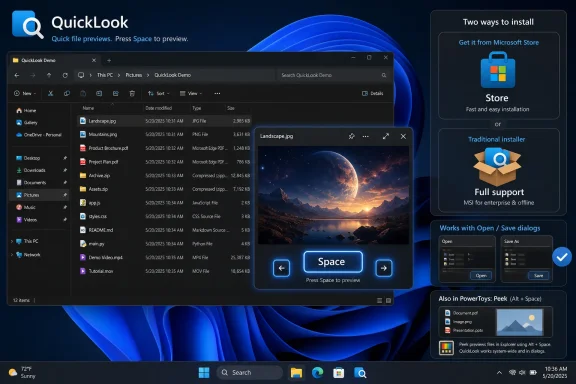
QuickLook instead opens a floating preview only when requested. The project documents Space as the preview toggle, Esc or Space again to close, and arrow keys for moving through files. It can also open the selected file with Enter. For folders full of similarly named photos, PDFs, ZIP files, or build artifacts, that interaction is materially faster than launching an application, closing it, returning to Explorer, and repeating the process.
There is an important practical limit: QuickLook is a standalone utility, not an extension that turns Windows’ own Preview Pane into a universal preview engine. It runs in the notification area and responds to selected files. Users who want a persistent side-by-side pane should retain File Explorer’s built-in feature; users who want a keyboard-first inspection window should use QuickLook.
Choose the package based on where previews are needed
The easy recommendation to install an app from the Microsoft Store needs qualification. The QuickLook maintainers label the Store build as sandboxed and automatically updated, but also state that it has limited Open/Save dialog support; their comparison table marks that capability unavailable. The regular installer is described as the full-featured option, including support for Open/Save dialogs and a portable mode.
That distinction stems from Windows application packaging and permissions, not an arbitrary feature tier. A sandboxed Store app has less reach into other processes’ dialogs. For a home PC used mainly in File Explorer, the Store edition offers a simple installation and update path. For advanced users, developers, designers, and support staff who regularly select files through desktop applications, the installer version is the better fit.
A sensible deployment choice looks like this:
- Use the Microsoft Store build when File Explorer previews and automatic updates are the priority.
- Use the regular installer when previews must also work in Open and Save dialogs.
- Use Scoop only when the PC is already managed through Scoop and reproducible package installation is part of the workflow.
- Avoid nightly builds on production workstations unless a particular bug fix or format change is needed and has been tested.
QuickLook’s portable option may also be useful for a technician’s toolkit or a constrained workstation, but portability should not be mistaken for enterprise manageability. It still introduces a process that opens files and parses their contents. Organizations should deploy it through their standard software-management and allowlisting controls rather than treating it as a harmless cosmetic tweak.
The feature set goes beyond images and PDFs
TechPP emphasizes that QuickLook can preview common media and documents, but the project’s current documentation shows why it can be useful to technical Windows users. Native support covers images, video, audio, text and code files, Markdown, fonts, common archives, binary files with a hexadecimal view, and several 3D formats. Its listed archive coverage includes ZIP, RAR, 7Z, and TAR, which makes it useful when the immediate question is “what is in this package?” rather than “where do I extract it?”
The project also presents the utility as working with OneDrive and Dropbox files and with selected third-party file managers. That can be helpful for browsing synced content, though a preview remains subject to whether the content is actually present on the device. A cloud placeholder that has not been downloaded cannot be meaningfully previewed without retrieving the underlying file.
The more specialized features are delivered through plugins. The official plugin catalogue includes viewers for Office files, EPUB books, comics, SQLite databases, CAD formats including DWG and DXF, PostScript, Jupyter notebooks, Draw.io diagrams, and other niche formats. That is a substantial improvement over File Explorer’s built-in handlers, particularly for developer and engineering folders where a quick check of a file’s contents can prevent opening a heavy application.
But “supports more than 50 formats” should not be read as a uniform promise of identical fidelity. A PDF preview, a parsed Office document, a CAD drawing, an archive listing, and a video player are different rendering paths with different dependencies and failure modes. QuickLook’s own project notes, for example, say the optional native PDF viewer uses Microsoft Edge WebView2, while video support in version 4.5.0 was updated to LAV Filters 0.81.0.
Plugins deliver the power — and create the administration burden
QuickLook’s plugin workflow is unusually convenient: when QuickLook is running, a user can select a .qlplugin file, press Space, choose Install, and restart the utility. That convenience is useful for an individual who needs a previewer for a specific format. It is less attractive in a managed environment, where a file-preview utility can become an untracked collection of third-party parsers.
The right rule is simple: treat plugins as software installations, not as documents. Obtain them from the QuickLook project’s official repositories or from a trusted internal package source; record the plugin name and version; and test it with the file types employees actually handle. Do not approve a plugin merely because a preview window offers an install button.
Previewing an untrusted attachment also deserves the same care as opening it. QuickLook is meant to avoid launching the document’s normal application, but a previewer must still parse the file. That reduces workflow friction; it does not turn malformed archives, documents, media files, or design files into safe data. On machines subject to strict document-handling requirements, use the organization’s existing sandboxing, endpoint protection, and file-origin policies before adding wider format support.
The project’s version 4.5.0 release notes offer a concrete reminder that dependencies matter. The update moved to LAV Filters 0.81.0 and warned that some systems with older GPUs or outdated Microsoft Visual C++ Redistributables could experience video-preview failures. Administrators deploying QuickLook should therefore test video-heavy workloads on representative hardware rather than assuming that a preview tool is too small to have compatibility implications.
Microsoft already offers a different answer in PowerToys
QuickLook is not the only way to preview files without opening their normal applications. Microsoft’s PowerToys includes Peek, a system-wide preview utility that Microsoft documents as supporting images, Office documents, video, web files, Markdown, text, and developer files. Peek can navigate through files with the arrow keys and can be launched from File Explorer using its configurable activation shortcut.
The practical difference is keyboard behavior and scope. QuickLook is designed around the macOS convention of Space, which is compelling for people who have built muscle memory around Finder’s Quick Look. PowerToys Peek is part of a broader Microsoft-maintained utility suite and uses a configurable shortcut rather than claiming the spacebar globally. For an IT department already deploying PowerToys, Peek may be the cleaner supported choice because it avoids adding a separate resident utility and plugin framework.
QuickLook still has a case where its plugin catalogue reaches formats that Peek does not handle by default, or where Space is the non-negotiable interaction. But the comparison means Windows users should not install QuickLook under the impression that Microsoft offers nothing similar. The decision is between a focused, spacebar-first tool with expandable preview coverage and a Microsoft-maintained utility that is integrated into PowerToys.
A productive configuration should stay narrow
After installation, the essential test is straightforward: select a JPG, PDF, text file, ZIP archive, and video in File Explorer, then press Space. Confirm that Esc closes the preview, arrows move through the intended directory, and Enter opens the selected item normally. If Open/Save dialog behavior is required, test that separately; do not assume the Store package will provide it.
QuickLook also exposes configuration options in XML files under the user profile for installed mode. Its documented controls include disabling visual transitions, choosing a Mica or Acrylic backdrop, keeping previews topmost, adjusting focus behavior, and setting extension allowlists or blocklists. The allowlist option is particularly useful on shared or work PCs: enable previews for the formats that justify the tool rather than inviting every extension on the machine into an additional parser.
The real finding behind TechPP’s tutorial is not simply that Windows can imitate a Mac shortcut. It is that QuickLook fills a narrow productivity gap well — provided users install the version that matches their workflow, keep plugins under control, and recognize that file previewing is still file processing.
