
The name in question is a Windows-only network-profile label. Renaming it will not change a Wi-Fi network’s SSID, reconfigure a router, rename a physical Ethernet or Wi-Fi adapter, or repair a connectivity problem. It simply replaces labels such as “Network,” “Network 2,” or an old office Wi-Fi name in the local Windows interface with something that makes sense to the person administering that PC.
That distinction matters on machines that move among docks, VLANs, VPN adapters, test networks, mobile hotspots, and several saved wireless networks. A useful local naming pattern—such as “HQ wired,” “Lab VLAN 30,” “Travel hotspot,” or “Client VPN”—can make troubleshooting much less error-prone. It does not make Windows treat the connection as trusted or public; that is governed by the separate network category.
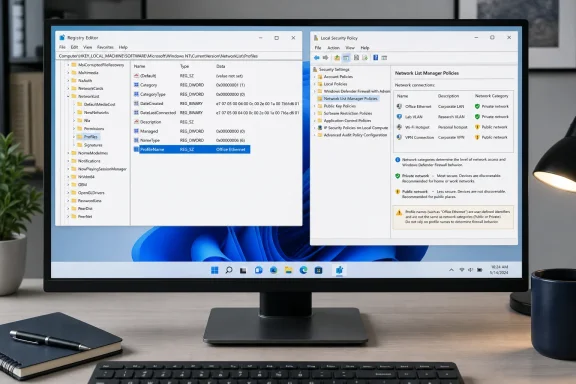 What Windows stores under NetworkList
Microsoft documents that Windows stores network-profile information beneath the NetworkList registry branch. The system uses that data when identifying connections and applying the appropriate network category, including Public, Private, and DomainAuthenticated. Windows also retains records of profiles that are no longer active, which explains why a machine can accumulate a long list of opaque, GUID-named entries over time.
PCWorld’s registry method targets this location:
HKEY_LOCAL_MACHINE\SOFTWARE\Microsoft\Windows NT\CurrentVersion\NetworkList\Profiles
Under Profiles, every folder with a brace-enclosed GUID is a profile record. Selecting one reveals values including ProfileName, which is the text Windows displays for that profile. The intended change is modest: replace the ProfileName string with a clearer description, then restart Windows so the network UI reloads the updated information.
Before editing, export the individual profile key—or at minimum record the existing profile name and GUID. This is not because changing a single string value is inherently high-risk, but because the same location also holds category and historical connection information. Renaming ProfileName is safe territory; deleting profiles or changing unrelated values is a different operation with more unpredictable results.
A practical way to avoid renaming the wrong record is to first run Get-NetConnectionProfile in PowerShell. It reports the active profile’s name, adapter alias, interface index, and network category. Match that displayed name to ProfileName in Registry Editor, rather than guessing from the GUID or editing the first entry named “Network.”
Local Security Policy is the cleaner built-in route
PCWorld’s second method is preferable when it is available: open secpol.msc, go to Network List Manager Policies, open the relevant network profile, select the Network Name tab, and enter a custom name. PCWorld says this interface is available in the Professional, Enterprise, and Education editions of Windows; Home users should expect to rely on the registry route instead.
This is more than a buried convenience panel. Microsoft’s Network List Manager policy documentation confirms that Windows 10 and Windows 11 include policy controls for how networks are listed and displayed, including permissions governing whether users can change network names, locations, and icons. In a managed environment, that detail is the important one: a local rename may be blocked by policy, and a centrally administered policy can override what an individual technician expects to see.
For a single Pro workstation, Local Security Policy offers the clearest visual confirmation that the selected item is the intended network. For enterprise IT, the same policy family is available through Group Policy, making it useful for setting restrictions around who can change the names and categories Windows presents. Administrators should still avoid treating a descriptive local name as an authoritative network identity; it is an administrative aid, not an authentication control.
Do not confuse the name with the firewall profile
The most consequential error in this area is confusing a cosmetic rename with a Public-to-Private change. Microsoft’s Set-NetConnectionProfile PowerShell cmdlet changes a connection’s network category, not its visible profile name. Public networks limit discoverability and sharing, while Private networks allow a PC to be discoverable and usable for configured file and printer sharing. DomainAuthenticated is set when Windows successfully authenticates a domain-joined machine to a domain controller; administrators cannot assign that category manually with the cmdlet.
In other words, a profile called “Trusted office LAN” can still be Public, and a profile named “Network 4” can be correctly configured as Private. The label may improve human comprehension, but it does not alter firewall behavior.
This separation is especially relevant when a Windows device is showing the wrong domain or Public profile. Microsoft’s troubleshooting guidance ties domain-profile detection to DNS resolution, contact with a domain controller, and LDAP connectivity. Editing ProfileName will not solve a machine that cannot identify its domain network. That requires diagnosing the actual detection path, not retitling the record Windows created.
The third-party tool saves clicks, not complexity
PCWorld also recommends a free utility called Network Profile Name Changer. According to PCWorld, it requires no installation, reads the profiles already stored in the registry, and presents them in a list for selection and renaming. It is useful chiefly because it eliminates the tedious GUID-by-GUID search in Registry Editor.
There is a caveat buried in the convenience. PCWorld notes that Windows may display a protection warning when the executable is launched and instructs readers to use “More information” and “Run anyway.” That is not proof that the program is malicious, but it is a meaningful threshold for a task Windows can already perform without downloading anything.
For a one-off rename, downloading a ZIP archive and bypassing a Windows warning adds more supply-chain exposure than the task warrants. The utility may be reasonable in a tightly controlled support workflow after the organization has independently vetted the file, checked its publisher and hash, and stored an approved copy internally. It should not be the default recommendation for a home PC or an unmanaged endpoint simply because it has a nicer interface.
A small change with real administrative value
Windows’ failure to expose profile renaming in Settings is an old usability gap, not a networking limitation. The registry value exists, the Local Security Policy interface exposes it on higher Windows editions, and Microsoft documents the policy framework around how those names are controlled. The missing piece is a modern, discoverable Settings page that distinguishes profile names from adapter names and network security categories.
Until that arrives, rename only the ProfileName value or use Network List Manager Policies where available. Leave Category alone unless the goal is explicitly to change Public or Private behavior, and investigate domain-detection failures through DNS, domain-controller reachability, and event logs rather than through a cosmetic label.