
The practical advice is still sound. The Federal Trade Commission separately tells home users to disable remote management, Wi-Fi Protected Setup, and Universal Plug and Play where they do not need them, while keeping router firmware current and using WPA3 or WPA2 Personal Wi-Fi encryption. The important correction is that turning a feature off is only part of the job. A router with an exposed admin interface, an old firmware image, or a weak administrator password remains a problem even if every optional service is disabled.
For Windows users and small-office administrators, the real risk is often an accidental path from the public internet to a PC, NAS, camera, media server, or remote-access device inside the network. Treat every router feature that creates or permits such a path as an exception to document—not a convenience switch to leave on indefinitely.
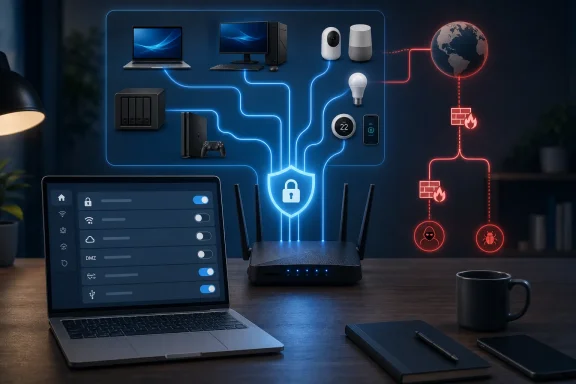 UPnP creates automatic port mappings
Universal Plug and Play, usually shown as UPnP or UPnP IGD in a router interface, allows an app or device on the local network to ask the router for an inbound port mapping. Game consoles, multiplayer PC games, voice applications, and some peer-to-peer software use it to avoid manual network configuration.
That convenience has a clear security trade-off: a compromised Windows PC or an untrusted IoT device can potentially request a public-facing port without the administrator deliberately creating one. UPnP is generally intended to accept requests from the local network, not from the internet, but the local network is precisely where malware lands after a malicious download, a stolen credential, or a poorly secured smart device is compromised.
CISA and CERT/CC have repeatedly warned about UPnP implementation flaws, including CVE-2020-12695, which affected older UPnP specifications and could be abused for distributed denial-of-service traffic. That CVE is not a universal indictment of every current router with UPnP enabled. It is a reminder that UPnP expands the code and protocol surface a router must secure.
The right operational rule is to disable UPnP unless a device demonstrably needs it. If a game or console breaks after doing so, first check whether the title works through relay services or IPv6 without an inbound mapping. If it truly requires one, create a narrowly scoped manual port-forward rule, record why it exists, and remove it when the application is no longer in use.
Manual forwarding is more accountable than automatic mapping, but it is not magically safe. It deliberately exposes a service, so the PC, NAS, or console receiving that traffic must remain patched and protected.
WPS is a legacy convenience feature worth retiring
Wi-Fi Protected Setup was designed to avoid typing a long wireless password. Depending on the router, it can use a push-button pairing window or an eight-digit PIN. The PIN method is the longstanding concern.
Cisco’s 2012 advisory, reflecting the original US-CERT finding, explained that the WPS PIN protocol could allow attackers to verify parts of the PIN separately. On devices without effective rate limiting or lockout behavior, that substantially reduces the work needed to guess the code. Possession of the WPS PIN can then allow a device to join an otherwise well-protected Wi-Fi network.
The age of that flaw is exactly why WPS deserves attention. It is easy to regard it as old news and therefore irrelevant, but older routers, range extenders, ISP-supplied gateways, and cheap access points can persist for years. A 2025 investigation reported by Tom’s Hardware found WPS-related weaknesses remaining in devices from multiple vendors, illustrating that old pairing mechanisms can outlive the equipment buyers assume has been retired.
Disable WPS entirely if the router permits it. The push-button method does not carry the same PIN-design problem, but it still opens a short enrollment window for any nearby device. Modern phones, Windows PCs, and mainstream smart-home products can normally join a WPA2 or WPA3 network by entering a password, scanning a QR code, or using a vendor onboarding flow. There is little reason to retain WPS as a permanent setting.
Remote management should not face the internet
Remote management—also labeled Remote Administration, Web Access from WAN, or WAN Management—lets an administrator open the router’s control panel from outside the home or office network. That means the login service can become visible to internet scanners, password-spraying attempts, and any vulnerability affecting the router’s web interface.
The FTC explicitly recommends disabling it for home Wi-Fi networks. That is the correct default, particularly where a router’s administration page uses only a password rather than multi-factor authentication, has unclear update support, or exposes an insecure HTTP interface alongside HTTPS.
Users who need remote access should avoid solving the problem by exposing the router’s management page. A VPN hosted on a maintained firewall, router, or dedicated device is the safer pattern: authenticate to the VPN first, then manage the router as if you were on the local network. This also allows administrators to limit access to named accounts and, on more capable gear, require multi-factor authentication.
There is a second check that matters here: disable remote management on the router and verify the setting applies to the WAN interface. Some interfaces distinguish remote management over Wi-Fi, Ethernet, mobile-app cloud access, and the public internet. A vague “remote access” toggle can control only one of those paths.
A DMZ host is not a firewall bypass—but it is broad exposure
How-To Geek is right to warn against using the router’s DMZ Host option as a quick fix for a game, console, or troublesome application. The feature commonly forwards unsolicited inbound traffic that does not match another rule to one selected internal IP address. It is the broadest inbound exposure most consumer routers offer.
Calling it a setting that “strips away” the target device’s firewall is imprecise. A Windows PC still has Windows Defender Firewall, and a NAS or console may have its own host protections. The router’s DMZ setting does not normally turn those off. What it does do is remove the router’s usual protection against unsolicited inbound traffic for that chosen device, making the host firewall and every listening service far more important.
A DMZ host is particularly dangerous when assigned to a Windows computer, a NAS running SMB or a web dashboard, an IP camera, or an aging IoT hub. These products frequently expose management pages, file sharing, media services, or remote-access components that were designed around local-network assumptions.
If a connection issue leads someone to suggest DMZ hosting, first reserve the device’s local IP address in DHCP and identify the precise protocol and port involved. In many cases the underlying issue is double NAT, carrier-grade NAT, an outdated game service, or an ISP gateway placed in front of a separate router. DMZ does not repair those architecture problems; it only hides them by exposing one device more broadly.
Forgotten forwarding rules deserve an audit
Port forwarding is an intentional inbound route from the internet to a local device. It is necessary for some self-hosted services, remote gaming arrangements, VPN servers, and specialty applications. The danger comes from rules that nobody can explain.
Old rules may point at a PC that has been repurposed, a NAS with unpatched software, a camera system installed by a contractor, or an IP address that DHCP has since handed to a different device. A rule originally made for a Minecraft server can become a route to a Windows desktop if addressing has changed and reservations were not used.
Audit the forwarding table rather than assuming it is empty. Keep only rules that meet three tests:
- The administrator can identify the device, service, port, and person responsible for the rule.
- The device has a fixed DHCP reservation or static address, current firmware or operating-system updates, and a working host firewall.
- The service is genuinely required from outside the network rather than merely convenient.
Delete anything that fails those tests. If a service must remain externally reachable, prefer a VPN, modern identity-aware remote access, or a vendor-supported relay service over directly publishing a Windows machine’s Remote Desktop Protocol, SMB shares, or a NAS administration page.
USB sharing and media servers are services, not decorations
A router’s USB port can expose a connected drive through SMB, FTP, DLNA, a “personal cloud” function, or a vendor app. Those features are often presented as harmless extras, but each starts a network service that needs updates, authentication, and an understood access boundary.
The most significant distinction is whether the service is local-only or remotely accessible. An SMB share limited to the LAN is still something to secure, but it is not equivalent to an FTP server reachable from the public internet. Administrators should check the router interface for separate cloud, remote-file, FTP-over-WAN, web-disk, and media-sharing switches; disabling only one may leave another running.
FTP should be treated with particular suspicion because traditional FTP does not protect credentials or data in transit. Older SMB implementations also deserve scrutiny. If a router’s file-sharing feature offers no way to confirm a current protocol version, create distinct accounts, or limit remote access, the safer choice is to turn it off and use a maintained NAS or Windows-based file-sharing solution behind a VPN.
The broader point from How-To Geek holds: unused services should not run. But performance is not the strongest reason to disable them. The stronger reason is that every active service creates software, credentials, and configuration that somebody must maintain.
Start with the settings attackers actually exploit
Before spending time on every advanced toggle, check the basics that determine whether any hardening effort will hold. Set a unique router administrator password, update the firmware, confirm WPA3 Personal or WPA2 Personal encryption, remove unknown clients, and ensure the built-in firewall is enabled. The FTC also recommends a guest network; it is a sensible place for visitors and many smart-home devices, provided the router’s guest isolation feature actually prevents access to the primary LAN.
Then disable WPS and WAN-side remote management as straightforward defaults. Review UPnP, DMZ, forwarding rules, and USB or cloud services based on an inventory of what is actually in use.
The worthwhile outcome is not a router interface with every switch off. It is a network where every public-facing path has an owner, a purpose, a maintained endpoint, and a reason to still exist.