
For Galaxy owners trying to stretch a phone through a full workday, Always On Display is the first setting worth testing. MakeUseOf estimates that leaving it enabled cost 10% to 15% of daily charge on its test device. OLED panels draw little power for black pixels, but an always-visible clock and notifications still require the display subsystem to wake and refresh.
Samsung’s alternative is simple: use the lock screen only when needed. Go to Settings > Lock screen and AOD > Always On Display and disable it. Pair that with Settings > Advanced features > Motions and gestures > Double tap to turn on screen if a quick glance is preferable to a constantly lit display.
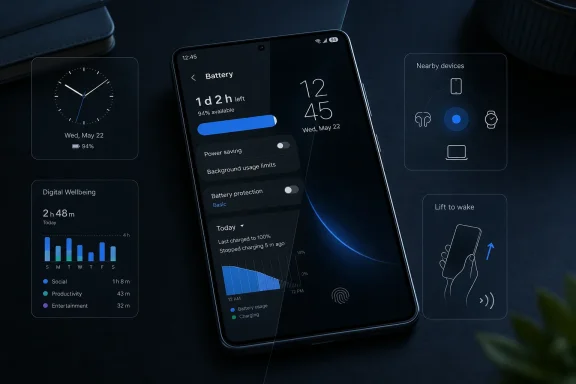 Convenience Features Add Up in Standby
Digital Wellbeing is another candidate for users who do not rely on screen-time reports, app timers, or parental controls. The feature tracks app use, unlocks, pickups, and notification activity to produce its reporting. MakeUseOf argues that disabling its usage-data access removes that background monitoring load.
On supported Galaxy software versions, the setting is found at Settings > Digital Wellbeing and parental controls > menu > Settings > Usage data access. Turning it off means losing the quality of the usage reports; it is not a universal battery fix, but it can be a reasonable trade for users who never check them.
Nearby Device Scanning has a clearer functional compromise. Samsung describes it as a way to discover available devices and make connections easier, including Galaxy accessories and other nearby hardware. Switch it off at Settings > Connections > More connection settings > Nearby device scanning if rapid pairing prompts and proximity-based setup are not part of the daily routine.
The feature can be useful during initial setup of new accessories, so administrators and power users should treat it as an on-demand option rather than assuming it is permanently unnecessary. Manual Bluetooth pairing remains available with the scanning toggle disabled.
Motion Detection Is Small, but Constant
Lift to wake is the fourth setting in MakeUseOf’s list. It uses the phone’s motion sensors to recognize when the device is picked up and activate the screen, a polished feature that can also produce unwanted wake-ups while the handset is moved in a pocket, bag, or car.
Disable it through Settings > Advanced features > Motions and gestures > Lift to wake. Double tap to wake remains a lower-interaction alternative for users who still want fast lock-screen access.
None of the last three changes should be expected to transform battery life alone. The practical message is that Galaxy battery tuning works best as a controlled test: disable one or more idle conveniences, use the phone normally for several days, and compare Screen On Time and end-of-day charge before deciding what functionality is worth restoring.
