
The appeal is less about a hidden Samsung feature than a practical redesign. Clear the Home screen, keep a small number of useful widgets, and let search and the app drawer handle everything else. For Galaxy users who want a cleaner phone without giving up stock One UI integrations, it is a worthwhile alternative to changing launchers entirely.
 Turn the Home Screen Into a Dashboard
According to How-To Geek, the suggested setup begins in Settings > Home screen, where users can disable options such as adding newly installed apps to the Home screen. Samsung phones also allow Home-screen pages to be added or removed by pinching inward on an empty area.
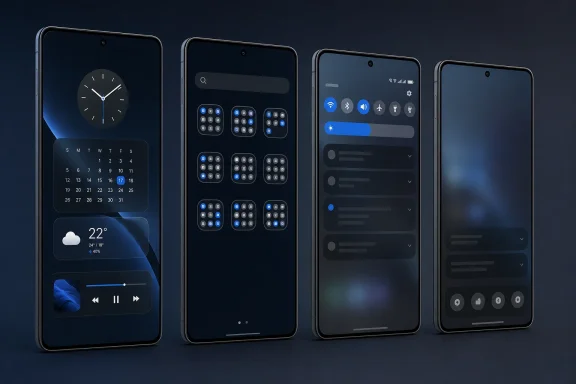
The core idea is to replace rows of static icons with widgets that expose useful information or controls: calendar appointments, weather, camera access, media playback, gallery photos, or Samsung Modes and Routines. A routine widget can be particularly useful for quickly enabling a work profile, changing sound settings, or triggering other automation without digging through Settings.
That approach works especially well on Galaxy Z Fold devices, where the cover screen and unfolded display can maintain separate Home-screen layouts. A compact outer screen may need only essential utilities, while the inner display has room for a larger calendar, task list, and work widgets.
The App Drawer Is the Real Launcher
Samsung’s stock launcher is often dismissed because the Home screen can become cluttered quickly. But One UI’s app drawer supports manual organization, folders, multiple pages, and search—enough to make it a usable replacement for a conventional icon-packed launcher layout.
How-To Geek recommends grouping applications by purpose rather than relying on alphabetical sorting: financial apps on one page, work tools on another, and less-used Samsung or Google apps inside folders. The result is not necessarily faster than universal search, but it can be more predictable for people who build routines around the same apps every day.
The most important toggle is Swipe down for notification panel, found in Home-screen settings on supported Galaxy devices. Samsung’s own documentation describes it as a way to open notifications by swiping down anywhere on the Home screen, reducing the reach required on larger phones. Depending on the One UI version and Quick Panel configuration, the gesture can also interact differently with the separated notifications and quick-settings panels.
A Better Fit Than a Third-Party Launcher for Some Users
Third-party launchers remain more flexible for custom grids, gesture mappings, icon packs, and backupable layouts. But they can also miss Samsung-specific refinements, especially on foldables, and may not integrate as cleanly with One UI widgets, routines, or changing screen states.
For users already comfortable with Samsung’s software, the simpler answer may be to stop treating the Home screen as an app directory. Put the information and controls that matter on the first page, organize the drawer once, and use search for everything else. The stock launcher is not new—but configured this way, it can feel like a different phone.
