
The most effective approach is to begin with the controls already built into the platform, then expand outward only as needed. Screen Time, Microsoft Family Safety, and Google Family Link are usually stronger than browser-only tools because they connect restrictions to an account or managed device. DNS filtering and router controls offer broader coverage, while the hosts file remains a practical but limited option for one computer.
The critical distinction is this: a website block is only as strong as the layer where it is enforced. If it lives inside Chrome, switching to Firefox can defeat it. If it applies only on home Wi-Fi, mobile data can evade it. If it filters only domain names, a VPN or encrypted DNS configuration may work around it.
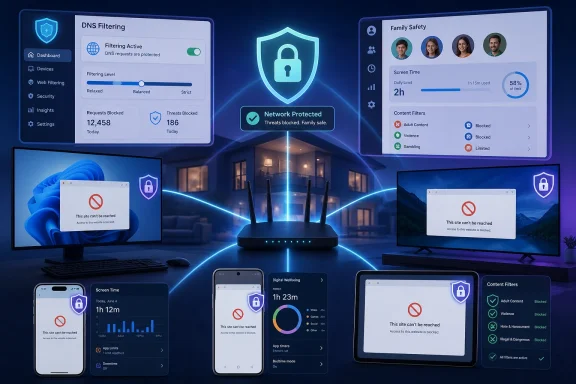 Choose the Right Level of Website Blocking
Before changing settings, define what needs to be blocked and who needs to be covered. The wrong tool can create a false sense of security, especially for parental controls.
One website on one browser
A browser extension is often enough when the goal is productivity. Blocking a social network, news site, gambling site, or shopping destination during work hours does not necessarily require router administration or device management.
This method is convenient, but it is weak against deliberate circumvention. Another browser, a private browsing session in some cases, a different user profile, or simply removing the extension may restore access.
One child account across their devices
For a supervised child, use the platform’s family-management system:
- Apple Screen Time for iPhone, iPad, and Mac
- Microsoft Family Safety for Windows, Xbox, and Edge-based web filtering
- Google Family Link for supervised Google Accounts, Android devices, Chromebooks, and Chrome controls
These controls can combine website restrictions with app controls, time limits, installation restrictions, and activity reporting. They are not perfect, but they create a more coherent policy than individually configuring each browser.
Every device on a home network
Router controls or filtered DNS are the best fit for a household rule. They can cover phones, tablets, smart TVs, game consoles, and guest devices without installing software everywhere.
However, network-wide filtering only applies while a device uses that network. A phone that switches to 5G or public Wi-Fi is no longer protected by a home-router rule unless it also has device-level filtering.
One Windows or Mac computer, regardless of browser
The hosts file can block named domains at the operating-system level. It is useful for a technically managed PC, testing environment, kiosk, or self-imposed productivity setup.
It is not a reliable parental-control solution by itself. A user with administrator rights can undo it, and modern apps or browsers may use techniques that reduce its effectiveness.
Block Websites on iPhone and iPad with Screen Time
For iPhone and iPad, Screen Time is the built-in route for restricting specific websites. It is a far better starting point than relying on Safari settings alone, because Safari’s fraud warnings and pop-up controls are not custom website blocklists.
Block individual websites
To restrict specific addresses on an iPhone or iPad:
- Open Settings.
- Select Screen Time.
- Choose Content & Privacy Restrictions.
- Turn on Content & Privacy Restrictions.
- Open App Store, Media, Web, & Games.
- Select Web Content.
- Choose Limit Adult Websites.
- Under Never Allow, tap Add Website.
- Enter the URL or domain to block.
This option is useful when a device generally has open web access but needs a short deny list. Add the main domain and important variants where appropriate. For example, blocking one exact hostname may not necessarily address every regional or subdomain variation a service uses.
Use an allow-list for a locked-down device
For younger children or highly restricted devices, select Only Approved Websites instead of limiting adult content. This reverses the model: the web is blocked by default, and only approved sites can be opened.
An allow-list is much stronger than a blocklist because it does not rely on identifying every unwanted destination. Its downside is administrative overhead. Educational services, login pages, embedded video platforms, payment portals, and content-delivery domains can all require additional approvals.
Prevent easy browser switching
A website restriction is less useful if the child can install a different browser, VPN app, or alternate web-enabled app. Screen Time can help reduce that risk by restricting built-in apps and preventing new app installations.
For a more robust child setup:
- Disable or restrict Safari through Allowed Apps & Features where appropriate.
- Prevent app installation changes through purchase and installation restrictions.
- Use a strong Screen Time passcode that the child does not know.
- Review installed browsers, VPN applications, proxy tools, and privacy-focused browsers.
- Avoid sharing the parent device passcode if it can be used to alter family settings.
This is still not equivalent to enterprise mobile-device management. Determined users may discover alternate routes through messaging apps, social platforms, cloud gaming services, or embedded in-app browsers.
Use Screen Time on Mac for Website Restrictions
macOS includes Screen Time controls that closely mirror Apple’s mobile approach. This makes it a sensible choice for families that use both Macs and iPhones.
Configure web-content restrictions
On a Mac:
- Open the Apple menu and choose System Settings.
- Select Screen Time.
- If managing a child through Family Sharing, choose the child from the Family Member menu.
- Open Content & Privacy.
- Enable Content & Privacy.
- Go to App Store, Media, Web, & Games.
- Find the web-content controls for Safari.
- Choose Limit Adult Websites.
- Use the customization options to add blocked or allowed sites.
Interface labels can vary slightly across macOS releases, but the important settings remain within Screen Time and Content & Privacy.
Add a time limit instead of a total block
A complete ban is not always the right answer. If a site is useful for school, work, or communication but becomes distracting, an App Limit can be more practical.
Set a short website limit and enable the option to block access after the limit is reached. This creates friction without turning routine access into a constant administrative task.
Time limits work best when:
- The site is not essential throughout the day.
- The user understands the purpose of the limit.
- The Screen Time passcode is not shared.
- Other browsers and alternate accounts are also considered.
A website limit applied only to Safari will not necessarily control Chrome, Firefox, or another browser unless those are managed separately.
Block Websites on Windows with Microsoft Family Safety
Windows does not provide a universal, consumer-facing custom website blocklist built directly into every browser. For family accounts, the primary built-in path is Microsoft Family Safety.
The strength of this method is integration with a Microsoft family group and Windows account controls. Its central limitation is equally important: web and search filtering applies through Microsoft Edge when the family member is signed in with their Microsoft account.
Set blocked and allowed sites
In the Microsoft Family Safety app:
- Open Microsoft Family Safety.
- Select the relevant family member.
- Open Content filters.
- Enable filtering as needed.
- Add addresses under Blocked Sites or Allowed Sites.
The same controls are also available from the Microsoft account’s Family Safety area on the web. There, administrators can enable inappropriate-site filtering, create blocked-site entries, and use an allow-list-only mode.
Use “Only use allowed websites” carefully
The strictest Family Safety option is Only use allowed websites. This is effective for younger children because it makes access opt-in rather than relying on an ever-growing blacklist.
It also requires maintenance. Modern websites frequently depend on third-party sign-in services, embedded learning platforms, video hosts, analytics domains, and content-delivery networks. A school site might appear broken until its necessary supporting domains are allowed.
Close the alternate-browser loophole
Family Safety’s website filters are designed around Edge. Installing Chrome, Firefox, Opera, Brave, Tor Browser, or another browser can undermine the policy.
For a meaningful Windows child-account configuration:
- Use a standard, non-administrator child account.
- Block or restrict alternate browser applications with Family Safety app controls.
- Review browser installations periodically.
- Keep Edge signed in to the supervised Microsoft account.
- Restrict VPN and proxy applications where appropriate.
- Use router or DNS filtering as a second layer.
This layered approach matters because blocking browsers is not the same as blocking every path to the internet. Apps with embedded web views, remote-access tools, and unmanaged mobile devices can still create gaps.
Use Google Family Link for Android and Supervised Chrome Accounts
Google Family Link is the strongest built-in option for Android devices managed with a supervised child Google Account. It can also manage Chrome browsing restrictions for the child’s account on several platforms.
Configure Chrome website controls
To manage site access in Family Link:
- Open the Family Link app.
- Select the child.
- Tap Controls.
- Open Google Chrome and Web.
- Choose the browsing restriction level.
- Use Manage sites to open Approved sites or Blocked sites.
- Tap Add a website and enter the desired domain or URL.
The available modes generally include:
- Allow all sites — blocks only the sites manually added to the deny list.
- Try to block explicit sites — uses automated filtering for sexually explicit material.
- Only allow approved sites — creates a browsing allow-list.
Understand the device and browser limitations
Family Link’s Chrome controls are useful, but they are not a universal internet firewall. On Android and Chromebooks, supervision can be more deeply integrated. On Windows, Mac, iPhone, and iPad, a child may be able to sign out of Chrome, use another profile, or open a different browser.
That means Family Link is most effective when paired with platform controls:
- On Android, manage browser app installation and permissions.
- On Chromebooks, use the supervised account and device policy together.
- On Windows or Mac, restrict alternate browsers and local administrator access.
- On iPhone or iPad, use Apple Screen Time for device-level browser restrictions.
Domain versus exact URL matters
When adding an entry, decide whether the policy should cover one address or an entire service. Blocking an exact site such as [www.example.com](http://www.example.com) may not necessarily cover a related subdomain, regional domain, mobile domain, or service endpoint.
For broad restrictions, use the domain form where Family Link supports it. For narrowly targeted controls, use a specific website entry. Test the result in the child’s actual browser rather than assuming the first entry covers every variation.
Use Browser Extensions for Focus and Convenience
Browser extensions are the fastest route for blocking sites on a personal computer. They are particularly useful for adult users who want help with focus, habit changes, work boundaries, or avoiding distracting content.
Common blockers can provide features such as:
- Blocklists and allow-lists
- Scheduled blocking hours
- Daily time limits
- Redirect pages
- Password-protected settings
- Keyword filtering
- Blocking by category
- Pomodoro-style focus sessions
Chrome and Chromium-based browsers
In Chrome, Edge, Brave, Opera, and other Chromium-based browsers, extensions are installed through each browser’s extension store or approved extension source. After installation, manage the blocked sites through the extension’s settings page.
Keep expectations realistic: Chrome extensions are not a solution for mobile Chrome. They also do not automatically affect other desktop browsers.
Firefox
Firefox supports its own extension ecosystem. A blocker can be installed through the Add-ons manager, then configured with a list of domains, schedules, and exceptions.
Firefox extensions can be excellent productivity tools, but they should not be treated as a tamper-proof restriction for a child with access to the browser’s settings or another browser.
Safari
Safari supports content-blocking extensions on both macOS and iPhone or iPad. On Apple mobile devices, enable them through the Safari extensions area in Settings. On the Mac, use Safari > Settings > Extensions.
A Safari extension may block ads, trackers, elements, or known domains depending on its design. For a custom, dependable website deny list on iPhone or iPad, Screen Time remains the core Apple solution.
Use DNS Filtering for Broader Coverage
DNS filtering blocks access when a device tries to translate a domain name into an IP address. Since most connections begin with DNS resolution, this can protect many apps and browsers at once.
It is one of the best options for home networks because it works beyond traditional computers. Smart TVs, consoles, tablets, streaming devices, and IoT equipment can all benefit if they use the router’s assigned DNS service.
What DNS filtering does well
DNS filtering is effective for:
- Adult-content categories
- Known malware and phishing domains
- Specific domain deny lists
- Broad household filtering
- Multiple device types
- Network-wide protection without per-browser extensions
It is also relatively easy to deploy at the router level. Every device that receives DNS settings from the router can inherit the filter automatically.
What DNS filtering cannot reliably do
DNS filtering is not a complete web-content inspection system. It generally cannot distinguish one page from another inside the same domain. If a service hosts both useful and unwanted content under one domain, blocking it may be all-or-nothing.
DNS filters can also be bypassed by:
- VPN applications
- Secure proxy services
- Browsers using their own encrypted DNS resolver
- Manually assigned DNS settings
- Direct IP-address access in limited situations
- Mobile data connections that bypass the home router
This does not make DNS filtering ineffective. It means it should be paired with device restrictions when bypass resistance matters.
Android Private DNS
Android’s Private DNS feature can apply encrypted DNS filtering across Wi-Fi and cellular networks. On many Android devices, the path is:
- Open Settings.
- Select Network & internet.
- Open Private DNS.
- Choose Private DNS provider hostname.
- Enter the provider hostname.
- Save the setting.
For example, CleanBrowsing’s Family Filter uses:
family-filter-dns.cleanbrowsing.org
This is a convenient device-level option because it follows the Android phone outside the home. However, a user who can open Settings may be able to disable or replace it unless the device is supervised or otherwise locked down.
Cloudflare 1.1.1.1 for Families
Cloudflare provides filtered resolver addresses designed to block malware, phishing, and optionally adult content.
For malware filtering:
1.1.1.2
1.0.0.2
For malware and adult-content filtering:
1.1.1.3
1.0.0.3
These addresses can be entered at the device or router level. They are simple and free, but they are category filters rather than a personalized, per-domain policy engine.
Custom DNS platforms
Services such as NextDNS, OpenDNS Home, and paid DNS-filtering products can offer more granular deny lists, allow lists, reporting, security categories, and profiles. These are preferable when a household needs to block a specific set of domains while preserving access to the rest of the web.
The trade-off is administration. DNS filtering providers process DNS requests, so users should understand the provider’s privacy policy, account protections, logging behavior, retention options, and subscription limits before deploying one across a household.
Configure Website Blocking on Your Router
Router-level website blocking is the best method when the policy should cover all devices connected to home Wi-Fi or Ethernet. The exact menus vary significantly by manufacturer and firmware.
Look for features named:
- Parental Controls
- Network Controls
- Content Filtering
- Access Control
- Web Filtering
- Security
- Profiles
- Family
- DNS
- Safe Browsing
Many modern router apps allow profiles for individual family members or devices. Assign a phone, tablet, game console, or computer to a profile, then apply schedules, content categories, pauses, or blocked domains.
Practical router setup strategy
A sensible home-network configuration usually follows this order:
- Change the router’s administrator password from its default.
- Update router firmware.
- Create separate profiles for children, guests, and unmanaged devices.
- Enable available parental controls.
- Apply filtered DNS at the router if the built-in controls are limited.
- Test blocks from multiple devices.
- Check whether cellular devices can bypass the rule away from Wi-Fi.
- Review the configuration after adding new devices.
Router controls are not automatically permanent
A child can sometimes evade a network rule by using cellular data, a personal hotspot, a VPN, manually assigned DNS, or a device that is not assigned to the intended profile. Network controls remain valuable, but they should be considered one layer in a defense-in-depth approach.
For high-control environments, combine router filtering with a supervised device account and a non-administrator local account.
Use the Hosts File on Windows and Mac
The hosts file is a local mapping file that can redirect a domain to a non-routable or loopback address. It remains useful for advanced users who want a simple computer-level block without installing an extension.
Block a site in the Windows hosts file
On Windows, the hosts file is located at:
C:\Windows\System32\drivers\etc\hosts
Open Notepad or another text editor as Administrator, then add entries such as:
0.0.0.0 example.com
0.0.0.0 [www.example.com](http://www.example.com)
Save the file without a .txt extension. If Windows refuses to save it, confirm that the editor was launched with elevated administrator rights.
For users who prefer a safer graphical route, Microsoft PowerToys includes a Hosts File Editor that can create backups before changes are made.
Block a site in the macOS hosts file
On a Mac, open Terminal and edit the file with administrator privileges:
sudo nano /private/etc/hosts
Add mappings such as:
0.0.0.0 example.com
0.0.0.0 [www.example.com](http://www.example.com)
Save the file, then refresh DNS behavior if the old result remains cached. The exact cache-flushing command can vary by macOS release, so avoid copying random commands from old tutorials without confirming they match the installed version.
Hosts-file limitations
The hosts file is not a modern, comprehensive content filter.
It has several weaknesses:
- It blocks names, not categories.
- It does not automatically cover every subdomain.
- It requires manual maintenance.
- Administrator users can remove the entries.
- VPNs and specialized apps may bypass it.
- Browsers with encrypted DNS can complicate expected behavior.
- Direct IP access may avoid a hostname-based rule in some cases.
Use it for controlled systems, testing, temporary restrictions, and personal focus—not as the sole safeguard for a child with technical knowledge.
Avoid Mistaking Security Features for Website Blockers
Many browser safety features are important, but they do not replace a custom blocking policy.
- Safari Block Pop-ups reduces intrusive pop-up windows.
- Safari Fraudulent Website Warning alerts users to known deceptive sites.
- Microsoft Defender SmartScreen warns about suspicious or malicious content.
- Chrome Safe Browsing warns about dangerous downloads and unsafe websites.
- Firefox Enhanced Tracking Protection limits trackers and certain cross-site technologies.
These tools improve security and privacy. They do not let an adult user create a dependable, built-in personal deny list for arbitrary websites in every browser.
Similarly, modern Chrome and Firefox installations do not generally include a straightforward consumer setting that says “block these custom sites everywhere.” Extensions, family controls, DNS, router filters, and managed browser policies fill that gap.
Managed Work and School Devices Need Different Rules
On organization-managed computers, website restrictions may be controlled through browser or device-management policies. Administrators can deploy URL allow-lists and blocklists for Edge, Chrome, ChromeOS, and Firefox through management platforms and enterprise policy templates.
On a Windows work or school PC, check:
edge://policy
or:
chrome://policy
These pages show policies applied to the browser. If a website block appears there, local settings and personal extensions will not override it.
Trying to bypass organizational web filtering can violate acceptable-use rules, create security issues, or result in account and device restrictions. For legitimate access problems, the appropriate solution is to request an exception through the organization’s IT or security process.
Build a Layered Blocking Strategy
The best website-blocking setup is rarely one setting. It is a stack of controls chosen for the actual risk level.
For personal productivity
Use:
- A browser extension
- Scheduled focus periods
- Website time limits
- A separate work browser profile
- Optional hosts-file entries for high-friction blocks
This setup is lightweight and respectful of flexibility.
For a child’s iPhone or iPad
Use:
- Screen Time web-content restrictions
- A Screen Time passcode
- App installation restrictions
- Limits on alternate browsers and VPN apps
- Family Sharing management where available
- Router or DNS filtering at home
This protects both on-device browsing and the home network.
For a child’s Windows computer
Use:
- A standard child account
- Microsoft Family Safety
- Microsoft Edge web filtering
- App blocking for alternate browsers
- Router-level DNS filtering
- Restricted administrator access
The key weakness to address is browser switching. A Windows policy that protects Edge but leaves unrestricted browsers installed is incomplete.
For a household network
Use:
- Router administrator security
- Filtered DNS
- Per-device profiles when supported
- Separate guest Wi-Fi access
- Device-level controls for phones using cellular data
- Regular testing and review
The goal is not only blocking websites but ensuring that the rule applies where the user actually connects.
The Bottom Line
Website blocking works best when the tool matches the scope of the problem. Screen Time is the natural answer for Apple devices, Family Link is central for supervised Android and Chrome use, and Microsoft Family Safety is the built-in Windows family option—provided its Edge-only web filtering limitation is understood.
For broader coverage, DNS filtering and router controls extend protection beyond a single browser and can cover an entire household. For one PC, the hosts file remains useful but should be treated as an advanced, easily reversible local measure rather than a complete security boundary.
The strongest configuration is layered: account supervision for the person, operating-system controls for the device, DNS or router filtering for the network, and browser tools for convenience. That combination turns a fragile one-browser block into a practical website-filtering strategy that survives browser switching, new devices, and the realities of modern connected homes.
