
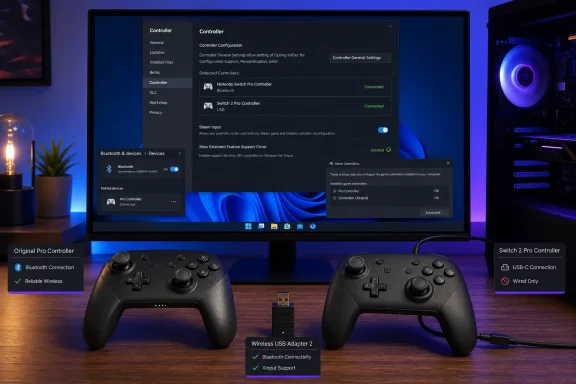
For the original Switch Pro Controller, Windows can pair the pad over ordinary Bluetooth and identify it as “Pro Controller.” Steam Input can then translate that DirectInput device into the controller interface most PC games expect. Connect it by USB-C, or hold the Sync button until the LEDs sweep and select it in Windows’ Bluetooth pairing screen; those are still the shortest routes to a working Steam controller.
The practical boundary is Steam Input versus Windows-wide controller support. PCMag correctly notes that Windows’ native detection of the Switch Pro Controller does not make it an Xbox-style XInput controller. Steam is very good at bridging that gap for games it launches. Windows games started directly through another launcher, an emulator, or a standalone executable may not receive usable inputs without Steam’s translation layer, a dedicated adapter, or third-party software.
 Steam Is the First Fix, Including for Many Non-Steam Games
The most useful step missing from the usual “Steam games only” framing is that a game does not have to be bought from Steam for Steam Input to help. A user can add an installed executable to the Steam library as a non-Steam game, launch it there, and enable Steam Input in that shortcut’s controller settings. When it works, Steam can present the Nintendo controller to the game as a more broadly compatible virtual gamepad while retaining per-game remapping.
That does not make Steam a universal answer. Some launchers start a secondary executable that Steam does not hook correctly; some anti-cheat systems or protected games can be sensitive to input wrappers; and Microsoft Store or Xbox app titles can be especially awkward to route through a third-party launcher. But adding a game to Steam is a safer first experiment than installing a kernel-level virtual-controller driver just to see whether a title will recognize the pad.
Steam’s controller configuration also solves a Nintendo-specific annoyance: the physical A/B and X/Y positions are reversed from Xbox’s labels. Players can choose whether Steam should honor the Nintendo layout or map commands according to Xbox-style on-screen prompts. The better choice depends on the game. A title that shows Xbox prompts may feel less confusing with Xbox-position mapping, while Switch ports and games with Nintendo glyph support benefit from preserving the physical labels.
Use Steam’s controller test and calibration tools before blaming a game for odd movement or menus. A stick deadzone problem, an accidental gyro binding, or a swapped button layout can look exactly like poor native support.
The 8BitDo Adapter Trades Features for Compatibility
PCMag recommends the 8BitDo Wireless USB Adapter 2 as the simpler hardware route for games outside Steam. The recommendation has merit: 8BitDo officially lists the original Switch Pro Controller, Joy-Cons, and Wii U Pro Controller among the adapter’s supported devices, and the receiver can expose compatible pads in XInput mode. That matters because XInput remains the path of least resistance for Windows games designed around Xbox controllers.
There is a trade-off that buyers should understand before spending money. XInput is built around the conventional Xbox gamepad model. It solves recognition and button compatibility, but it does not inherently carry every Nintendo-specific capability. A game using an 8BitDo receiver in XInput mode should be expected to behave like it has an Xbox-style controller attached; Nintendo button prompts, gyro behavior, and more specialized controller features are not guaranteed simply because the original controller supports them on Switch.
The adapter also supports only one controller at a time, according to 8BitDo’s own FAQ. For a couch multiplayer setup, that means one receiver per controller rather than a single inexpensive solution for several Pro Controllers or Joy-Con pairs.
For an original Switch Pro Controller, the decision is therefore fairly clean:
- Use a USB cable when you want the least setup and do not need wireless play.
- Pair over Windows Bluetooth and use Steam Input when Steam is your main gaming front end.
- Add a non-Steam game to Steam before reaching for third-party drivers.
- Use an XInput-capable receiver when a game or launcher refuses to cooperate with Steam Input and you value broad compatibility over controller-specific features.
Switch 2 Pro Controller Wireless Is a Different Problem
The Switch 2 Pro Controller is where PCMag’s guide becomes more than a routine Bluetooth tutorial. Valve has added USB support for Nintendo’s newer controller in Steam Input on Windows, and PC Gamer has independently reported that wired use is the uncomplicated option. Plugging it in is the recommendation for anyone who wants a stable setup without becoming the test case for a young open-source driver project.
Wireless operation is harder because the Switch 2 controller uses Bluetooth Low Energy behavior that Windows does not expose as an ordinary gamepad through its standard pairing flow. Pairing is not the same as receiving usable controller inputs. A device can appear connected in Windows yet remain unavailable to games and Steam in the way users expect from an Xbox, PlayStation, or original Switch Pro Controller.
That distinction explains why PCMag points to Switch2Connect rather than telling readers to repeat the original Pro Controller’s Bluetooth steps. The project’s documentation describes a Windows utility that communicates with Switch 2 controllers and creates usable controller interfaces through additional drivers. It is an active project, which is preferable to relying on abandoned utilities, but active does not mean mature or risk-free.
Switch2Connect requires Windows 10 version 22H2 or later, with Windows 11 recommended by the project. It may ask for administrator privileges to install drivers such as ViGEmBus, WinUHid, or USBIP-related components depending on the emulation mode selected. Those components are powerful precisely because they alter how Windows sees an input device. They should be installed only from the project’s documented sources, not from repackaged downloads or “driver updater” sites.
There are also feature limits. Switch2Connect’s own documentation says the Switch 2 Pro Controller’s wireless headphone-jack audio and microphone support are not available. Users buying the newer controller partly for its 3.5 mm jack should not assume that a wireless PC connection turns it into a headset interface. A wired controller may be useful for game input, but it does not establish that every Switch 2 feature has a corresponding Windows driver path.
Do Not Confuse a Virtual Xbox Pad With Full Nintendo Support
Utilities such as x360ce and BetterJoy have long been used to turn unusual controllers into virtual Xbox 360 controllers. They can still be useful for legacy games, emulators, and stubborn non-Steam software, but PCMag is right to describe the category as finicky. BetterJoy’s public development history is old, while x360ce’s established releases date back years. “Still launches” is not the same thing as a recommendation to install a low-level input stack on a current Windows 11 system.
The main operational risk is not merely failed pairing. Multiple controller tools can compete for the same physical device, leaving users with duplicate inputs, phantom controllers, stuck buttons, or a game that sees two players when only one controller is connected. Steam Input, BetterJoy, x360ce, DS4Windows, reWASD-style tools, and adapter software should not all be enabled at once.
A disciplined troubleshooting sequence is better:
- Disconnect or close other controller-mapping tools before testing a new method.
- Verify the controller in Steam’s controller settings or Windows’ game-controller test panel before launching a game.
- Test one game with one configuration before changing mappings, drivers, Bluetooth hardware, and launcher settings simultaneously.
- If a virtual-controller package causes instability, uninstall its companion driver as well instead of leaving obsolete filter drivers behind.
Joy-Cons add one more wrinkle. Windows sees each Joy-Con as a separate Bluetooth controller. That is expected behavior, not a failed pairing. Combining a left and right Joy-Con into one virtual gamepad requires software that understands the pair, which makes the setup more fragile than using a Pro Controller.
The Best Buy Is Often the Controller You Already Own
For PC gamers who already own the original Switch Pro Controller, PCMag’s basic conclusion holds up: it is a capable pad with a conventional Bluetooth path, solid wired support, and excellent Steam compatibility. It is not a plug-and-play XInput device across every Windows game, but Steam removes that limitation for a large portion of a modern PC library.
The Switch 2 Pro Controller is a more conditional recommendation for Windows use. Its USB path is viable, particularly for Steam players, but its wireless setup currently depends on software that fills a gap in Windows’ Bluetooth controller support. Until Windows or Valve delivers a stable native wireless route, the sensible choice for wireless PC gaming is the older Switch Pro Controller through Steam Input—or an XInput-focused controller designed for Windows from the start.