

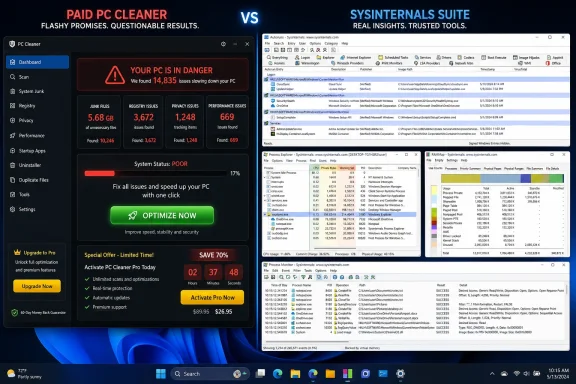
That does not mean every commercial PC utility is fraudulent, or that every paid dashboard is useless. Convenience has value, particularly for people who do not want to inspect a scheduled task, distinguish a signed service from an unsigned one, or learn why Windows is using several gigabytes of RAM for cache. But the familiar promise of a cleaner, faster, healthier PC often depends on bundling basic functions, exaggerating routine conditions, and labeling normal Windows behavior as a problem in need of subscription-priced repair.
For Windows enthusiasts, IT professionals, and anyone comfortable taking a measured approach to maintenance, the argument for a paid “PC cleaner” has become exceptionally weak. Windows handles much of the routine work itself. Sysinternals handles a great deal of the diagnostic work that Windows’ consumer-facing settings do not expose. The remaining gap is usually not capability. It is user interface design, hand-holding, and the willingness to press a large button labeled “Optimize.”
The Core Problem With the Windows Cleanup Utility Market
Most Windows cleanup suites sell a combination of familiar features:
- Startup program management
- Temporary-file cleanup
- Registry cleanup
- “Real-time” performance monitoring
- RAM optimization
- File shredding
- Driver or software update checks
- Browser cleanup
- One-click repair routines
Individually, some of these functions can be useful. Collectively, they create a persuasive impression that a PC needs constant intervention to remain healthy. That impression is often the product being sold.
Modern Windows does not require a recurring third-party cleanup routine to survive ordinary use. The operating system manages memory dynamically, maintains storage, handles update servicing, checks its own system files, and offers built-in paths to remove temporary data and unwanted applications. A machine that feels slow may indeed need attention, but a generic cleaning pass is rarely the most direct or reliable answer.
The key distinction is simple: maintenance is not the same thing as optimization theater.
Deleting temporary files can reclaim space. Removing an unnecessary startup program can improve logon responsiveness. Identifying a runaway application can resolve a real performance issue. But indiscriminately clearing the registry, flushing RAM, disabling unfamiliar services, and erasing caches can create problems while delivering little or no durable performance gain.
Paid utility suites commonly blur those distinctions because the more items they can label as issues, the more compelling their dashboard appears.
Windows Already Covers the Ordinary Cleanup Work
Before considering Sysinternals, it is worth acknowledging the tools already present in Windows. They may not have the theatrical progress bars and red warning counters associated with third-party cleaners, but they handle the basic work safely and transparently.
Storage Sense Is the Sensible Starting Point
For ordinary disk cleanup, Storage Sense is a far better first stop than an aggressive third-party cleaner. It can remove unnecessary temporary files, manage Recycle Bin retention, and offload eligible cloud-backed files based on settings the user controls.
This is important because storage pressure is one of the few common problems that can noticeably affect a Windows PC. When the system drive is nearly full, updates can fail, applications may struggle to create temporary working files, and overall responsiveness can deteriorate. Clearing genuinely expendable files helps.
The critical difference is that Windows does not need to pretend every cached file is a crisis. Storage Sense is designed to manage space, not manufacture a frightening “health score.”
Users should still review its settings carefully, especially options related to:
- Recycle Bin cleanup schedules
- Downloads folder cleanup
- OneDrive files that may be made online-only
- Temporary files that applications are not currently using
That is sensible maintenance: configurable, understandable, and built into the operating system.
Uninstalling Software Beats Cleaning Around It
A surprising number of performance complaints are caused not by “junk files,” but by unwanted or poorly behaved software. Trialware, old game launchers, redundant antivirus products, browser add-ons, RGB control suites, and vendor support tools can all add startup tasks, services, notifications, update agents, and background resource use.
No cleanup dashboard is more effective than removing software that does not belong on the PC in the first place.
The practical order of operations should be:
- Uninstall applications that are no longer wanted.
- Disable unnecessary startup software.
- Review browser extensions.
- Check available storage space.
- Investigate actual CPU, memory, disk, or network activity.
- Only then consider deeper troubleshooting.
This process is less glamorous than clicking “Scan,” but it is also more likely to solve the underlying issue.
Registry Cleaning Remains a Poor Bet
Registry cleaners are among the weakest parts of the traditional Windows utility formula. The Windows Registry is large, complicated, and full of references that may no longer point to active software. That does not mean every orphaned entry is dangerous, performance-limiting, or worth removing.
A registry scan may report hundreds or thousands of “issues” without demonstrating that any of them materially affect startup time, application stability, security, or system speed. The resulting cleanup can range from pointless to disruptive, particularly if the tool removes associations, settings, or compatibility information that an application still expects.
The potential reward is usually microscopic. The potential cost includes broken application behavior, lost configuration, and an unnecessary restoration exercise.
A healthy Windows maintenance strategy does not begin with registry cleaning. In most cases, it does not require it at all.
Sysinternals Is Not a Cleaner Suite — and That Is Its Strength
Sysinternals is frequently misunderstood because it does not look like a modern consumer utility package. There is no glossy scorecard, no animated speedometer, and no artificial urgency. Instead, it is a broad collection of Microsoft-maintained utilities intended for diagnosis, troubleshooting, inspection, and administration.
That approach makes it more powerful than a consumer cleanup suite, but also more demanding.
The Sysinternals suite includes tools for analyzing processes, startup locations, memory usage, networking, disk activity, permissions, handles, services, crash behavior, system configuration, and more. Many are portable, meaning they can be run without a traditional installation process. Several also offer command-line versions suited to scripting and repeatable administration.
It is not accurate to call Sysinternals “built into Windows.” It is a separate, free Microsoft toolkit. That distinction matters because it sets the right expectation: these are advanced utilities, not beginner-friendly maintenance buttons.
Still, for the functions paid cleanup utilities most loudly advertise, Sysinternals often provides the more complete answer.
Autoruns Makes Most Startup Managers Look Superficial
The startup manager is one of the most marketable features in a paid Windows cleanup utility. It is easy to understand: fewer programs starting with Windows should mean a cleaner startup experience. That can be true, especially on systems burdened with launchers, chat clients, cloud sync tools, updater agents, and OEM software.
The problem is that many consumer startup managers expose only the most obvious locations. They show the Startup folder, selected registry entries, and perhaps a few scheduled tasks. That may be enough for casual cleanup, but it is not a complete view of what launches automatically on a Windows system.
Autoruns is built for that complete view.
A Much Broader Autostart Inventory
Autoruns examines an extraordinary range of locations Windows can use to launch code automatically. It can expose entries associated with:
- User logon and system startup
- Registry
RunandRunOncekeys - Startup folders
- Scheduled tasks
- Windows services
- Drivers
- Explorer shell extensions
- Browser-related extensions
- Winlogon notifications
- AppInit DLLs
- Image hijacks
- Boot execution settings
- Winsock providers
- Media codecs
- WMI-based persistence mechanisms
This is not merely useful for shaving seconds from boot time. It is useful for understanding the machine.
A paid utility may tell a user that an item called UpdateService.exe is “high impact.” Autoruns can help reveal where it is configured, where its executable resides, what company signed it, and whether it belongs to a broader startup chain. That is a far more meaningful basis for action.
Filtering Matters More Than Blind Disabling
Autoruns can be intimidating on first launch because a normal Windows installation contains many legitimate auto-start entries. That is precisely why the tool’s filters are so valuable.
One of the most useful approaches is to hide Microsoft-signed entries and focus on third-party software. That does not make everything remaining suspicious; it simply makes the list manageable. From there, users can inspect publishers, file paths, signatures, and configuration locations before deciding whether an entry is necessary.
The correct Autoruns workflow is conservative:
- Create a restore point or system backup before making broad changes.
- Hide signed Microsoft entries to reduce noise.
- Focus on software that is clearly optional or no longer installed.
- Disable an entry first instead of deleting it.
- Restart and test the system.
- Re-enable the item if it was needed.
That “disable before delete” principle is one of Autoruns’ greatest practical advantages. It supports troubleshooting without forcing permanent changes at the outset.
VirusTotal Is Helpful, Not a Verdict
Autoruns can be configured to check file hashes through VirusTotal and display results alongside startup entries. That is extremely useful when investigating an unfamiliar executable, especially one located in an unusual folder or lacking a recognizable publisher.
However, a VirusTotal score is not a substitute for judgment. A detection can be a false positive. A zero-detection result does not prove a file is safe. Context still matters:
- Is the file digitally signed?
- Does its path make sense?
- Is it tied to installed software?
- Is it configured to run with elevated privileges?
- Did it appear after a suspicious installation?
- Does its behavior match its claimed purpose?
Paid utilities often turn this kind of analysis into a simplistic green-or-red label. Autoruns exposes the evidence instead.
Process Explorer Is a Better “PC Health” Dashboard
A standard Task Manager session can solve plenty of everyday problems. It can reveal a CPU-hungry process, show startup impact, identify heavy disk use, and end a frozen program. But when the behavior is unclear, Process Explorer is one of the best free Windows troubleshooting tools available.
It is not a generic “health monitor.” It is better than that because it helps users investigate what is actually happening.
Seeing Relationships, Not Just Resource Totals
Process Explorer presents processes in a tree view, showing parent-child relationships that can explain why something launched. This becomes valuable when a background application spawns multiple helpers, an updater starts unexpectedly, or a web browser creates a large collection of subprocesses.
It can also expose much more information than a glossy PC optimization dashboard typically provides, including:
- Detailed CPU and memory activity
- Process ownership and command lines
- Loaded DLLs
- Open file handles
- Network-related information
- Digital signature details
- Process priority and affinity
- GPU-related activity
- Parent and child process relationships
The difference is fundamental. A cleanup suite may say, “Your PC is under strain.” Process Explorer helps answer, “Which executable is responsible, what launched it, and what is it touching?”
Finding the Application That Locked a File
One of the most annoying Windows problems is a file that refuses to delete, rename, move, or eject because another program is using it. Consumer utility suites sometimes offer a file-unlocker feature as though it were a premium convenience.
Process Explorer can identify processes with open handles, helping determine which application has a file or folder locked. The related Handle utility provides a command-line route for similar investigation.
This is exactly the kind of task that demonstrates Sysinternals’ practical value. It does not offer a vague repair button. It helps identify the responsible process so the user can close the application, save work, stop an unnecessary service, or restart only when appropriate.
Process Monitor Goes Even Deeper
For difficult performance or application problems, Process Monitor is the next step beyond Process Explorer. It records real-time file system, Registry, process, and thread activity.
That can sound excessive for home users, and sometimes it is. But it is invaluable when an application hangs during launch, repeatedly accesses a missing file, gets denied access to a folder, or floods the disk with unexpected activity.
A paid cleanup tool may classify an application as “slow.” Process Monitor can show repeated failed file lookups, permission errors, or a background loop causing the slowdown. It replaces guessing with evidence.
The trade-off is complexity. Process Monitor can capture enormous amounts of data quickly, so filtering is essential. But the fact that it is available at no cost changes the calculation for anyone considering a paid “diagnostic” suite.
SDelete Is Real Secure Deletion, With Important Limits
File shredders are among the more legitimate premium features in cleanup suites. Ordinary deletion removes the file’s directory reference and marks its storage space as available, but the underlying content may remain recoverable until new data overwrites it.
That is a real concern in some circumstances, particularly with older magnetic hard drives, sensitive documents, and systems being prepared for disposal or transfer.
SDelete provides secure deletion and free-space cleansing capabilities through a command-line interface. Unlike a decorative “shredder” button hidden in a maintenance suite, it is a serious utility intended to overwrite data in ways that make conventional recovery substantially more difficult.
Why SDelete Deserves More Respect Than a Bundled Shredder
SDelete can securely delete selected files and directories, and it can also cleanse unallocated free space on a specified volume. It supports configurable overwrite passes, allowing administrators to match the operation to the relevant policy or threat model.
That makes it useful for cases such as:
- Removing sensitive documents from a hard drive before handing it to another user
- Clearing free space after deleting confidential files
- Sanitizing files in a controlled desktop environment
- Preparing legacy storage for reassignment
- Reducing the chance of simple undelete tools recovering old data
The utility is powerful because it is narrow in purpose. It does not pretend secure deletion is the same thing as a performance boost.
SSDs Change the Conversation
Secure deletion is more complicated on SSDs than on traditional hard drives. Flash storage uses wear leveling, overprovisioning, garbage collection, and the TRIM command. As a result, software-level overwrites cannot always guarantee that every physical location formerly containing data has been rewritten in the same way they can on a conventional spinning disk.
This is a crucial qualification. Running a file shredder on an SSD may create extra writes and still not offer an absolute sanitization guarantee. For drives that are being retired, repurposed, or disposed of, the better route is typically the manufacturer’s secure erase or sanitize process, along with appropriate encryption and key-management practices.
For currently active devices, full-disk encryption changes the risk model dramatically. If a drive is encrypted from the beginning and its encryption keys are properly destroyed during retirement, rendering the data inaccessible can be more practical than trying to overwrite every physical flash block.
So SDelete is useful, but it is not magic. Users should not treat any file shredder as a universal solution for SSD sanitization, cloud copies, backups, sync folders, email attachments, or previously exported files.
RAMMap Explains Memory; It Does Not Need to “Boost” It
RAM booster tools have survived for years because they exploit an easy misunderstanding: Windows using a large amount of memory does not automatically mean Windows is wasting it.
Windows intentionally uses available RAM for caching and performance. Empty memory is not inherently more valuable than memory being used intelligently. When another application needs memory, Windows can reclaim cache space and adjust allocations dynamically.
This is why many “memory optimization” tools provide a short-lived illusion of improvement. They may force data out of RAM, making a graph look cleaner, while simply ensuring the system has to load that data again later.
RAMMap offers a more honest approach. It is an advanced physical memory analysis tool that shows how memory is being used across categories such as processes, file cache, kernel allocations, driver usage, standby lists, and physical pages.
Diagnose First, Clear Nothing by Reflex
RAMMap is useful when memory behavior seems unusual:
- A system appears to have persistent memory pressure
- A driver may be consuming excessive nonpaged pool memory
- Cached file data is unexpectedly large
- A process is retaining memory long after its workload should have ended
- An administrator needs to understand where physical RAM has gone
It is not a tool for routine “RAM cleaning.” Its value lies in explanation.
That distinction is important because it captures a broader difference between Sysinternals and paid optimization suites. Sysinternals generally gives users visibility and control. Cleanup suites often give users a button that promises relief without explaining what is being changed.
The Tools Paid Suites Cannot Easily Replace
Autoruns, Process Explorer, Process Monitor, RAMMap, and SDelete are only a fraction of the Sysinternals catalog. Several other utilities make the suite even harder to dismiss as a free alternative.
TCPView and Network Visibility
TCPView shows active TCP and UDP endpoints, the owning processes, and connection states in real time. It is useful when a PC appears to be communicating unexpectedly, when an application cannot connect, or when a background process is consuming network resources.
It is not a replacement for enterprise-grade network monitoring, but it is far more informative than a vague “network optimizer” label.
Sigcheck and Trust Verification
Sigcheck can inspect digital signatures, hashes, version information, and other file details. It is a useful companion to Autoruns and Process Explorer when investigating unfamiliar executables.
A suspicious file name alone proves little. Signature information, publisher details, location, and hash reputation create a more reliable picture.
ProcDump and Crash Investigation
ProcDump can create process dumps for applications that hang, crash, or consume excessive CPU. It is an advanced tool, but it can transform an intermittent mystery into evidence that a developer, administrator, or support professional can actually analyze.
That is not a “cleaner” feature in the consumer sense. It is far more valuable when a Windows problem is genuine.
Disk Usage and the Search for Space Hogs
When storage runs out, users often turn to cleaners before finding out where the space went. Sysinternals includes Disk Usage, a command-line utility that can help identify large folders and files.
Combined with Windows Storage settings, uninstall options, and sensible review of personal files, this provides a more honest path to recovering space than deleting browser cache files while ignoring a forgotten virtual machine folder or a massive game library.
Where Paid Windows Utilities Still Have a Case
The conclusion should not be that every user ought to replace a consumer utility suite with a folder full of Sysinternals executables. That would simply exchange one kind of poor recommendation for another.
Paid utilities can offer legitimate advantages:
- A simple, centralized interface
- Guided explanations for non-technical users
- Scheduled basic cleanup
- Integrated customer support
- Fewer intimidating technical options
- Bundled features beyond cleanup, such as backup or security services
- A simpler maintenance workflow for family members or small offices
For someone who wants a controlled interface for clearing temporary files and managing a small list of startup apps, a paid tool may be easier to use. The question is whether that convenience is worth an ongoing subscription, especially when Windows already provides safe cleanup options and Sysinternals provides professional-grade diagnostics.
The answer will vary by user. But convenience should be described honestly as convenience, not as a vital performance service that Windows cannot function without.
The Risk of Giving Beginners Advanced Tools
Sysinternals has risks of its own. Disabling the wrong service, driver, scheduled task, or startup entry can break application features, hardware utilities, VPN software, security components, or even normal Windows behavior.
Process Explorer can terminate critical processes. Autoruns can disable items that look unnecessary but are required by specific software. SDelete can permanently destroy data. Process Monitor can overwhelm an inexperienced user with information.
That means a responsible Sysinternals approach includes guardrails:
- Do not change an item simply because its name is unfamiliar.
- Research publishers, file paths, and dependencies before disabling entries.
- Prefer disabling over deleting in Autoruns.
- Create a restore point before broad startup or system changes.
- Back up important data before using destructive tools.
- Treat memory and registry “optimization” claims with skepticism.
- Use security software and Windows updates as the first line of defense against malware.
The suite is powerful precisely because it trusts the user with real system visibility. That is not the same as being beginner-proof.
The Best Windows Cleanup Strategy Is Usually Less Dramatic
A sustainable Windows maintenance routine is not complicated. It does not require a subscription, a constant background monitor, or a weekly registry scan.
A practical approach looks like this:
- Keep Windows, drivers, browsers, and major applications updated.
- Use Microsoft Defender or another reputable security product.
- Enable and configure Storage Sense according to personal preferences.
- Remove software that is not used.
- Review startup items occasionally, starting with Task Manager and escalating to Autoruns when necessary.
- Investigate persistent resource use with Task Manager, Process Explorer, and Process Monitor.
- Keep enough free space on the system drive for updates and everyday use.
- Maintain backups rather than relying on cleanup tools to undo mistakes.
- Use secure deletion only when the storage type and threat model justify it.
- Avoid registry cleaners and routine RAM boosters.
This is less exciting than a one-click “Deep Scan,” but it reflects how Windows actually works. Most PCs do not need to be aggressively cleaned. They need unwanted software removed, storage kept under control, and genuine problems investigated with the right tool.
Free Does Not Mean Second Best
Sysinternals does not make paid Windows cleanup utilities universally obsolete. It does make their marketing claims much harder to take at face value.
If a suite sells startup management, process inspection, file unlocking, memory analysis, network visibility, file verification, secure deletion, and troubleshooting tools as premium capabilities, Microsoft already provides more capable versions of many of those functions without a subscription. Windows itself covers much of the routine cleanup work that does not require forensic-level diagnostics.
The compromise is obvious: Sysinternals is not polished consumer software. It does not flatter the user with a score, hide complexity behind a bright green button, or promise an instant speed boost. It expects caution, curiosity, and a willingness to learn.
For those willing to meet that expectation, the payoff is substantial. Sysinternals replaces vague optimization claims with evidence, replaces superficial dashboards with real visibility, and replaces recurring fees with tools that solve actual Windows problems.