
The distinction matters. Samsung Modes and Routines, Google’s assistant-driven features, and other stock Android tools can solve common scenarios well enough. Yet they generally steer users toward a limited menu of triggers and outcomes. Tasker takes a fundamentally different approach: it exposes a toolkit of conditions, actions, variables, logic, and integrations that can be combined into systems rather than one-off routines.
As How-To Geek’s recent overview argues, that flexibility makes stock automation look surface-level once Tasker clicks. It also explains why Tasker has remained relevant in an Android world increasingly filled with AI assistants and manufacturer-specific automation panels. AI can suggest an action. Tasker can execute a precisely defined workflow repeatedly, locally, and predictably—provided its creator has designed it carefully.
For Windows users in particular, that distinction is increasingly valuable. A modern phone is not a separate island. It is a camera, authenticator, messaging device, file collector, network endpoint, and remote control that sits beside a Windows PC all day. Tasker can turn that collection of disconnected behaviors into a workflow that bridges the pocket and the desktop.
 Overview: What Tasker Actually Does
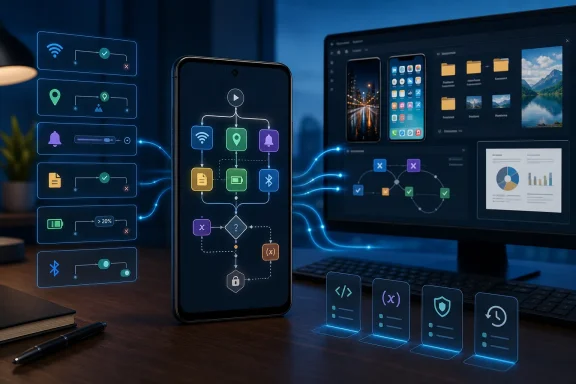
At its core, Tasker is an event-and-condition automation engine for Android. Its central building blocks are Profiles, Tasks, Actions, and Variables. A profile combines one or more contexts—conditions such as a time range, Wi-Fi network, app state, Bluetooth device, location, or incoming notification—and then runs a task when those conditions are true. Tasker can also associate an exit task for the moment those conditions stop being true. The app’s own documentation describes Profiles as the layer that links contexts to tasks, with distinct entry and exit behavior. Tasker’s user guide provides the clearest summary of that model.
That framework may sound familiar to anyone who has used an “If this, then that” service. The important difference is how far Tasker lets the logic go. A profile does not have to be a single trigger paired with a single action. It can work with multiple conditions, store values in variables, branch based on those values, call other tasks, make web requests, manipulate files, and respond differently to success or failure.
Tasker’s Google Play listing says the app supports more than 130 states and events and 350-plus actions, covering areas that range from Wi-Fi and Bluetooth conditions to incoming calls, SMS, current music playback, notifications, device settings, file operations, media control, and location functions. The same listing emphasizes that most features do not require root access, though a smaller group of system-level actions can still be restricted by Android’s security model. Google Play’s Tasker listing is candid on both the breadth of the app and the practical limits imposed by the operating system.
That last point is crucial. Tasker is not a magic bypass for Android. It is powerful because it works deeply with the permissions, APIs, integrations, and accessibility hooks Android permits—not because it can ignore platform safeguards. Some automations will require explicit permissions. Some will require companion apps or plugins. Others will simply be impossible without root, depending on the Android release and device maker.
Still, the usable portion of Tasker’s feature set is enormous. For most enthusiasts, the constraint is not a lack of capability. It is learning how to translate a daily annoyance into reliable logic.
Why Stock Android Automation Feels Limited
The automation tools included with Android phones are not useless. In fact, their narrowness is often intentional. A manufacturer routine system can be easier to understand because it limits the number of decisions a user has to make. Pick a location, select “mute phone,” save the routine, and move on.
That works well for basic personal settings. The trouble starts when a workflow needs context.
Consider a simple request: silence a phone at the office. A stock routine may do that based on time, location, or a selected Wi-Fi network. But a user may want a more careful version:
- Silence the ringer only on weekdays.
- Leave alarms and calls from favorite contacts enabled.
- Do not activate when working from a nearby coffee shop.
- Set media volume to a low level rather than zero.
- Disable an always-on display.
- Re-enable normal settings only after disconnecting from the office network and leaving the office location.
- Send a desktop notification when the phone has returned to personal mode.
That is no longer a simple routine. It is a policy. Tasker’s value is that it treats the phone as something programmable enough to express the policy.
The app’s use of variables is especially important here. A variable is a named value that can change over time: battery level, time, a counter, the current network, text from a notification, or a value produced by another action. Tasker can substitute variables into actions and use them for branching decisions. The Tasker documentation explains that variables can represent changing values and be evaluated as tasks run.
That capability separates rigid automation from a system that can remember state. A workflow can track whether a work session has already started, count screenshots captured during a day, avoid duplicate alerts, or handle a “first connection” differently from subsequent connections.
The Real Strength: Combining Contexts
Tasker is strongest when several weak signals become one confident decision.
Location alone can be unreliable indoors. Wi-Fi alone can be misleading when a network has a wide range. Time alone cannot tell whether someone is actually working. Combining them, however, can produce a substantially more useful automation:
- The device connects to the office Wi-Fi.
- It is between 8:00 a.m. and 6:00 p.m. on a weekday.
- The device is within the office location boundary.
- A work calendar or connected Bluetooth headset is present.
- A task applies the appropriate work profile.
That same idea applies to personal life. A “driving” workflow can depend on a car Bluetooth connection, charging state, movement, and a time delay to avoid activating while merely standing near the vehicle. A nighttime workflow can check charging, location, screen state, and an alarm schedule before muting unnecessary alerts.
This is where Tasker becomes less like a menu of phone shortcuts and more like an automation platform.
Profiles, Tasks, and Exit Logic: The Parts That Matter
The Tasker vocabulary can initially feel more technical than it needs to be, but the model becomes straightforward once each component has a job.
Profiles Are the “When”
A Profile answers the question: When should this process run? It can be driven by an event, a state, time, location, application state, hardware connection, sensor condition, notification, or another supported context.
Some profiles are momentary. An incoming SMS is an event that happens once. Others remain active over time. A Wi-Fi connection, for example, persists until the device disconnects. This distinction affects how a workflow should be designed.
Tasker’s profile documentation notes that entry tasks run when a profile becomes active, while exit tasks run when it becomes inactive again. Instant profiles, such as certain event-based conditions, behave differently because they do not remain active long enough to have a conventional exit state. Tasker’s profile guide outlines those differences.
Tasks Are the “What”
A Task is the procedure that runs after a profile activates. It can contain one action or dozens of actions arranged in a sequence.
Common actions include:
- Adjusting ringer, media, alarm, or notification volume.
- Toggling appropriate connectivity settings.
- Opening an app or deep link.
- Showing a notification or speaking text aloud.
- Creating, moving, renaming, or uploading files.
- Sending a message or web request.
- Reading clipboard content or system state where permission allows.
- Setting or evaluating variables.
- Calling another task as a reusable subroutine.
Tasker can nest tasks using its Perform Task action, allowing users to build reusable components instead of copying a long sequence into every automation. Its documentation also warns that settings performed inside called tasks are not necessarily restored when a profile exits, a technical nuance that becomes important as projects grow. Tasker’s Perform Task documentation details this behavior.
Exit Tasks Are the Safety Net
An Exit Task is the part many beginners overlook—and it is often the difference between helpful automation and a frustrating phone.
Suppose an entry task reduces the ringtone volume, enables a dark theme, turns off a display behavior, and changes notification settings. What restores those settings when the context ends? In some cases, Tasker can restore a setting automatically if it was changed directly by a profile’s entry task. Tasker describes settings as actions whose effects are reversed when the relevant profile becomes inactive, but it also documents important exceptions, especially when exit tasks or nested tasks enter the picture. Tasker’s settings documentation explains the restore behavior and its caveats.
The practical lesson is simple: never assume cleanup will happen the way you intended. If a workflow makes a meaningful change, test the way it unwinds that change. This is particularly important for volume, radios, display configuration, Do Not Disturb behavior, data handling, and file movement.
A Better Way to Think About Android Automation
The easy mistake is to see Tasker as a way to build flashy phone tricks. It can do that, of course. NFC tags can start routines, a Bluetooth button can launch a task, and a phone can announce contextual information. But the most useful Tasker projects tend to be quiet.
They reduce repeated decisions.
A well-designed automation should eliminate a small friction point without creating a new one. That might mean ensuring a device is configured correctly before a meeting, filing screenshots where they belong, surfacing a reminder only in the right place, or preventing distracting notifications during focused work.
For WindowsForum readers, the best Tasker projects frequently involve cross-device handoff. Android’s stock tools increasingly acknowledge that phones and PCs are connected, but Tasker can give that relationship much more intention.
Screenshot Triage for Windows Workflows
A particularly practical example is screenshot handling. Phone screenshots often start as temporary reference material—an error message, a receipt, a settings screen, a product listing, or a photo that needs to be used in an article or support request. Later, they become a messy gallery problem.
A Tasker workflow can detect a new screenshot, inspect its time or filename, and then perform different actions based on defined rules:
- During working hours, copy screenshots to a designated folder.
- When connected to the home or office Wi-Fi, transfer or queue those files for a desktop destination.
- Rename files using a date-based convention.
- Notify the user if a transfer fails.
- Keep personal screenshots local outside those rules.
- Clear the staging folder only after a successful transfer is confirmed.
The original How-To Geek report describes exactly this kind of use case: automatically moving workday screenshots to a desktop PC with KDE Connect. How-To Geek’s Tasker walkthrough positions it as an example of Tasker eliminating routine file-transfer work.
The bigger point is not the specific transfer tool. It is that a Tasker profile can define when the file is work-related, what should happen to it, and how failures should be handled. That is a more sophisticated solution than manually opening a sharing sheet dozens of times a week.
Network-Aware Phone Behavior
Another useful scenario is network awareness. The phone can behave differently at home, at work, on a trusted hotspot, or on mobile data.
A conservative network profile might:
- Enable a local backup or file synchronization task only on a trusted Wi-Fi connection.
- Defer large uploads when the device is on cellular data.
- Turn on a VPN app or show a reminder when connecting to an untrusted network.
- Disable media auto-download behavior in selected apps where integration permits.
- Notify the user when the phone reconnects to a known home network after being away.
Tasker’s Google Play listing specifically identifies Wi-Fi, location, app state, calls, messages, playback, and other states or events as automation triggers, while also noting its HTTP features and third-party developer integrations. The Play Store listing makes clear why network-aware workflows are a natural fit for the platform.
More Useful Than an AI Guess
AI-powered phone features have obvious appeal because they reduce setup effort. The weakness is that an inferred preference is not the same thing as an explicit rule.
“Learn my routine” features can be helpful for broad suggestions, but they are less suitable for workflows with consequences. A file transfer should happen only under defined network conditions. A notification should be suppressed only when the owner intends it. A message should not be sent because a model guessed at the user’s context.
Tasker is not competing with AI on conversational polish. It is competing on determinism. The user sees the trigger, sees the action list, and can revise the logic. That transparency is a genuine strength for power users.
The Learning Curve Is Not a Footnote
Tasker’s flexibility comes with a cost: the app asks users to think like automation designers.
The terminology can be initially opaque. The difference between a state and an event matters. A variable can be local or global. A task can fail because a permission is missing, a condition is wrong, a system setting has changed, or Android has delayed background execution. The app’s Beginner Mode hides some advanced interface elements, including the Variables tab, export options, Project access, and various detailed settings, but it does not remove the underlying conceptual complexity. Tasker’s Beginner Mode guide lists the UI elements it simplifies.
That is not necessarily a defect. A spreadsheet is harder than a calculator because it can model more things. Tasker is closer to a lightweight visual programming environment than a routine wizard.
Start With One Friction Point
The best first Tasker project is not an ambitious “smart home command center” or a sprawling phone-wide rules engine. It is a single annoyance that can be expressed in one context and one or two actions.
Good beginner projects include:
- Silence a phone at one location
Use a location or Wi-Fi context, then set ringer volume or Do Not Disturb behavior. Add an exit task or confirm restoration behavior. - Change the phone theme by time
Use a nighttime time range to enable a preferred appearance, then restore the daytime setup. - Open a work app when connecting to work Bluetooth
Create a Bluetooth-connected context and launch the selected app. - Notify when a battery threshold is reached
Trigger a notification when the battery level falls below a chosen value, perhaps only when the screen is on. - Create a one-touch “desktop handoff” task
Use a Quick Settings tile or widget to move selected files into a synchronization folder.
Before enabling any automation permanently, run its task manually. This confirms that each action has the expected permission and effect. Then test the profile entering, leaving, and re-entering its state.
Use the Run Log
Tasker includes a Run Log that records profile status changes and task or action execution when enabled. It can show whether a profile became active, whether a task ran, whether an action succeeded, and whether an error stopped execution. Tasker’s Run Log documentation explains its status labels and error states.
That log should become a normal part of troubleshooting. When an automation fails, guessing is inefficient. Check whether the trigger was detected. If it was, check whether the task started. If it did, identify the exact action that failed.
This is especially useful with location, Wi-Fi, notification, and background tasks—areas where Android version differences and manufacturer battery policies can affect behavior.
Android’s Restrictions Are Part of the Design Challenge
Tasker operates within an Android platform that has become progressively stricter about background activity, battery usage, alarms, services, and broadcast handling. Those restrictions are not aimed at Tasker specifically. They are an OS-level attempt to prevent all apps from consuming too much power or waking devices unnecessarily.
Android’s developer documentation explains that background processes can be memory- and battery-intensive, and that user-selected battery restrictions can prevent apps from running normally in the background. Google’s background optimization guidance also notes that a restricted app may be prevented from launching foreground services, running jobs, or triggering alarms as expected.
For Tasker users, this translates into a practical reliability rule: if an automation must run consistently, do not blindly accept aggressive battery restrictions on the app. Check the phone maker’s battery settings, review Tasker’s own guidance for the device, and test the automation with the screen off and after the phone has been idle.
That does not mean turning every app into an unrestricted battery consumer. Android’s own documentation warns that unrestricted background work can consume more power, while Doze and App Standby are designed to defer background CPU and network activity when a device is unused. Google’s Doze and App Standby documentation explains why this tension exists.
The right approach is targeted:
- Exempt or optimize Tasker only when a workflow genuinely needs dependable background behavior.
- Prefer event-driven triggers to frequent polling.
- Avoid unnecessary location checks or repeating tasks.
- Add time limits and conditions so workflows do not run constantly.
- Review logs and battery use after deploying more complex projects.
An automation that runs flawlessly but drains a phone is not a successful automation.
Privacy, Permissions, and the Power-User Trade-Off
Tasker’s ability to work across notifications, location, messages, files, system settings, and connected services should make users more cautious, not less. A tool that can automate meaningful parts of a device deserves the same scrutiny as a password manager, remote access client, or system utility.
According to Tasker’s privacy policy, the app does not access, use, store, share, collect, or transmit user data by default unless the user creates a profile or task that instructs it to do so. The policy also makes an important point that power users should take seriously: if a user builds an automation that sends SMS logs, contacts, images, location data, or other content to a server, then the automation—not Tasker’s default behavior—determines where that data goes.
That means Tasker is best understood as a user-configured data pipeline. It can be privacy-friendly, especially for local-only automation, but it can also be configured to export sensitive information if the creator is careless.
Sensible Security Rules for Tasker Projects
A few habits reduce risk substantially:
- Grant only the permissions an automation needs. Do not enable accessibility, notification access, location, or device administration features without a clear use case.
- Review imported projects before running them. A shared Tasker project may contain web requests, file deletion actions, message sending, or external integrations that are not obvious from a quick glance.
- Treat HTTP actions as code with network access. Check endpoints, authentication details, and what data is being transmitted.
- Avoid embedding passwords or API keys in plain-text variables. Use a safer credential strategy where possible and restrict the permissions of any account involved.
- Build safeguards around destructive tasks. File deletion, message sending, and system-setting changes should use explicit conditions, confirmations, or test modes.
- Use trusted sources for plugins and add-ons. The more integrations a workflow has, the larger its attack and failure surface becomes.
The need for this discipline is not an argument against Tasker. It is evidence that Tasker has real capability. A simple routine app can rarely cause much damage because it rarely has much authority. Tasker’s power makes careful configuration essential.
Plugins Extend the Platform, but Also the Complexity
Tasker does not exist in isolation. Its ecosystem includes plugins and companion utilities that can expose more automation hooks, provide device-to-device communication, or interact with other apps. The official Play listing highlights support for third-party developer integrations and identifies Join as an option for triggering tasks from another Android device or a PC. Tasker’s Google Play listing describes that broader ecosystem.
For a Windows-centric setup, remote triggering is compelling. A PC event could cause an Android alert, a phone event could signal a desktop workflow, or a shared service could act as the bridge between the two. But every external link introduces another point that must be secured, maintained, and debugged.
The best policy is to expand only after the base Tasker workflow is stable. Build the local profile first. Confirm its trigger and exit behavior. Then add the file transfer, PC notification, web hook, or device-to-device layer.
That staged approach makes troubleshooting manageable. If a 12-step project fails, it is much easier to diagnose when each layer was tested separately.
Tasker Is Not for Everyone—and That Is Fine
There are users who should choose a simpler tool. If the goal is a handful of uncomplicated automations with a friendlier interface, apps such as MacroDroid or Automate may be more approachable. Stock routines are often the right answer for users who need only a predictable selection of basic actions.
Tasker makes sense when the limitation of simpler tools has become visible. That moment usually arrives when a user says something like:
- “I need this to happen only if three conditions are true.”
- “I want it to remember what happened earlier.”
- “I need a different result depending on the network or file.”
- “I want the phone to undo this automatically afterward.”
- “I need to connect this Android action to my desktop workflow.”
- “I am tired of repeating the same tiny decision every day.”
Tasker is not polished in the way consumer AI assistants aim to be polished. It does not pretend that automation design is effortless. Its interface and language can feel more like an enthusiast utility than a mainstream Android feature.
But that is also why it remains unusually valuable. It gives users control over the logic rather than offering only a set of pre-approved routines.
The Bottom Line: Android Can Be More Than a Set of Suggestions
Tasker makes a strong case that Android’s greatest automation advantage is not an assistant that predicts intent. It is the platform’s ability to let a determined user define intent precisely.
For a one-time price listed at $4.49 on Google Play in the U.S. at the time of writing, with Play Pass availability also indicated on the store, Tasker offers a remarkably large automation surface. The current Google Play listing confirms both its purchase model and its ongoing inclusion in Play Pass. The money is modest; the real investment is the time spent learning its model and testing its behavior.
That investment pays off when automations are designed around real friction rather than novelty. A phone that automatically enters a reliable work state, files screenshots intelligently, responds to trusted networks, coordinates with a Windows PC, and restores settings cleanly is not merely more automated. It is more intentional.
Tasker will not make every Android owner a power user. It does, however, give power users something increasingly rare in mainstream mobile software: a way to replace vague “smart” behavior with rules they can inspect, refine, and trust.
