
Microsoft’s Microsoft 365 Roadmap entry 560074 is now marked Launched and was updated on August 11, 2026. Its short description makes the change sound like a routine May general-availability release, but Microsoft’s separate rollout notice shows a more complicated schedule: commercial tenants were due to finish later, and GCC, GCC High, and Department of Defense tenants were scheduled to complete in early August. For admins, the important point is that the “Launched” badge is evidence that rollout began and reached its planned phase; it is not proof that every user in every tenant will already see the control.
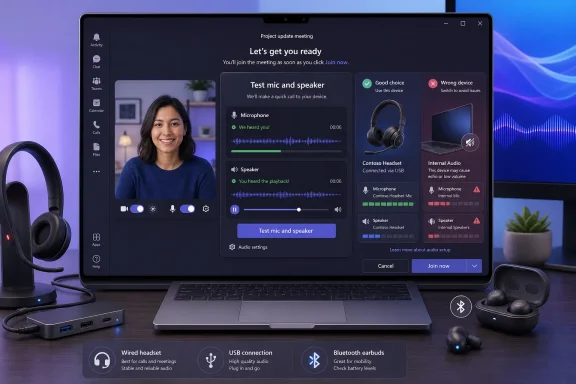 The test sits where the problem occurs
Teams has long offered a “Make a test call” option in its device settings, and Microsoft Support still documents that workflow. It lets users select speakers and microphones, then test the setup outside a live meeting.
The newer control moves that check into the few seconds before a user selects Join now. Microsoft’s Microsoft 365 Insider blog says users choose Test mic and speaker from the pre-join experience under computer audio, then follow a guided sequence. The speaker portion plays an audio tone; the microphone portion captures a short sample and plays it back; a final view confirms whether both tests passed.
That placement changes the practical value of the check. Audio configuration commonly changes between meetings when a user plugs in a USB headset, reconnects Bluetooth earbuds, docks a laptop, or begins using an external display with its own audio device. The saved device selection that worked in the morning can be wrong by the afternoon, and the old test-call path is easy to skip when a meeting starts in two minutes.
A pre-join audio test also gives users something more useful than a device name in a dropdown. “USB Audio Device” may be technically selected, but a tone and voice playback reveal whether it is the headset on the user’s desk, a monitor across the room, or an inactive dock endpoint.
Roadmap ID 560074 conceals a delayed government-cloud rollout
Microsoft’s roadmap lists the feature for desktop and Mac across standard multi-tenant, GCC, GCC High, and DoD cloud instances, with general availability dated May 2026. That is accurate as the beginning of broad availability, but it leaves out the staged deployment dates that matter to organizations supporting regulated tenants.
A preserved copy of Microsoft 365 Message Center notice MC1288530, maintained by Merill, records the revised rollout plan:
- Targeted Release began in early May and was expected to finish by mid-May 2026.
- Worldwide general availability began in mid-May and was expected to finish by late June 2026, later than Microsoft’s earlier late-May target.
- GCC, GCC High, and DoD availability began in late June and was expected to finish in early August 2026, after two earlier estimates had put the end date sooner.
The schedule is the material part the roadmap card omits. A help desk serving commercial Microsoft 365 customers could reasonably expect the setting by late June; a support team serving GCC High or DoD users should have treated it as an early-August deployment. Microsoft updated the Message Center item on July 21, pushing the government-cloud completion target again, while the roadmap itself was updated only on August 11.
The result is a small but useful lesson in reading Microsoft 365 Roadmap status labels. “Launched” describes the release state. It does not replace the Message Center notice when an organization needs a tenant-by-tenant support date, especially across government clouds.
What users should see on the pre-join screen
The new option applies when the meeting is using Computer audio. A user opens a scheduled meeting or starts a meeting, enters the pre-join page, confirms the intended audio mode, and selects Test mic and speaker. Teams then checks the currently selected output and input devices.
Microsoft’s Insider announcement describes the process as a speaker tone followed by a microphone recording and playback. A third-party walkthrough published by Teams trainer Chris Menard shows the same flow in a live client: Teams asks whether the user heard the test sound, then prompts them to speak and pause before replaying the recording. The screens shown there include options to change the selected device if the test fails.
This is a meaningful improvement over an input-level meter. A level meter can show that something is reaching Teams, but it does not tell a user whether Teams selected the intended microphone. A laptop’s built-in microphone may register sound even when the user expected a headset boom mic. Playback makes that mistake obvious before other attendees are waiting.
The speaker check has the same advantage. Teams may list the correct-sounding output device while Windows has exposed several similar endpoints: a dock, an HDMI monitor, Bluetooth headphones, a conference speaker, or a virtual audio driver. Hearing the tone is immediate confirmation that audio reaches the selected hardware.
Microsoft says the feature is enabled by default and requires no administrator configuration. The Message Center notice also says it does not change meeting audio settings or Teams audio policies. That means there is no new tenant-level switch to deploy, no policy migration, and no reason to expect the feature to override restrictions an organization already applies to microphone access or device use.
It reduces the wrong-device problem, not every meeting failure
The new pre-join test gives Teams a better answer to a narrow question: can this client record audio through the selected microphone and play it through the selected speaker or headset? It does not establish that the meeting’s network path will remain stable, that a VPN will not degrade media traffic, that another participant will hear a satisfactory volume level, or that an organization’s endpoint controls will permit a device once the call begins.
Microsoft Support also notes that available audio settings can vary according to organizer or IT-admin policies. Teams still depends on Windows and, where relevant, browser permissions being configured to allow microphone and speaker access. A successful pre-join test is therefore a local readiness check, not a full diagnostic of call quality, policy, network routing, or external audio hardware.
That boundary should shape help-desk guidance. Users who cannot find the new control should first ensure they are joining through the Teams desktop application on Windows or Mac and have selected Computer audio. If it is still absent, the established fallback remains Teams Settings, then Devices, then Make a test call. That older route remains valuable for testing a newly issued headset or diagnosing a persistent configuration problem outside a meeting’s time pressure.
For organizations, there is little deployment work, but there is a worthwhile documentation update. Support scripts that begin with “join the call and tell us whether you can hear anything” can now direct users to test both sides of the audio path before they enter. That should shorten a common class of first-minute meeting disruptions without creating another admin control to maintain.
The immediate consequence for Teams support teams
Roadmap ID 560074 should be treated as available for its stated desktop and Mac audiences, with the caveat that Microsoft’s government-cloud rollout was scheduled to finish only in early August. Organizations that have not yet seen the option should verify the affected user’s tenant, Teams client, and audio mode before assuming a policy block or product defect.
For everyone else, the change is simple: a user can validate the actual microphone and speaker Teams intends to use at the moment it matters, rather than discovering a bad selection after the meeting has already started.