
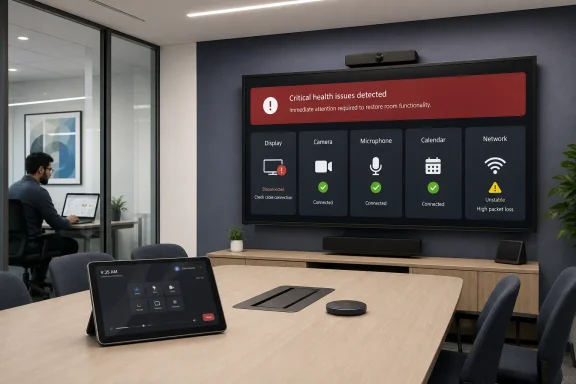
The practical change is that a problem previously visible mainly to administrators in the Teams Rooms Pro Management Portal can now be exposed in the room itself, where the next person attempting to start a meeting will see it. Microsoft’s roadmap description is brief, but its Teams Rooms health-signal documentation shows the underlying monitoring system already tracks failures involving sign-in, calendar synchronization, displays, cameras, microphones, networking, Windows servicing, device peripherals, and the Teams Rooms app itself.
That makes the feature useful for a familiar failure mode: a room looks bookable in Outlook, its console wakes up, and then a meeting starts with no usable display, camera, or calendar. The room user is usually the first person to discover the failure, while the operations team may only learn about it after an executive complains or a support ticket is opened. Microsoft is now putting a fault signal where it can change the immediate decision—move rooms, call support, or fix a cable—rather than relying solely on backend monitoring.
There is an important limit, however. A banner does not make Teams Rooms monitoring real-time, and Microsoft’s own documentation makes clear that some health signals take time to activate.
 The notification is the final stage of an existing monitoring system
Microsoft’s Teams Rooms Pro Management Portal has long used health signals: telemetry-driven checks that open an incident when a monitored property becomes unhealthy. Those incidents can feed automated diagnostics, remediation workflows, support-ticket integrations, and the portal’s room-health and event views.
For Windows-based Teams Rooms systems, Microsoft documents signals for several genuinely meeting-breaking conditions. Teams or Exchange sign-in failures, for example, can leave a room unable to load its calendar or join normally. A disconnected front-of-room display can result in a “No Signal” screen. Camera, microphone, speaker, HDMI ingest, network, and peripheral issues can all be surfaced as health problems depending on the hardware and configuration.
The in-room banner changes the audience for at least some of those incidents. It does not replace the Pro Management Portal, and it does not give users a full diagnostic console. Microsoft says only that the banner appears when “critical issues impact room functionality,” which points to a curated subset of the health-signal catalogue rather than every warning in the portal.
That distinction deserves attention. The documented Windows signal inventory includes conditions such as an older Teams Rooms app version, a non-supported Windows version, Windows Update being disabled, time drift, and an unactivated Windows installation. Those are operationally important, but they do not always mean a scheduled meeting cannot begin. Microsoft has not published a mapping of which specific signal IDs trigger an on-screen room warning, what exact text users will see, or whether administrators can tune that threshold.
For IT teams, the safest interpretation is that the banner should be treated as a user-visible escalation of a critical incident, not as a comprehensive health dashboard.
“Critical” still does not mean immediate
Microsoft’s health-signals documentation puts a material caveat behind the seemingly simple promise of faster issue resolution: the system detects different faults on different schedules. Some properties are checked every five minutes, while others are evaluated only every two hours. Certain checks also enter a watching state before an alert is activated, with a watching period that can last up to 150 minutes.
Microsoft gives calendar synchronization as an example. The service checks it every five minutes, but a 30-minute watching period means the longest detection path can reach 35 minutes. Other signal types have longer potential delays. A display connection issue that arises moments before a board meeting may therefore still be discovered by the person entering the room rather than by the health system.
This is not a flaw unique to the new banner; it is a trade-off built into telemetry monitoring. Short polling intervals and instant alerts can create false positives from a briefly waking display, a transient network interruption, or a peripheral that reconnects during room startup. Microsoft’s delayed activation model is designed to avoid flooding administrators with short-lived incidents.
But it also means organizations should not sell this feature internally as proactive prevention. It is better understood as a fast, visible handoff once Microsoft’s backend decides an issue has persisted long enough and is severe enough to be deemed critical.
The display case shows why configuration still matters. Microsoft’s Teams Rooms operations guidance warns that some front-of-room displays disappear from Windows when they enter standby. Windows then treats them as physically disconnected, which can generate alerts and cause instability. Microsoft recommends configuring displays to stay logically connected over HDMI, and notes that powered EDID emulators can sometimes be used where display hardware does not preserve that connection.
A banner warning about a disconnected display is valuable. A banner caused nightly by an aggressively configured power-saving mode is noise. The feature makes correct room hardware configuration more—not less—important.
Teams Rooms Pro is the entry ticket
Microsoft has placed the feature behind Teams Rooms Pro, not the no-cost Teams Rooms Basic entitlement included with a certified Teams Rooms device. That is consistent with the company’s existing segmentation: Basic covers core room meeting experiences, while Pro includes advanced management, analytics, peripheral monitoring, remote administration, and the Pro Management Portal.
In the United States, Microsoft lists Teams Rooms Pro at $40 per room per month on an annual subscription. The price matters because this feature is aimed most directly at organizations that may otherwise run Basic-licensed rooms: smaller deployments, branch sites, and rooms where no AV technician or onsite desktop support worker is watching a management portal all day.
Microsoft permits up to 25 Teams Rooms Basic licenses per organization, provided the devices are certified. Above that threshold, additional Teams Rooms systems require Pro licensing. But the new in-room health notification does not become available simply because a company has a mixed estate with some Pro rooms and some Basic rooms; the eligible Windows room itself needs the Pro license.
Administrators should also avoid confusing Teams Rooms Pro with Teams Premium. Microsoft’s licensing documentation treats them as separate products: Teams Premium is assigned to users, while Teams Rooms Pro is assigned to the shared room device or its resource account. A Teams Premium subscription on the meeting organizer’s account does not provide this room-management capability.
The roadmap also limits this particular launch to Teams Rooms on Windows. Microsoft’s Pro Management Portal supports health signals across Windows rooms, Android video bars, Android touch consoles, and Teams Panels, but Roadmap ID 508521 does not promise equivalent in-room banners on Android-based Teams Rooms hardware. Enterprises with mixed Logitech, Neat, Poly, Yealink, Surface Hub, and Windows compute-room deployments should not assume a uniform experience.
What Microsoft has not specified
The roadmap entry’s “launched” status indicates that general availability was targeted for May 2026, after a series of earlier schedule changes. A historical roadmap record preserved by Cloudscout shows the target moving from November 2025 to December 2025, then February, April, and finally May 2026 before the status moved from development to rolling out. Microsoft’s roadmap now lists the feature as launched, with an August 11, 2026 update timestamp.
What is missing is the deployment detail administrators need to validate it. Microsoft has not identified a minimum Teams Rooms on Windows app version, a minimum Windows build, the required Pro Management Portal agent version, or a tenant-side control to enable, disable, or customize the banners. It has also not said whether all eligible rooms receive the capability automatically through the Teams Rooms app servicing channel.
Nor has Microsoft documented the user experience once a critical fault is raised. The roadmap does not say whether the banner remains throughout a meeting, whether it overlays shared content, whether it includes a room-specific remediation instruction, or whether a user can dismiss it. It also does not specify whether the warning is shown during digital-signage mode, which can place organizational content on the same front-of-room screens while a room is idle.
Those omissions matter most in heavily used spaces. A warning that appears only on the console helps the person standing at the table; one that remains on the front-of-room display can alert everyone entering the room but may also distract from a live meeting if the health event is non-fatal or incorrectly triggered.
What administrators should do now
Teams Rooms Pro administrators should inspect the health-signal configuration before treating the new banners as an improvement by default. Microsoft allows organizations to enable or disable signals globally and suppress individual room incidents, so existing monitoring choices will shape how useful—or noisy—the front-of-room warnings become.
A practical review should include the rooms that already produce recurring display, sign-in, calendar, or peripheral incidents. Check whether those incidents represent actual meeting failures, then correct the source rather than suppressing the signal merely to keep the room screen clean. For display alerts, verify HDMI cabling, display power behavior, extender quality, and whether the screen maintains HDMI synchronization while asleep.
Organizations should also verify that eligible room resource accounts actually carry Teams Rooms Pro and that the devices are visible and healthy in the Pro Management Portal. Microsoft says a device without a valid Pro or legacy Premium license loses access to Pro management capabilities, and license changes can take time to synchronize.
The new banner is a modest but sensible addition: it turns some backend evidence into an immediate warning at the point where a broken room becomes a failed meeting. Its value will depend less on the banner itself than on whether the Windows room is properly monitored, correctly licensed, and configured so that a critical alert represents a real problem someone can act on.