
That does not mean Ventoy makes Rufus obsolete, nor does it make every boot image magically compatible. It changes the job. Rufus is primarily a tool for constructing a dedicated bootable drive, while Ventoy establishes a reusable boot platform that presents image files on demand. For Windows enthusiasts, repair technicians, and anyone maintaining more than one computer, that distinction can turn a drawer full of obsolete installers into one small, organized toolkit.
 Overview: Why Reformatting Became the Wrong Workflow
The conventional USB-installation routine is familiar. Download a Windows or Linux ISO, launch a utility, choose the target flash drive, write the image, wait for the process to finish, and boot from the result. When a different installer is required, repeat the sequence—usually after sacrificing the existing contents of the stick.
That workflow still has value. Rufus remains a well-established utility for formatting flash media and creating bootable USB drives from ISO images, including Windows, Linux, UEFI-oriented tools, DOS environments, and low-level utilities. Its purpose is direct and focused: turn one chosen image into bootable media.
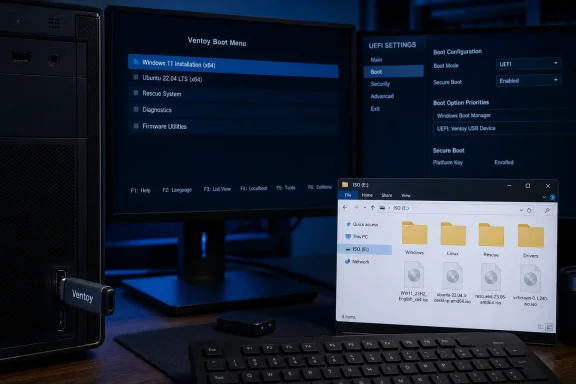
Ventoy operates at a different layer. Instead of unpacking or writing one selected ISO as the drive’s primary content, it installs a small boot framework and leaves the bulk of the USB capacity available for files. At boot, Ventoy scans the data partition, lists supported images, and hands off to the one selected by the user. The project says the software can boot image formats including ISO, WIM, IMG, VHD, VHDX, and EFI, with support spanning Windows, WinPE, Linux, ChromeOS, Unix-like systems, and more. Ventoy’s official feature overview also says it has tested more than 1,400 image files.
The immediate benefit is not merely saving a few clicks. It is eliminating an unnecessary bottleneck in a support or recovery workflow. A single Windows multiboot USB can carry a Windows 11 installer, a known-good Windows PE rescue image, a Linux live environment for data recovery, MemTest86, a disk-management utility, and a collection of vendor diagnostics—without forcing any of those tools to displace the others.
The Core Idea: Install Once, Copy Images Thereafter
Ventoy’s model is straightforward enough that it can initially sound too good to be true. The first installation to the USB drive is destructive, but subsequent work generally is not. Once Ventoy is in place, a new ISO is simply copied onto the main partition with File Explorer, copied from another operating system, or transferred through the normal file-management tools an organization already uses.
According to Ventoy’s getting-started guide, the Windows workflow consists of extracting the downloaded package, running Ventoy2Disk.exe, selecting the target USB device, and choosing Install. The documentation explicitly warns that installation formats the target drive and destroys its data. This is the one stage where selecting the correct device matters more than speed.
After that initial setup, Ventoy’s own instructions are unusually concise: copy image files onto the first partition and boot from the drive. The software recursively searches folders and subfolders, then presents the image files it finds in its boot menu. Ventoy’s documentation confirms that images may be placed anywhere on the main data partition, rather than being restricted to a special root-level folder.
This produces a meaningful change in day-to-day behavior:
- Adding an installer becomes a file copy.
- Removing an installer becomes deleting a file.
- Replacing an outdated release becomes deleting the old ISO and copying the newer one.
- Keeping several operating systems available no longer requires a pile of dedicated USB sticks.
- Retaining ordinary files on the same drive remains possible because the main partition behaves like regular removable storage.
That final point is worth emphasizing. A Ventoy stick does not need to be treated as sacred boot media that must never contain anything else. The project specifically states that normal USB use remains unaffected, and its installation guide notes that ordinary file storage does not interfere with Ventoy’s function. Ventoy’s feature list and installation instructions both make that claim.
What the USB Drive Looks Like After Installation
Ventoy’s convenience relies on a specific disk layout. On a default MBR installation, the USB device is divided into two partitions: a large primary data partition for images and files, plus a small FAT-based EFI System Partition that stores the boot-related components. Ventoy’s disk-layout documentation says the EFI partition is typically 32 MB and should not be altered.
The large partition defaults to exFAT, a sensible middle ground for a portable device intended to move between Windows, Linux, and macOS. It avoids the 4 GB file-size limit associated with FAT32—a practical concern because current Windows installation ISOs and many rescue images can exceed that size. Ventoy supports alternative filesystems including FAT32, NTFS, UDF, XFS, Btrfs, and several Ext variants, but its documentation cautions that Linux-native filesystems can leave the USB unavailable in Windows and unsuitable for Windows installation scenarios. Ventoy’s official disk-layout notes explain both the default exFAT choice and the trade-offs.
For the typical WindowsForum audience, the default configuration is usually the right one:
- MBR offers better odds of compatibility with older Legacy BIOS systems.
- exFAT preserves cross-platform access and accommodates large ISO files.
- The small EFI partition should be left alone.
- The large data partition is where image files, documents, scripts, drivers, and reference material live.
There is also an option to reserve free space at the end of the drive during the initial installation. Ventoy documents this for users who want to create additional partitions for other purposes, but it is an advanced design choice rather than a default recommendation. The project’s partition-configuration documentation notes that Ventoy’s first two partitions must retain their positions and sizes if this approach is used.
Building a Practical Windows and Linux Toolkit
A multiboot USB installer is most useful when it is curated with intent rather than filled indiscriminately. The goal is not to hoard every ISO ever downloaded. It is to keep a compact set of current, verified tools that cover the most likely jobs.
A sensible starting layout
A clean folder structure makes the menu easier to navigate and reduces the risk of booting an outdated image by mistake.
\ISO
 \Windows
 \Linux
 \Rescue
 \Diagnostics
 \Firmware
\Drivers
\Docs
\Scripts
Ventoy can find supported image files in nested folders, so this organization is for the operator, not a strict technical requirement. Its scan behavior is documented here.
A balanced toolkit might include:
- A current Windows 11 ISO obtained directly from Microsoft.
- A Windows PE or recovery environment from a trusted source.
- One mainstream Linux distribution for hardware testing, networking, and file recovery.
- One specialist rescue distribution if it has a clearly defined role.
- A memory-testing tool.
- A disk-imaging, partitioning, or offline antivirus utility.
- Network drivers, storage drivers, and a text file documenting key recovery procedures.
- A small set of portable Windows utilities that do not need to boot.
Microsoft recognizes bootable installation media as a supported route for a fresh Windows 11 installation, and it notes that the required boot-menu key varies by PC maker and model, typically among the function keys or DEL. Microsoft’s Windows 11 installation guidance also warns that a clean installation wipes the target computer’s existing drive, a reminder that bootable media is powerful precisely because it operates outside the installed operating system.
Maintain versions, not just files
The biggest risk in any diagnostic USB is not that a tool will fail to boot. It is that it will boot successfully but be out of date. Old Windows installation media can require substantial post-install patching. Older Linux images can have weaker hardware support. Old recovery software may lack drivers for modern storage controllers or networking hardware.
A disciplined maintenance routine is simple:
- Download updated ISOs only from the developer or vendor that publishes them.
- Retain the prior known-good image until the new one has been tested.
- Use clear filenames with version identifiers.
- Delete superseded images after testing, rather than allowing a menu of ambiguous duplicates.
- Record the date and source of each image in a plain-text manifest stored on the USB drive.
The most important distinction is between having a lot of options and having reliable recovery options. Ventoy reduces the effort required to add an image. It does not validate the source, integrity, licensing status, or suitability of that image for a particular PC.
Secure Boot Is Useful—but Requires Informed Choices
Secure Boot is where a simple “copy the ISO and boot it” story becomes more nuanced. Ventoy supports Secure Boot, but support should not be confused with a completely frictionless experience across every UEFI implementation.
Ventoy’s Secure Boot documentation states that some systems require the firmware setting “Allow Microsoft 3rd Party UEFI CA” before Ventoy will start. On an initial Secure Boot boot, the user may need to enroll Ventoy’s key through a blue key-management screen. The project further notes that releases from Ventoy 1.1.13 onward require enrollment of an additional key in response to the UEFI CA 2023 certificate situation.
That one-time enrollment may be completely reasonable for a technician’s own fleet of machines. It becomes more complicated when the USB drive travels between unknown PCs, business endpoints, or hardware with restrictive firmware policies.
The critical technical caveat is Ventoy’s default policy. The project says its default approach is to fully bypass Secure Boot checks for EFI files loaded through Ventoy. It also provides a Global Control Plugin option for those who want behavior that follows UEFI Secure Boot policy more strictly. Ventoy’s Secure Boot page is explicit on this point.
This does not make Ventoy inherently unsafe. It does mean the operator should understand what they are approving. Enrolling a key is a security-relevant act, not a cosmetic prompt to dismiss automatically.
A responsible Secure Boot checklist
Before using a Ventoy drive on a sensitive or managed system:
- Confirm the image was obtained from its official publisher.
- Verify the image’s checksum when the publisher provides one.
- Understand whether Secure Boot key enrollment is permitted under local IT policy.
- Prefer the project’s stricter policy mode when the operational need supports it.
- Do not use a personal recovery USB as a casual boot device on systems that contain confidential data unless authorization is clear.
Ventoy includes a checksum function directly in its boot menu. The project documents that pressing m on a selected image can calculate a checksum, and it can compare image hashes with associated .md5, .sha1, .sha256, .sha512, or VENTOY_CHECKSUM files. Ventoy’s checksum documentation describes the supported naming and comparison methods. For real-world recovery work, SHA-256 values from the original publisher are the appropriate verification target; an ISO that merely copies successfully is not necessarily authentic or intact.
The Limits of “Drag and Drop”
Ventoy’s central promise is accurate for a broad range of common images, but the phrase “boot every OS” should be treated as an aspiration, not a guarantee. The project has tested a large catalog and explicitly supports many file types and operating-system families, yet a boot chain can fail for reasons that have little to do with whether the file is technically an ISO.
Some images rely on unusual assumptions about the physical USB layout. Others contain aging boot code, require embedded drivers, expect to access the installation media in a specific way, or are designed around a conventional image-writing workflow. The MakeUseOf hands-on account reports that ReactOS did not boot successfully from its Ventoy drive and notes that older Windows 7 media can fail due to USB 3.0 driver limitations rather than a defect unique to Ventoy. The report’s testing notes are a useful reminder that compatibility depends on the image, target hardware, firmware configuration, and driver situation.
Ventoy’s official pages make a more measured claim: many image types and operating systems are supported, with more than 1,400 tested images—not that every conceivable boot image is guaranteed to work. The main project page and the GitHub repository’s feature list both present the platform as broad in scope while maintaining a tested-image framework.
The appropriate response to a stubborn image is not necessarily to abandon Ventoy. It is to choose the right tool for the task:
- Try Ventoy’s normal boot mode first.
- Consult the image publisher’s documentation for known boot requirements.
- Update Ventoy before deciding the image is unsupported.
- Test the ISO in a virtual machine where appropriate.
- Use Rufus or the vendor’s official media-creation tool when a dedicated, conventionally written USB is required.
That last item matters. Rufus remains a strong fallback and sometimes the preferred tool for a one-purpose drive, an unusual boot target, or a scenario that depends on its Windows-specific media options. Its official site describes it as a utility for formatting and creating bootable USB flash drives, rather than a multiboot manager. Rufus’s documentation makes clear that this is not a weakness; it is simply a different design.
Advanced Features That Make the Difference
Ventoy is easy to begin using, but a few features keep a heavily populated drive manageable.
Keep boot images separate from storage files
By default, Ventoy searches all directories and subdirectories for image files. That is convenient on a clean USB stick, but it can become slow if the drive also contains a large archive of documents, installers, backups, or media. Ventoy’s search-configuration documentation warns that scanning huge numbers of files can significantly delay the appearance of the boot menu.
The best practical answer is to store boot images under a dedicated folder, such as \ISO, and store ordinary files elsewhere. Advanced users can configure VTOY_DEFAULT_SEARCH_ROOT so Ventoy searches only a specified directory tree. This turns the boot menu into a deliberately controlled interface rather than an automatically generated list of everything that happens to look bootable.
The small .ventoyignore feature is equally useful. Placing an empty file with that exact name in a folder causes Ventoy to skip that folder and everything below it. Ventoy’s documentation highlights this as a way to prevent non-bootable ISO archives, such as software installation media, from cluttering the menu.
Persistence for Linux requires configuration
A live Linux environment normally forgets changes when rebooted. Persistence allows a live session to retain selected files, settings, and changes, but it is not automatic simply because the ISO sits on a Ventoy drive.
Ventoy supports persistence through a dedicated plugin, persistence data files, and configuration entries in \ventoy\ventoy.json. The official persistence-plugin guide explains that multiple persistence data files can be associated with different images and that support depends on the distribution’s own live-system design. This is powerful for a portable Linux workspace, but it should be configured and tested before it is relied upon for emergency work.
The key word is tested. Persistence varies across distributions, releases, and boot options. A Linux ISO that boots beautifully may still need specific persistence labels, a backend file, or additional kernel parameters to preserve changes correctly.
Upgrading Ventoy without losing the toolkit
Unlike the initial installation, Ventoy updates are designed to preserve the first partition’s contents. Its documentation says the update process leaves the files on the main partition unchanged and prompts for an update when it detects an existing Ventoy installation. Ventoy’s update guidance describes this as a non-destructive operation.
That is a substantial usability advantage. The boot framework can evolve to address new UEFI quirks or image compatibility while the carefully assembled set of ISOs and documents remains in place. Still, “non-destructive” should not be interpreted as “no backup needed.” A USB drive can fail, be lost, or be counterfeited regardless of the software installed on it.
Security, Trust, and the Physical Drive Matter
Ventoy is open source, with project-authored code distributed under GPLv3+ according to its licensing page. Ventoy’s license documentation and its public GitHub repository provide transparency that proprietary boot-media tools may not offer. That is a strength for auditability and community scrutiny, but it does not remove the need for normal software-supply-chain discipline.
Download Ventoy from its official project channels, download operating-system images from their respective official publishers, and verify hashes whenever they are made available. Avoid using random “all-in-one rescue ISO” downloads from untrusted file-hosting sites. The multiboot concept makes it easy to aggregate tools; it should not become a way to aggregate unknown binaries.
The physical flash drive deserves scrutiny too. Cheap or counterfeit USB storage can report a false capacity, corrupt large files silently, or fail under repeated writes. A drive that appears normal in File Explorer may not survive when it is asked to hold several large ISOs and boot from them under pressure.
A professional-grade Ventoy USB should therefore have:
- A reputable, adequately sized USB 3.x flash drive or portable SSD.
- A second copy of the toolkit stored elsewhere.
- Verified ISO hashes.
- Periodic test boots on both UEFI and, where necessary, Legacy BIOS hardware.
- Clear versioning and removal of obsolete images.
- An uncomplicated folder structure that can be understood under time pressure.
Conclusion: One USB Drive, Many Roles—With Boundaries
Ventoy earns its place in a Windows troubleshooting kit because it addresses a tedious reality: bootable USB creation has traditionally been treated as a single-use operation even when the drive itself is perfectly capable of carrying a library of tools. By separating the boot framework from the operating-system images, Ventoy transforms the USB stick from disposable installation media into a reusable platform.
For most users, the winning setup is uncomplicated: install Ventoy once, keep a current Windows installer, one or two trusted Linux live images, a recovery environment, diagnostics, drivers, and documentation arranged in disciplined folders. Use the drive for normal storage when needed, but keep the boot image collection intentional and verified.
The caveats are equally important. Secure Boot enrollment must be understood rather than clicked through, not every unusual ISO will boot cleanly, persistence requires deliberate configuration, and Rufus remains the better choice when a specific image needs a traditional dedicated write. Yet those limits do not weaken the central proposition. They define it.
A well-maintained Ventoy drive is not a magic USB stick that boots literally everything. It is something more valuable: a compact, adaptable, multiboot USB installer and recovery toolkit that stops forcing Windows users to choose one operating system, one rescue environment, or one job at a time.
